Download PDFFree PDF. The Save button below keeps a bookmark and private notes in your account.
AULA WIN60 HE PRO 60% Mechanical Gaming Keyboard User Manual
Model: WIN60 HE PRO | Brand: AULA
1. Introduction
This manual provides detailed instructions for the AULA WIN60 HE PRO 60% Mechanical Gaming Keyboard. Designed for high-performance gaming, this keyboard features Hall Effect magnetic switches, rapid trigger mode, an 8000Hz polling rate, and customizable RGB lighting. Please read this manual thoroughly to ensure proper setup, operation, and maintenance of your keyboard.
Figure 1: AULA WIN60 HE PRO 60% Mechanical Gaming Keyboard with highlighted features.
2. Setup
2.1 Unboxing
Carefully remove all components from the packaging. Ensure the following items are present:
Video 1: Unboxing the AULA WIN60 HE Gaming Keyboard, showing the contents including the keyboard, USB-C cable, and switch puller.
2.2 Connecting the Keyboard
Locate the USB-C port on the back of the keyboard.
Connect the provided USB-C cable to the keyboard.
Plug the other end of the USB-C cable into an available USB port on your computer.
The keyboard will automatically be recognized by your operating system (Windows PC/Laptop compatible).
Note: This keyboard is not compatible with PlayStation 5/4 (PS5/PS4) and OBOX.
2.3 Driver Installation (Web-Based)
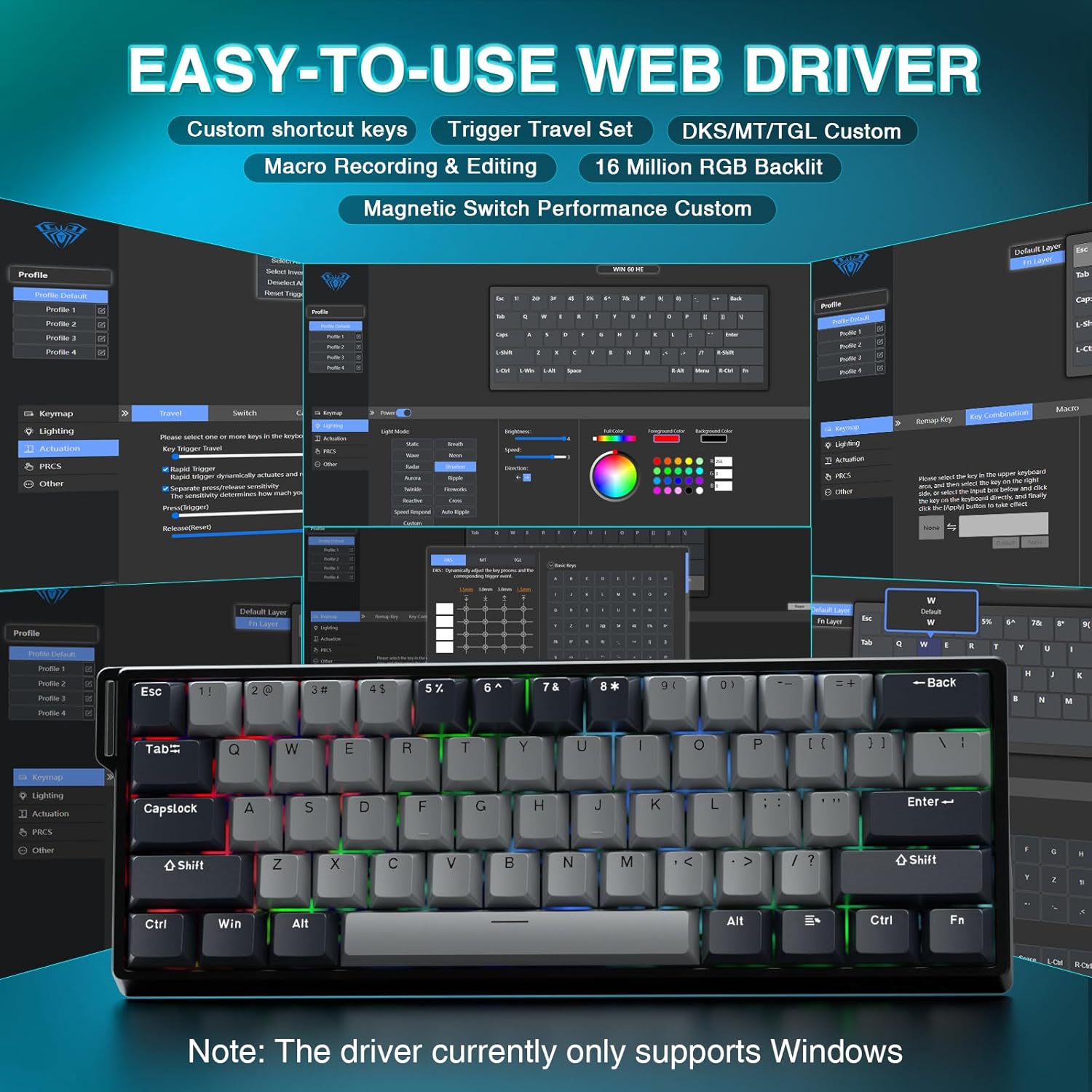
The AULA WIN60 HE PRO utilizes a web-based driver for customization, eliminating the need for software downloads.
Ensure your computer is connected to the internet.
Open your preferred web browser.
Navigate to the official AULA web driver portal (refer to the product packaging or manufacturer's website for the exact URL).
The web interface will allow you to customize settings directly.
Figure 2: Easy-to-use web driver interface for customization.
Note: The web driver currently only supports Windows operating systems.
3. Operation
3.1 Hall Effect Magnetic Switches & Rapid Trigger
The AULA WIN60 HE PRO features advanced Hall Effect magnetic switches, which detect key presses using magnetic fields rather than physical contact. This design provides:
Adjustable Actuation: Customize the actuation point of each key to your preference for faster response or more deliberate presses.
Rapid Trigger Mode: Allows keys to activate and deactivate based on movement rather than a fixed actuation point, enabling ultra-fast repeated inputs and precise control, especially beneficial for FPS games. The ultra-low RT step distance is 0.02mm.
Durability: Absence of physical contact reduces wear and tear.
Figure 3: Rapid Trigger technology for enhanced gaming performance.
Video 2: Demonstrating the hot-swappable magnetic switches, including Gray Wood Magnetic Switch and Wing Chun Magnetic Switch variants.
3.2 8000Hz Polling Rate
The keyboard features an 8000Hz polling rate, meaning it reports key presses to your computer 8000 times per second. This results in:
Ultra-Fast Response Times: Minimizes input lag for immediate in-game actions.
Precision Control: Ensures every keystroke is registered accurately and without delay.
Figure 4: 8000Hz Hyper-Polling Technology for minimal latency.
3.3 Dynamic RGB Lighting
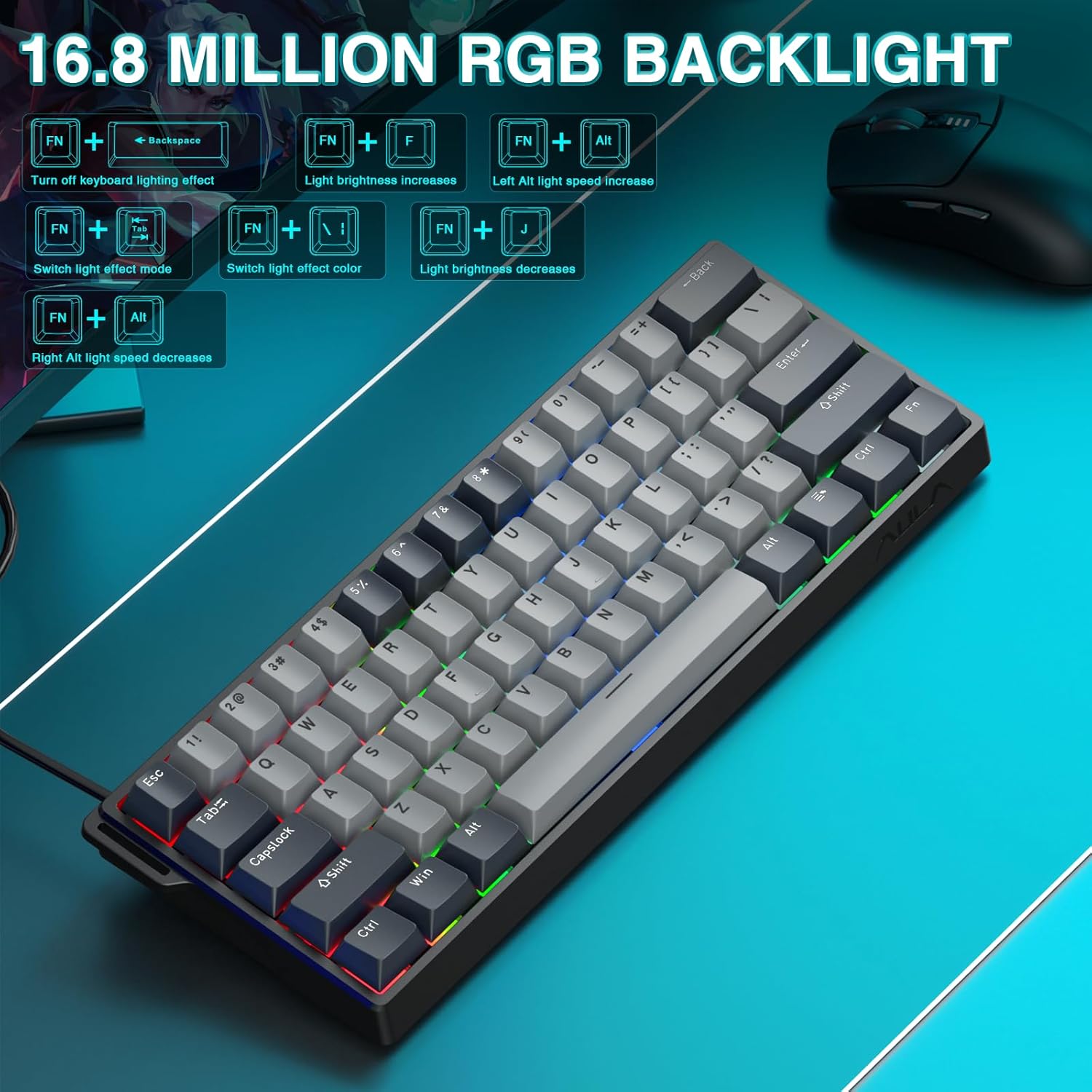
The keyboard offers 16.8 million customizable RGB color options and various lighting effects. Use the following key combinations for quick adjustments:
RGB Lighting Control Hotkeys
Key Combination
Function
FN + Backspace
Turn off keyboard lighting effect
FN + [
Light brightness increases
FN + ]
Light brightness decreases
FN + {
Left Alt light speed increase
FN + }
Right Alt light speed decrease
FN + \
Switch light effect mode
FN + Alt
Switch light effect color
Figure 5: RGB Backlight controls and effects.
3.4 Customization with Web Driver
The web-based driver provides extensive customization options:
Key Remapping: Assign any function to any key.
Macro Creation: Record and assign complex sequences of commands to a single key.
RGB Lighting Customization: Fine-tune lighting effects, colors, and patterns beyond the basic hotkeys.
Actuation Point Adjustment: Precisely set the actuation distance for each magnetic switch.
Access the web driver as described in Section 2.3.
4. Maintenance
4.1 Cleaning the Keyboard
To maintain optimal performance and appearance:
Disconnect the keyboard from your computer before cleaning.
Use a soft, lint-free cloth slightly dampened with water or a mild cleaning solution to wipe the keycaps and chassis.
For dust and debris between keycaps, use compressed air.
Avoid harsh chemicals or abrasive materials.
4.2 Hot-Swappable Switches
The AULA WIN60 HE PRO features hot-swappable magnetic switches, allowing for easy replacement or customization without soldering.
Use the provided keycap puller to gently remove the keycap.
Use a switch puller (not explicitly mentioned as included, but implied by "hot-swappable" and video) to carefully remove the switch.
Align the new switch with the socket and press firmly until it clicks into place.
Replace the keycap.
Caution: Apply gentle force to avoid damaging the switch sockets.
5. Troubleshooting
5.1 Keyboard Not Responding
Ensure the USB-C cable is securely connected to both the keyboard and the computer.
Try connecting the keyboard to a different USB port on your computer.
Test the keyboard on another computer to rule out system-specific issues.
Restart your computer.
5.2 RGB Lighting Not Working
Check if the lighting is turned off using the FN + Backspace hotkey.
Adjust brightness using FN + [ or FN + ].
Ensure the web driver settings haven't disabled lighting.
5.3 Keys Sticking or Not Registering
Clean around the affected keycap to remove any debris.
If a specific switch is faulty, consider replacing it using the hot-swappable feature (refer to Section 4.2).
Check the actuation point settings in the web driver; it might be set too high or too low for your preference.
6. Specifications
Feature
Detail
Model
WIN60 HE PRO
Keyboard Type
60% Mechanical Gaming Keyboard
Switch Type
Hall Effect Magnetic Switch, Hot-Swappable
Connectivity
USB-C Wired
Polling Rate
8000Hz
Special Features
Rapid Trigger Mode, Adjustable Actuation, RGB Backlit, Programmable Keys, Hotkeys and Media Keys, Portable
Compatible Devices
Laptop, PC Windows (Not compatible with PS5/PS4, OBOX)
Product Dimensions
11 x 5 x 1.1 inches (27.94 x 12.7 x 2.79 cm)
Item Weight
2.18 pounds (0.99 kg)
Manufacturer
AULA
Figure 6: Detailed comparison of AULA WIN60 HE series magnetic switches.
7. Warranty and Support
For warranty information, technical support, or service inquiries, please refer to the warranty card included with your product or visit the official AULA/CORBOBO website. You may also contact the seller directly through your purchase platform for assistance.
Ask about setup, troubleshooting, compatibility, parts, safety, or missing instructions. Manuals+ will review the question and use this page’s manual context to help answer it.