
1. Introduction
This manual provides detailed instructions for the JamesDonkey J4 Wireless Custom Mechanical Keyboard. The J4 keyboard features tri-mode connectivity (2.4 GHz, Bluetooth 5.2, USB-C wired), QMK firmware for customization, dual-OS compatibility, hot-swappable switches, and an 80% tenkeyless layout with RGB backlighting. Please read this manual thoroughly to ensure proper setup and operation.

Image 1.1: JamesDonkey J4 Wireless Custom Mechanical Keyboard (Dark Blue variant).
2. Package Contents
Verify that all items are present in your package:
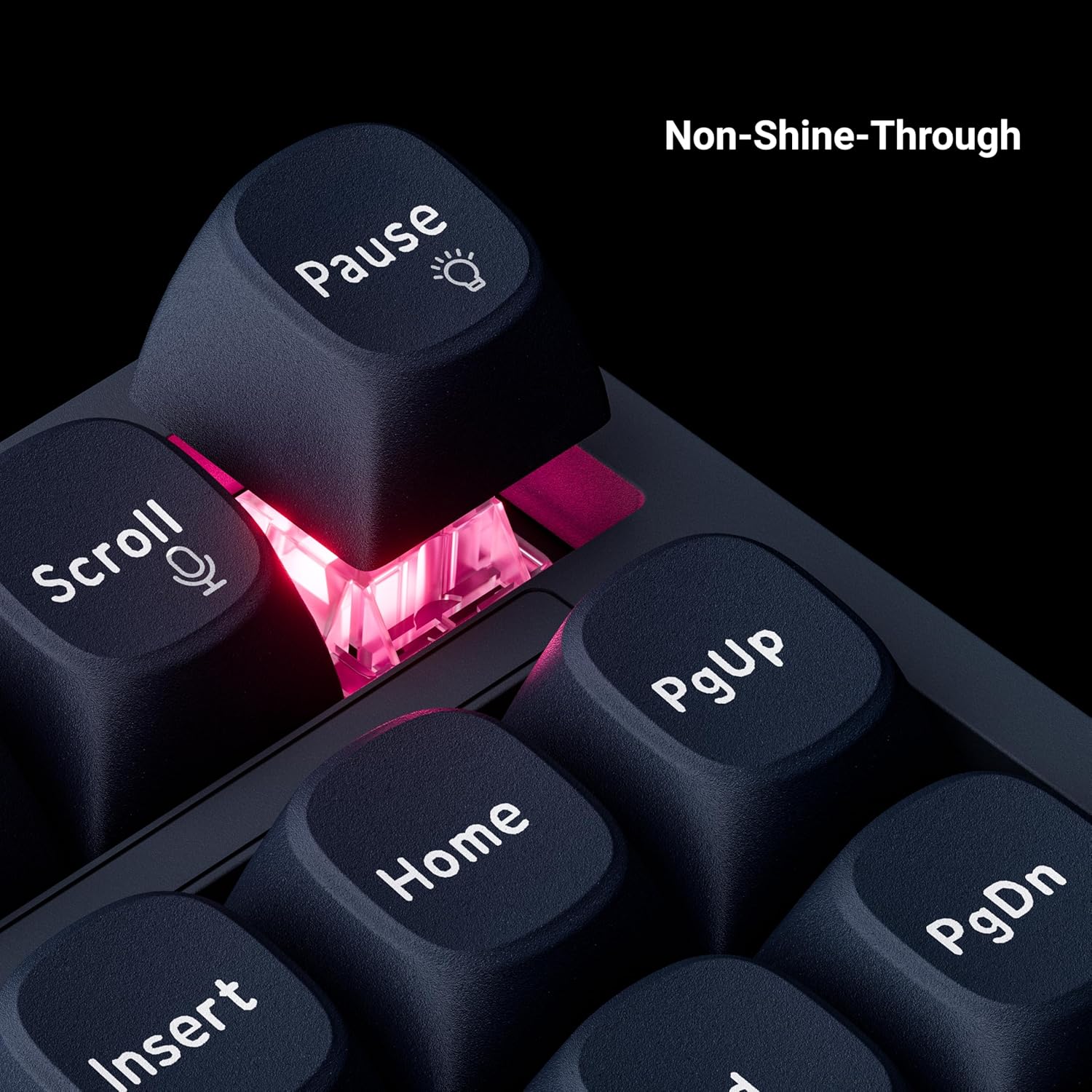
Image 2.1: Diagram showing the keyboard and included accessories.
- 1 x Fully Assembled JamesDonkey J4 Keyboard
- 1 x Type-A to Type-C Cable
- 1 x Type-A 2.4GHz Receiver
- 1 x Keycap & Switch Puller
- Internal Components (Case, PCB, Steel Plate, Sound Absorbing Foam, IXPE Foam, PET Film, Bottom Pad, EPDM Foam, Bottom Case PET Film, Stabilizers, Keycaps, Switches)
3. Setup and Connectivity
The JamesDonkey J4 keyboard supports three connection modes: 2.4 GHz wireless, Bluetooth 5.2, and USB-C wired. The mode switch is located on the side of the keyboard.

Image 3.1: Close-up of the keyboard's side, indicating the mode switch and USB-C port.
3.1. Wired Mode
- Connect the provided USB-C cable to the keyboard's USB-C port.
- Connect the other end of the cable to your computer's USB port.
- Ensure the mode switch on the keyboard is set to the wired position (usually indicated by a cable icon or 'USB').
- The keyboard will be automatically recognized by your computer.
3.2. 2.4 GHz Wireless Mode
- Locate the 2.4GHz USB receiver (dongle) in the keyboard's storage compartment.
- Plug the USB receiver into an available USB port on your computer.
- Slide the mode switch on the keyboard to the '2.4G' position.
- The keyboard should connect automatically. If not, press Fn + 4 to initiate pairing.
3.3. Bluetooth 5.2 Mode
The J4 keyboard can connect to up to three Bluetooth devices.
- Slide the mode switch on the keyboard to the 'BT' position.
- To enter pairing mode for a specific slot, press and hold Fn + 1, Fn + 2, or Fn + 3 for 3 seconds. The indicator light will flash rapidly.
- On your device (computer, tablet, etc.), enable Bluetooth and search for new devices.
- Select "JamesDonkey J4" from the list of available devices to pair.
- Once paired, the indicator light will stop flashing.
- To switch between paired Bluetooth devices, press Fn + 1, Fn + 2, or Fn + 3 briefly.
4. Operating Instructions
4.1. QMK & Web-based Launcher Customization
The JamesDonkey J4 keyboard is QMK compatible, allowing for extensive customization of key layouts, macros, and settings through a web-based launcher. No software installation is required.
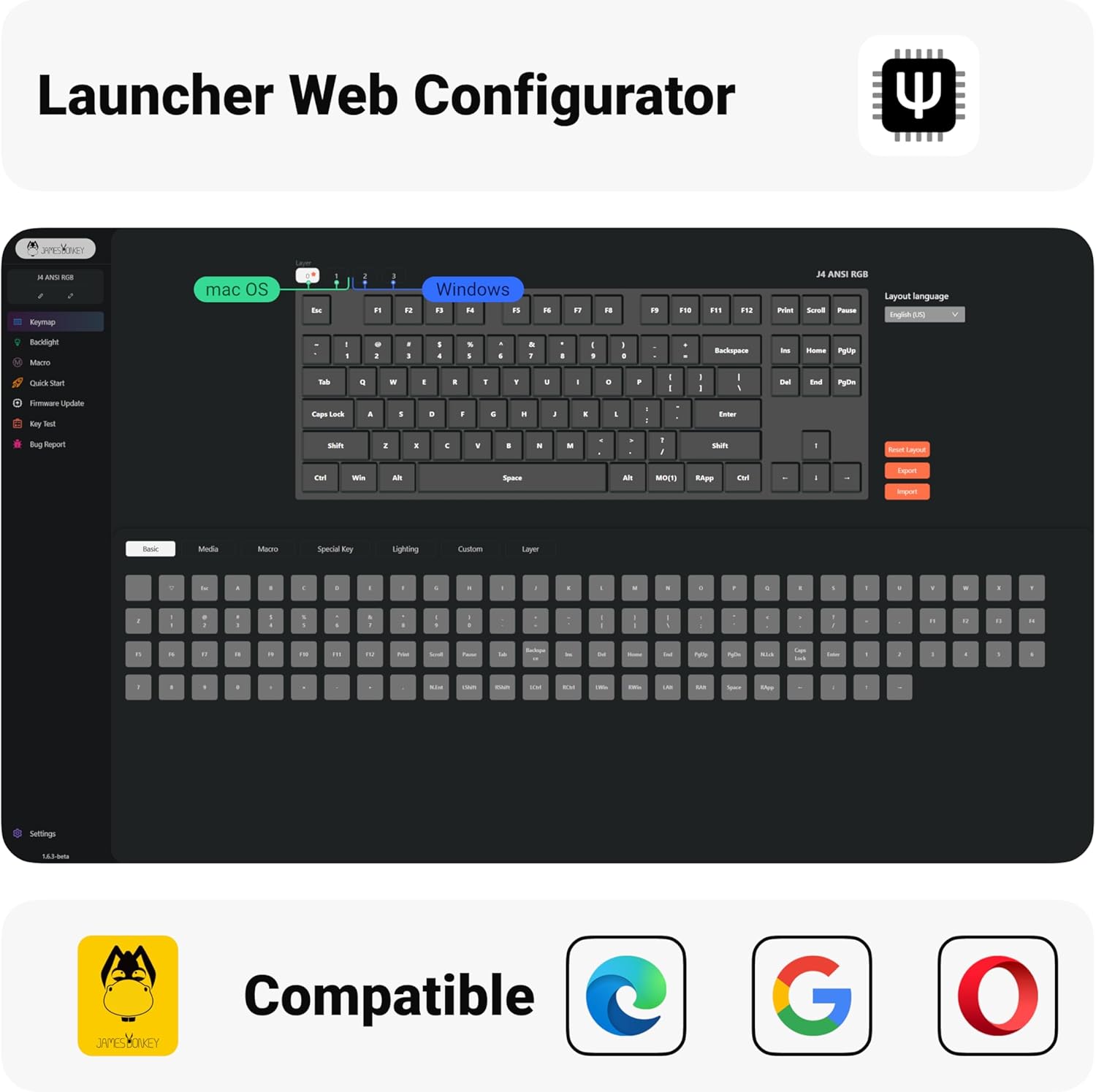
Image 4.1: Screenshot of the web-based Launcher interface for keyboard configuration.
- Access the JamesDonkey web-based Launcher (refer to the official JamesDonkey website for the URL).
- Connect your keyboard in wired mode to ensure stable communication with the configurator.
- Use the interface to remap keys, create complex macros, and adjust various keyboard settings.
- Save your configurations and flash them to the keyboard directly from the browser.
4.2. Dual-OS Smart Switch (Windows/macOS)
The J4 keyboard is designed for seamless compatibility with both Windows and macOS operating systems. It includes dedicated shortcuts for macOS functions.
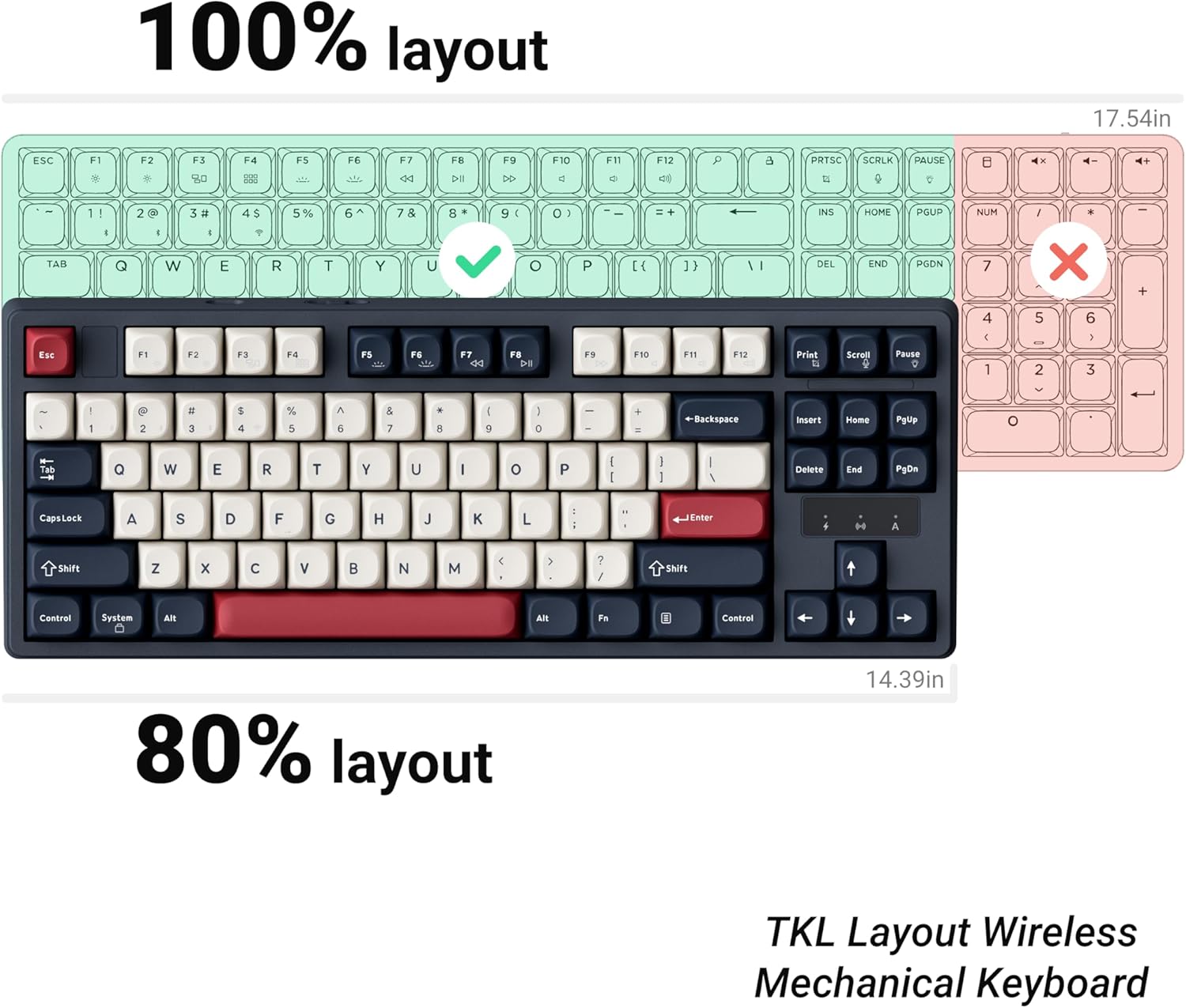
Image 4.2: Comparison of 100% and 80% keyboard layouts, highlighting the compact design of the J4.
- Windows Compatibility: The keyboard functions with standard Windows layouts and includes two programmable blank layers for custom functions.
- macOS Shortcuts: Utilize specific key combinations to replicate macOS functions like Mission Control and Launchpad without needing third-party tools. Refer to the QMK configurator for specific macOS key mappings.
4.3. RGB Backlighting Control
The J4 keyboard features customizable RGB backlighting. You can adjust lighting effects, colors, and brightness.

Image 4.3: The JamesDonkey J4 keyboard showcasing its customizable RGB backlighting.
- Use the dedicated light control key (often marked with a lightbulb icon or similar) to cycle through various lighting effects.
- Combine the Fn key with other keys (e.g., arrow keys or specific function keys) to adjust brightness, speed, and color of the RGB effects. Refer to the QMK configurator for a full list of lighting controls.
5. Maintenance
5.1. Hot-swappable Switches
The J4 keyboard features hot-swappable sockets, allowing you to change switches without soldering. This enables customization of typing feel.

Image 5.1: The keyboard with keycaps and switches removed, showing the hot-swappable sockets.
- Using the provided keycap puller, gently remove the desired keycap.
- Using the provided switch puller, carefully grip the switch from the top and bottom clips and pull it straight up.
- Align the pins of the new switch with the holes on the PCB.
- Gently press the new switch into place until it clicks. Ensure the pins are not bent.
- Replace the keycap.
5.2. Cleaning
- Disconnect the keyboard from your computer before cleaning.
- Use a soft brush or compressed air to remove dust and debris from between the keycaps.
- For stubborn dirt, gently remove keycaps and clean with a damp cloth and mild soap solution. Ensure keycaps are completely dry before reattaching.
- Wipe the keyboard surface with a soft, lint-free cloth. Avoid harsh chemicals.
6. Troubleshooting
- Keyboard not responding:
Ensure the keyboard is properly connected (wired, 2.4G receiver, or Bluetooth paired). Check the mode switch position. Try restarting your computer. - 2.4 GHz / Bluetooth connectivity issues:
Ensure the receiver is plugged in correctly for 2.4G. For Bluetooth, ensure the keyboard is in pairing mode and your device's Bluetooth is enabled. Try re-pairing the device. Ensure the keyboard battery is charged. - Keys not working:
If individual keys are not working, try removing and re-inserting the switch for that key. Ensure the switch pins are straight and not bent. If multiple keys are affected, try a different connection mode or reset the keyboard (refer to QMK documentation for reset procedures). - RGB backlighting not working/incorrect:
Check the lighting control key combinations. Ensure the keyboard battery is charged. Use the QMK web configurator to verify lighting settings. - Keyboard frequently disconnects:
Ensure the keyboard is within range of the receiver/Bluetooth device. Avoid interference from other wireless devices. Ensure the keyboard battery is sufficiently charged.
7. Specifications
| Feature | Detail |
|---|---|
| Brand | JamesDonkey |
| Model | J4 |
| Connectivity Technology | 2.4 GHz Wireless, Bluetooth 5.2, USB-C Wired |
| Keyboard Description | Mechanical |
| Layout | 80% Tenkeyless (87 Keys) |
| Switches | Brown Switch (Tactile, 55±15 gf Operation Force, 2.0±0.4 mm Pre-Travel, 4.0±0.4 mm Total Travel, Up to 50M cycles) |
| Keycaps | PBT Durable Keycaps |
| Backlighting | RGB |
| Compatible Devices | Laptop, PC, Tablet |
| Operating Systems | Mac, Windows, Linux |
| Battery | 1 Nonstandard Battery (included) |
| Item Weight | 3 pounds |
| Package Dimensions | 15.7 x 6.9 x 2.2 inches |
Image 7.1: Detailed Force-Travel Curve for the Brown Switches.

8. Warranty and Support
The JamesDonkey J4 Wireless Custom Mechanical Keyboard comes with a manufacturer's warranty. Please refer to the warranty card included in your package or visit the official JamesDonkey website for detailed warranty terms and conditions.
For technical support, troubleshooting assistance, or any inquiries regarding your product, please contact JamesDonkey customer service through their official website or the contact information provided with your purchase.
9. Additional Resources
9.1. Product Overview Video
Video 9.1: An official overview of the JamesDonkey J4 Series keyboard, demonstrating its features and design.
9.2. Keychron J4 Overview Video
Video 9.2: An overview video showcasing the J4 Wireless Mechanical Keyboard, highlighting its key functionalities and design elements.
