Introduction
This manual provides essential information for the setup, operation, maintenance, and troubleshooting of your Samsung 43-inch The Frame LS03FA QLED 4K TV. Please read these instructions carefully before using your television to ensure proper and safe operation.
1. Setup
1.1 Unboxing and Package Contents
Carefully remove all items from the packaging. Ensure all components listed below are present.
- Samsung The Frame LS03FA QLED 4K Art Mode Vision AI Smart TV (2025)
- REMOTE TM2361E
- ONE CONNECT BOX
- SLIM FIT WALL MOUNT
- POWER CABLE
- USER MANUAL (this document)
- STAND
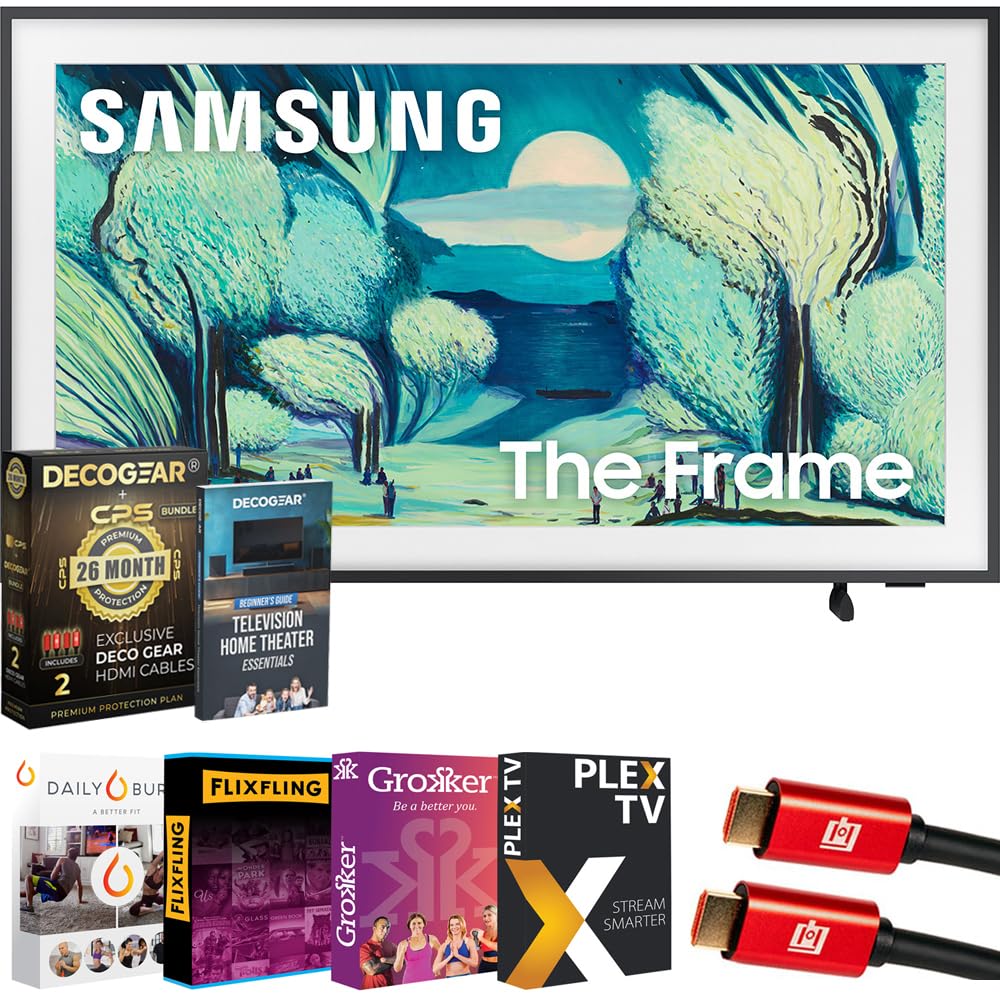
Figure 1.1: Samsung 43-inch The Frame TV with included stand.
1.2 Physical Installation
Your The Frame TV can be installed using the included stand or mounted flush to a wall using the Slim Fit Wall Mount.
Stand Installation:
- Place the TV screen face down on a soft, flat surface to prevent damage.
- Attach the stand components to the designated slots on the back of the TV, securing them with the provided screws.
- Carefully lift the TV and place it on a stable, level surface.
Slim Fit Wall Mount Installation:
The Slim Fit Wall Mount allows the TV to hang flush against the wall, mimicking a picture frame. Refer to the separate wall mount installation guide for detailed instructions. Professional installation is recommended for wall mounting.
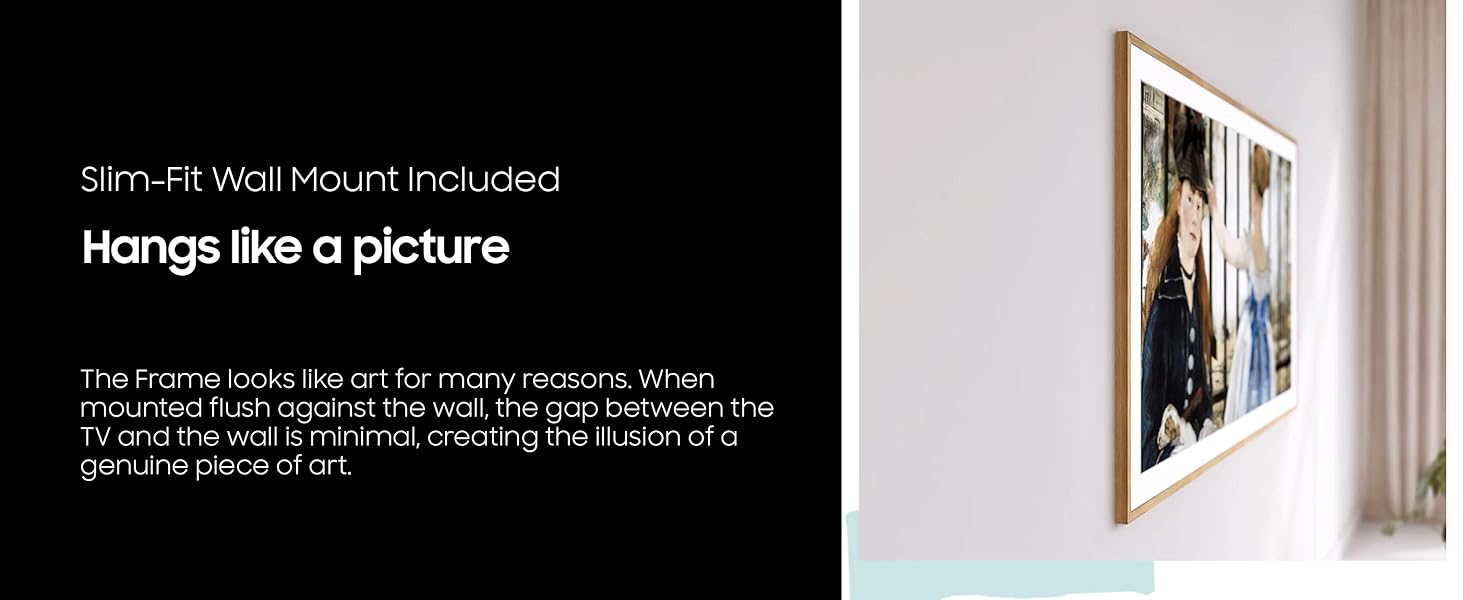
Figure 1.2: The Frame TV mounted flush to a wall.
1.3 Connecting the One Connect Box
The One Connect Box centralizes all your device connections and power. Connect the One Connect Cable from the TV to the One Connect Box. Then, connect your external devices (e.g., cable box, Blu-ray player, gaming console) to the appropriate ports on the One Connect Box. Finally, connect the power cable to the One Connect Box and then to a power outlet.
For a visual guide on setup and connections, please refer to the video below:
Video 1.1: Detailed setup and feature overview for Samsung The Frame TV.
1.4 Initial Power On and Network Setup
- Plug the power cable into a wall outlet.
- Press the Power button on your remote control.
- Follow the on-screen instructions to complete the initial setup, including language selection, network connection (Wi-Fi), and channel scanning.
- Log in to your Samsung Account to access all smart features and the Art Store.
2. Operating Your TV
2.1 Basic TV Functions
- Power On/Off: Use the Power button on the remote.
- Volume Control: Use the Volume Up/Down buttons.
- Channel Selection: Use the Channel Up/Down buttons or the number pad.
- Source Selection: Press the Source button to switch between connected devices (HDMI, TV, etc.).
- Smart Hub: Press the Home button to access smart apps, streaming services, and settings.
2.2 Art Mode
When not in use, The Frame transforms into a digital art display. Access Art Mode by pressing the Art Mode button on your remote or by selecting it from the Smart Hub.
- Art Store: Browse and select from thousands of curated artworks from world-renowned museums and galleries. A subscription may be required for full access.
- My Collection: Upload your own photos or artwork to display.
- Matte Options: Customize the appearance of your chosen art with various mat styles and colors to complement your decor.
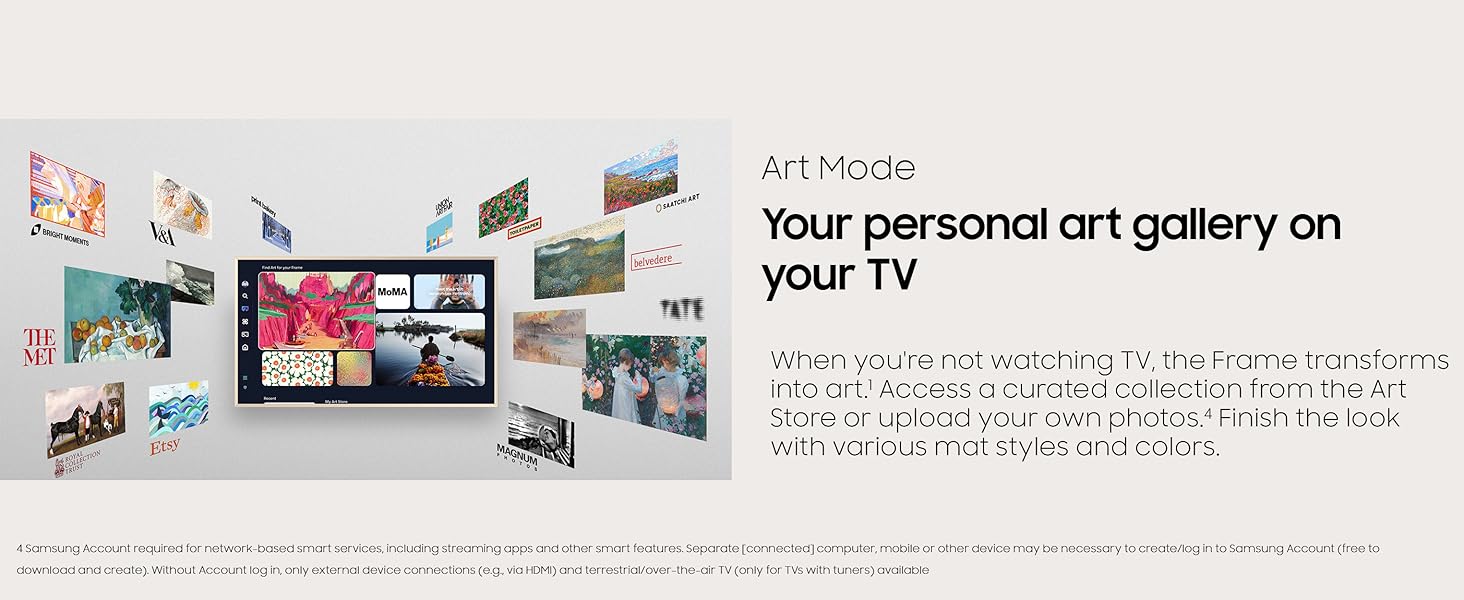
Figure 2.1: Art Mode interface displaying various art selections.
Video 2.1: Overview of Art Mode features and customization.
2.3 Picture Quality with QLED and Matte Display
Experience vibrant colors and deep contrast with QLED technology. The matte display minimizes glare and reflections, providing a print-like finish for artwork and enhanced viewing in bright environments.
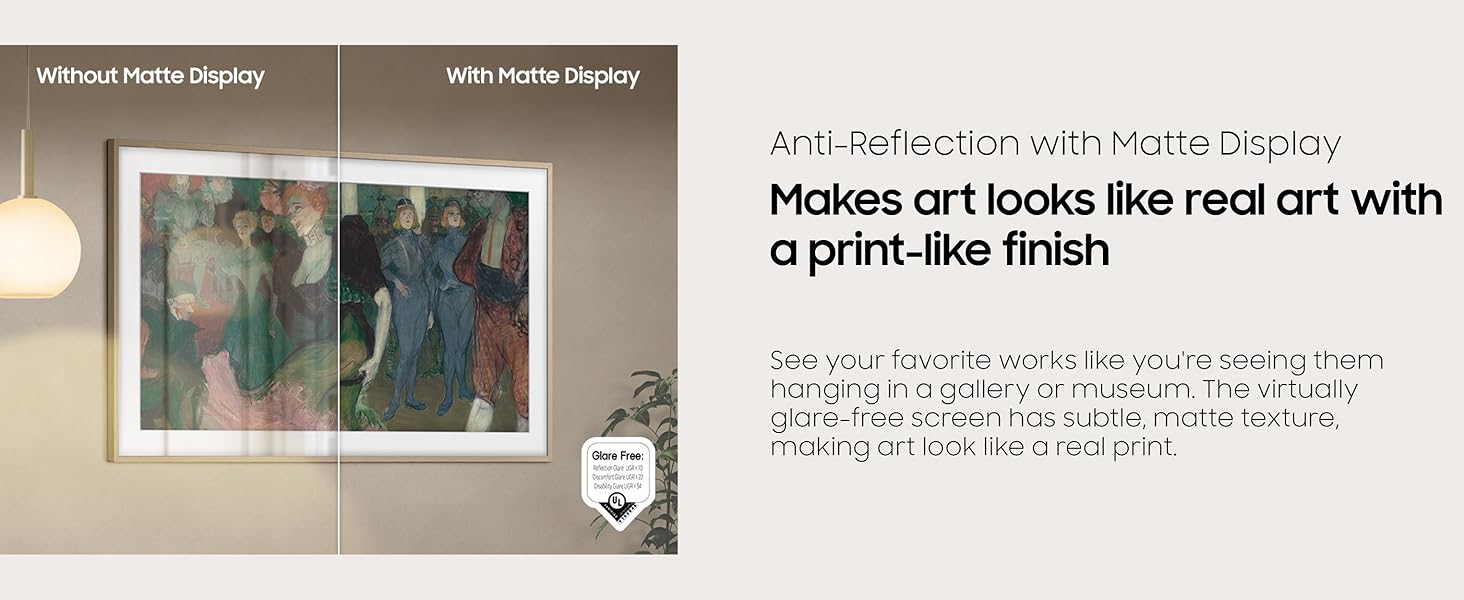
Figure 2.2: Anti-Reflection with Matte Display comparison.
2.4 Samsung Vision AI
The integrated Vision AI processor optimizes picture and sound quality in real-time. It also enables advanced interactive features, such as real-time translation of subtitles and control via hand motions when paired with compatible devices like a Galaxy Watch.
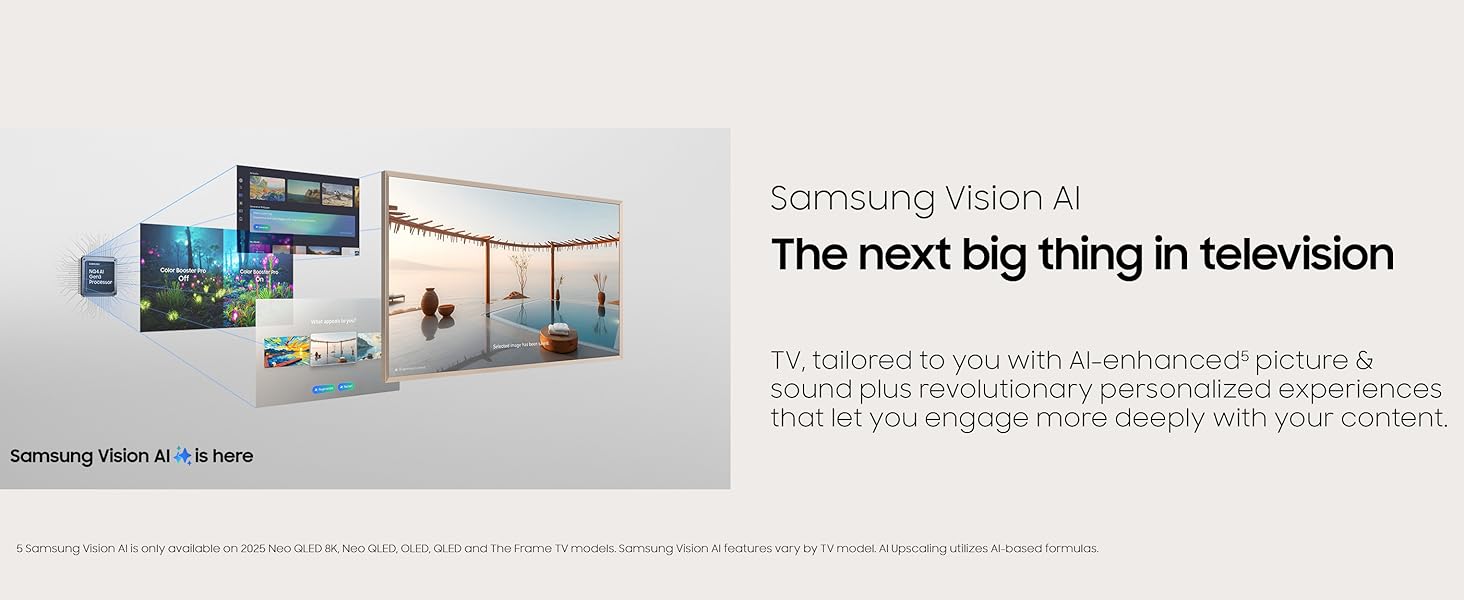
Figure 2.3: Samsung Vision AI capabilities.
2.5 Motion Xcelerator 144Hz (Gaming)
For gaming enthusiasts, the Motion Xcelerator 144Hz feature provides smooth motion and reduced tearing. It supports Variable Refresh Rate (VRR) for compatible PC-connected games at up to 4K 144Hz, ensuring a responsive gaming experience.
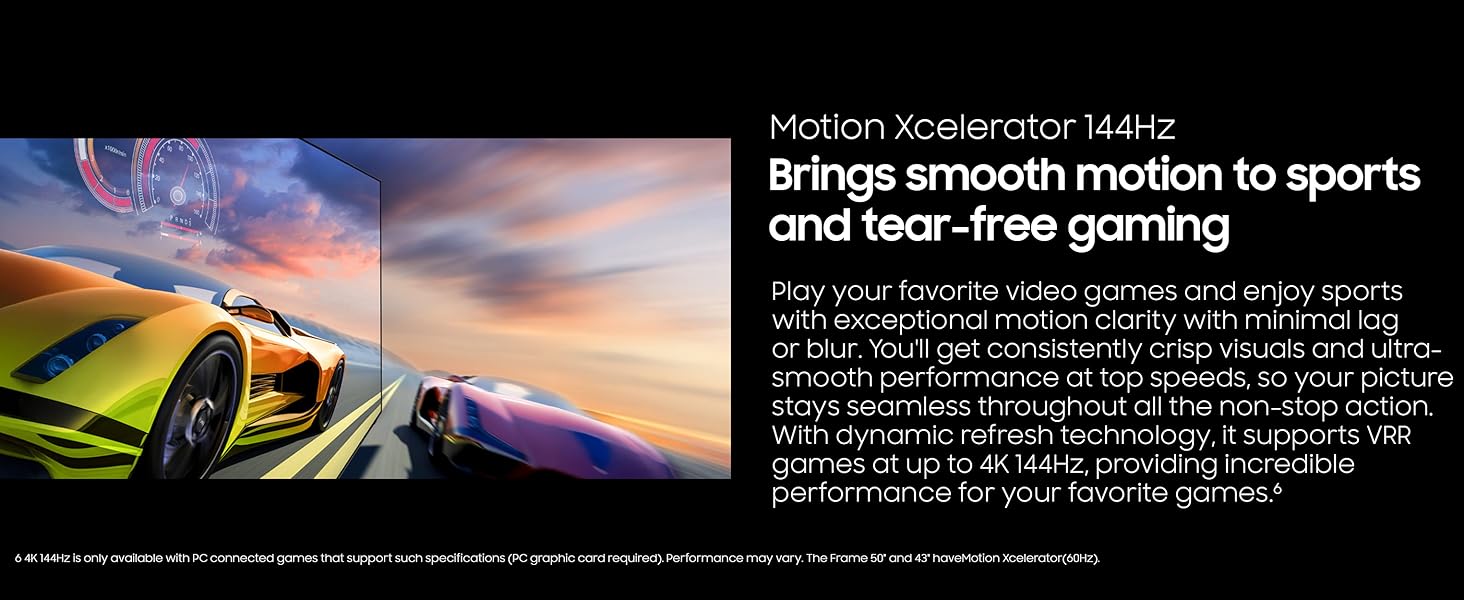
Figure 2.4: Motion Xcelerator 144Hz in action during gaming.
2.6 Customizable Frame
The Frame TV allows for customization of its bezel to match your interior decor. Magnetic bezels are available in various colors and styles (sold separately) and can be easily attached or removed.

Figure 2.5: Examples of customizable bezels.
2.7 Motion and Brightness Sensor
The TV features a motion sensor that can automatically turn on Art Mode when someone enters the room. A brightness sensor adjusts the screen's brightness and color tone based on ambient lighting conditions, ensuring artwork looks natural and conserving energy.
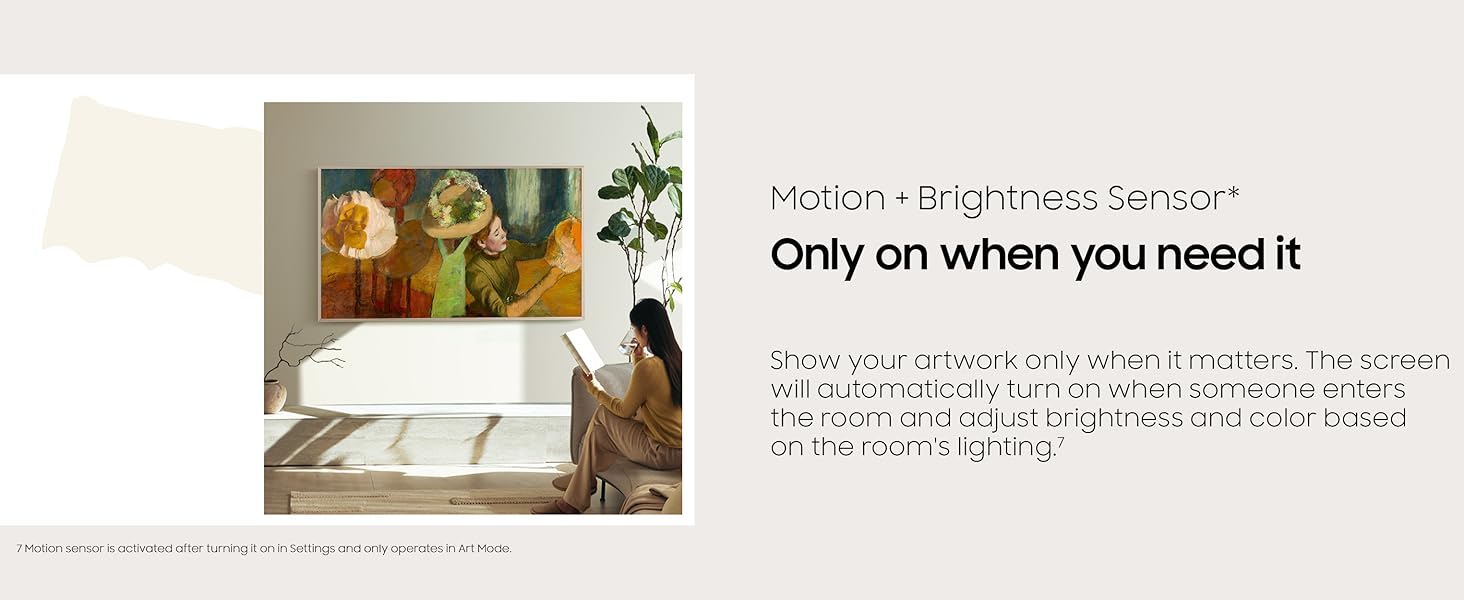
Figure 2.6: Motion and Brightness Sensor in operation.
3. Maintenance
3.1 Cleaning the Screen
- Turn off the TV and unplug it from the power outlet.
- Gently wipe the screen with a soft, dry microfiber cloth.
- For stubborn smudges, lightly dampen the cloth with distilled water. Do not spray cleaning solutions directly onto the screen.
- Avoid using abrasive cleaners, alcohol, or ammonia-based products, as these can damage the matte finish.
3.2 Cleaning the Frame and One Connect Box
- Wipe the frame and the One Connect Box with a soft, dry cloth.
- Do not use liquid cleaners directly on these components.
4. Troubleshooting
Before contacting customer support, try the following solutions for common issues:
| Issue | Possible Solution |
|---|---|
| TV does not turn on. | Ensure the power cable is securely connected to the One Connect Box and the wall outlet. Check if the outlet is working by plugging in another device. Try a different power outlet. |
| No picture or sound. | Verify the correct input source is selected. Check all cable connections between the One Connect Box and external devices. Restart the TV and connected devices. |
| Remote control not working. | Replace the batteries in the remote. Ensure there are no obstructions between the remote and the TV. Re-pair the remote if it's a Bluetooth remote (refer to the TV's on-screen manual for pairing instructions). |
| Wi-Fi connection issues. | Restart your router and modem. Check the Wi-Fi password. Move the TV closer to the router or use a Wi-Fi extender. |
| Art Mode not activating or displaying correctly. | Ensure the motion sensor is enabled in settings. Check ambient light conditions; very dark rooms might prevent activation. Verify your Samsung Account is logged in for Art Store access. |
5. Specifications
Key technical specifications for the Samsung 43-inch The Frame LS03FA QLED 4K TV:
| Feature | Detail |
|---|---|
| Brand | Samsung |
| Model Number | E1SAMQN43LS03FA |
| Screen Size | 42.5 Inches (Diagonal) |
| Display Technology | QLED |
| Resolution | 4K (3840 x 2160) |
| Refresh Rate | 60 Hz (up to 144Hz with Motion Xcelerator for PC gaming) |
| Aspect Ratio | 16:9 |
| Product Dimensions (with stand) | 7.7"D x 38.2"W x 23.3"H |
| Item Weight | 19.6 Pounds |
| Connectivity Technology | Bluetooth, Wi-Fi |
| Special Features | Art Mode, Artful Picture Quality with QLED, Eye Comfort Mode, Modern Frame Design, Samsung Vision AI |
6. Warranty and Support
6.1 Product Protection
Your Samsung The Frame TV includes a standard manufacturer's protection. Additionally, this product comes with an exclusive 26-month extended protection plan, which includes accidental damage and burn-in coverage. Please refer to the documentation provided with your purchase for full terms and conditions of this extended protection.
6.2 Customer Support
For technical assistance, warranty claims, or further inquiries, please contact Samsung Customer Support. You can find contact information on the official Samsung website or in the documentation included with your TV.
- Online Support: Visit the official Samsung support website for FAQs, downloads, and service requests.
- Telephone Support: Contact the Samsung customer service hotline for direct assistance.