
Introduction
This manual provides detailed instructions for the setup, operation, and maintenance of your JamesDonkey J4 Wireless Custom Mechanical Keyboard. Please read this manual thoroughly to ensure proper use and to maximize your keyboard's potential.

Image: The JamesDonkey J4 Wireless Custom Mechanical Keyboard, showcasing its 80% layout and vibrant RGB backlighting.
Product Overview
Key Features
- Tri-Mode Connectivity: Supports 2.4 GHz wireless, Bluetooth 5.2, and USB-C wired connections.
- QMK/VIA Advanced Programming: Customize key functions and macros via browser-based software.
- Dual-OS Smart Switch: Seamless compatibility with Windows, macOS, and Linux.
- Durable PBT Keycaps: Thick 1.5mm PBT keycaps resist oil and shine, with translucent doubleshot molding for RGB.
- 80% Tenkeyless Layout: Compact design retaining arrow keys and F-row, providing 20% more desk space than full-size keyboards.
- Hot-swappable Switches: Easily change mechanical switches without soldering.
- CNC Aluminum Base: Ensures stability and durability.
- 3750mAh Battery: Long-lasting power with fast charging.

Image: A visual comparison illustrating the compact 80% Tenkeyless layout of the J4 keyboard compared to a standard 100% layout, highlighting space-saving benefits.
Setup
Connectivity Modes
The JamesDonkey J4 keyboard offers three versatile connection options:
- USB-C Wired Mode: Connect the keyboard directly to your device using the provided USB-C cable. This mode also charges the keyboard battery.
- 2.4 GHz Wireless Mode: For low-latency gaming, plug the 2.4 GHz receiver into your device and switch the keyboard to 2.4G mode.
- Bluetooth 5.2 Mode: Pair with up to three Bluetooth-enabled devices. Switch the keyboard to BT mode and follow your device's pairing instructions.

Image: A detailed view of the keyboard's rear, indicating the USB-C port for wired connection and switches for activating 2.4G wireless or Bluetooth modes.
OS Compatibility
The J4 keyboard is designed for broad compatibility:
- Windows: Fully compatible out-of-the-box with programmable layers.
- macOS: Includes shortcuts for Mission Control/Launchpad without needing third-party tools.
- Linux: Supports Linux operating systems.
Operating Instructions
QMK/VIA Programming
The keyboard supports QMK/VIA firmware for advanced customization:
- Access the browser-based Launcher to reprogram every key and build macros.
- No downloads or OS restrictions are required for the Launcher.
- Save custom profiles directly to the keyboard's onboard memory.
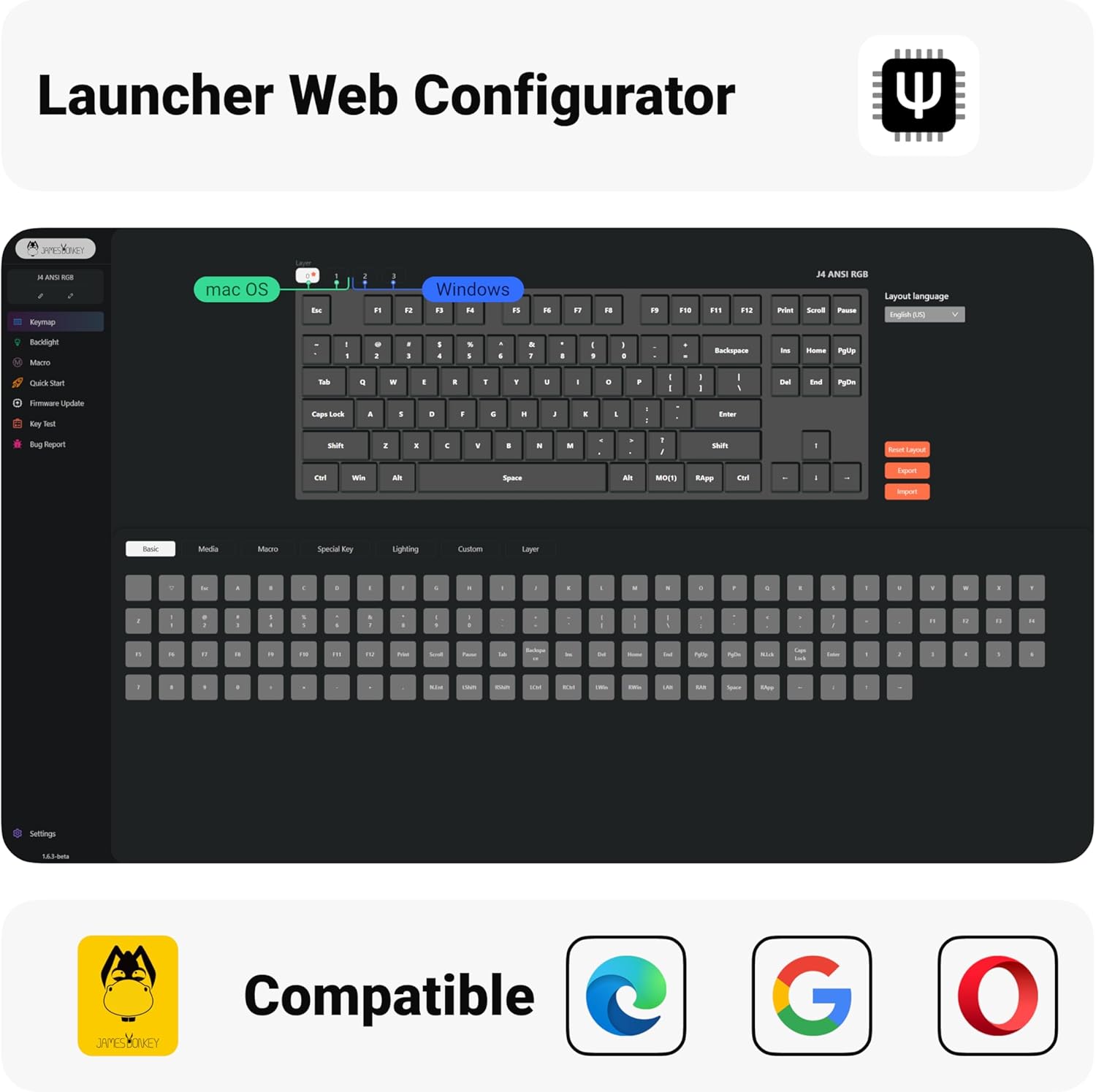
Image: The QMK/VIA Launcher Web Configurator interface, showing options for key remapping, lighting, and macro creation compatible with macOS and Windows.
RGB Backlighting Control
The J4 features customizable RGB backlighting:
- Enjoy 16.8 million colors with 8 preset modes and custom gradients.
- Use the dedicated Light Control Key (often combined with Function key) to cycle through modes and adjust brightness.

Image: The JamesDonkey J4 keyboard illuminated with a rainbow RGB backlight effect, highlighting the 'Light Control Key' functionality.
Hot-swappable Switches
The keyboard's hot-swappable design allows for easy switch customization:
- Change switches instantly without any soldering.
- Tune your typing feel and test different switch types to suit your preference.
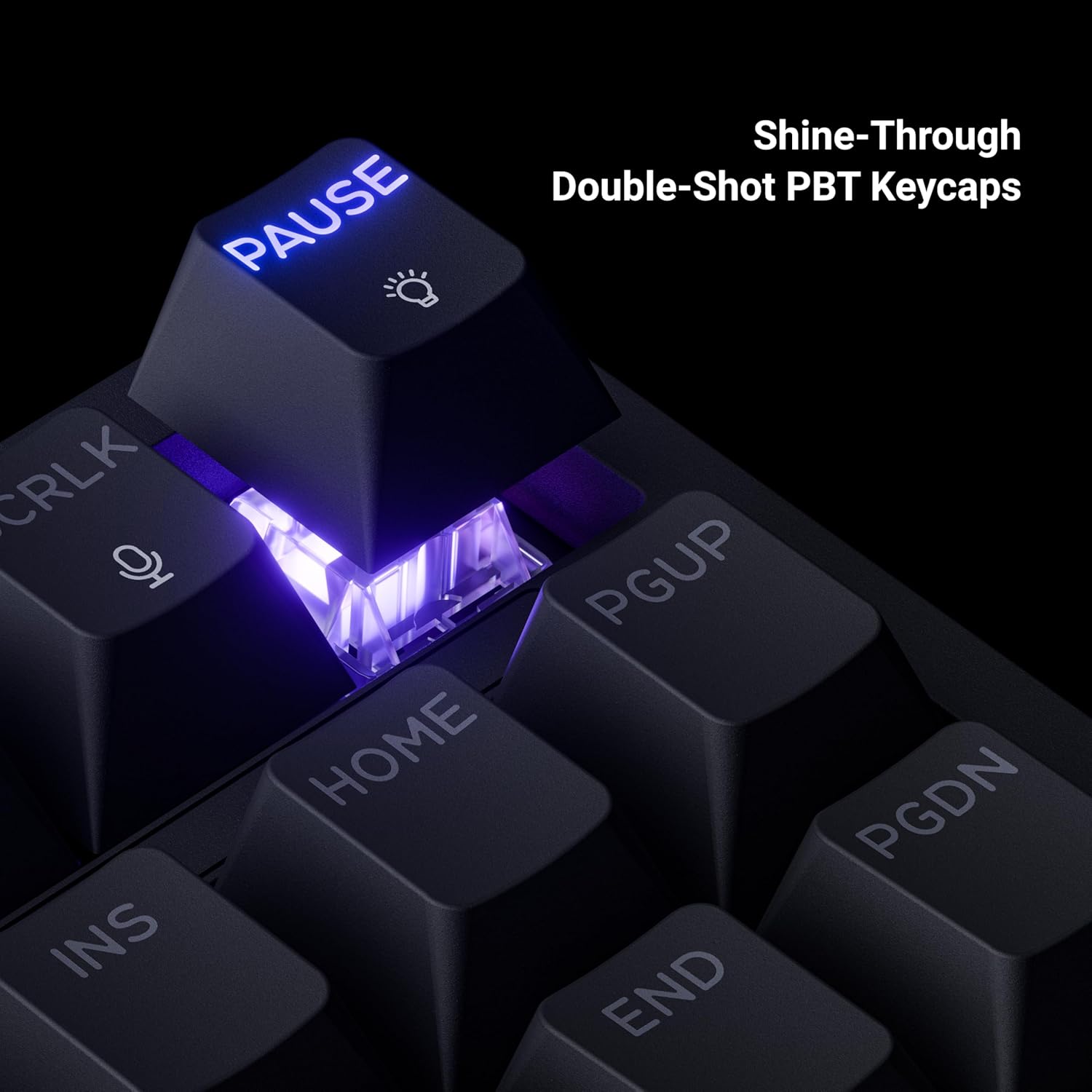
Image: The JamesDonkey J4 keyboard with several keycaps and switches removed, illustrating the hot-swappable sockets for easy customization.
Multimedia Knob
The multi-function knob provides quick control over various settings:
- Adjust backlight brightness and effects.
- Control media playback (volume, play/pause).
- Switch between gaming and office modes for optimized performance.

Image: A close-up of the 'Pause' key, demonstrating the shine-through double-shot PBT keycaps that enhance the RGB lighting effects.
Maintenance
Keycap and Switch Replacement
To replace keycaps or switches:
- Use the provided keycap puller to gently remove the desired keycap.
- Use the switch puller to carefully extract the switch from its socket.
- Align the pins of the new switch with the holes on the PCB and press firmly until it clicks into place.
- Place the new keycap onto the switch stem.

Image: A diagram detailing the operational force, pre-travel, total travel, and operation life of a Super Brown Switch, along with its force-travel curve.
Cleaning
Regular cleaning helps maintain performance and appearance:
- Disconnect the keyboard from your device.
- Use a soft brush or compressed air to remove dust and debris from between the keycaps.
- For stubborn dirt, gently wipe keycaps with a damp cloth and mild soap solution, ensuring no liquid enters the switches.
Troubleshooting
Connectivity Issues
- Keyboard not connecting via Bluetooth/2.4G: Ensure the keyboard is charged and the correct mode is selected. Re-pair Bluetooth or re-insert the 2.4G dongle.
- Lag or disconnections: Check for interference from other wireless devices. Ensure the keyboard is within range of your device.
RGB Backlight Problems
- Lights not working: Ensure the keyboard is powered on and the backlight is not turned off or set to minimum brightness.
- Inconsistent lighting: Check for firmware updates via the QMK/VIA Launcher.
Key Input Errors
- Keys not responding: Ensure switches are properly seated. If a specific switch is faulty, replace it using the hot-swap feature.
- Incorrect key output: Verify key mappings in the QMK/VIA Launcher. Reset to factory defaults if necessary.
Specifications
| Feature | Detail |
|---|---|
| Model | J4 |
| Connectivity | 2.4 GHz, Bluetooth 5.2, USB-C |
| Layout | 80% Tenkeyless |
| Switches | Hot-swappable Brown Switch (Tactile) |
| Keycaps | 1.5mm Thick Doubleshot PBT |
| Backlighting | RGB (16.8M colors, 8 preset modes + custom) |
| Battery Capacity | 3750mAh |
| Compatibility | Windows, macOS, Linux |
| Material | CNC Aluminum Base, PBT Keycaps |
| Package Dimensions | 15.7 x 6.9 x 2.2 inches |
| Item Weight | 3 pounds |
Warranty & Support
For warranty information, technical support, or service inquiries, please refer to the official JamesDonkey website or contact their customer service directly. Keep your proof of purchase for warranty claims.
Official Product Videos
Presentation of JamesDonkey J4 Series
Video: An official product video showcasing the features and design of the JamesDonkey J4 Series keyboard.
