Introduction
Welcome to the world of advanced gaming with your GravaStar Mercury K1 Lite 75% Wireless Gaming Keyboard and Mercury M2 Wireless Gaming Mouse. This instruction manual provides essential information to help you get started, understand the features, and ensure optimal performance of your new devices. Please read this manual thoroughly before use.
Product Overview
The GravaStar Mercury K1 Lite keyboard and Mercury M2 mouse combine futuristic design with high-performance functionality, offering a superior gaming and typing experience.

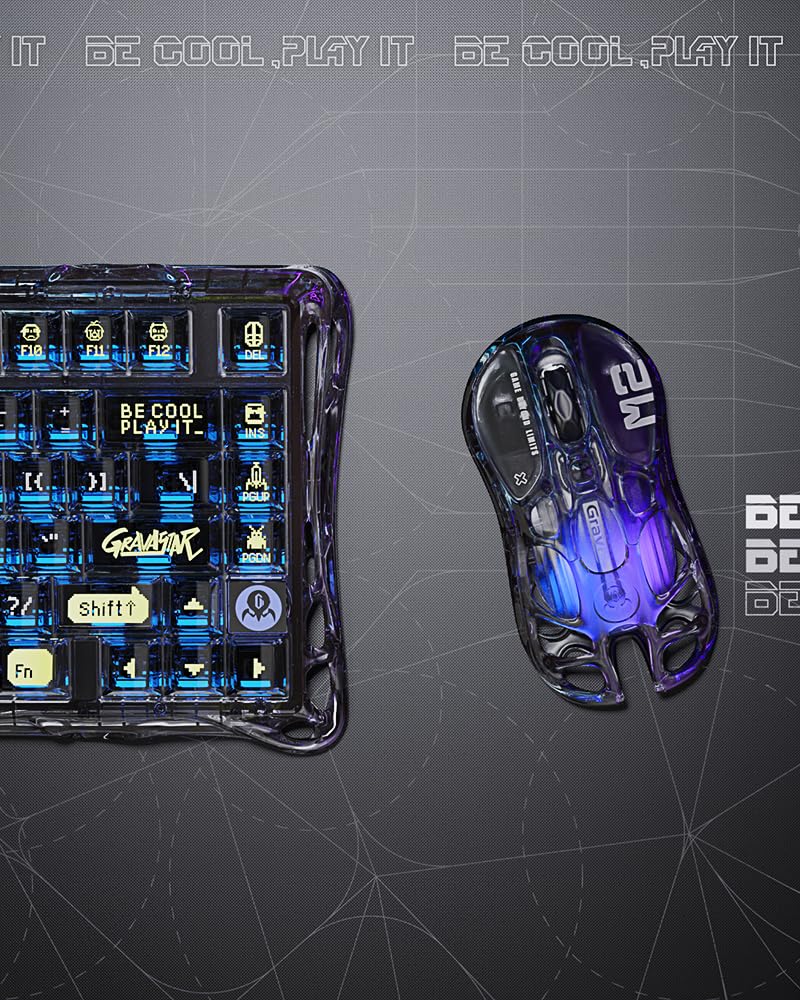
An overhead view of the GravaStar Mercury K1 Lite keyboard and Mercury M2 mouse, showcasing their transparent design and vibrant RGB lighting.
Mercury K1 Lite Keyboard Features
- Futuristic Design: Unique hollow and skeletal design with durable PVC material and transparent keycaps.
- High-Performance Switches: Equipped with GravaStar x BSUN custom linear switches for smooth and responsive typing.
- Tri-Mode Connectivity: Supports 2.4GHz wireless, Bluetooth 5.0, and wired connections.
- Customizable RGB Lighting: 13 different RGB lighting modes, with advanced customization via GravaStar Control Center software.
- Extended Battery Life: 4000mAh lithium-ion battery, offering up to 235 hours of use.
- Adjustable Kickstands: For ergonomic comfort.
A detailed view of the GravaStar Mercury K1 Lite keyboard, highlighting the transparent keycaps and the illuminated switches beneath.
Mercury M2 Mouse Features
- Hollowed-Out Design: Distinctive look with optimal airflow for grip comfort.
- High-Precision Sensor: PAW3395 sensor, supporting up to 26,000 DPI and a 1K Hz polling rate.
- Versatile Connection Options: Ultra-fast 2.4G, Bluetooth, and wired connections.
- Customizable GLOWSYNC RGB: Five dynamic light modes and software-based profile creation.
- Impressive Battery Life: Up to 82 hours (Bluetooth 5.1) or 50 hours (2.4GHz with RGB) on a single charge.

A close-up of the GravaStar Mercury M2 wireless gaming mouse, showing its hollowed-out transparent shell and internal blue lighting.
Setup
Keyboard Setup (Mercury K1 Lite)
- Charging: Connect the keyboard to a USB power source using the provided USB-C cable. The RGB lighting will indicate charging status.
- Power On: Locate the power switch on the keyboard and slide it to the 'ON' position.
- Connectivity Selection: Use the mode switch to select your desired connection:
- 2.4GHz Wireless: Insert the USB receiver into an available USB port on your computer. The keyboard should connect automatically.
- Bluetooth 5.0: Switch to Bluetooth mode. The keyboard will enter pairing mode (indicated by flashing RGB). Search for 'GravaStar K1 Lite' on your device's Bluetooth settings and connect.
- Wired: Connect the keyboard directly to your computer using the USB-C cable.
- Adjust Kickstands: Flip out the adjustable kickstands on the underside of the keyboard for your preferred typing angle.
Mouse Setup (Mercury M2)
- Charging: Connect the mouse to a USB power source using the provided USB-C cable.
- Power On: Locate the power switch on the mouse and slide it to the 'ON' position.
- Connectivity Selection: Use the mode switch to select your desired connection:
- 2.4GHz Wireless: Insert the USB receiver into an available USB port on your computer. The mouse should connect automatically.
- Bluetooth: Switch to Bluetooth mode. The mouse will enter pairing mode. Search for 'GravaStar M2' on your device's Bluetooth settings and connect.
- Wired: Connect the mouse directly to your computer using the USB-C cable.
Operating Instructions
Keyboard Connectivity Modes (Mercury K1 Lite)
The K1 Lite supports seamless switching between three connection types:
- 2.4GHz Wireless: Offers low-latency performance ideal for gaming. Ensure the USB receiver is plugged into your device.
- Bluetooth 5.0: Connects to up to three devices simultaneously. Use the dedicated function keys (e.g., Fn + 1/2/3) to switch between paired devices.
- Wired: Provides a stable connection and charges the keyboard simultaneously.
Keyboard RGB Lighting (Mercury K1 Lite)
The K1 Lite features 13 immersive RGB lighting modes. You can cycle through these modes using dedicated function key combinations (refer to your keyboard's specific key layout for details). For advanced customization, including creating your own lighting profiles, download and install the GravaStar Control Center software from the official GravaStar website.

A visual representation of the GravaStar Control Center software interface, demonstrating options for customizing the RGB lighting effects of the keyboard.
Mouse Functions (Mercury M2)
- DPI Adjustment: Use the dedicated DPI button on the mouse to cycle through different sensitivity levels (up to 26,000 DPI).
- GLOWSYNC RGB: Customize the mouse's RGB lighting with five dynamic modes. Further customization is available through the intuitive GravaStar software.
- Polling Rate: The mouse operates at a 1K Hz polling rate for responsive gameplay.
Maintenance
To ensure the longevity and optimal performance of your GravaStar Mercury K1 Lite keyboard and Mercury M2 mouse, follow these maintenance guidelines:
- Cleaning: Use a soft, dry cloth to wipe down the surfaces of both devices. For stubborn dirt, a slightly damp cloth with mild soap can be used, ensuring no liquid enters the internal components.
- Keycap Cleaning (Keyboard): Keycaps can be carefully removed for deeper cleaning. Use a keycap puller to avoid damage. Clean with a soft brush or a damp cloth. Ensure keycaps are completely dry before reattaching.
- Storage: Store the devices in a cool, dry place away from direct sunlight and extreme temperatures.
- Battery Care: Avoid fully discharging the batteries frequently. For long-term storage, charge the devices to about 50% to preserve battery health.
Troubleshooting
If you encounter any issues with your GravaStar Mercury K1 Lite keyboard or Mercury M2 mouse, please refer to the following common solutions:
- Device Not Connecting:
- Ensure both devices are powered on and fully charged.
- Verify the correct connectivity mode (2.4GHz, Bluetooth, Wired) is selected.
- For 2.4GHz, ensure the USB receiver is securely plugged in. Try a different USB port.
- For Bluetooth, ensure your device's Bluetooth is enabled and the keyboard/mouse is in pairing mode. Remove previous pairings and re-pair if necessary.
- Try connecting via wired mode to rule out wireless interference or battery issues.
- RGB Lighting Not Working:
- Check if the lighting is turned off or set to a very dim level.
- Ensure the devices are sufficiently charged.
- If using the software, ensure it is up-to-date and correctly configured.
- Lag or Unresponsive Input:
- Ensure the devices are within range of the receiver/Bluetooth host.
- Minimize wireless interference by moving other wireless devices away.
- Check battery levels; low battery can affect performance.
- Update drivers for your keyboard and mouse if available.
- Keys or Buttons Not Responding:
- Gently clean around the affected key/button to remove any debris.
- If a keycap is removable, check the switch underneath for any obstructions.
If these steps do not resolve your issue, please contact GravaStar customer support for further assistance.
Specifications
GravaStar Mercury K1 Lite Keyboard
- Layout: 75% (80 keys)
- Switches: GravaStar x BSUN Custom Linear Switches
- Frame Material: Durable PVC
- Keycaps: Transparent
- Connectivity: 2.4GHz Wireless, Bluetooth 5.0, Wired (USB-C)
- RGB Lighting: 13 modes, customizable via software
- Battery: 4000mAh Lithium-ion
- Battery Life: Up to 235 hours (usage dependent)
- Compatibility: Windows, macOS

An image illustrating the 75% layout of the GravaStar Mercury K1 Lite keyboard, showing its compact 80-key design and physical dimensions (343mm x 156mm).
GravaStar Mercury M2 Mouse
- Sensor: PAW3395
- DPI: Up to 26,000
- Polling Rate: 1K Hz
- Connectivity: 2.4G Wireless, Bluetooth, Wired (USB-C)
- RGB Lighting: GLOWSYNC RGB, 5 dynamic modes, customizable via software
- Battery Life: Up to 82 hours (Bluetooth 5.1), up to 50 hours (2.4GHz with RGB)
Warranty and Support
GravaStar products are designed for quality and durability. For information regarding warranty coverage, technical support, or service inquiries, please visit the official GravaStar website or contact their customer service department. Keep your purchase receipt as proof of purchase for warranty claims.
Manufacturer: GravaStar
Date First Available: April 23, 2025