
Samsung E1SAMQN50LS03FA
Contents
Samsung The Frame LS03FA QLED 4K TV User Manual
Model: LS03FA
Product Overview
The Samsung The Frame LS03FA QLED 4K TV is designed to seamlessly blend into your living space, transforming from a high-definition television into a stunning piece of art when not in use. Featuring a matte screen for a print-like finish and Pantone Validated colors, it offers access to curated artworks from top-tier galleries and museums. Powered by Samsung Vision AI, it delivers superb picture and sound quality, along with personalized TV experiences.

Image: The Samsung The Frame TV, showcasing its ability to display artwork, blending into a room setting.
What's in the Box
- Samsung The Frame LS03FA QLED 4K Art Mode Vision AI Smart TV (2025)
- REMOTE TM2361E
- ONE CONNECT BOX
- SLIM FIT WALL MOUNT
- POWER CABLE
- USER MANUAL (this document)
- STAND
Image: A visual representation of the Samsung The Frame TV and its included accessories, such as the One Connect Box and remote.
Setup Guide
1. Unpacking and Placement
Carefully remove all components from the packaging. Choose a suitable location for your TV, considering viewing angles and proximity to power outlets. Ensure proper ventilation around the unit.
2. Stand Installation (Optional)
If you choose to use the included stand, attach it securely to the TV following the instructions provided in the quick setup guide. Ensure all screws are tightened to prevent wobbling.
3. Wall Mount Installation (Optional)
The Slim Fit Wall Mount is designed to allow the TV to hang flush against the wall, mimicking a picture frame. For detailed installation, refer to the separate wall mount instruction manual. Professional installation is recommended for wall mounting.
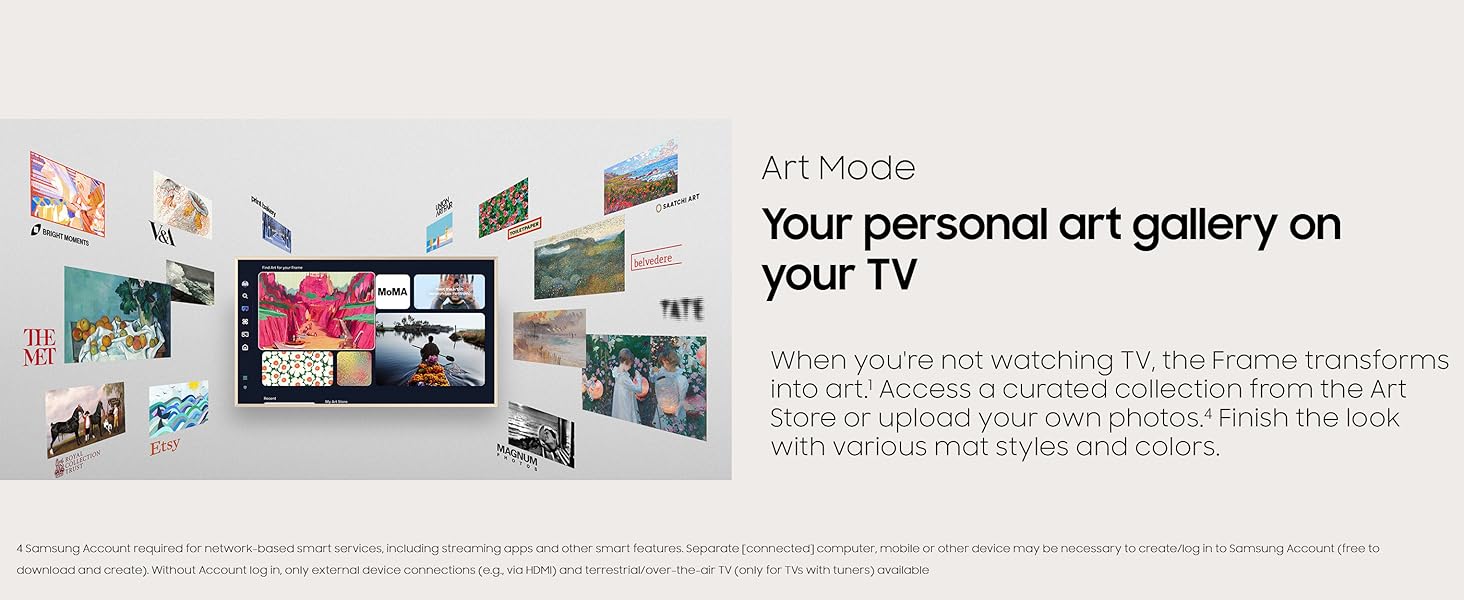
Image: The Samsung The Frame TV mounted flush against a wall, demonstrating its slim profile and integrated appearance.
4. Connecting the One Connect Box
The One Connect Box centralizes all your device connections and power, connecting to the TV with a single, discreet cable. Connect your HDMI devices (e.g., cable box, gaming console, Blu-ray player) to the One Connect Box. Then, connect the One Connect Cable from the box to the TV.
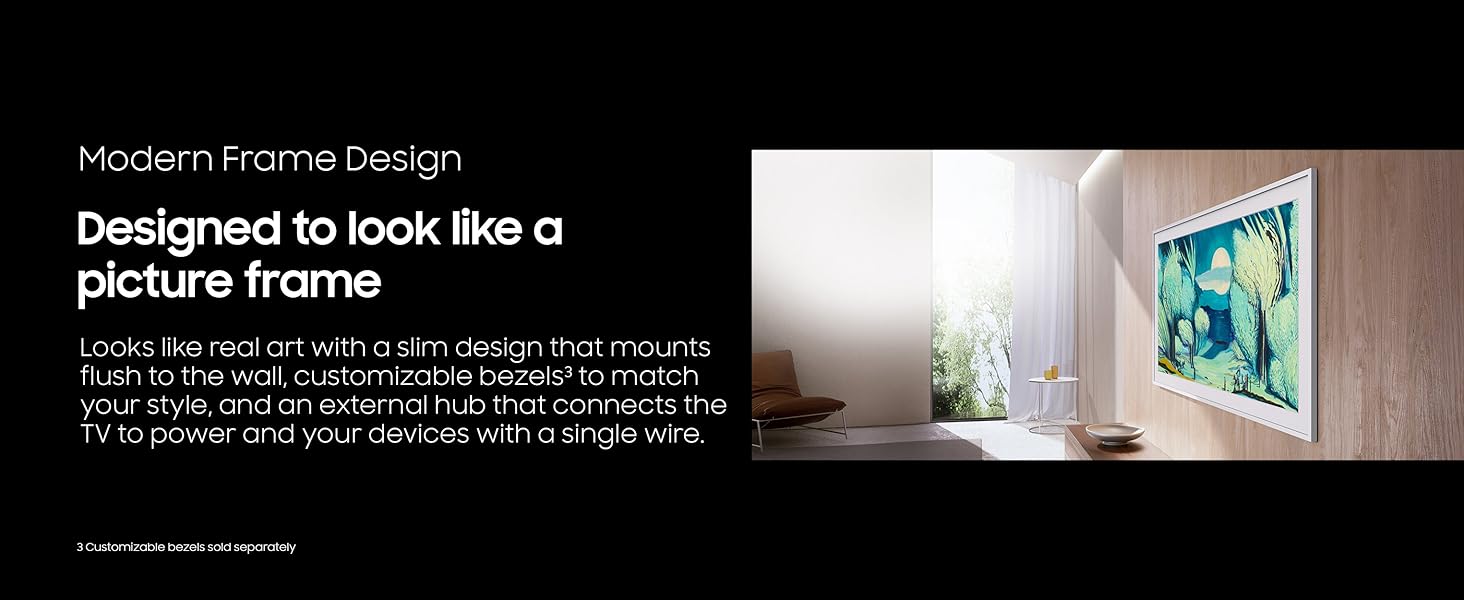
Image: A visual diagram illustrating the concept of the One Connect Box, showing how it centralizes cables for a clean TV setup.
5. Power Connection
Plug the power cable into the One Connect Box, and then plug the other end into a wall outlet. The TV will power on automatically or can be turned on using the remote control.
Operating Instructions
Basic Operation
- Power On/Off: Press the Power button on the remote control.
- Source Selection: Use the Source button on the remote to switch between connected devices (HDMI 1, HDMI 2, etc.).
- Volume Control: Use the Volume Up/Down buttons.
- Navigation: Use the directional pad and Enter button to navigate menus and select options.
Art Mode
When the TV is off, it can transform into a digital art display. Access the Art Store to browse and select from thousands of curated artworks, or upload your own photos. Customize the display with various mat styles and colors to complement your decor.

Image: A collage of various artworks displayed on the Samsung The Frame TV in Art Mode, showcasing its gallery-like appearance.
The integrated Motion + Brightness Sensor ensures the artwork is only displayed when needed, automatically turning on when someone enters the room and adjusting brightness based on ambient light.
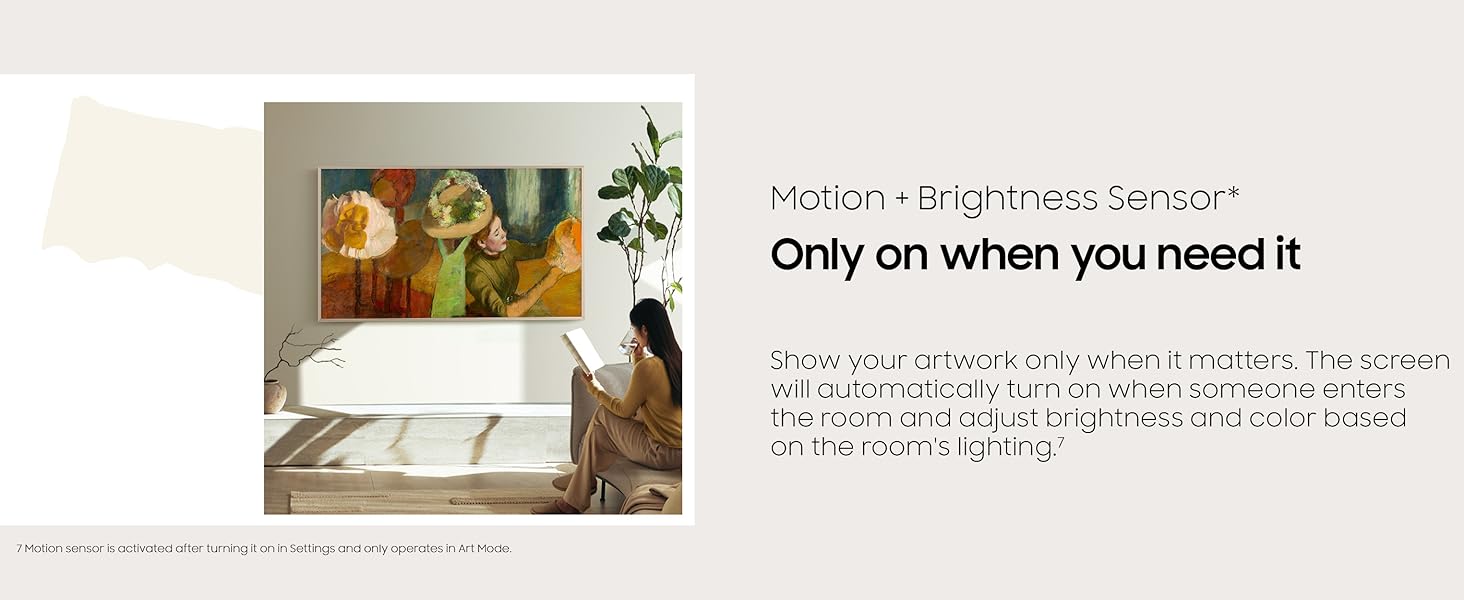
Image: A woman reading in a living room with the Samsung The Frame TV displaying art, highlighting the functionality of the motion and brightness sensor.
Picture Quality and AI Features
The QLED display provides vibrant colors and deep blacks. Samsung Vision AI enhances picture and sound quality, upscaling content to stunning resolution and optimizing audio. This AI also enables features like real-time translation of subtitles and control via hand motions (with compatible devices).
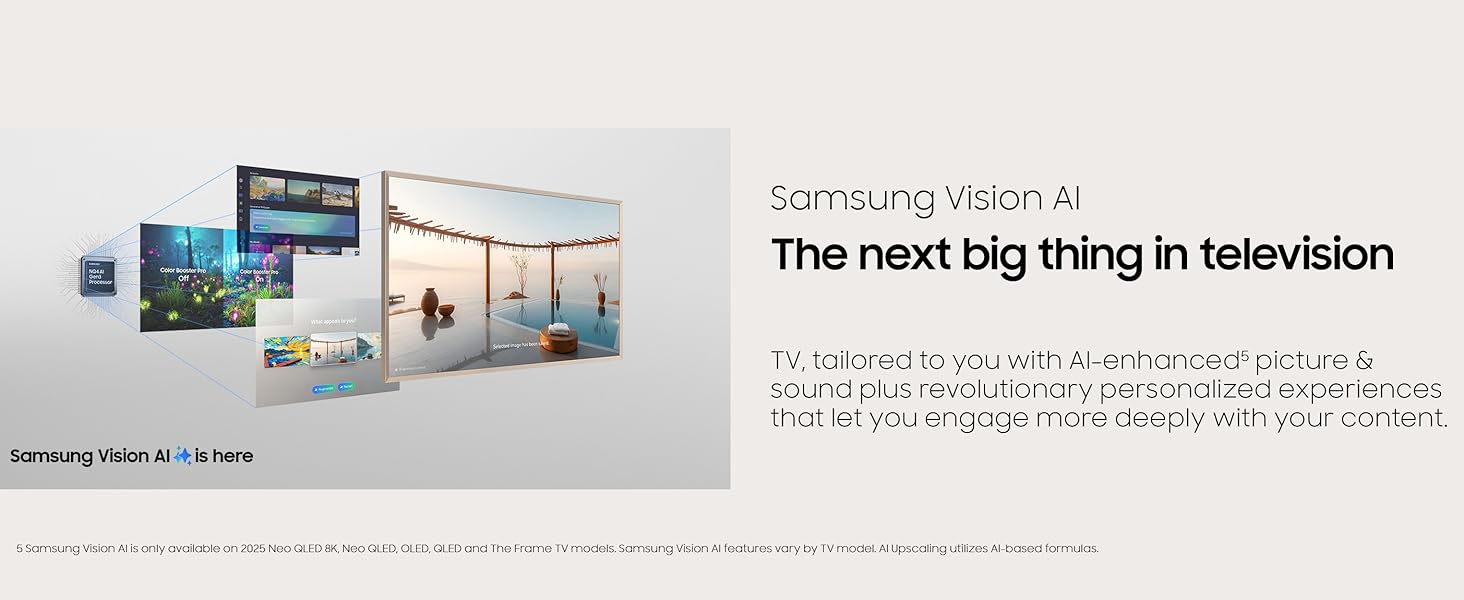
Image: A graphical representation of Samsung Vision AI, showcasing its capabilities in enhancing picture, sound, and user interaction.
The matte display minimizes glare, making the screen appear more like a traditional art print, even in brightly lit rooms.

Image: A side-by-side comparison demonstrating the anti-reflection benefits of the matte display on The Frame TV.
Gaming and Motion
With Motion Xcelerator 144Hz, the TV delivers smooth motion for sports and tear-free gaming. It supports VRR games at up to 4K 144Hz, providing optimal performance for fast-paced content.

Image: A dynamic gaming scene displayed on The Frame TV, highlighting the smooth motion provided by Motion Xcelerator 144Hz.
Maintenance
Cleaning the Screen
Due to the matte finish, use a soft, dry microfiber cloth to gently wipe the screen. Avoid using harsh chemicals, abrasive cleaners, or excessive moisture, as these can damage the matte coating. For stubborn smudges, lightly dampen the cloth with distilled water.
General Cleaning
Wipe the TV frame and One Connect Box with a soft, dry cloth. Ensure all vents are clear of dust and debris to maintain proper airflow.
Troubleshooting
No Power / TV Not Turning On
- Check if the power cable is securely connected to both the One Connect Box and the wall outlet.
- Ensure the One Connect Cable is firmly connected between the TV and the One Connect Box.
- Verify the wall outlet is functional by plugging in another device.
- Try a different power outlet.
No Picture / Black Screen
- Confirm the correct input source is selected (e.g., HDMI 1, HDMI 2).
- Check the HDMI cables connecting your devices to the One Connect Box. Try re-seating them or using a different cable.
- Ensure the connected device (e.g., cable box, game console) is powered on and functioning correctly.
Remote Control Not Working
- Replace the batteries in the remote control.
- Ensure there are no obstructions between the remote and the TV/One Connect Box.
- Point the remote directly at the TV or One Connect Box.
Art Mode Not Activating / Sensor Issues
- Ensure the Motion + Brightness Sensor is enabled in the TV settings.
- Check for any obstructions blocking the sensor on the TV frame.
- Verify ambient light conditions are not extreme, which might affect sensor performance.
Specifications
| Feature | Detail |
|---|---|
| Brand | Samsung |
| Model Number | E1SAMQN50LS03FA |
| Screen Size | 49.5 Inches / 126 cm |
| Display Technology | QLED |
| Resolution | 4K |
| Refresh Rate | 60 Hz (up to 144Hz with Motion Xcelerator for PC connected games) |
| Product Dimensions | 9"D x 44.3"W x 27.7"H |
| Item Weight | 26.9 Pounds |
| Special Features | Art Mode, Artful Picture Quality with QLED, Eye Comfort Mode, Modern Frame Design, Samsung Vision AI, Anti-Reflection Matte Display |
| Connectivity Technology | Bluetooth, Wi-Fi |
| On-mode power consumption | 103 watts |
Warranty and Support
This Samsung The Frame TV includes a standard manufacturer's warranty. Additionally, it comes with a CPS Exclusive 26 Months Extended Protection Plan, which includes accidental damage and burn-in coverage. For warranty claims or technical support, please contact Samsung Customer Service or the provider of your extended protection plan.
For further assistance, visit the official Samsung support website or refer to the contact information provided in your purchase documentation.
Documents and downloads
Ask a question about this manual
Ask about setup, troubleshooting, compatibility, parts, safety, or missing instructions. Manuals+ will review the question and use this page’s manual context to help answer it.