
1. Introduction
This manual provides detailed instructions for the installation, operation, and maintenance of your AKEEYO FHD 1080P Dash Cam. Please read this manual thoroughly before using the device to ensure proper functionality and to maximize your user experience. The AKEEYO Dash Cam is designed to record high-definition video footage of your journeys, offering features like Wi-Fi connectivity, G-Sensor for impact detection, 24-hour parking mode, and loop recording.
2. Package Contents
Verify that all items are present in the package:
- 1 × AKEEYO 1080P Dash Cam
- 1 × USB Car Charging Cable (3.5m)
- 1 × User Manual
Note: A microSD card is not included and must be purchased separately. A Class 10/U3 microSD card up to 256GB is recommended for optimal recording performance.
3. Product Overview
The AKEEYO Dash Cam is a compact and discreet device designed for easy integration into your vehicle. It features a high-definition lens, a robust casing, and various sensors for reliable performance.

Image: The AKEEYO Dash Cam shown alongside a smartphone displaying its live video feed.

Image: Overview of the Mini Dash Cam's features including G-Sensor, Loop Recording, App Control, WiFi, 24H Parking Monitor, and WDR Night Vision.
Rotatable Brackets
The dash cam is equipped with a 180-degree rotating bracket, allowing for flexible positioning to capture your desired angle and ensure comprehensive coverage for driving safety.

Image: Illustration of the dash cam's 180-degree rotatable bracket for versatile positioning.
4. Setup
4.1 Installation
The AKEEYO Dash Cam is designed for effortless installation, typically completed within 10 minutes. It can be installed on either the front or rear windshield of your vehicle.
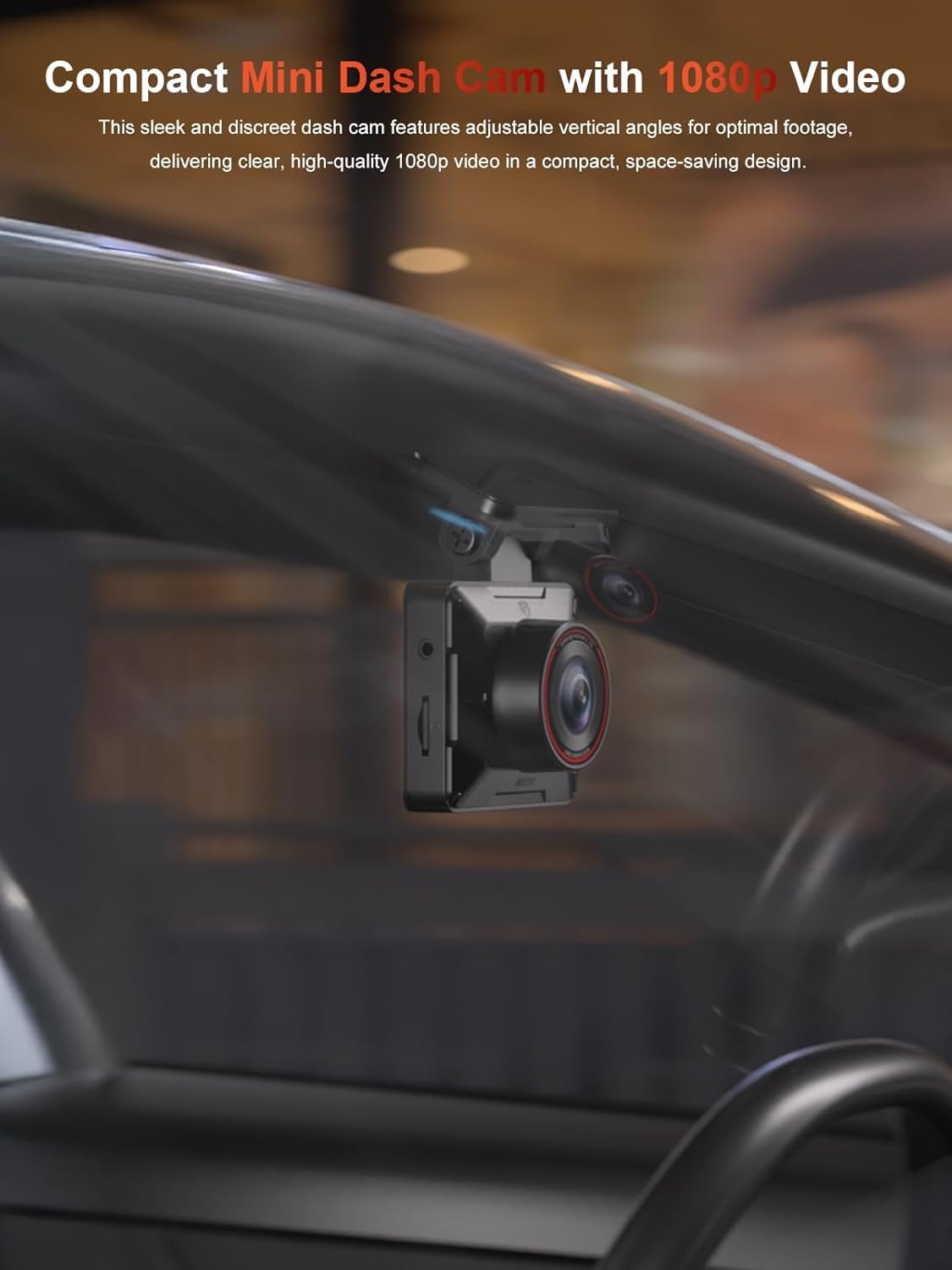
Image: A compact dash cam discreetly mounted on a car's windshield, showing its unobtrusive design.
Steps for Easy Installation:
- Choose a suitable location on your windshield, ensuring it does not obstruct your view.
- Clean the chosen area thoroughly.
- Attach the dash cam using its adhesive mount or suction cup (if included).
- Route the included 3.5m USB car charging cable discreetly along the windshield and dashboard to your car's USB port or cigarette lighter adapter.
- Connect the power cable to the dash cam. The device will power on automatically when the vehicle's ignition is on.

Image: Examples of the dash cam installed as a front camera and a rear camera, demonstrating its versatility.
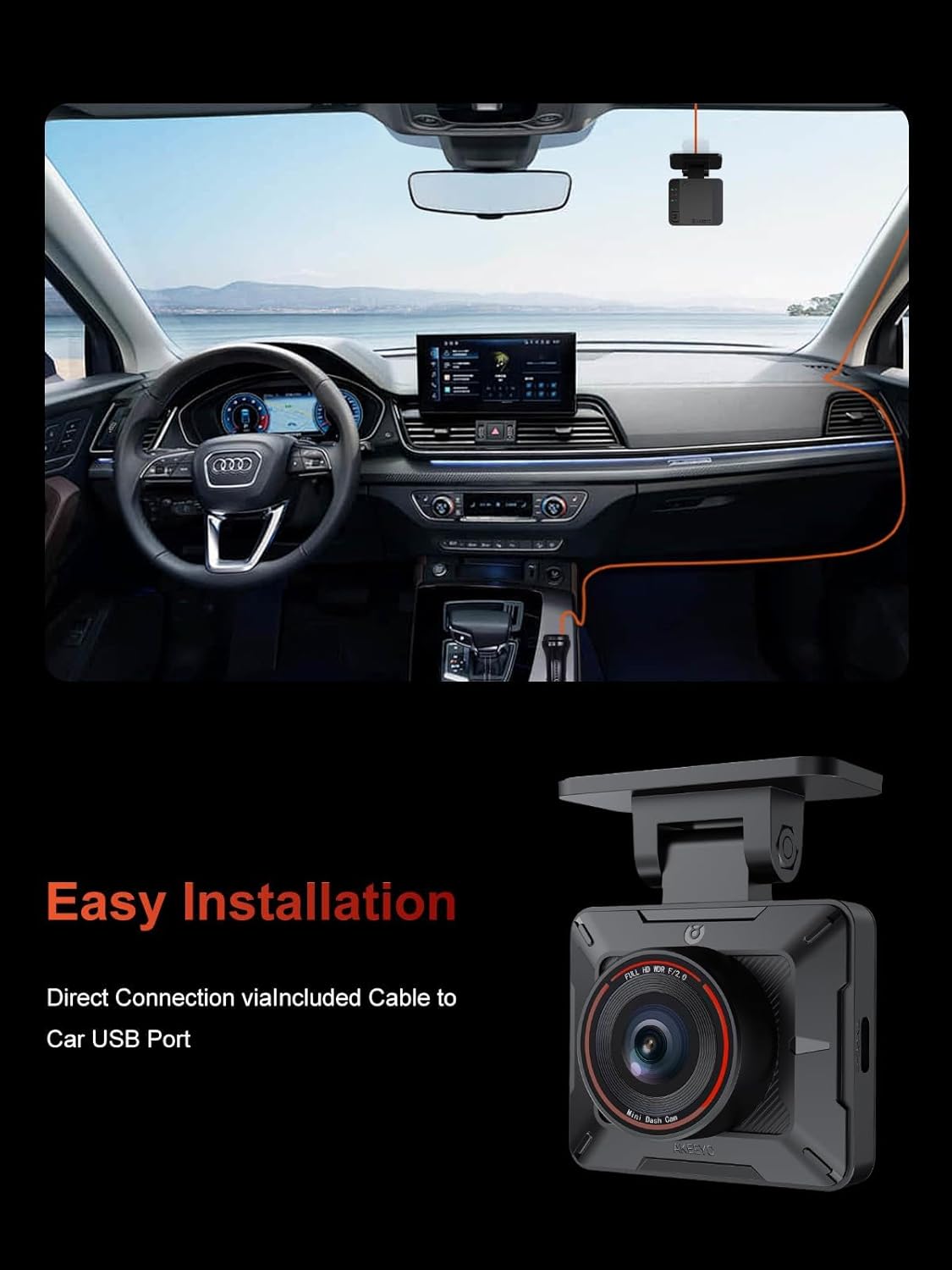
Image: A visual guide demonstrating the simple routing of the power cable within a car's interior for easy installation.
4.2 App Connection (Wi-Fi Setup)
The AKEEYO Dash Cam features built-in 2.4G Wi-Fi for seamless control and footage management via a dedicated smartphone app.
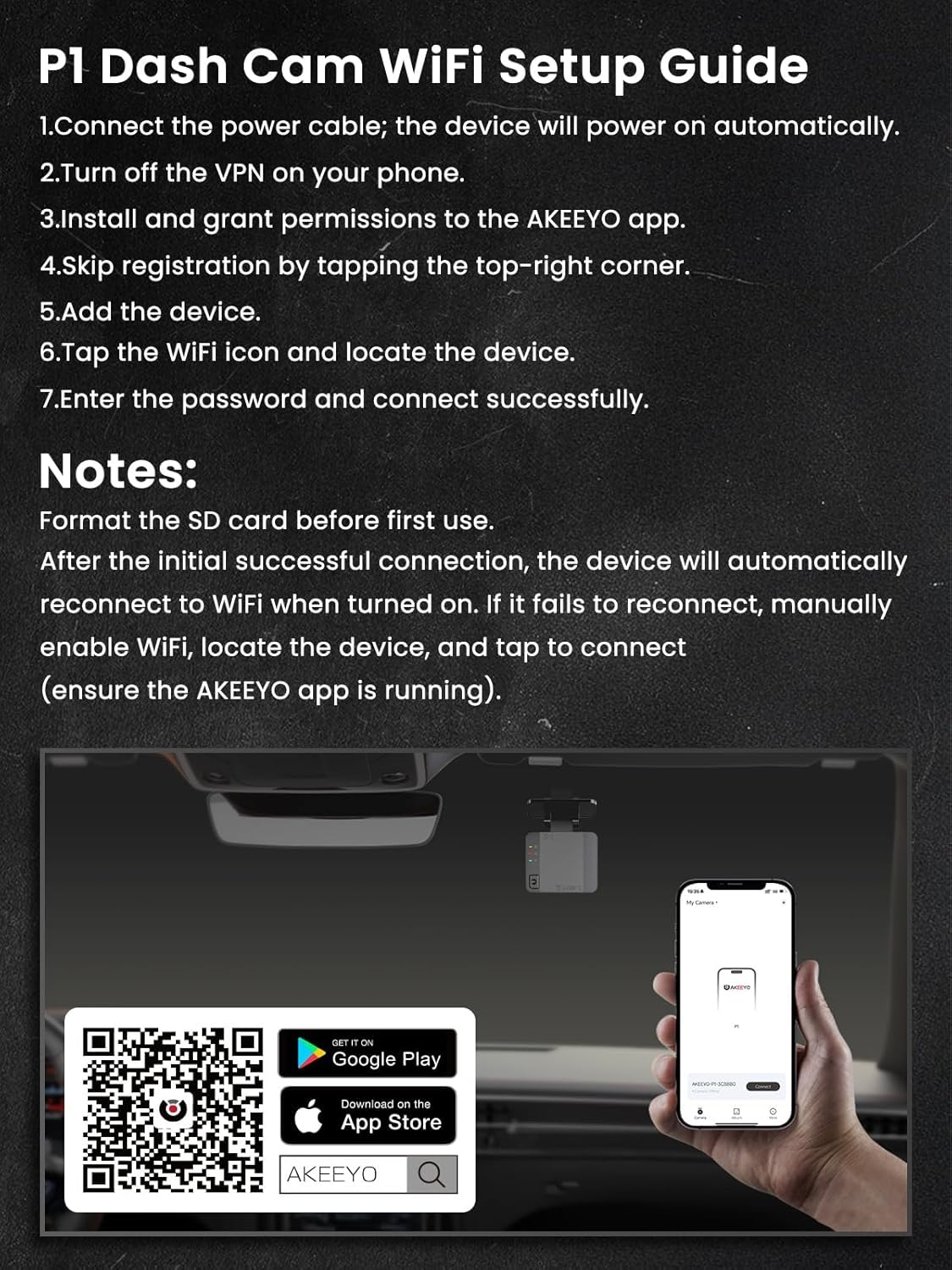
Image: A step-by-step guide for Wi-Fi setup of the P1 Dash Cam, including QR codes for downloading the AKEEYO app.
Wi-Fi Setup Guide:
- Ensure the dash cam is powered on.
- Download the AKEEYO app from the official website, Google Play Store (for Android), or Apple App Store (for iOS).
- On your smartphone, turn off any active VPN connections.
- Grant the AKEEYO app local network access permissions.
- Open the AKEEYO app and skip registration if prompted.
- Tap the Wi-Fi icon within the app and locate your dash cam device (e.g., AKEEYO-P1).
- Enter the default password (usually '12345678' or check the manual/device for specific password) and connect.
Important Notes:
- Format the SD card within the app before first use.
- After the initial successful connection, the device will automatically reconnect to Wi-Fi when powered on.
- If reconnection fails, manually enable Wi-Fi on your phone, locate the device, and tap to connect (ensure the AKEEYO app is running).
- Connection to the app may be interrupted when using wireless CarPlay or Android Auto.
- If using iOS 18 and experiencing connection issues, try restarting your phone.
5. Operating Instructions
5.1 Continuous Recording
The dash cam automatically begins recording when the vehicle's engine is started and stops when the engine is turned off. This ensures continuous coverage of your drives.
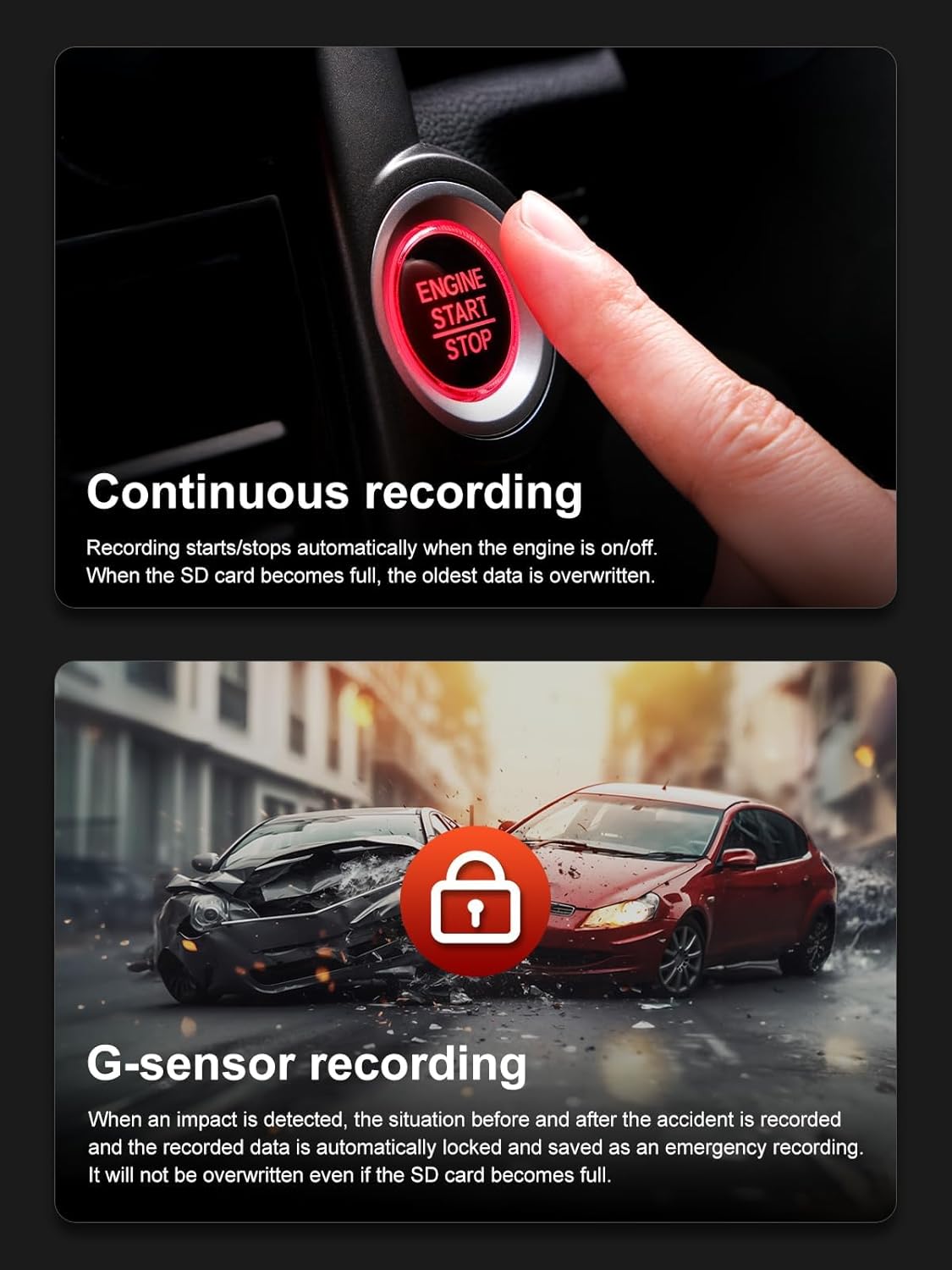
Image: Visual representation of continuous recording starting with engine ignition and G-sensor recording during an impact.
5.2 Loop Recording
When the microSD card reaches its full capacity, the dash cam automatically overwrites the oldest video files to ensure uninterrupted recording. Critical footage locked by the G-Sensor will not be overwritten.
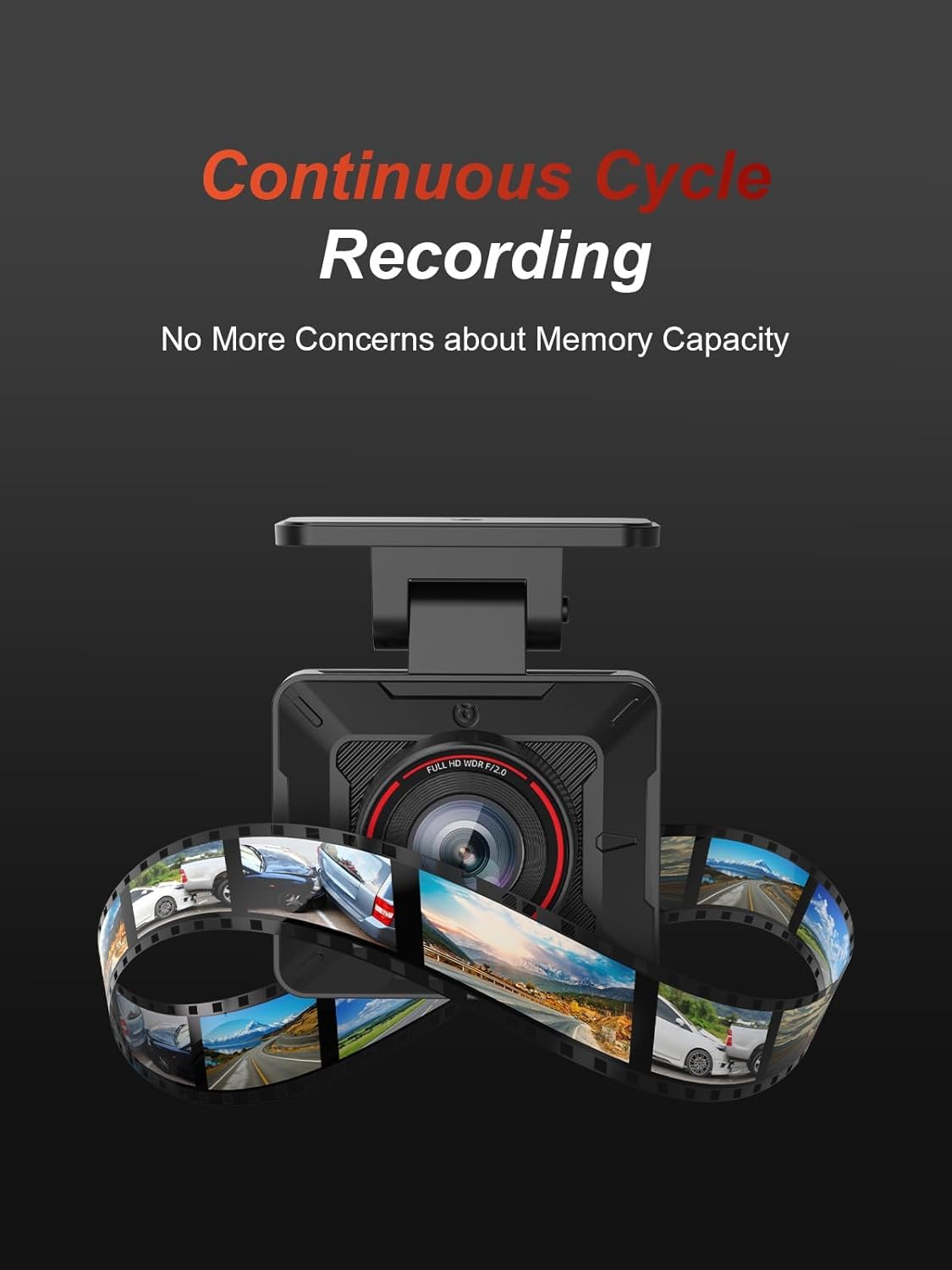
Image: The dash cam with a visual representation of continuous cycle recording, indicating that memory capacity concerns are eliminated.

Image: Explanation of loop recording, detailing how the oldest files are automatically overwritten to ensure continuous recording.
5.3 G-Sensor Recording
The built-in G-Sensor detects sudden movements, such as collisions or impacts. When an impact is detected, the dash cam automatically locks the critical footage (before and after the event) to prevent it from being overwritten, serving as emergency recording evidence.

Image: Visual explanation of the G-sensor function, showing how it detects impact and locks video footage to prevent overwriting.
5.4 24-Hour Parking Mode
For continuous surveillance when your car is off, the 24-hour parking mode enables recording to safeguard your vehicle and valuables. This feature requires a hardwire kit (ASIN: B0DXQ1PGK1), which is not included with the dash cam.
5.5 Wide Dynamic Range (WDR)
The dash cam is equipped with WDR technology to capture clear images even in challenging lighting conditions, such as strong sunlight or low-light environments. WDR helps balance exposure, ensuring details are visible in both bright and dark areas of the recording.
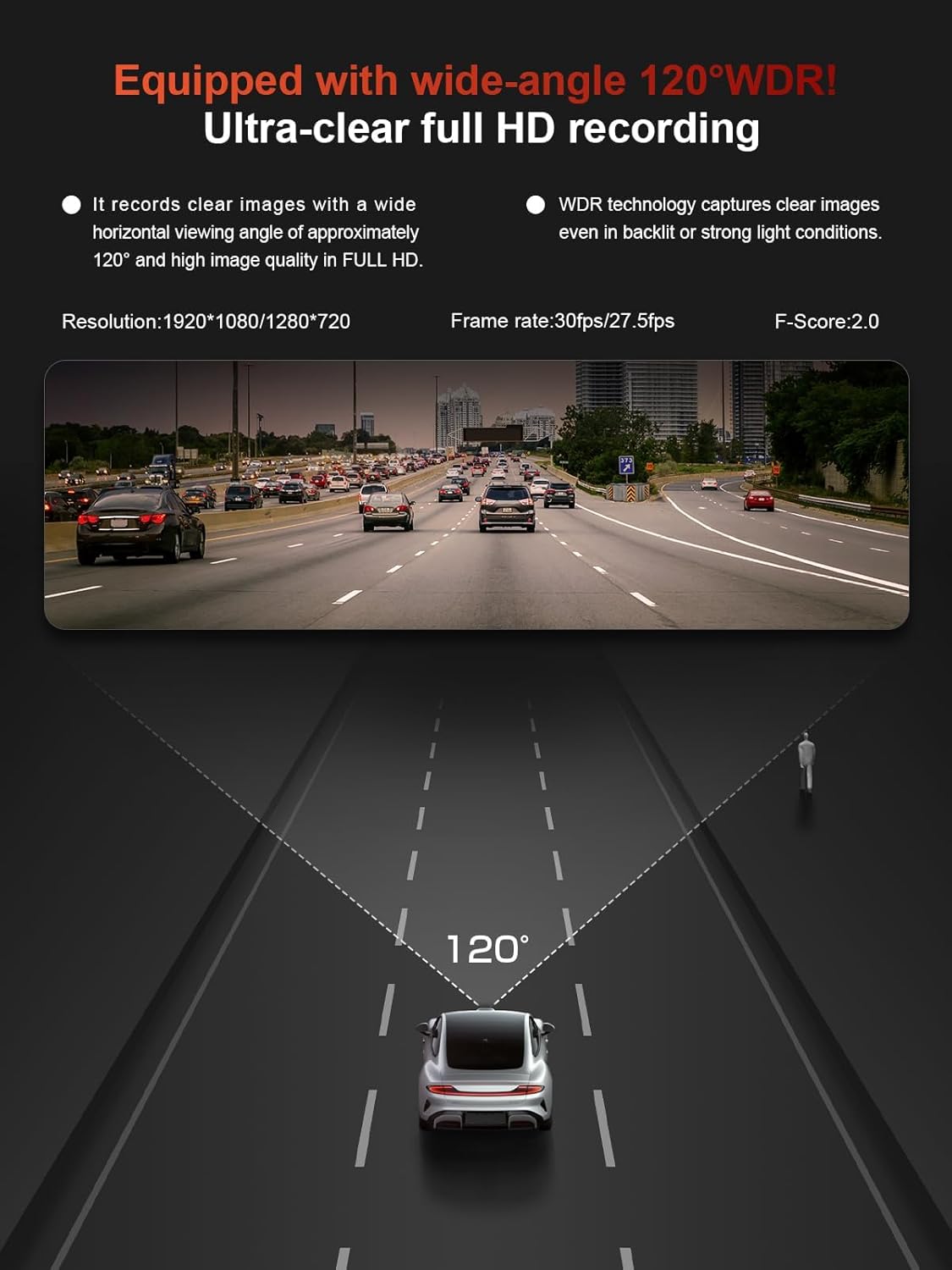
Image: Comparison of video footage with WDR enabled and disabled, demonstrating improved clarity in backlit and strong light conditions.

Image: Demonstrates the WDR function's effectiveness in maintaining clear images when exiting tunnels and during night driving.
5.6 Wide-Angle Lens
The 140° wide-angle lens (or 120° as per some images) minimizes blind spots, capturing up to four lanes of traffic and providing comprehensive coverage of the road ahead and around your vehicle.

Image: A diagram showing the 120-degree wide-angle coverage of the dash cam, designed to minimize blind spots.
5.7 Image/Mirror Image Switching
The camera supports normal and mirror image switching, allowing for flexible installation without concern for orientation. Images can be inverted from the rear view, simplifying setup.
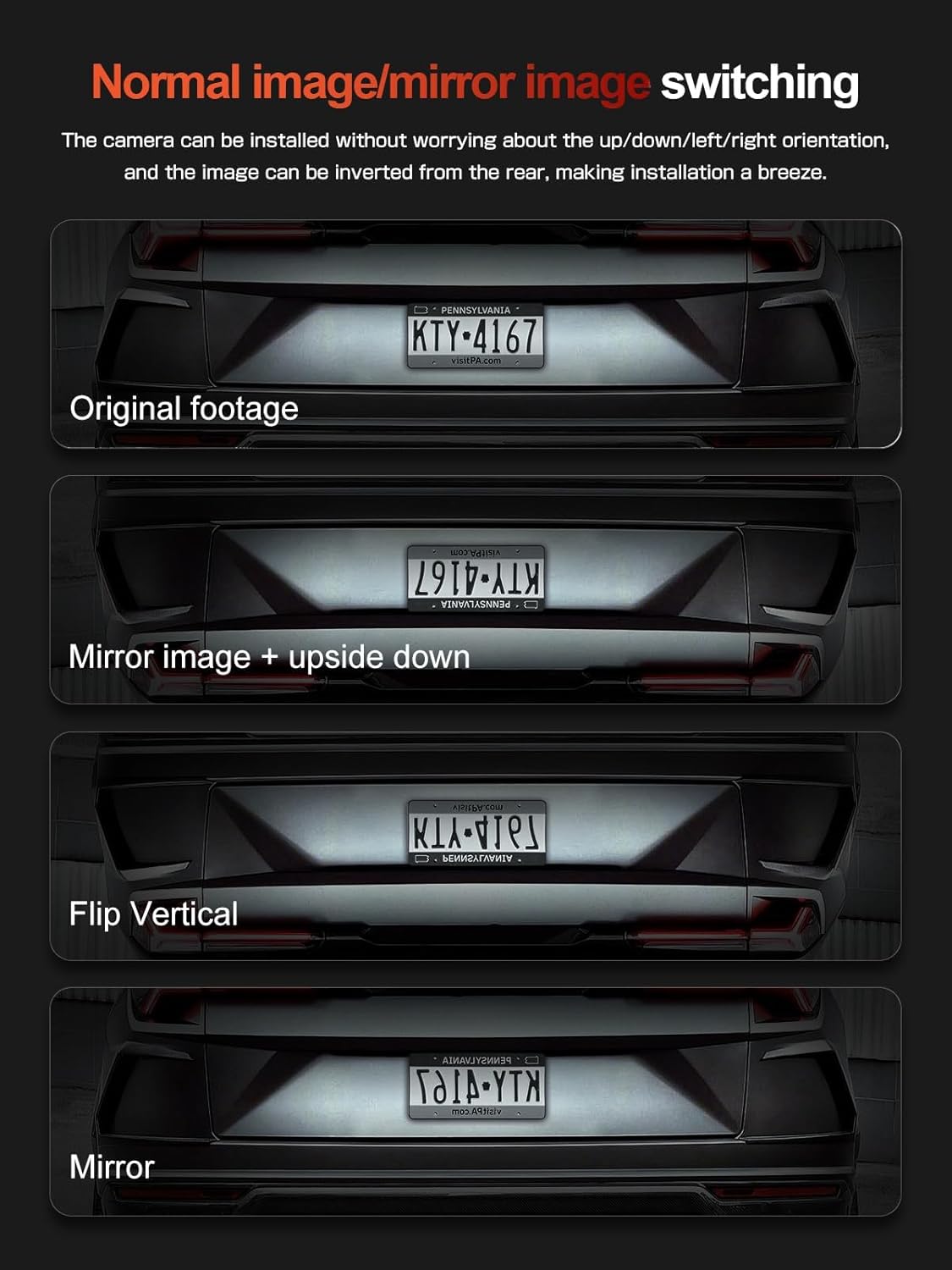
Image: Demonstrations of normal image and mirror image switching options, including vertical flip, for versatile camera placement.
5.8 Selectable Recording Quality
The dash cam offers selectable recording quality options, including Full HD (1080P) for high-quality, clear images and HD (720P) for longer recording times, saving memory capacity.

Image: Comparison illustrating the difference between Full HD (high quality) and HD (longer recording mode) video capture.
6. App Control
The AKEEYO app provides comprehensive control over your dash cam, allowing you to view live footage, download recorded videos, change settings, and share your footage directly from your Android or iOS smartphone.
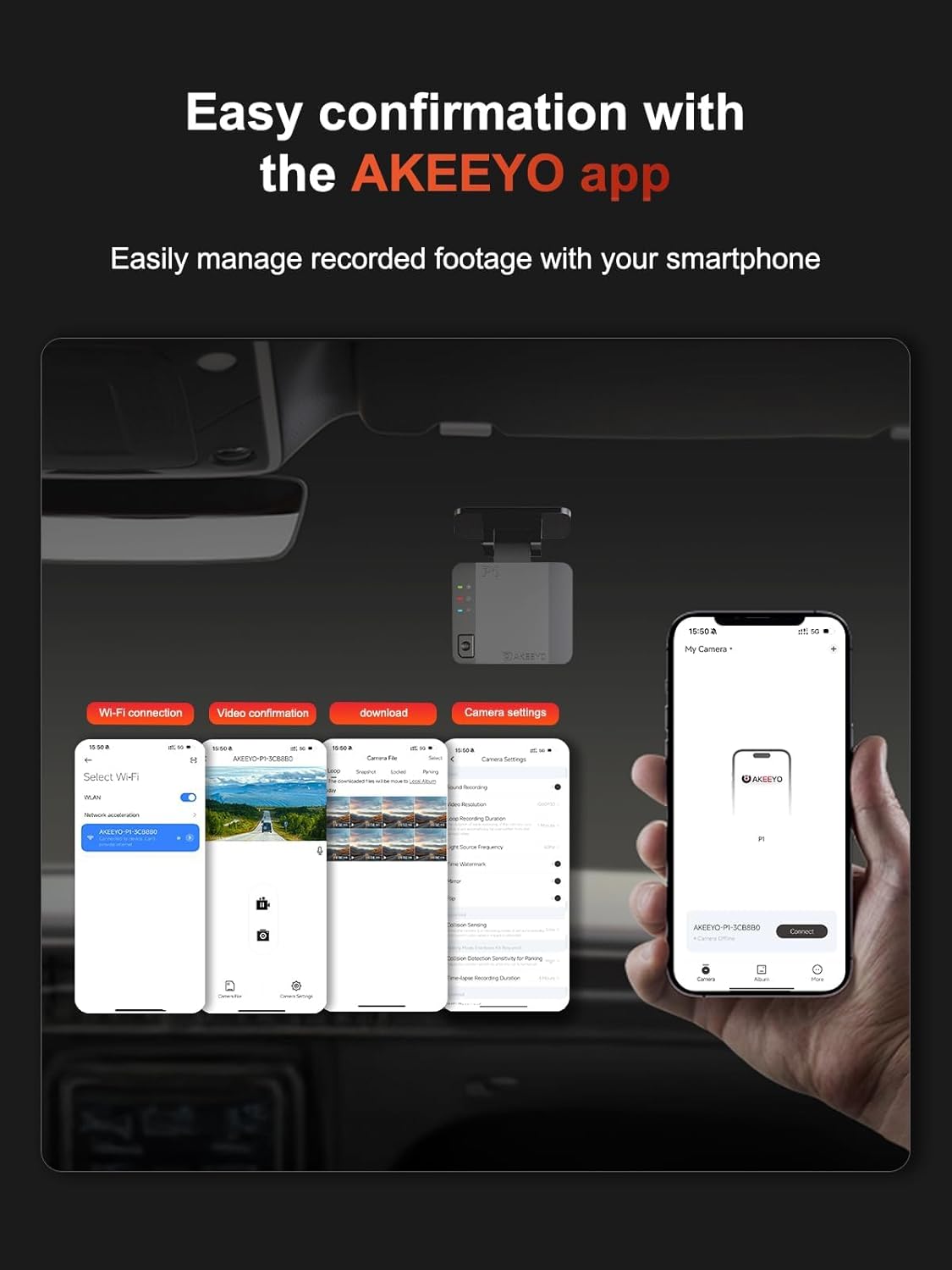
Image: Screenshots of the AKEEYO app demonstrating easy confirmation, video management, and settings adjustment via smartphone.

Image: The AKEEYO app control interface, highlighting built-in 2.4G WiFi and app download options.
Ensure your phone has local network access enabled for the app and that your VPN is turned off to maintain a stable connection. CarPlay and Android Auto may interfere with the Wi-Fi connection.
7. Maintenance
- SD Card Formatting: Regularly format your microSD card (at least once a month) through the AKEEYO app to ensure optimal performance and prevent data corruption.
- Cleaning: Use a soft, dry cloth to clean the camera lens and the device exterior. Avoid using abrasive cleaners or solvents.
- Temperature: The dash cam is built to withstand temperatures from -20°C to 70°C (-4°F to 158°F). Avoid exposing the device to extreme temperatures outside this range for prolonged periods.
- Firmware Updates: Check the AKEEYO official website or app periodically for firmware updates to improve performance and add new features.
8. Troubleshooting
| Problem | Possible Cause / Solution |
|---|---|
| Dash cam not powering on. | Ensure the power cable is securely connected to both the dash cam and the car's power source. Check the car's USB port or cigarette lighter for power. |
| App connection issues (Wi-Fi). | Turn off any VPN on your phone. Ensure the AKEEYO app has local network access. Restart your phone, especially if using iOS 18. Wireless CarPlay/Android Auto may interfere; try disconnecting them temporarily. |
| "Jerky" or unstable video in real-time app view. | This can sometimes occur with real-time streaming. Downloaded videos should be smooth. Ensure a stable Wi-Fi connection. |
| Dash cam stops recording or doesn't save files. | Ensure a Class 10/U3 microSD card is inserted and formatted. The card might be full (loop recording should handle this, but check for locked files). The card might be faulty; try a new one. |
| G-Sensor not locking footage. | Adjust G-Sensor sensitivity in the app settings. Ensure the SD card is not full of other locked files. |
| Date/Time is incorrect. | Connect the dash cam to the app via Wi-Fi; the time will synchronize automatically with your smartphone. |
9. Specifications
| Feature | Detail |
|---|---|
| Model Name | 1080P Dashcam |
| Video Capture Resolution | 1080p (FHD 1920x1080P/30 fps) |
| Lens Angle | 140° (or 120° as per some images) |
| Connectivity Technology | Wi-Fi (2.4G) |
| Special Features | App Control, G-Sensor, WDR Night Vision, 24H Parking Mode (requires hardwire kit), Loop Recording |
| Storage | Supports up to 256GB microSD cards (Class 10/U3 recommended, not included) |
| Operating Temperature | -20°C to 70°C (-4°F to 158°F) |
| Mounting Type | Dashboard Mount |
| Product Dimensions | 6 x 3 x 4 inches |
| Item Weight | 5.6 ounces |
| Color | Black |
10. Warranty and Support
Your satisfaction is a priority for AKEEYO. The product is backed by a commitment to quality and customer support.

Image: Information on AKEEYO's guaranteed service, including global availability, 24/7 customer support, and product certifications.
For any questions, issues, or support needs, please contact AKEEYO customer service:
- Email: help@akeeyo.com
AKEEYO products are available in 100 countries and have passed 12 product safety and quality certifications from the EU, US, UK, and JP.


