
1. Introduction
The FEELWORLD FW568 PRO is a professional 6-inch Full HD IPS on-camera monitor designed to enhance your camera's built-in screen capabilities. It features a 1920x1080 resolution display with 4K HDMI input/output, ensuring accurate image previews for professional video production. With 1200 nits of high brightness, the display remains clearly visible even in direct sunlight, making it suitable for outdoor filming and various field productions. Its lightweight design (204g) makes it an ideal companion for stabilizers and gimbals.
2. Product Overview
2.1 What's in the Box
The package includes the following items:
- 1x FEELWORLD FW568 Pro Camera Video Monitor
- 1x F750 battery
- 1x Carry Case
- 1x HDMI Cable
- 1x Micro HDMI Cable
- 1x Sunshade
- 1x Mini Hot Shoe Mount + Hex Wrench
- 1x USB-A to USB-C Adapter
- 1x Cable Management Tie
- 1x User Manual

Image: All items included in the FEELWORLD FW568 PRO package.
2.2 Key Features
- 6-inch Full HD IPS Display: 1920x1080 resolution with 4K HDMI input/output for clear and accurate monitoring.
- High Brightness: 1200 nits for excellent visibility in outdoor conditions.
- Advanced Monitoring Tools: Includes Waveform, Vectorscope, RGB Histogram, Focus Assist, 3D LUT, False Color, and Zebra Exposure for precise image analysis.
- Versatile Power Options: Supports NP-F series batteries, Type-C 5V, and DC 12V input.
- DC 8.4V Output: Can power your DSLR or mirrorless camera directly from the monitor.
- Lightweight Design: Weighs only 204g, making it suitable for gimbals and stabilizers.
- Customizable Shortcut Keys: Three programmable function buttons (F1, F2, F3) for quick access to frequently used features.
3. Setup
3.1 Mounting the Monitor
The FW568 PRO monitor features 1/4-inch screw threads for flexible mounting options. It can be easily attached to cameras, rigs, stabilizers, or tripods using the included Mini Hot Shoe Mount or other compatible accessories.

Image: The monitor's 1/4-inch screw thread for mounting.
3.2 Powering the Monitor
The monitor offers multiple power supply options:
- NP-F Battery: Insert a compatible NP-F series battery (F550, F750, F970) into the battery slot.
- Type-C 5V: Connect a 5V Type-C power source.
- DC 12V Input: Use a 12V DC power adapter.
The monitor can also provide DC 8.4V output to power your DSLR or mirrorless camera using an optional dummy battery adapter cable.

Image: DC 8.4V output powering a DSLR camera.
3.3 Connecting to a Camera
To connect the monitor to your camera:
- Ensure your camera supports HDMI video output.
- Identify your camera's HDMI port type (full-size, mini, or micro HDMI).
- Use the appropriate HDMI cable (included HDMI and Micro HDMI cables are provided).
- Connect the HDMI cable from your camera's HDMI output to the monitor's HDMI input.
- On your camera, enable HDMI output and select a compatible format (e.g., 1080p 60 or 4K HDMI formats).
4. Operating the Monitor
4.1 Basic Operation
The monitor features several buttons for navigation and control:
- Power Button: Long press to turn on/off.
- Menu Button: Access the main menu.
- Up/Down Buttons: Navigate through menu options.
- Exit Button: Exit menus or functions.
- F1, F2, F3 Buttons: Customizable shortcut buttons.
4.2 Customizing Shortcut Keys
You can customize the F1, F2, and F3 buttons for quick access to your most frequently used features:
- Press the Menu button.
- Navigate to User Settings.
- Select Shortcut Keys.
- Choose Quick Access Buttons and assign desired functions to F1, F2, and F3.
4.3 Adjusting Volume
To adjust the volume:
- Press the Menu button.
- Navigate to System Settings.
- Select Volume and adjust as needed.
4.4 Advanced Monitoring Features
The FW568 PRO includes a suite of professional monitoring tools to assist with accurate focus and exposure:
- 3D LUT: Instantly preview color effects of different styles. You can load up to 32 custom LUTs internally.

Image: 3D LUT functionality and Type-C interface for loading LUTs.
To load 3D LUTs:
- Store LUT files (in .cube format, case insensitive, single file max 7.9MB) on a FAT32 formatted USB flash drive.
- Connect the USB flash drive to the monitor's Type-C interface via a Type-C to USB adapter.
- Use the "<" or ">" buttons to navigate to the import LUT menu and import the 3D LUT.
- Waveform: Monitor exposure in real-time, showing brightness distribution (Y, RGB, YUV) to fine-tune highlights, midtones, and shadows.

Image: Waveform display for exposure analysis.
- Peaking Focus Assist: Highlights in-focus edges (e.g., red, yellow, or green) to achieve sharp, precise focus.

Image: Peaking Focus Assist in action.
- Histogram: Provides a graphical representation of tonal distribution, helping to quickly check exposure and avoid under/overexposure.

Image: Histogram for exposure verification.
- False Color: Maps exposure levels to different colors on your monitor, displaying precise brightness values for various areas of the image.

Image: False Color for detailed exposure analysis.
- Zebra Exposure: Highlights overexposed areas with striped patterns, helping to identify blown highlights and ensure proper exposure.

Image: Zebra Exposure for highlight warning.
- HDR Monitoring: When activated, HDR makes light and dark details clearer, better reflecting real-world visual effects. Built-in HLG1, HLG2, HLG3 types are supported.

Image: HDR Monitoring comparison.
- Flexible UI and Functionality: The FW568 PRO offers various ratio markers, including a 9:16 vertical screen marker, ideal for vertical video platforms.
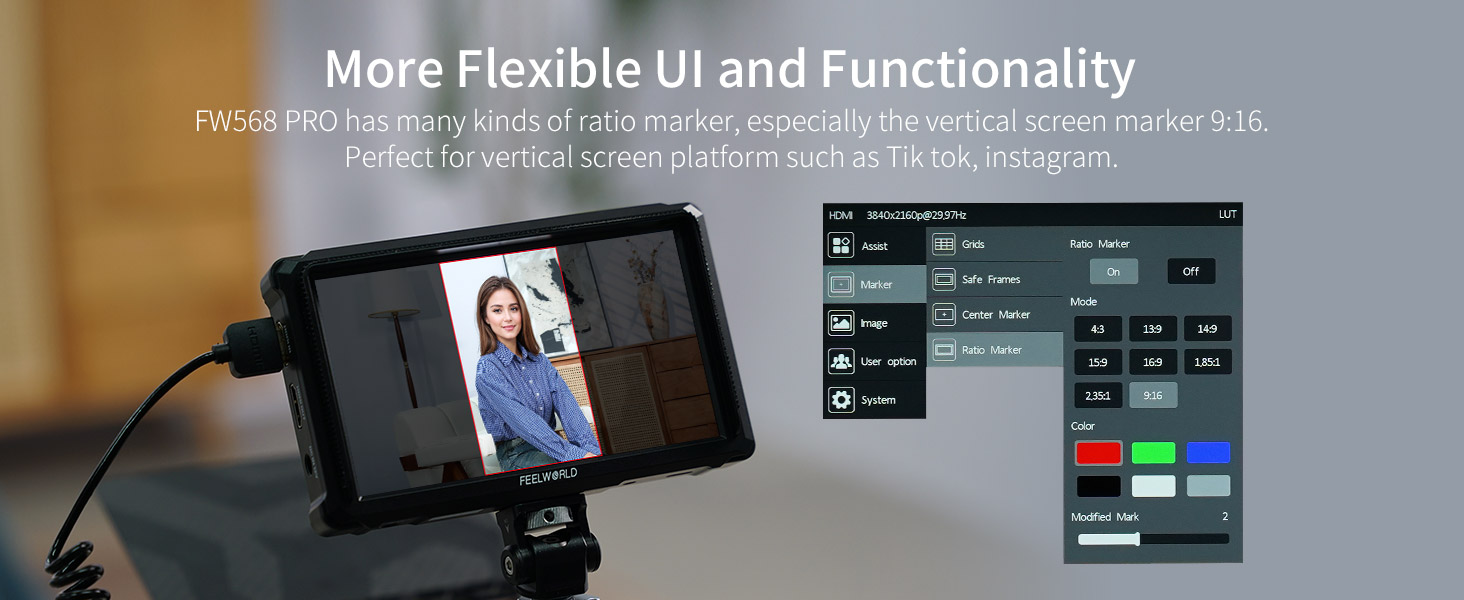
Image: Flexible UI with 9:16 vertical screen marker.
5. Maintenance
To ensure the longevity and optimal performance of your FEELWORLD FW568 PRO monitor, follow these maintenance guidelines:
- Cleaning: Use a soft, dry cloth to clean the monitor's screen and body. For stubborn smudges, lightly dampen the cloth with water or a screen-safe cleaning solution. Avoid harsh chemicals or abrasive materials.
- Storage: When not in use, store the monitor in its carry case to protect it from dust, scratches, and impacts. Keep it in a cool, dry place away from direct sunlight and extreme temperatures.
- Battery Care: If using NP-F batteries, ensure they are charged regularly and stored properly. Remove batteries if the monitor will not be used for an extended period.
- Ventilation: Avoid covering the monitor's vents during operation to prevent overheating.
- Sunshade Use: Utilize the included sunshade for extended outdoor shooting to reduce glare and protect the screen from direct sunlight.
6. Troubleshooting (FAQ)
6.1 Compatibility
- Which cable for my camera type?
Find your camera's HDMI port type (full-size, mini, or micro HDMI). Full-size HDMI is about 14mm wide, mini HDMI about 10mm wide, micro HDMI about 6mm wide. Search for "HDMI output" specifications in your camera manual. - Is it compatible with DSLR cameras, camera formats?
FEELWORLD monitors are compatible with most DSLR, mirrorless, and cinema cameras with HDMI output. Ensure your camera supports HDMI video output and can set output to 1080p or 4K HDMI formats. Use the correct HDMI cable type.
6.2 Resolution
- Can it display 4K images?
The monitor has a 1920x1080 (Full HD) screen and supports 4K input/output through HDMI. - Color accuracy on this monitor?
The monitor provides reliable color accuracy with its IPS display, REC 709 color calibration, HDR, and custom 3D LUT preview for log shooting.
6.3 Screen Brightness
- Can I use it in direct sunlight?
With 1200 nits brightness, the screen is clearly visible above 1000 nits in direct sunlight. - Does the sunshade effectively reduce outdoor glare?
Yes, the sunshade can effectively reduce outdoor glare, providing good monitoring in bright sunlight. - Compare brightness levels. Can its brightness adapt to different environments?
450-500 nits: suitable for indoor use. High bright 1000-1600 nits: clear visibility in sunlight. Ultra-high bright >2000 nits: very sunny outdoor conditions. The FW568 PRO is in the high bright category.
6.4 Interface & Connections
- The monitor displays "no signal" / black screen / not support 4K signal format.
- Try another HDMI cable.
- Connect the monitor's HDMI to a computer to check for a signal.
- Change the camera output signal format to 1080p 60.
- Turn off the camera's wireless network function.
- How do I set up the connection? Complete connectivity options.
- Power: Use a 12V adapter or F series battery.
- Connect: Use an HDMI cable matching your camera port type.
- Mount: Use a hot shoe or 1/4"-20 rig.
- Camera: Enable HDMI output and select a compatible format.
6.5 Operation
- Can't turn on the monitor.
- Use a 12V 1.5A power adapter or a fully charged battery to power.
- Long press the power button to turn on.
- How do I adjust the volume?
Menu → System Settings → Volume. - How to customize shortcut keys?
Menu → User Settings → Shortcut Keys → Quick Access Buttons → Select function.
6.6 Beginner Questions
- Does it get hot during prolonged use?
Slight warming is normal. The monitor is designed with heat dissipation. Avoid covering vents and use a sunshade for extended outdoor shooting. - Which functions are most useful?
Focus: Peaking, Zoom. Exposure: Waveform, Histogram, False Color, Zebra. Composition: Grid & Safe Area Overlays. Color: 3D LUTs, Rec709 & HDR. Convenience: Shortcut Keys, Buttons. - Setup and first use?
Power: NP-F battery or DC/USB-C. Mount: Hot shoe or 1/4"-20 tripod/gimbal/rig. Connect: HDMI cable → enable camera HDMI output. Adjust: Brightness, volume, buttons. Optional: Use DC OUT + dummy battery to power camera.
6.7 Camera Compatibility Settings
- How to turn off HDMI display info? / Not full screen?
Go to Camera's Menu → HDMI Settings / External Display → HDMI Info Display (or Display Info / Overlay Display) → set it to Off or Clean. - Monitor Turns Black When Recording Starts.
Enable "HDMI output during recording" or "HDMI Info Display: On/Off while recording" in the camera's setup menu. - Can Camera Screen and External Monitor Display Simultaneously?
Set camera menu to "Dual display" / "Simultaneous display" / "Monitor + HDMI output" or "HDMI display priority". - The monitor displays "Play and Slide show" when you connect the HDMI signal format.
You need to set camera HDMI output settings:- Switch "secondary monitor".
- Switch off "auto resolution".
- Pair "monitor resolution" with "record resolution".
7. Specifications
| Feature | Detail |
|---|---|
| Product Dimensions | 3.94 x 1.97 x 3.15 inches |
| Item Weight | 1.76 pounds |
| Item Model Number | FW568 PRO-ANP75-AMC5 |
| Batteries | 1 A battery required (included) |
| Manufacturer | FEELWORLD |
| Display Size | 6 inches |
| Resolution | 1920x1080 (Full HD) |
| Brightness | 1200 nits |
| Video Input/Output | 4K HDMI |
8. Warranty and Support
The FEELWORLD FW568 PRO monitor comes with a 1-Year Official Warranty. FEELWORLD provides US local after-sales support for this product. For warranty claims or technical assistance, please contact FEELWORLD customer service through their official channels.
9. Product Videos
FEELWORLD FW568 PRO Camera Monitor Upgrade
Video: An official video from FEELWORLD showcasing the upgrade features of the FW568 PRO camera monitor.
1200nit FW568 PRO field monitor small camera screen solution
Video: An official video from FEELWORLD demonstrating the 1200-nit brightness of the FW568 PRO field monitor as a compact camera screen solution.
FEELWORLD FW568 PRO 6" Bigger Affordable Camera Monitor
Video: An official video from FEELWORLD highlighting the FW568 PRO as a larger, affordable camera monitor solution.


