
Introduction
The CHZHVAN Android Tracker Tag is a Google-certified smart Bluetooth tracker designed to help you locate misplaced items. This device pairs with the "Find Hub" app on your Android phone (Android 9 and above) to provide precise location tracking for items such as keys, wallets, bags, and luggage. It offers features like ultra-loud sound alerts, IP67 waterproofing, and a replaceable battery, ensuring your valuables are always within reach.
This manual provides comprehensive instructions for setting up, operating, maintaining, and troubleshooting your CHZHVAN Android Tracker Tag.

Image: A set of CHZHVAN Android Tracker Tags in various colors, showcasing their compact design and included keychains for attachment to items.
Setup Guide
Follow these steps to set up your CHZHVAN Android Tracker Tag and connect it to the "Find Hub" app.
- Download and Install the "Find Hub" App: Go to the Google Play Store on your Android device and search for "Find Hub". Download and install the application.
- Open the App and Set It Up: Once installed, tap "Open" or locate the "Find Hub" app icon on your home screen and tap it. Log in with your Google account to access the "Find Hub" page.
- Select Your Primary Account: If you have multiple Google accounts, ensure you choose your primary account to link your tracker to it.
- Grant Necessary Permissions: The app may request certain permissions (e.g., location access, Bluetooth). Review and grant these permissions as requested to complete the setup process.
- Turn on the Wireless Tag: Ensure your Wireless Tag is powered on and within Bluetooth range of your phone. Make sure Bluetooth is switched on your phone.
- Pairing: The pairing window should appear automatically in the "Find Hub" app. Follow the on-screen instructions to pair the tag with your phone. If the pairing window does not appear, update your system to the latest version or restart your phone.

Image: Visual guide illustrating the four main steps for setting up the CHZHVAN tracker with the "Find Hub" application on an Android phone.

Image: A more detailed visual breakdown of the setup process, from app installation to granting necessary permissions for the tracker to function correctly.
Operating Instructions
Once your CHZHVAN Android Tracker Tag is set up, you can utilize its features to locate your items.
Locating Items Nearby (Within Bluetooth Range)
If your item is within Bluetooth range (up to 50 meters or 160 feet), you can make the tracker emit a loud sound to quickly find it.
- Open the "Find Hub" app on your Android phone.
- Select the specific Wireless Tag you wish to locate.
- Tap the "Play Sound" button. The tracker will emit a loud ring, guiding you to its location.

Image: Demonstrates how to use the "Play Sound" feature in the Find Hub app to locate a nearby item, showing keys and a tracker on the floor near a couch.

Image: Illustrates the "Trigger a Loud Ring" function, showing the app interface and a visual representation of sound waves emanating from the tracker to help locate items.
Locating Items Far Away (Using Google Find Hub Network)
For items outside Bluetooth range, the Google Find Hub network can help you track their last known location on a map.
- Open the "Find Hub" app.
- The app will display the last known location of your tracker on Google Maps.
- You can use the map to navigate to the item's location.

Image: Shows the CHZHVAN tracker in hand with an Android phone displaying the "Find Hub" app, indicating how the app helps locate items on a map.

Image: Illustrates the global precise location tracking capability, showing how the Google system supports accurate tracking worldwide via the Find Hub app.
Device Sharing
You can share your Wireless Tag with friends and family, allowing multiple phones to track the same tag's location.
- In the "Find Hub" app, select the tag you wish to share.
- Look for a "Share device" option (often represented by a sharing icon).
- Follow the prompts to invite others to view the tag's location.

Image: Depicts the device sharing feature, showing two phones simultaneously tracking the same Wireless Tag location through the Find Hub app.
Lost Mode Notification
Enable "Lost Mode" in the app to receive automatic notifications if your item is accidentally left behind.
- Within the "Find Hub" app, select the desired tag.
- Activate the "Mark as lost" or "Lost Mode" feature.
- You will be notified when the tag's location is updated or if it comes within range of another device on the Find Hub network.
Maintenance
Battery Replacement
The CHZHVAN Android Tracker Tag uses a replaceable CR2032 coin cell battery, which typically lasts up to 12 months depending on usage and temperature. When the battery is low, you will be notified via the "Find Hub" app.
- Locate the battery compartment on the back of the tracker.
- Carefully open the compartment using a small tool or coin if necessary.
- Remove the old CR2032 battery.
- Insert a new CR2032 battery with the positive (+) side facing up.
- Close the battery compartment securely.

Image: Demonstrates the IP67 water resistance of the tracker and provides a visual guide for replacing the CR2032 battery.
Water Resistance
The tracker is IP67 waterproof, meaning it can withstand splashes, rain, and short periods of immersion (up to 30 minutes). While it is water-resistant, it is not recommended for prolonged submersion or use during swimming.
Troubleshooting
If you encounter issues with your CHZHVAN Android Tracker Tag, refer to the following common solutions:
| Problem | Possible Cause | Solution |
|---|---|---|
| Tracker not connecting to app. | Bluetooth is off, app permissions not granted, outdated app/OS, or tracker battery low. | Ensure Bluetooth is enabled on your phone. Check app permissions in your phone settings. Update the "Find Hub" app and your Android OS to the latest versions. Replace the tracker battery if needed. Restart your phone. |
| Sound alert is not loud enough or not working. | Tracker is out of Bluetooth range, or battery is low. | Move closer to the tracker. Replace the battery. Ensure there are no obstructions severely dampening the sound. |
| Inaccurate location tracking. | Poor GPS signal, limited network coverage, or tracker is in an enclosed space. | Ensure your phone has a stable internet connection. Location accuracy relies on the Google Find Hub network, which uses other Android devices to update location. Accuracy may vary in remote areas or indoors. |
| Battery life is shorter than expected. | Frequent use of sound alerts, extreme temperatures, or old battery. | Battery life can vary based on usage frequency and environmental conditions. Ensure you are using a fresh CR2032 battery. |
Specifications
| Feature | Detail |
|---|---|
| Model Number | S10 |
| Dimensions | 1.26 x 1.26 x 0.3 inches (approx. 3.2 x 3.2 x 0.8 cm) |
| Item Weight | 2.89 ounces |
| Battery Type | CR2032 (included) |
| Battery Life | Up to 12 months (varies with usage) |
| Water Resistance | IP67 (splash, rain, short immersion resistant) |
| Connectivity | Bluetooth |
| Compatible Devices | Android phones (Android 9 and above) with "Find Hub" app. Not compatible with iOS or Huawei devices. |
| Control Method | App (Find Hub) |

Image: Displays the physical dimensions of the CHZHVAN tracker, showing its diameter and thickness.
Important Information
Privacy Protection
Your privacy is a priority. The CHZHVAN Android Tracker Tag and the "Find Hub" app are designed to keep your location data anonymous and encrypted. Your location information is accessible only to you and those with whom you explicitly share it.

Image: Visual representation of the privacy protection features, emphasizing that location data is anonymous and encrypted.
Compatibility
This tracker is specifically designed for Android devices running Android 9 and above. It is not compatible with iOS (Apple) or Huawei devices. Ensure your device meets these requirements for optimal performance.
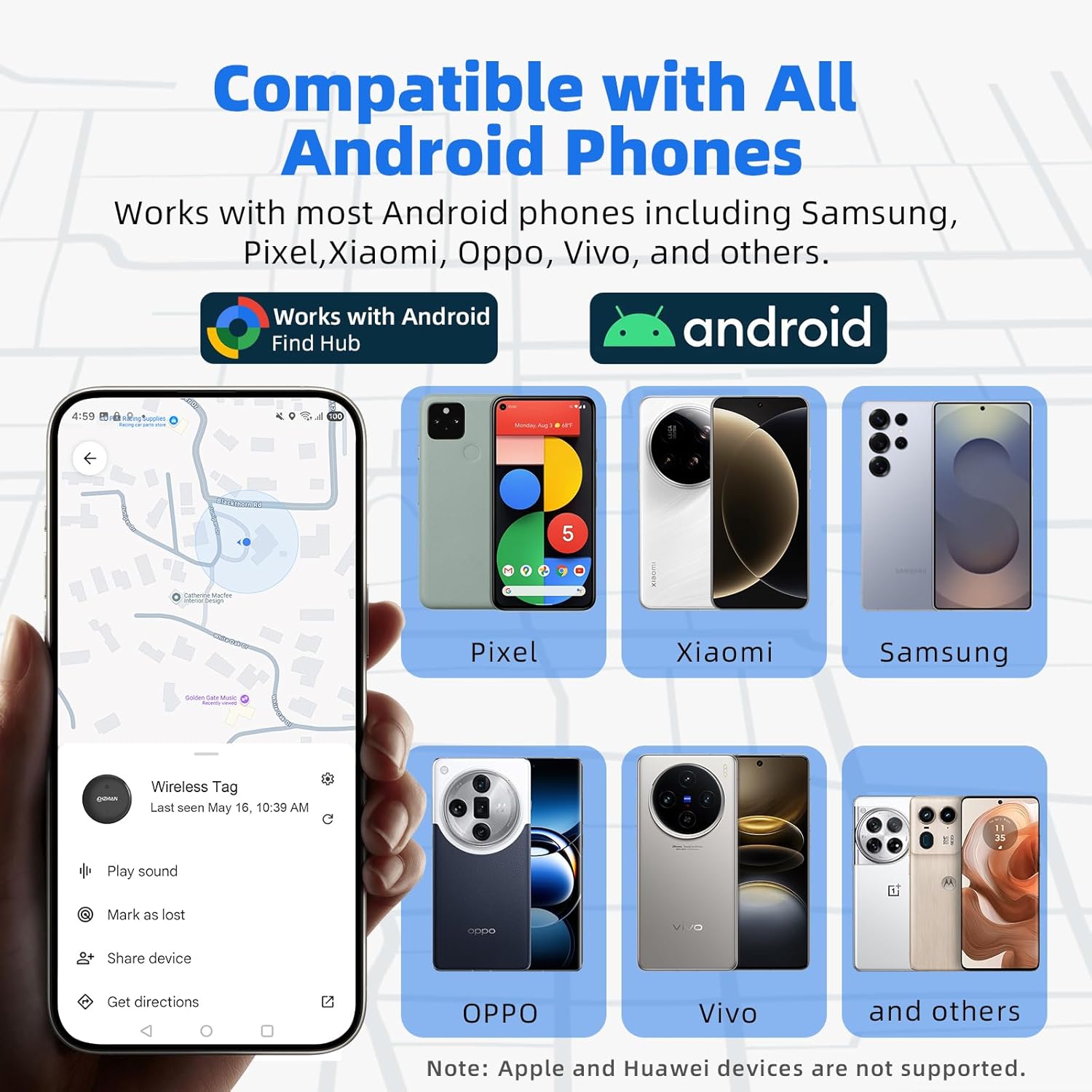
Image: Illustrates the compatibility of the CHZHVAN tracker with various Android phone brands and highlights its integration with the Android Find Hub network.
Warranty and Support
For warranty information, please refer to the documentation provided at the time of purchase or contact CHZHVAN customer support. Support contact details are typically available on the product packaging or the official CHZHVAN website.
For further assistance or technical support, please visit the CHZHVAN Store on Amazon or consult the "Help" section within the "Find Hub" application.

