
1. Introduction
The Incase Sculpt Ergonomic Keyboard, designed by Microsoft, is engineered to provide a comfortable and efficient typing experience. Its unique split keyset, contoured layout, and cushioned palm rest are intended to promote a natural wrist and forearm position, reducing strain during extended use. This manual provides instructions for setting up, operating, and maintaining your keyboard.

Image 1.1: The Incase Sculpt Ergonomic Keyboard with its separate number pad and USB receiver.
2. Package Contents
Verify that all items are present in your package:
- Incase Sculpt Ergonomic Keyboard
- Separate Number Pad
- 2 AAA Batteries (pre-installed in keyboard)
- USB-A Receiver (stored in keyboard battery compartment)
3. Setup
3.1. Battery Installation
The keyboard and number pad come with pre-installed batteries. If replacement is needed:
- Locate the battery compartment on the underside of the keyboard and number pad.
- Open the compartment cover.
- Insert 2 AAA batteries into the keyboard, ensuring correct polarity.
- Insert 1 CR2430 battery into the number pad, ensuring correct polarity.
- Close the compartment cover securely.
3.2. Connecting the USB Receiver
The keyboard and number pad connect wirelessly via a single USB-A receiver.
- The USB receiver is stored inside the battery compartment of the keyboard for safekeeping. Carefully remove it.
- Plug the USB-A receiver into an available USB-A port on your computer (Windows or Mac).
- The keyboard and number pad should automatically connect to your computer. No additional drivers are typically required.

Image 3.1: The USB receiver is stored within the keyboard's battery compartment.
4. Operating Instructions
4.1. Ergonomic Positioning
The Sculpt Ergonomic Keyboard is designed to promote a natural and comfortable typing posture.
- Split Keyset Design: The keyboard's split layout helps position your wrists and forearms in a relaxed, natural angle.
- Cushioned Palm Rest: Rest your palms on the integrated cushioned support to maintain a neutral wrist position.
- Removable Elevator: An optional elevator stand can be attached to the front of the keyboard to provide a reverse tilt, further customizing your wrist comfort.

Image 4.1: Proper hand and wrist positioning on the keyboard.
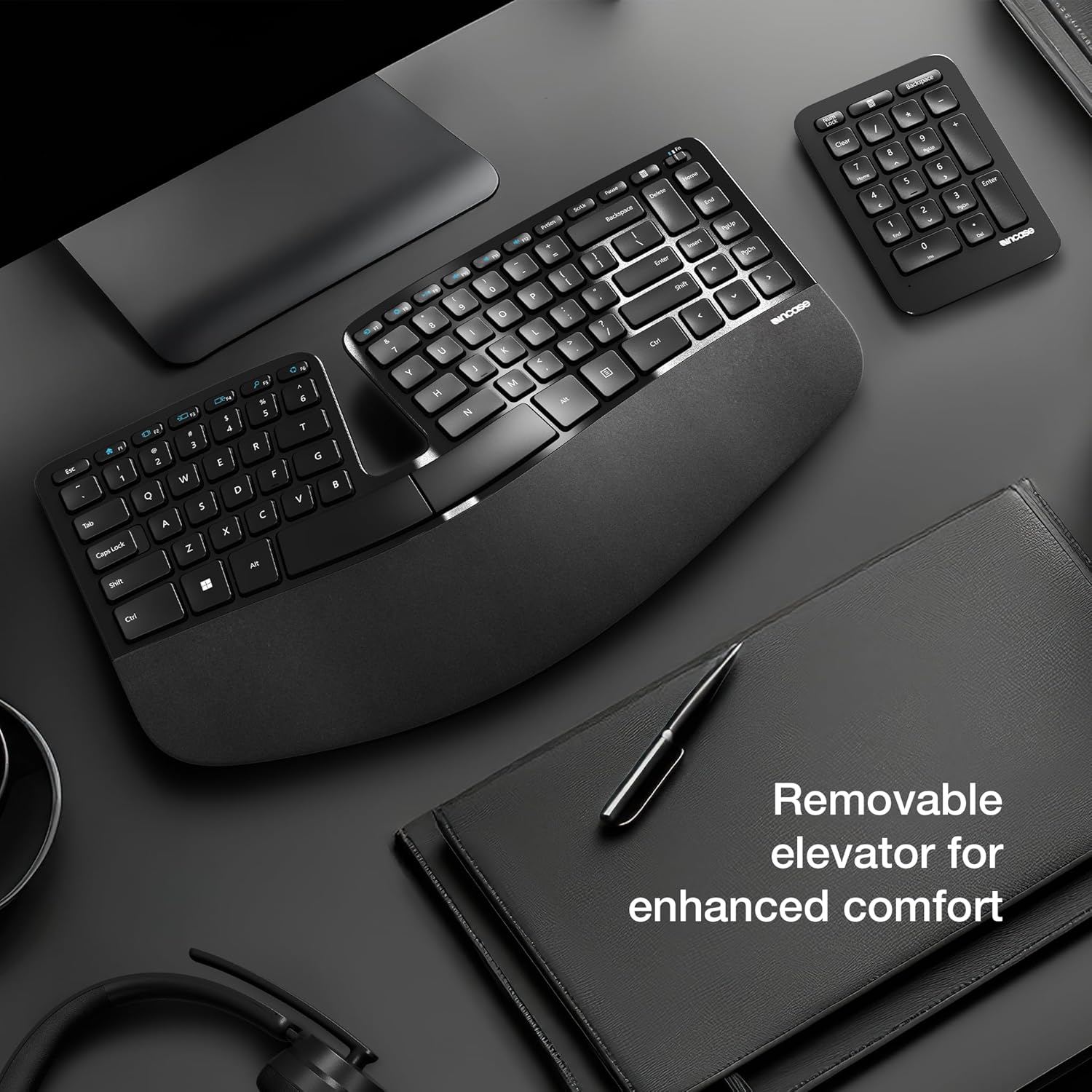
Image 4.2: The removable elevator stand provides customizable wrist support.
4.2. Special Function Keys
The keyboard includes several dedicated keys for enhanced productivity:
- Windows Button: Provides one-touch access to the Start menu.
- Back Button: Facilitates faster navigation in web browsers and applications.
- Screen Snipping Key: Allows for quick capture, copying, and sharing of screen content.
- Function (Fn) Keys: The top row of keys can be toggled between standard F1-F12 functions and media/shortcut functions using the Fn lock switch.
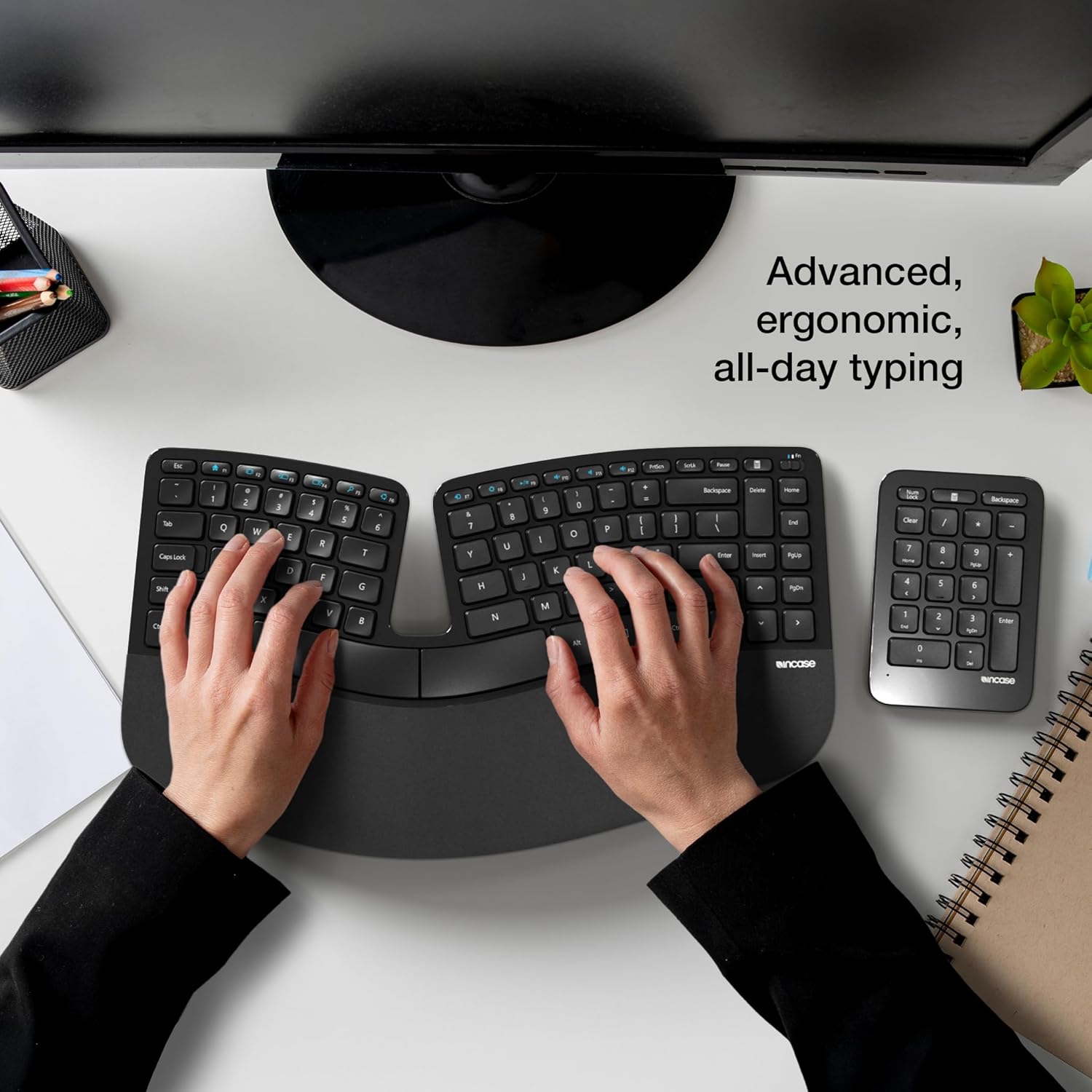
Image 4.3: The keyboard is designed for advanced, ergonomic, all-day typing.
4.3. Separate Number Pad
The included number pad operates independently, allowing for flexible workspace arrangement. This enables you to position your mouse closer to the main keyboard for improved ergonomics if you do not frequently use the number pad.

Image 4.4: Customize your workspace with the separate number pad.
5. Key Features
- Ergonomic Design: Crafted to promote a relaxed and comfortable computing experience, reducing wrist and hand strain.
- Split Keyset and Domed Keyboard: Positions wrists and forearms in a natural, relaxed posture.
- Cushioned Palm Rest: Provides support for a neutral wrist position.
- Removable Elevator: Allows for customizable reverse tilt to enhance wrist comfort.
- Efficient Navigation: Includes a dedicated Windows button, back button, and screen snipping key.
- Advanced Encryption Standard (AES) 128-bit Encryption: Ensures secure data entry.
- Long Battery Life: Up to 18 months of battery life for the keyboard.
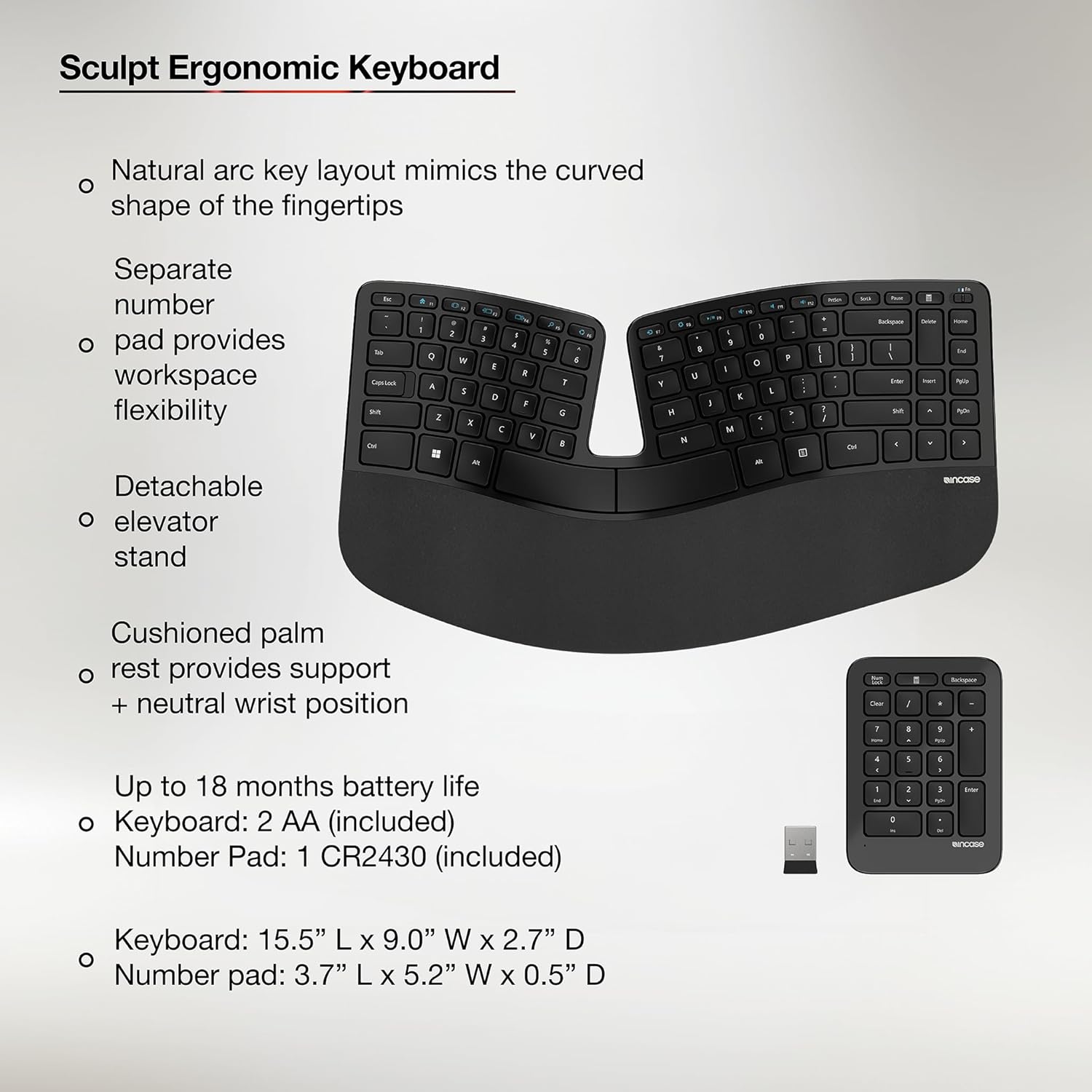
Image 5.1: Overview of the Sculpt Ergonomic Keyboard's design and features.

Image 5.2: The sculpted, natural arc design of the keyboard.
6. Maintenance
6.1. Cleaning
To clean your keyboard:
- Disconnect the USB receiver from your computer.
- Use a soft, lint-free cloth slightly dampened with water or a mild cleaning solution.
- Avoid spraying liquids directly onto the keyboard.
- Do not use abrasive cleaners or solvents.
6.2. Battery Replacement
Replace batteries when performance degrades or the low battery indicator (if present) illuminates. Refer to Section 3.1 for battery installation instructions.
7. Troubleshooting
7.1. Keyboard Not Responding
- Ensure the USB receiver is securely plugged into a working USB-A port on your computer.
- Check the batteries in both the keyboard and number pad. Replace if necessary.
- Try plugging the USB receiver into a different USB-A port.
- Move the keyboard closer to the USB receiver to rule out interference.
- Restart your computer.
7.2. Keys Sticking or Not Registering
- Clean around the affected keys to remove any debris.
- Ensure the keyboard is on a flat, stable surface.
8. Specifications
| Feature | Detail |
|---|---|
| Model Name | Sculpt Ergonomic Keyboard |
| Item Model Number | 5KV-00001 |
| Keyboard Dimensions (L x W x H) | 15.5" x 9.0" x 2.7" (39.37 cm x 22.86 cm x 6.86 cm) |
| Number Pad Dimensions (L x W x H) | 3.7" x 5.2" x 0.5" (9.4 cm x 13.2 cm x 1.27 cm) |
| Item Weight | 2 pounds (0.91 kg) |
| Connectivity Technology | USB-A Wireless |
| Keyboard Battery | 2 AAA batteries (included) |
| Number Pad Battery | 1 CR2430 battery (included) |
| Compatible Devices | Windows, Mac, Laptop, Desktop |
| Special Features | Cushioned Palm Rest, Ergonomic, Split Keyset, Removable Elevator |

Image 8.1: Detailed dimensions of the keyboard and number pad.
9. Warranty and Support
9.1. Limited Warranty
The Incase Sculpt Ergonomic Keyboard comes with a 1-year limited warranty from the date of purchase. This warranty covers defects in materials and workmanship under normal use. It does not cover damage caused by accidents, misuse, unauthorized modifications, or external causes.
9.2. Customer Support
For technical assistance or warranty claims, please refer to the official Incase support channels. Contact information can typically be found on the Incase website or product packaging.