
Samsung Galaxy A14 5G SM-A146U
Samsung Galaxy A14 5G SM-A146U User Manual
Model: SM-A146U | Brand: Samsung
1. Product Overview
The Samsung Galaxy A14 5G SM-A146U is a smartphone designed for seamless connectivity and performance. It features a vibrant 6.6-inch Full HD+ display, a powerful 50MP triple rear camera setup, and a long-lasting 5000mAh battery. Powered by the MediaTek Dimensity 700 chipset and running on Android 13 (upgradable to Android 14), this device offers efficient performance and smooth multitasking.
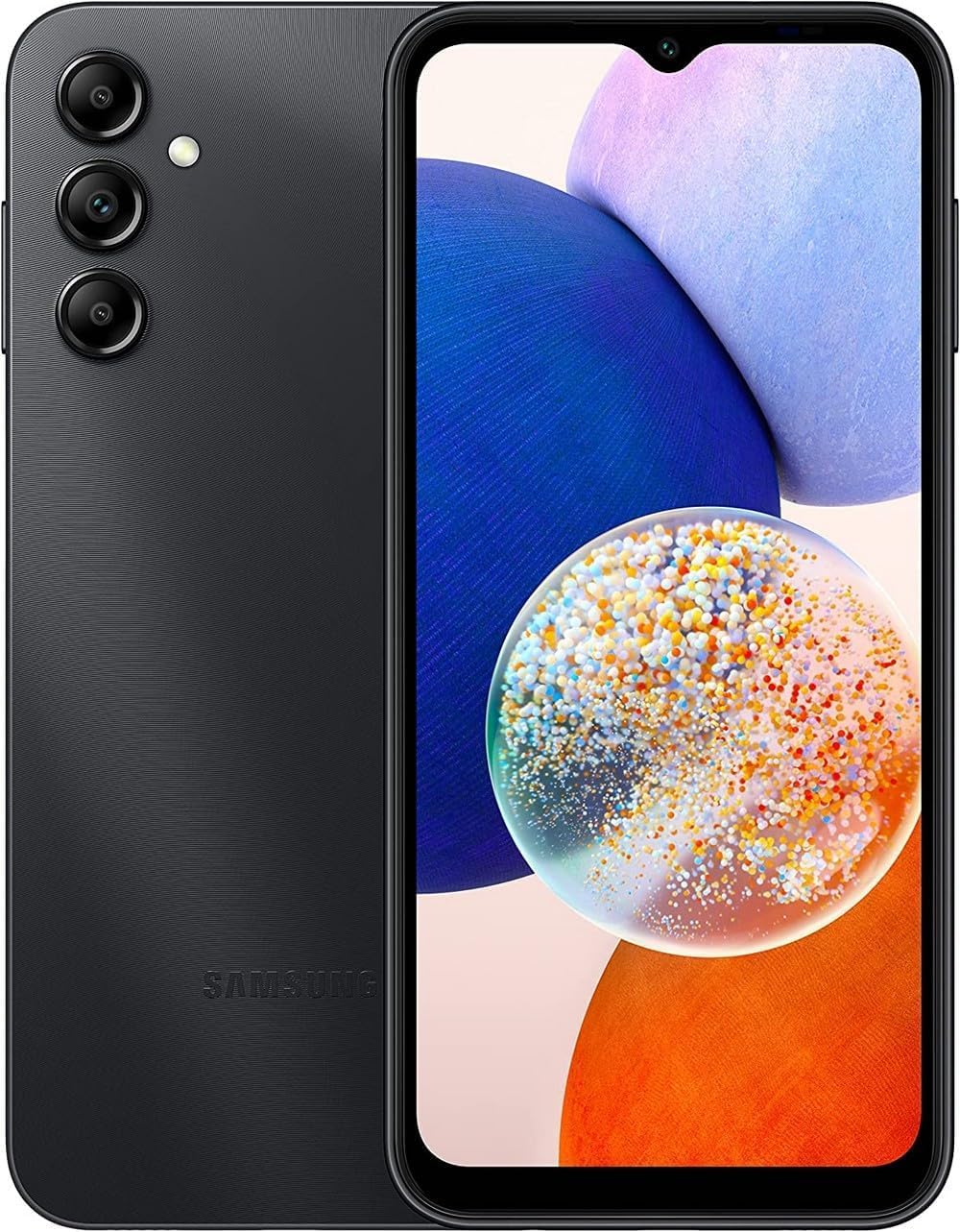
Figure 1: Front view of the Samsung Galaxy A14 5G SM-A146U.
2. What's in the Box
Your Samsung Galaxy A14 5G package includes the following items:
- Samsung Galaxy A14 5G Smartphone
- USB-C Cable
- SIM Ejector Tool
Note: A power adapter may be sold separately.
3. Setup
3.1. SIM Card & MicroSD Installation
- Locate the SIM Tray: The SIM card tray is typically located on the side of the device.
- Eject the Tray: Insert the provided SIM ejector tool into the small hole next to the tray and push gently until the tray pops out.
- Insert SIM/MicroSD: Place your Nano-SIM card into the SIM slot. If you wish to expand storage, place a microSD card into the designated slot on the same tray. Ensure the cards are correctly oriented as shown in the device's quick start guide.
- Reinsert Tray: Carefully slide the tray back into the phone until it clicks into place.
3.2. Initial Power On
Press and hold the Power/Lock button (located on the side) until the Samsung logo appears. Follow the on-screen instructions to complete the initial setup, including language selection, Wi-Fi connection, Google account setup, and security settings.
3.3. Charging the Device
Connect the USB-C cable to the charging port at the bottom of the phone and the other end to a compatible power adapter (not included) or a computer's USB port. The device supports 15W wired charging.
4. Operating Instructions
4.1. Basic Navigation
The Samsung Galaxy A14 5G runs on Android 13.0. Navigate through the interface using touch gestures:
- Swipe Up/Down: Access the app drawer or notification panel.
- Swipe Left/Right: Navigate between home screens.
- Tap: Select an item or open an app.
- Long Press: Access contextual menus or move app icons.
4.2. Security Features
Unlock your device securely using:
- Fingerprint Sensor: Integrated into the Power/Lock button for quick and secure access.
- Face Recognition: Use your face to unlock the device.
4.3. Connectivity
The Galaxy A14 5G supports various connectivity options:
- 5G Network: For high-speed mobile data.
- Wi-Fi: Supports 802.11 a/b/g/n/ac for wireless internet access.
- Bluetooth 5.2: For connecting wireless accessories.
- USB Type-C 2.0: For data transfer and charging.
- 3.5 mm Headphone Jack: For wired audio connections.
4.4. Camera Usage
The device features a versatile camera system:
- Rear Cameras: Triple camera setup with a 50MP main sensor, 2MP macro, and 2MP depth sensor.
- Front Camera: 13MP front-facing camera for selfies and video calls.
- Video Recording: Supports 1080p video capture at 60 fps.
5. Maintenance
5.1. Battery Care
The Galaxy A14 5G is equipped with a 5000mAh battery. To maximize battery life:
- Avoid extreme temperatures.
- Use the provided USB-C cable for charging.
- Optimize battery settings in the device's software.
5.2. Software Updates
Ensure your device is running the latest software version for optimal performance and security. You can check for updates in Settings > Software update.
5.3. Cleaning Your Device
Use a soft, lint-free cloth to clean the screen and body of your phone. Avoid harsh chemicals or abrasive materials.
5.4. Water Resistance
This device is not water resistant. Avoid exposure to liquids to prevent damage.
6. Troubleshooting
If you encounter issues with your Samsung Galaxy A14 5G, try the following common solutions:
- Restart the Device: A simple restart can resolve many minor software glitches.
- Check Connections: Ensure Wi-Fi, Bluetooth, and mobile data are enabled and connected correctly.
- Clear App Cache: If an app is misbehaving, try clearing its cache in Settings > Apps > [App Name] > Storage > Clear cache.
- Factory Reset: As a last resort, you can perform a factory data reset (Settings > General management > Reset > Factory data reset). Warning: This will erase all data on your device. Back up important information before proceeding.
7. Specifications
| Brand | Samsung |
| Model Name | Galaxy A14 5G |
| Model Number | SM-A146U |
| Operating System | Android 13.0 (upgradable) |
| Processor | Octa-core (MediaTek Dimensity 700 chipset) |
| RAM | 4 GB |
| Internal Storage | 64 GB (expandable via microSD) |
| Screen Size | 6.6 Inches |
| Display Type | PLS LCD |
| Resolution | 1080 x 2408 pixels (Full HD+) |
| Refresh Rate | 90 Hz |
| Pixel Density | ~400 PPI |
| Rear Camera | 50 MP (Main) + 2 MP (Macro) + 2 MP (Depth) |
| Front Camera | 13 MP |
| Video Capture Resolution | 1080p @ 60 fps |
| Battery Capacity | 5000 mAh |
| Charging | 15W Wired Charging |
| Connectivity | 5G, Wi-Fi 802.11 a/b/g/n/ac, Bluetooth 5.2, USB Type-C 2.0 |
| Audio Jack | 3.5 mm |
| Biometric Security | Face Recognition, Fingerprint Sensor |
| Water Resistance | Not Water Resistant |
| Color | Black |
| UPC | 756740101636 |
8. Warranty and Support
Your Samsung Galaxy A14 5G comes with a 30-day return policy for a full refund or exchange. For detailed warranty terms, technical support, or service inquiries, please visit the official Samsung support website or contact your retailer.
Official Samsung Support: www.samsung.com/us/support/
9. Related Videos
Samsung Galaxy A23 5G vs. Samsung Galaxy A14 5G Comparison
This video provides a detailed comparison between the Samsung Galaxy A23 5G and the Samsung Galaxy A14 5G, highlighting key differences in design, specifications, and performance. It helps users understand the nuances between these two models.
Related documentsGalaxy A14 5G SM-A146U


Ask a question about this manual
Ask about setup, troubleshooting, compatibility, parts, safety, or missing instructions. Manuals+ will review the question and use this page’s manual context to help answer it.