
Introduction
This manual provides essential information for setting up, operating, maintaining, and troubleshooting your Corsair Vengeance a7500 Gaming PC. This system is equipped with an AMD Ryzen™ 7 9800X3D CPU, AMD Radeon™ RX 9070XT GPU, 32GB Vengeance RGB DDR5 Memory, and a 1TB M.2 SSD, all housed within a Corsair 3500X ARGB Mid-Tower Case.
The Corsair Vengeance a7500 is designed for high-performance gaming and demanding applications, featuring liquid cooling and efficient airflow to maintain optimal component temperatures.

Image: The Corsair Vengeance a7500 Gaming PC showcasing its internal RGB lighting and sleek design.
Setup
1. Unboxing and Placement
Carefully remove the PC from its packaging. Place the PC on a stable, flat surface with adequate ventilation. Ensure that the rear and side panels are not obstructed to allow for proper airflow.
2. Connecting Peripherals
Connect your monitor(s) to the AMD Radeon RX 9070XT GPU ports (DisplayPort or HDMI). Connect your keyboard, mouse, and other USB devices to the available USB ports on the rear I/O panel. For audio, use the 3.5mm audio jacks or digital audio outputs.

Image: A detailed view of the front I/O panel, highlighting the USB 3.2 Gen1 Type-A, USB 3.2 Gen2 Type-C, and combination mic/headphone jack.
3. Power Connection and First Boot
Connect the power cable to the power supply unit (PSU) at the rear of the PC and then to a wall outlet. Press the power button on the front panel to turn on the system. The PC comes with Windows 11 Home pre-installed. Follow the on-screen instructions to complete the initial Windows setup.
Operation
1. General Use
The Corsair Vengeance a7500 is optimized for demanding tasks. The AMD Ryzen 7 9800X3D CPU and AMD Radeon RX 9070XT GPU provide high frame rates for gaming and efficient performance for content creation and multitasking. The 32GB of CORSAIR VENGEANCE RGB DDR5 memory ensures smooth operation across multiple applications.

Image: A close-up view of the liquid cooling system and CORSAIR VENGEANCE RGB DDR5 memory, illustrating the internal components.
2. RGB Lighting Control
The system features customizable RGB lighting for the fans and memory modules. Utilize the pre-installed Corsair iCUE software to personalize lighting effects, synchronize colors, and monitor system performance. Refer to the Corsair iCUE software documentation for detailed instructions on customization.

Image: The interior of the PC case illuminated with various RGB lighting effects, demonstrating customization options.
Maintenance
1. Cleaning
Regularly clean the exterior of the PC case with a soft, dry cloth. For internal cleaning, use compressed air to remove dust from fans, radiators, and other components. Ensure the PC is powered off and unplugged before performing any internal cleaning. Avoid using liquid cleaners directly on components.
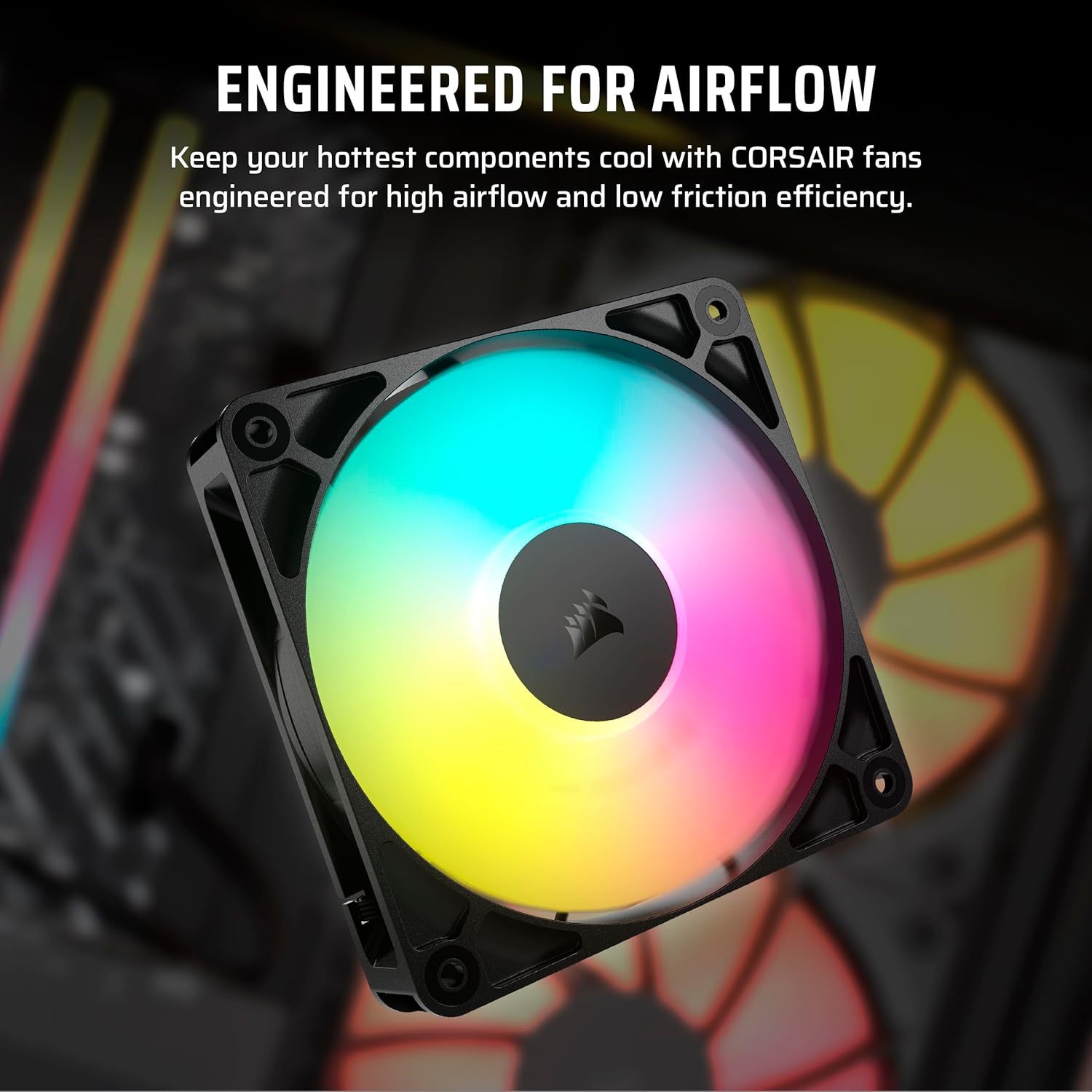
Image: A close-up of a Corsair fan, emphasizing the importance of keeping cooling components clear of dust.
2. Upgrades
The Corsair Vengeance a7500 is designed with upgradeability in mind, featuring a standard ATX form factor. You can add more storage (M.2 NVMe SSDs), upgrade RAM, or replace components as needed. Consult the motherboard manual for specific upgrade procedures and compatibility information. Always power off and unplug the PC before installing or removing components.
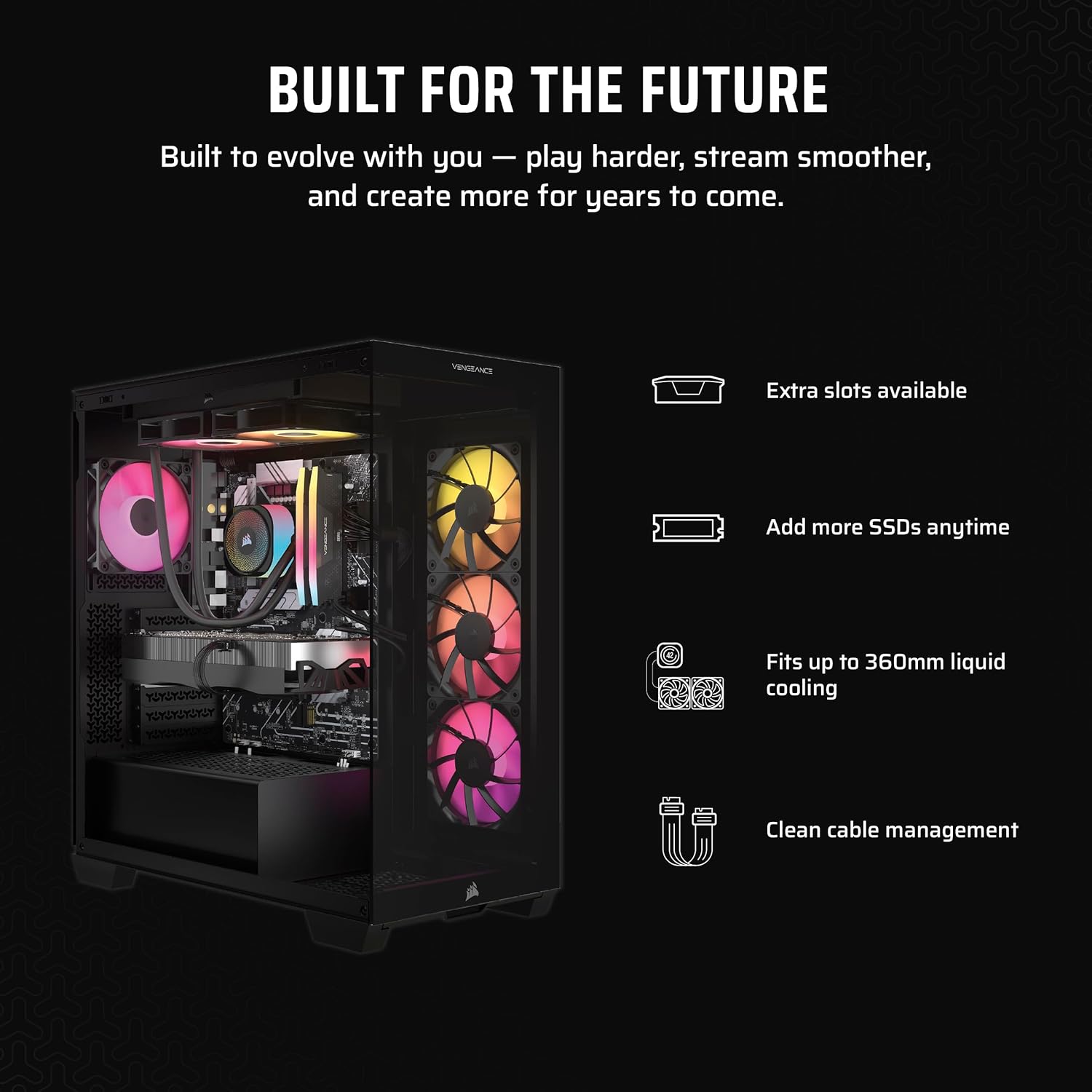
Image: An internal view of the PC, illustrating available slots for future upgrades such as additional SSDs and liquid cooling.
Troubleshooting
- No Power: Ensure the power cable is securely connected to both the PC and the wall outlet. Check the power switch on the PSU at the rear of the PC.
- No Display: Verify that your monitor is connected to the graphics card (GPU) ports, not the motherboard ports. Ensure the monitor is powered on and set to the correct input source.
- System Slowdown: Check for background applications consuming resources. Ensure drivers (especially graphics drivers) are up to date. Monitor component temperatures using Corsair iCUE or other system monitoring software.
- Overheating: Ensure the PC has adequate ventilation and that fan vents are not obstructed. Clean dust from fans and radiators as described in the Maintenance section.
- Software Issues: For operating system or application-specific problems, consult the respective software documentation or support resources.
For persistent issues or complex hardware problems, contact Corsair customer support.
Specifications
| Component | Detail |
|---|---|
| Brand | Corsair |
| Model Name | CORSAIR VENGEANCE a7500 |
| Model Number | CS-9050139-NA |
| Operating System | Windows 11 Home |
| CPU Model | AMD Ryzen 7 9800X3D |
| CPU Speed | 4.7 GHz (Base), 5.2 GHz (Max Boost) |
| Graphics Coprocessor | AMD® Radeon RX 9070XT |
| Graphics Card RAM | 16 GB GDDR6 |
| RAM Memory Installed | 32 GB DDR5 (6400 MHz) |
| Storage | 1 TB M.2 NVMe SSD |
| Motherboard | X870 |
| Networking | 5G Ethernet, Wi-Fi 7, Bluetooth 5.4 |
| Power Supply | CORSAIR 850W 80+ Gold Fully-Modular |
| Front I/O Ports | 2x USB 3.2 Gen1 Type-A 5Gbps, USB 3.2 Gen2 Type-C 10Gbps, Combination Mic/Headphone Jack |
| Rear I/O Ports | 4x USB 2.0 Type-A, 2x USB 5Gbps Type-A, 2x USB 10Gbps Type-A, 1x USB 20Gbps Type-C, 1x USB 40Gbps Type C, Ethernet, 3x Audio Jacks, 3x DisplayPort (From GPU), 1x HDMI (From GPU) |
| Dimensions (L x W x H) | 18.1" x 9.4" x 19.9" (460mm x 240mm x 506mm) |
| Item Weight | 30.8 Pounds |
| Cooling Method | Liquid and Air (CORSAIR NAUTILUS RS ARGB Liquid CPU Cooler, 6x RS120 ARGB Fans) |
Warranty and Support
Warranty Information
This Corsair Vengeance a7500 Gaming PC is covered by a 2-Year Manufacturer Warranty. Please retain your proof of purchase for warranty claims. For detailed terms and conditions, refer to the warranty documentation included with your product or visit the official Corsair website.
Customer Support
For technical assistance, troubleshooting, or product inquiries, please visit the official Corsair support website or contact their customer service. You can find up-to-date contact information and support resources at www.corsair.com/support.