
1. Introduction
This manual provides essential information for the setup, operation, and maintenance of your Newsoul 18.5-inch 120Hz Portable Monitor. Please read this manual thoroughly before using the product to ensure proper functionality and to prevent damage.
2. Product Features
- 18.5-inch Full HD Display: Experience vibrant visuals with a 1080P Full HD resolution and 100% sRGB color gamut on a wide-view IPS panel. HDR technology enhances contrast and detail.
- 120Hz High Refresh Rate: Enjoy smooth, blur-free motion, ideal for gaming on platforms like PS5, Switch, and PC. The non-glare screen reduces eye strain during extended use.
- Versatile Connectivity: Equipped with HDMI and two full-function USB Type-C ports, allowing easy connection to laptops, smartphones, gaming consoles (PS5/PS4/PS3/Switch), and more. A single Type-C cable can transmit both video and power (external power adapter recommended for optimal brightness).
- Flexible Setup Options: Supports both vertical and horizontal display orientations. VESA mount compatibility (75x75mm) allows for integration with monitor arms or wall mounts. The integrated stand offers 0-180 degree tilt adjustment.
- Portable Design: The lightweight and slim profile makes this monitor easy to transport. The built-in stand facilitates quick setup for remote work or on-the-go entertainment.
- Integrated Audio: Built-in speakers provide convenient audio output without the need for external devices.
3. Package Contents
Please verify that all items are present in the package:
- Newsoul 18.5-inch Portable Monitor
- USB Type-C to Type-C Cable
- HDMI to Mini HDMI Cable
- USB Type-A to Type-C Power Cable
- Power Adapter
- User Manual
4. Product Overview
Familiarize yourself with the monitor's ports and controls:

Image: Rear view of the Newsoul portable monitor showing the Mini HDMI, two USB-C ports, power button, menu button, and earphone jack.
- Mini HDMI Port: For video input from devices like gaming consoles, PCs, and cameras.
- USB Type-C Ports (x2): Full-function ports for video input, power delivery, and data transfer. Compatible with Thunderbolt 3/4 and DP Alt Mode devices.
- Power Button: Press and hold to power on/off the monitor. Short press to access or exit the OSD menu.
- Menu Button: Used to navigate and select options within the On-Screen Display (OSD) menu.
- Earphone Jack: For connecting headphones or external speakers.
5. Setup
5.1 Initial Connection
- Power Connection: Connect the provided power adapter to the monitor's USB Type-C power input port and then to a power outlet. This ensures stable power and optimal brightness.
- Video Connection:
- USB Type-C (Full-Function): If your device (laptop, smartphone) supports DP Alt Mode or Thunderbolt 3/4, connect it to one of the monitor's USB Type-C ports using the provided USB Type-C to Type-C cable. This single cable can transmit both video and power.
- HDMI: Connect your device to the monitor's Mini HDMI port using the provided HDMI to Mini HDMI cable. Ensure the monitor is also powered via a USB Type-C power connection.
- Power On: Press and hold the Power Button on the monitor to turn it on.
5.2 Stand Adjustment

Image: The integrated stand of the Newsoul portable monitor, demonstrating its 180-degree tilt capability.
The integrated stand allows for flexible viewing angles. Adjust the stand to your preferred tilt between 0 and 180 degrees for comfortable use.
5.3 VESA Mounting

Image: Diagram illustrating the VESA mount points (75x75mm) on the back of the monitor for arm or wall mounting.
The monitor features 75x75mm VESA mounting holes. To mount the monitor on a VESA-compatible arm or wall mount:
- Ensure the monitor is powered off and disconnected from all cables.
- Carefully attach the VESA mount bracket to the back of the monitor using appropriate screws (M4*4mm, not included with the monitor).
- Secure the monitor to your VESA-compatible arm or stand.
6. Operating Instructions
6.1 On-Screen Display (OSD) Menu
Press the Power Button briefly to access the OSD menu. Use the Menu Button to navigate through options and the Power Button to select. Common settings include:
- Brightness/Contrast: Adjust display luminance and contrast levels.
- Color Settings: Modify color temperature, hue, and saturation.
- Input Source: Manually select between USB Type-C and HDMI inputs.
- HDR Mode: Enable or disable High Dynamic Range for enhanced visual detail.
- FreeSync: Enable or disable FreeSync for smoother gaming (if supported by your connected device).
- Aspect Ratio: Adjust the display aspect ratio.
- Low Blue Light: Reduce blue light emission to minimize eye strain.
6.2 Display Modes
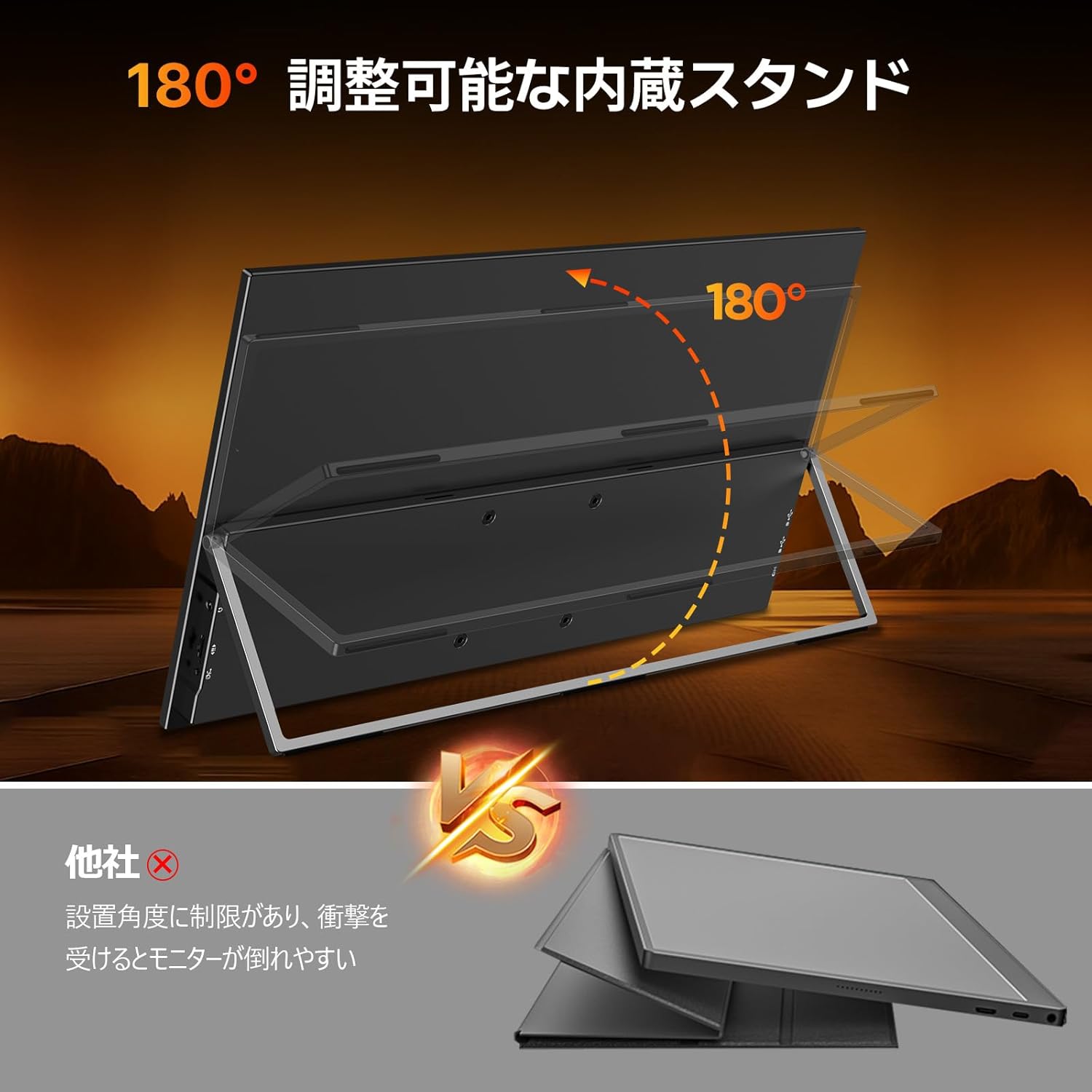
Image: The portable monitor displaying an extended desktop from a laptop, illustrating multi-screen functionality.
When connected to a computer, you can configure the display mode:
- Extend Mode: Expands your desktop across both screens, providing more workspace.
- Duplicate Mode: Mirrors your primary display, showing the same content on both screens.
- Second Screen Only: Displays content only on the portable monitor.
These settings are typically adjusted through your operating system's display settings.
6.3 Screen Orientation
The monitor supports both landscape (horizontal) and portrait (vertical) orientations. You can change the orientation through your connected device's display settings. Portrait mode is beneficial for reading long documents or coding.
7. Maintenance
- Cleaning: Gently wipe the screen with a soft, lint-free cloth. For stubborn marks, use a screen-specific cleaning solution applied to the cloth, not directly to the screen.
- Storage: When not in use, store the monitor in a cool, dry place. If transporting, use a protective case to prevent scratches or damage.
- Handling: Avoid applying excessive pressure to the screen. Do not drop the monitor or expose it to extreme temperatures or humidity.
8. Troubleshooting
| Problem | Possible Cause | Solution |
|---|---|---|
| No display/"No Signal" message | Incorrect input source selected, loose cable connection, insufficient power. | Check all cable connections. Ensure the monitor is powered. Select the correct input source via the OSD menu. Try a different cable or port. |
| Screen flickering | Insufficient power, faulty cable, refresh rate mismatch. | Ensure the monitor is receiving adequate power, especially when using a single Type-C cable (use the external power adapter). Try a different cable. Adjust the refresh rate in your device's display settings. |
| No sound from speakers | Volume too low, muted, incorrect audio output selected on source device. | Increase monitor volume via OSD. Check if the monitor is muted. Ensure your source device's audio output is set to the portable monitor. |
| Monitor does not power on | No power, faulty power adapter/cable. | Verify power outlet functionality. Check power cable and adapter connections. Try a different power source or cable if available. |
9. Specifications
| Feature | Detail |
|---|---|
| Brand | Newsoul |
| Model Number | 119JP-ST08S-AAA |
| Screen Size | 18.5 inches |
| Resolution | 1920 x 1080 (Full HD) |
| Refresh Rate | 120Hz |
| Aspect Ratio | 16:9 |
| Panel Type | IPS |
| Color Gamut | 100% sRGB |
| Surface | Non-glare |
| Connectivity | 1x Mini HDMI, 2x USB Type-C (Full-Function) |
| Audio | Built-in Speakers, 3.5mm Earphone Jack |
| VESA Mount | 75x75mm |
| Product Dimensions | 18 x 42.5 x 27 cm |
| Product Weight | 1.15 kg |
10. Warranty and Support
For warranty information, please refer to the documentation provided with your purchase or contact your retailer. For technical support or inquiries, please contact Newsoul customer service at supportjp@newsoul.store.