
Introduction
Thank you for choosing the DBPOWER N5 Smart Mini Projector. This ultra-slim, book-sized projector is designed for versatile entertainment, featuring built-in streaming apps, AI-powered auto-correction, WiFi 6, and two-way Bluetooth 5.2. This manual provides essential information for setting up, operating, maintaining, and troubleshooting your device to ensure an optimal viewing experience.
Package Contents
Upon opening the package, please ensure all of the following items are included:
- DBPOWER N5 Smart Mini Projector
- Remote Control
- Power Cable
- HDMI Cable
- Clean Kit (for lens and screen maintenance)
- User Manual

Image: The DBPOWER N5 projector and its accessories, including the remote control, power cable, HDMI cable, and cleaning kit, neatly arranged.
Product Overview
The DBPOWER N5 projector features a compact and portable design, making it ideal for various environments. Its integrated 360° adjustable stand allows for flexible projection angles, including ceiling projection, and doubles as a carry handle and lens protector.
Dimensions and Weight
- Dimensions: Approximately 6.97 x 1.97 x 6.97 inches
- Weight: Approximately 2.81 pounds
Ports and Connections
- 1 x HDMI port for external devices
- 1 x USB port for media playback
- 1 x 3.5mm Audio output for external speakers or headphones

Image: The DBPOWER N5 projector highlighting its compact, book-sized form factor and dimensions (6.97" x 1.97" x 6.97").

Image: The DBPOWER N5 projector displaying its connectivity options, including HDMI, USB, and 3.5mm audio ports, connected to a laptop, game controller, and speaker.
Setup
Follow these steps to set up your DBPOWER N5 projector for the first time:
- Power Connection: Connect the provided power cable to the projector and a power outlet.
- Placement: Position the projector on a stable surface. Utilize the 360° adjustable stand to achieve your desired projection angle, whether on a wall, ceiling, or other surface. The stand can also act as a lens protector when folded.
- Initial Power On: Press the power button on the projector or remote control to turn on the device.
- AI Auto Focus & Keystone Correction: The N5 projector features AI visual calibration for automatic focus and keystone correction (up to ±30°), ensuring a clear and rectangular image within approximately 3 seconds.
- Obstacle Avoidance & Auto Screen Fit: The projector will automatically detect and avoid obstacles, shifting the image to maintain a clear display. It also recognizes screens with black borders and adjusts the projection to fit perfectly.
- Network Connection: Navigate to the settings menu to connect the projector to your WiFi 6 network for access to built-in apps and screen sharing features.

Image: A DBPOWER N5 projector positioned on a bedside table, utilizing its 360° adjustable stand to project an image onto the ceiling, demonstrating its versatility.

Image: A visual representation of the AI Auto Focus feature, illustrating how the projector quickly adjusts from a blurry image to a crystal-clear one in 3 seconds.

Image: A visual representation of the AI Auto Correction feature, showing a trapezoidal image being automatically corrected into a perfect rectangle.

Image: A visual representation of the AI Auto Avoid feature, where the projected image intelligently shifts to bypass a detected obstacle in its path.

Image: A visual representation of the AI Auto Screen Fit feature, showing the projected image automatically resizing and aligning to fit perfectly within a screen's black borders.
Operating Instructions
Navigating the Interface
The DBPOWER N5 runs on a streamlined Linux OS, providing a fast and stable user experience. Use the remote control to navigate through the home screen and various menus.
Built-in Apps
The projector comes with genuine built-in apps, eliminating the need for external streaming devices. Access popular services like Netflix, YouTube, Prime Video, Hulu, Disney+, Peacock, Viu, Rakuten TV, Hotstar, IMDb, and TikTok directly from the home screen. More apps can be downloaded from the built-in "App Store" or "My App" sections.
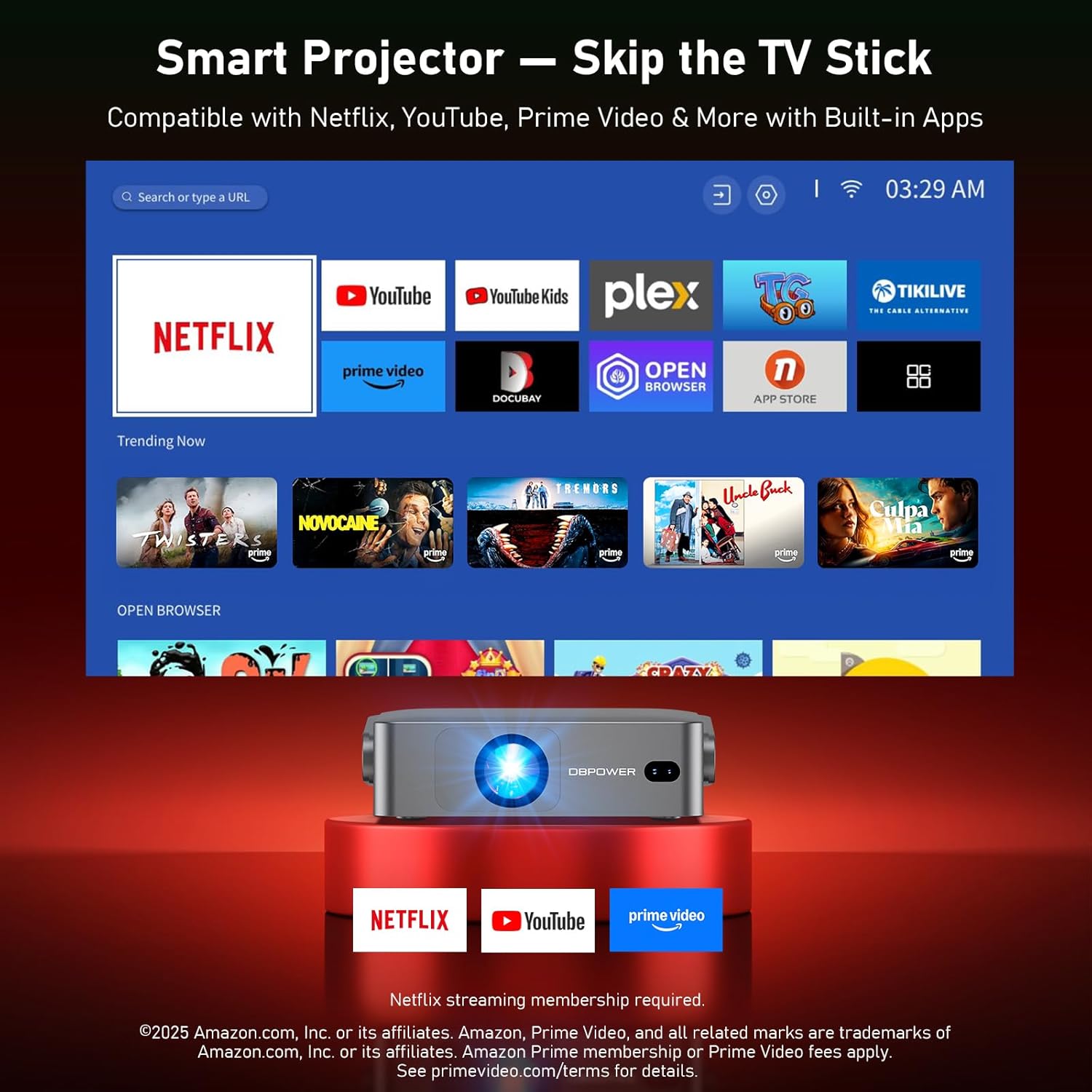
Image: The projector's smart interface showing pre-installed applications such as Netflix, YouTube, and Prime Video, ready for streaming.
Screen Sharing (WiFi 6)
Leverage blazing-fast WiFi 6 for seamless content sharing from your devices:
- iPhone/iPad: Use AirPlay via the ScreenShare app.
- Android Phones & Windows 10 Laptops: Use Miracast via the ScreenCast app.
- Apps supporting DLNA: Use HomeShare (e.g., YouTube).
Effortlessly cast videos, photos, and more to a stunning 180-inch screen.
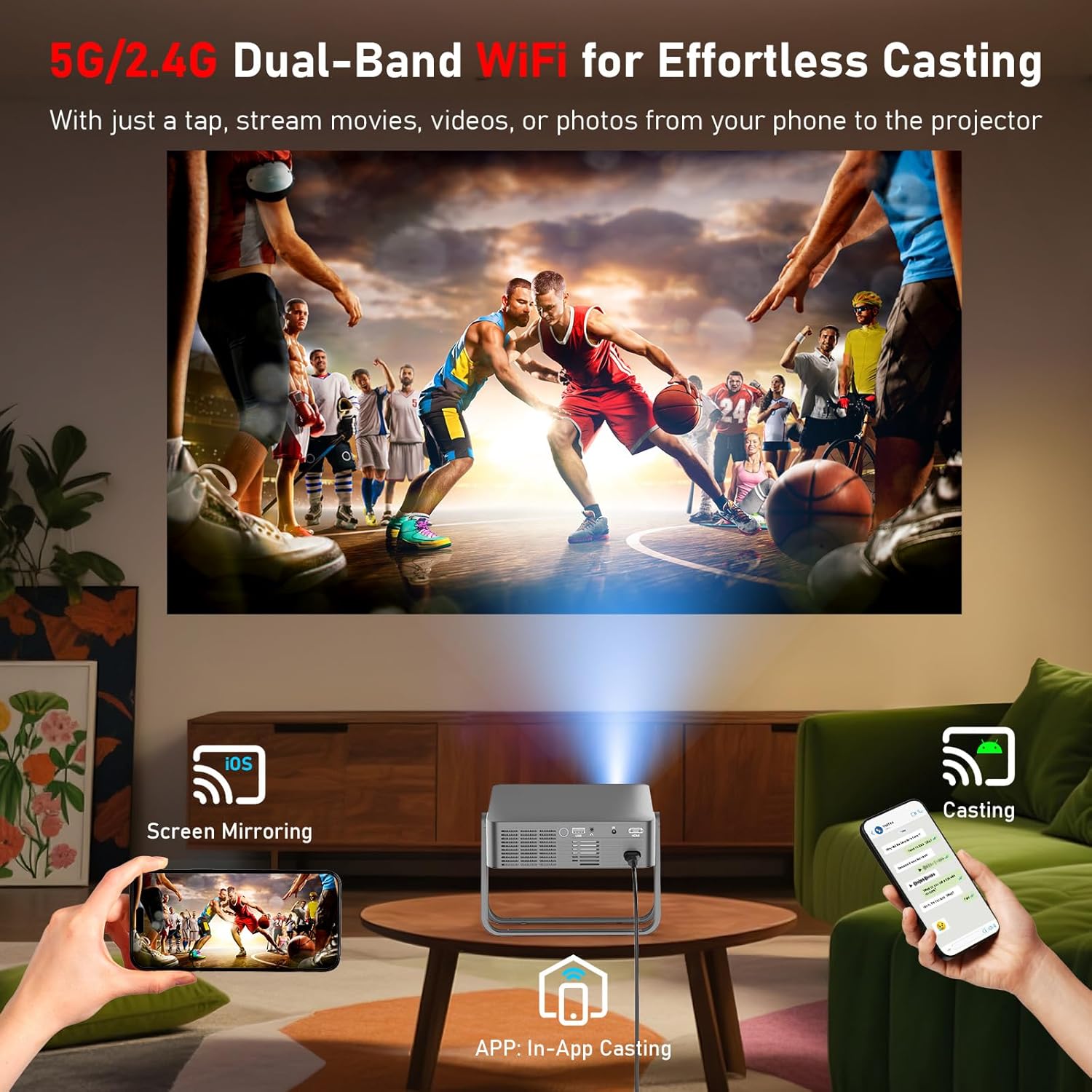
Image: A DBPOWER N5 projector displaying content mirrored from a smartphone, illustrating the WiFi 6 screen sharing capability for iOS and Android devices.
Two-Way Bluetooth 5.2
The projector features two-way Bluetooth 5.2 for enhanced audio flexibility:
- Connect Headphones/External Speakers: Transmit audio from the projector to your Bluetooth headphones or speakers for private or enhanced sound.
- Use as a Bluetooth Speaker: Receive audio from your phone to play music through the projector's built-in speakers when the screen is off.
Note: Bluetooth supports audio only, not video.

Image: A person wearing Bluetooth headphones while watching content projected by the DBPOWER N5, highlighting the private listening feature via Bluetooth 5.2.
Digital Zoom
Adjust the screen size from 100% down to 50% using the digital zoom feature, without needing to move the projector.
Sleep Shutdown Timer
Set a timer for automatic shutdown, convenient for falling asleep while watching content.
Maintenance
Proper maintenance ensures the longevity and optimal performance of your projector:
- Lens Cleaning: Use the provided clean kit or a soft, lint-free cloth to gently wipe the projector lens. Avoid abrasive materials that could scratch the lens.
- Ventilation: Ensure the projector's ventilation ports are clear of dust and obstructions to prevent overheating. Regularly clean the vents with a soft brush or compressed air.
- Storage: When not in use, store the projector in its carrying case in a cool, dry place to protect it from dust and physical damage.
Troubleshooting
Here are solutions to common issues you might encounter:
- Screen Mirroring Issues: Screen Mirroring supports only MiraCast. Some phones (Google/MOTO/Sony) may show audio only. Use a wired connection or a compatible device if needed.
- Streaming Apps Not Working via Casting: Streaming apps like Netflix, Hulu, etc., may block wireless casting from a smartphone due to copyright restrictions. Use the built-in certified apps for the best results.
- No Audio Output: If there is no sound, turn off Dolby Audio (copyright restriction) in the projector's settings.
- iOS Mirroring Setup: To use iOS Mirroring, download ScreenShare from [My Apps] > [My Assistant]. Then, connect your iPhone to the same WiFi network as the projector.

Image: A graphic detailing important tips for the DBPOWER N5 projector, including notes on screen mirroring compatibility, streaming app limitations, audio settings, and iOS mirroring instructions.
Specifications
| Feature | Detail |
|---|---|
| Brand | DBPOWER |
| Model | N5 |
| Display Resolution | 1920 x 1080 (Full HD 1080P) |
| Connectivity Technology | WiFi 6, Bluetooth 5.2 |
| Display Type | LCD |
| Item Dimensions (L x W x H) | 6.97 x 1.97 x 6.97 inches |
| Item Weight | 2.81 pounds |
| Short Throw Ratio | 1.19:1 |
Warranty and Support
For warranty information, technical support, or customer service inquiries, please refer to the contact details provided with your product packaging or visit the official DBPOWER website. Keep your purchase receipt for warranty claims.


