
1. Introduction
Welcome to the user manual for your new DOOGEE Tab A9 Pro+ Android 15 Tablet. This guide provides detailed instructions on how to set up, operate, and maintain your device, ensuring you get the most out of its features. Please read this manual carefully before using your tablet.
2. Package Contents
Verify that all items listed below are included in your package. If any item is missing or damaged, please contact customer support.
- DOOGEE Tab A9 Pro+ Tablet
- Type-C USB Cable
- Charger
- Stylus (VIP Edition)
- Tempered Film (VIP Edition)
- Bluetooth Mouse (VIP Edition)
- Leather Protective Cover (VIP Edition)
- Bluetooth Keyboard (VIP Edition)
- Packing Box
- User Manual
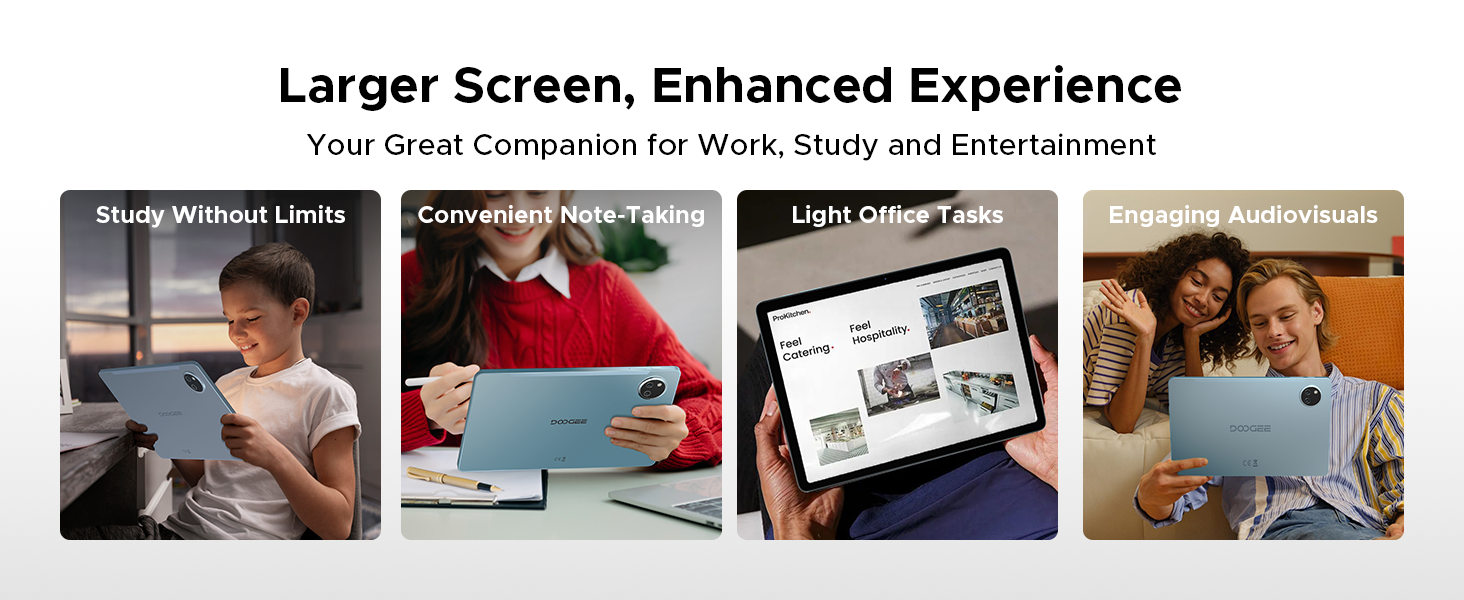
Image: Contents of the DOOGEE Tab A9 Pro+ package, including the tablet, charger, USB cable, stylus, tempered film, Bluetooth mouse, leather protective cover, and Bluetooth keyboard.
3. Device Overview
The DOOGEE Tab A9 Pro+ features a sleek design with essential components strategically placed for optimal user experience.
- Front: 11-inch display, 5MP front camera, ambient light sensor.
- Rear: 13MP main camera, LED flash.
- Sides: Power button, volume buttons, USB Type-C port, 3.5mm headphone jack, speaker grilles, microphone, SIM/microSD card tray.
4. Initial Setup
4.1. Charging the Tablet
Before first use, fully charge your tablet. Connect the provided USB Type-C cable to the tablet's charging port and the other end to the included power adapter. Plug the adapter into a wall outlet. The charging indicator will show the charging status.
4.2. Powering On/Off
- To Power On: Press and hold the Power button until the DOOGEE logo appears.
- To Power Off: Press and hold the Power button until the power options appear on the screen, then select 'Power off'.
- To Restart: Press and hold the Power button until the power options appear, then select 'Restart'.
4.3. Connecting to Wi-Fi
Go to Settings > Network & internet > Wi-Fi. Turn on Wi-Fi, select your desired network, and enter the password if prompted.
4.4. Setting Up Google Account
During the initial setup, you will be prompted to sign in with your Google account. This is necessary to access the Google Play Store, Gmail, and other Google services. If you don't have an account, you can create one.
4.5. Inserting SIM/MicroSD Card
Locate the SIM/microSD card tray on the side of the tablet. Use the provided SIM ejector tool to open the tray. Insert your SIM card (if applicable) and/or a microSD card for expandable storage (up to 2TB) into the designated slots, then gently push the tray back into the tablet.
5. Operating System (Android 15)
Your DOOGEE Tab A9 Pro+ runs on the Android 15 operating system, offering an intelligent, seamless, and secure user experience.
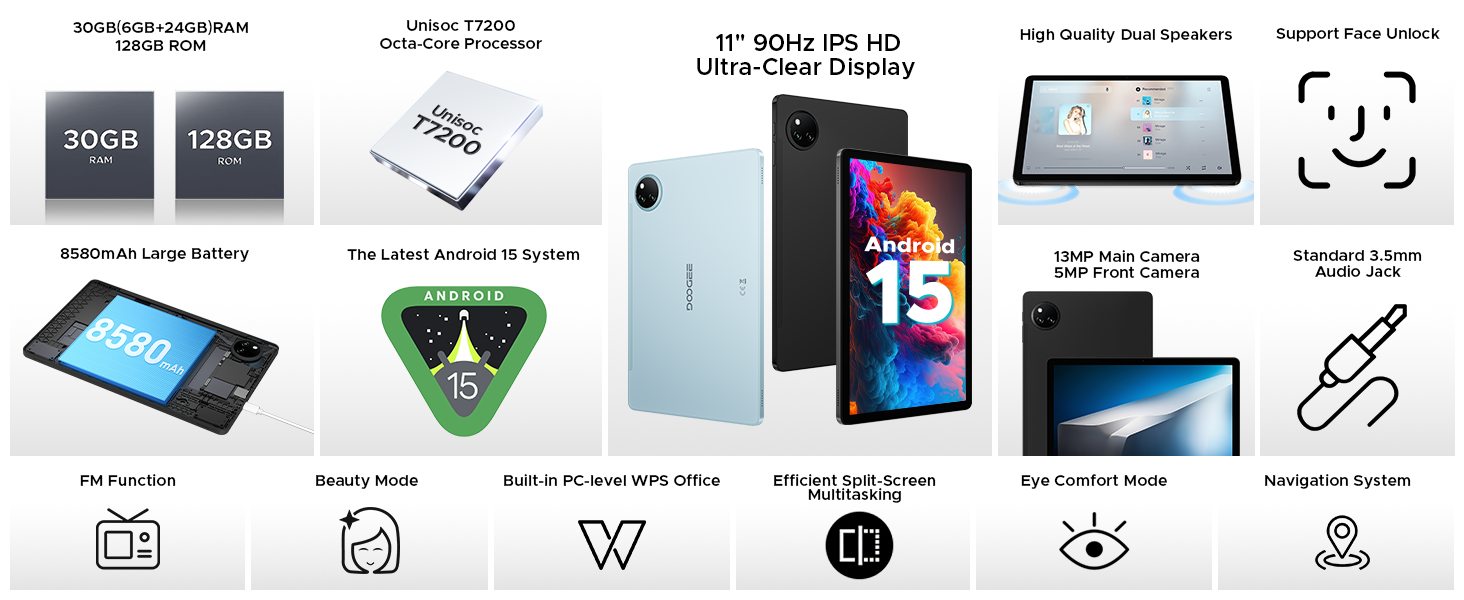
Image: Screenshot of the Android 15 system interface, highlighting its intelligent, seamless, and secure nature.
5.1. Key Features
- Multi-user System: Create separate user profiles for different individuals, each with their own apps, settings, and data. Access this feature via Settings > System > Multiple users.
- Parental Control: Manage and restrict access to content and apps for children's profiles.
- Split-Screen Multitasking: Run two applications simultaneously side-by-side for enhanced productivity. To activate, open a recent apps view, tap the app icon at the top of a window, and select 'Split screen'.
- Privacy Shield: Advanced privacy controls and regular security updates protect your data and device.
- Bedtime Mode: Configure settings to help you wind down before sleep, such as grayscale display and Do Not Disturb.
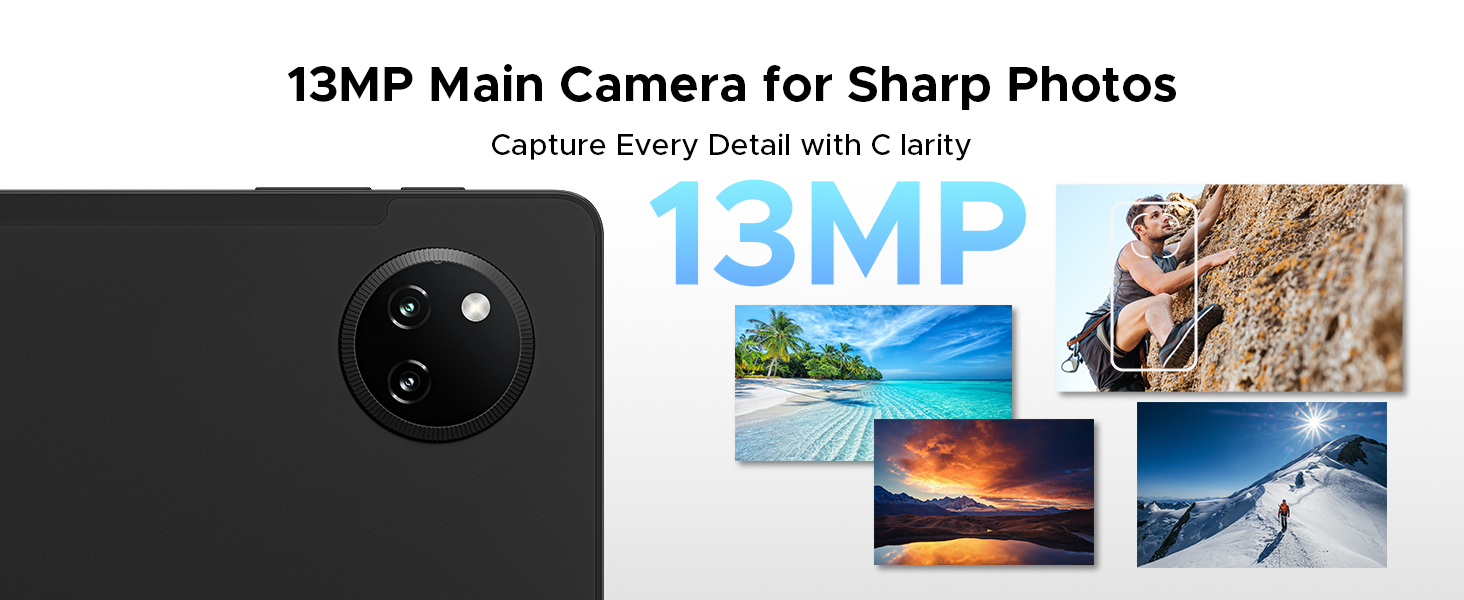
Image: Visual representation of Android 15 features including Bedtime Mode, Multi-user System, and Parental Control.
Image: The tablet displaying two applications side-by-side in split-screen multitasking mode.
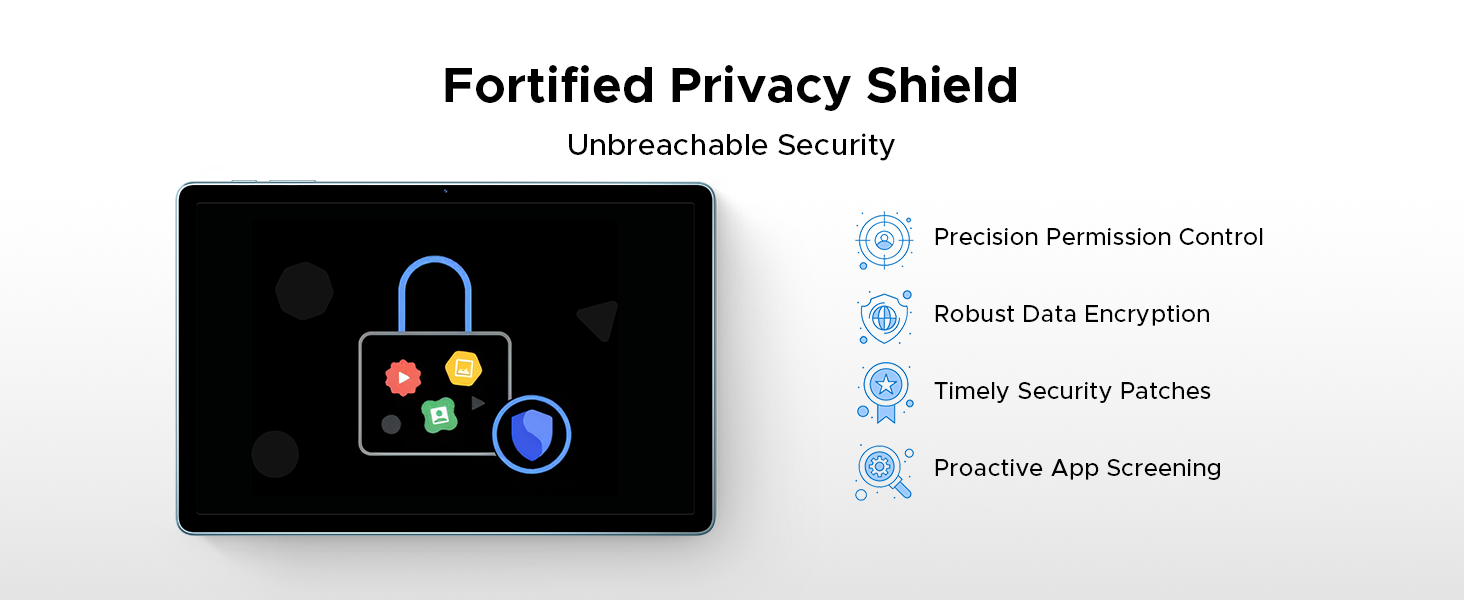
Image: A visual representation of the Android 15 Privacy Shield, indicating robust security features.
6. Display and Visuals
The DOOGEE Tab A9 Pro+ features an 11-inch IPS HD display with a 90Hz refresh rate, providing a clear and smooth visual experience.
- Display Size: 11 inches
- Resolution: 1920 x 1200 pixels
- Refresh Rate: 90Hz for smoother motion
- Widevine L1: Supports high-definition streaming content from platforms like Netflix.
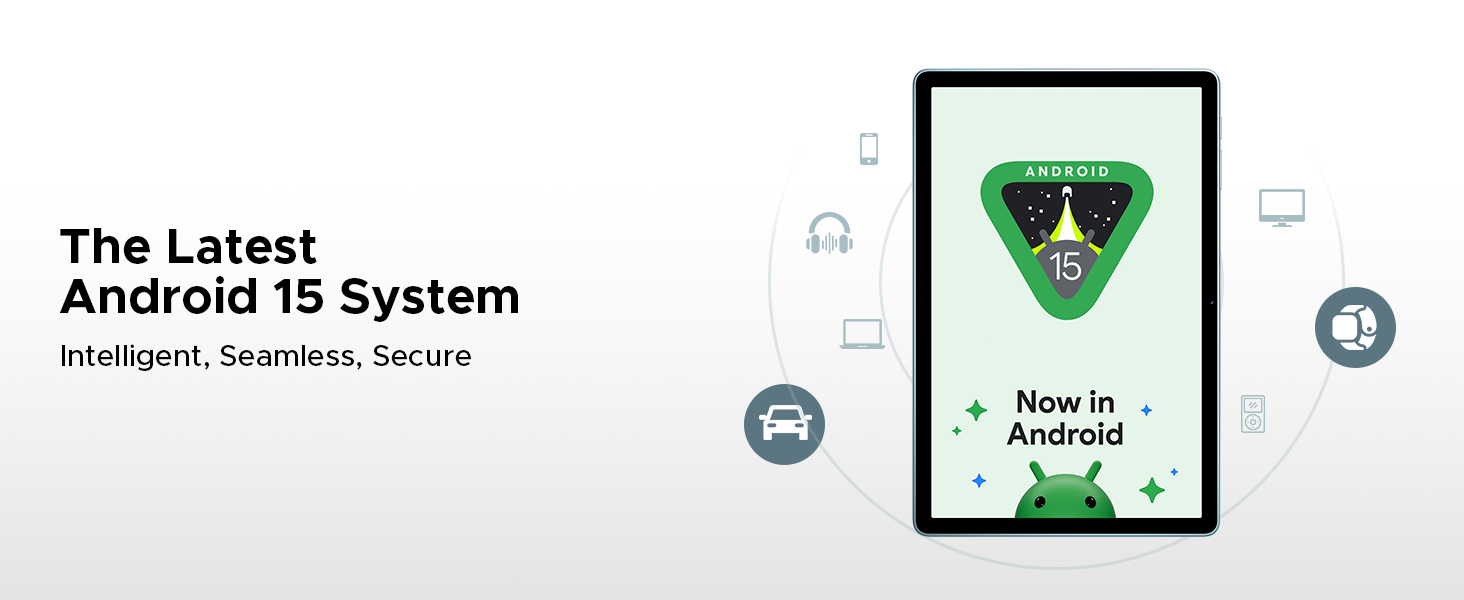
Image: The 11-inch IPS HD Ultra-Clear Display of the DOOGEE Tab A9 Pro+ highlighting its resolution, screen-to-body ratio, screen color, and aspect ratio.
6.1. Display Modes
Adjust display settings for enhanced comfort and visual quality:
- Eye-Caring Mode (Low Blue Light): Reduces blue light emission to protect your eyes, especially during prolonged use.
- Dark Mode: Softens screen light for comfortable night use and can help conserve battery.
- Anti-Flicker Mode: Minimizes screen flickering for enhanced visual comfort.

Image: Illustrations of Eye-Caring Mode (low blue light) and Dark Mode for visual comfort.
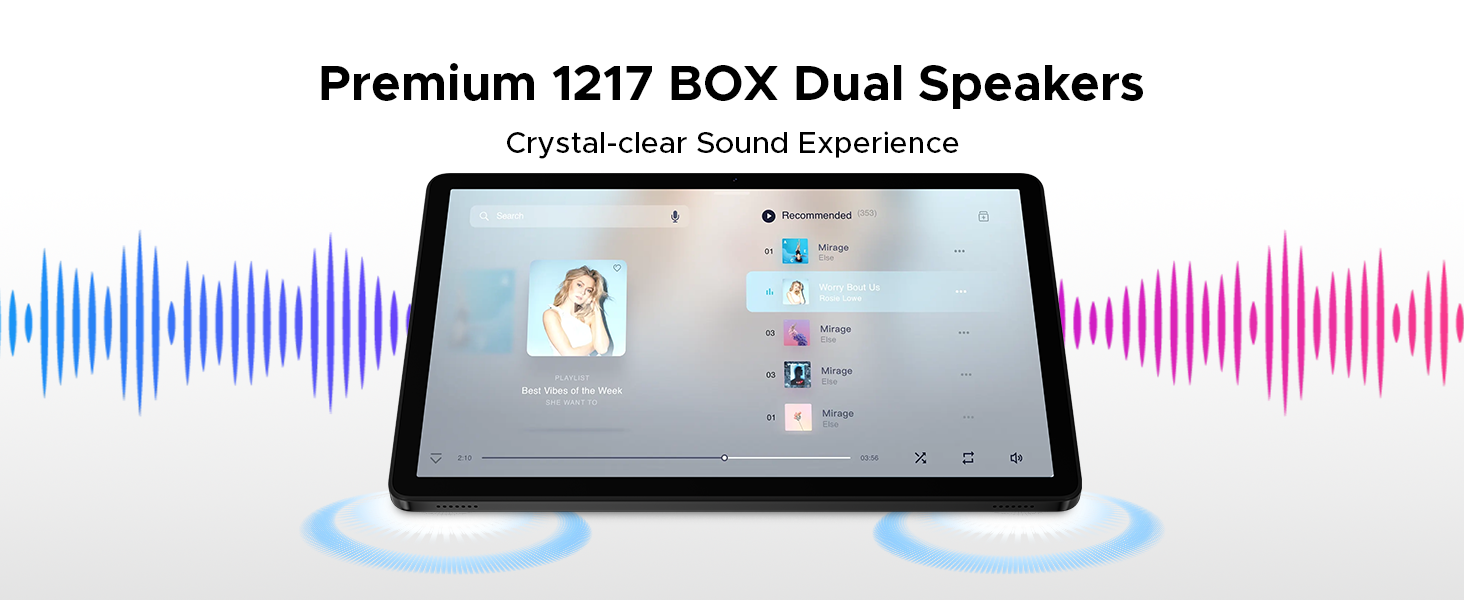
Image: A comparison showing the effect of Anti-Flicker Mode on the display.
7. Performance and Storage
The DOOGEE Tab A9 Pro+ is equipped with a powerful processor and ample memory for smooth operation and extensive storage.
- Processor: Unisoc T7200 Octa-Core Processor (1.6GHz, 12nm advanced process technology)
- RAM: 30GB (6GB base + up to 24GB extended RAM)
- Internal Storage (ROM): 128GB
- Expandable Storage: Up to 2TB via microSD card (TF card needs to be purchased separately).

Image: A visual representation of the Unisoc T7200 Octa-Core Processor, highlighting its speed and efficiency.
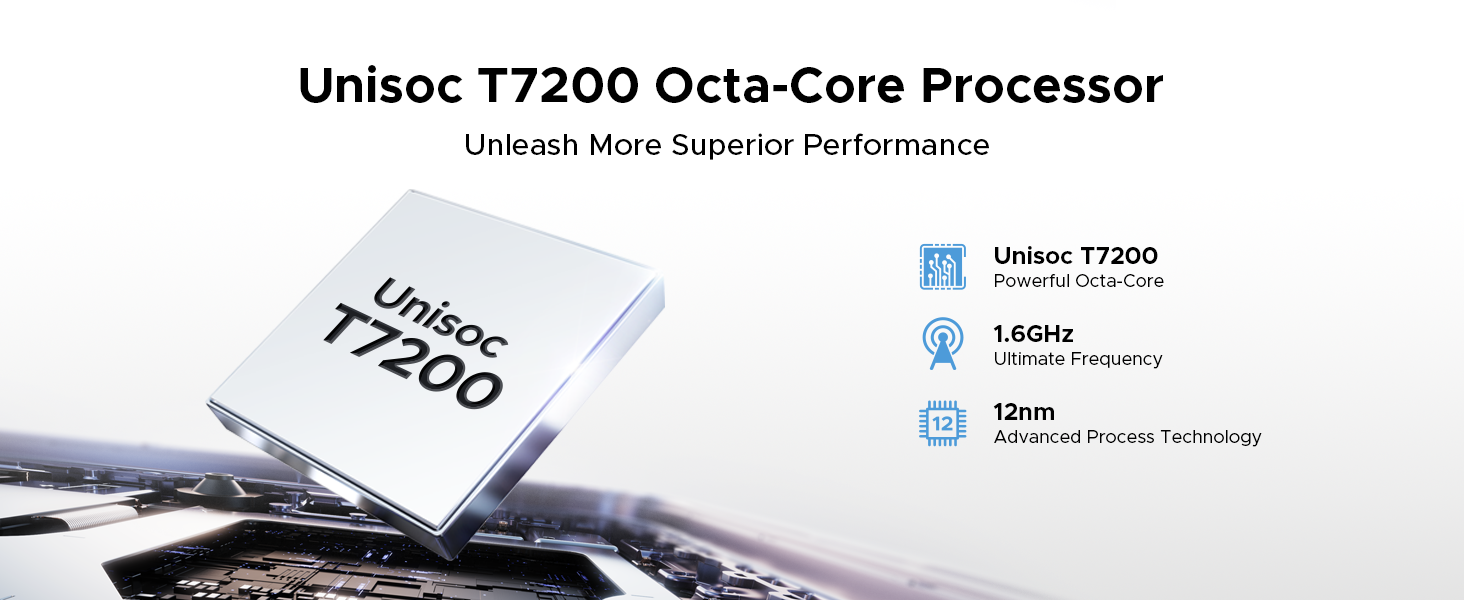
Image: Illustration showing the 30GB RAM (6GB base + 24GB extended) and 128GB ROM with 2TB expandable memory.
8. Battery Management
The tablet is equipped with an 8580mAh high-capacity battery for extended usage.
- Battery Capacity: 8580mAh
- Charging: Supports 10W fast charging.
- Reverse Charging: Supports 5W reverse charging, allowing the tablet to act as a power bank for other devices.
- Estimated Battery Life: Up to 24 days standby (airplane mode), 36 hours music playback, 6.5 hours video watching, 7 hours web browsing.
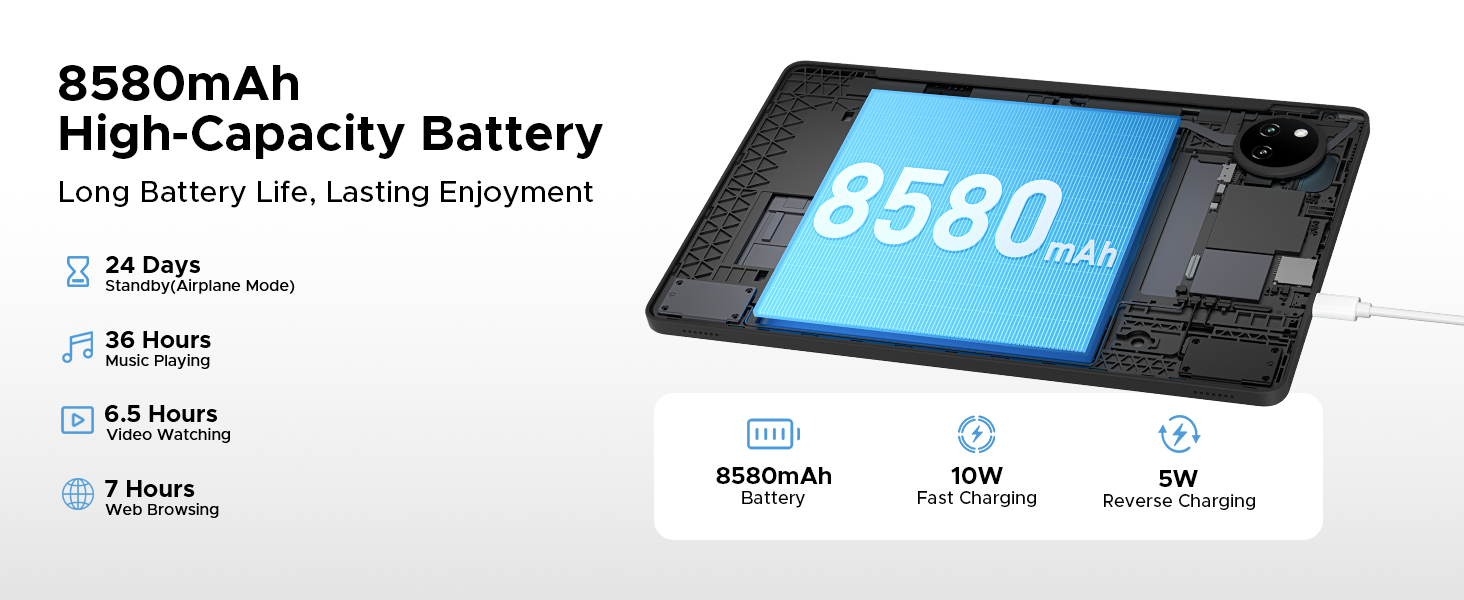
Image: Diagram illustrating the 8580mAh battery, 10W fast charging, and 5W reverse charging capabilities.
9. Camera
Capture moments with the tablet's integrated cameras.
- Main Camera: 13MP for sharp photos.
- Front Camera: 5MP for video calls and selfies.
- Beauty Mode: Enhance your photos with built-in beauty features.
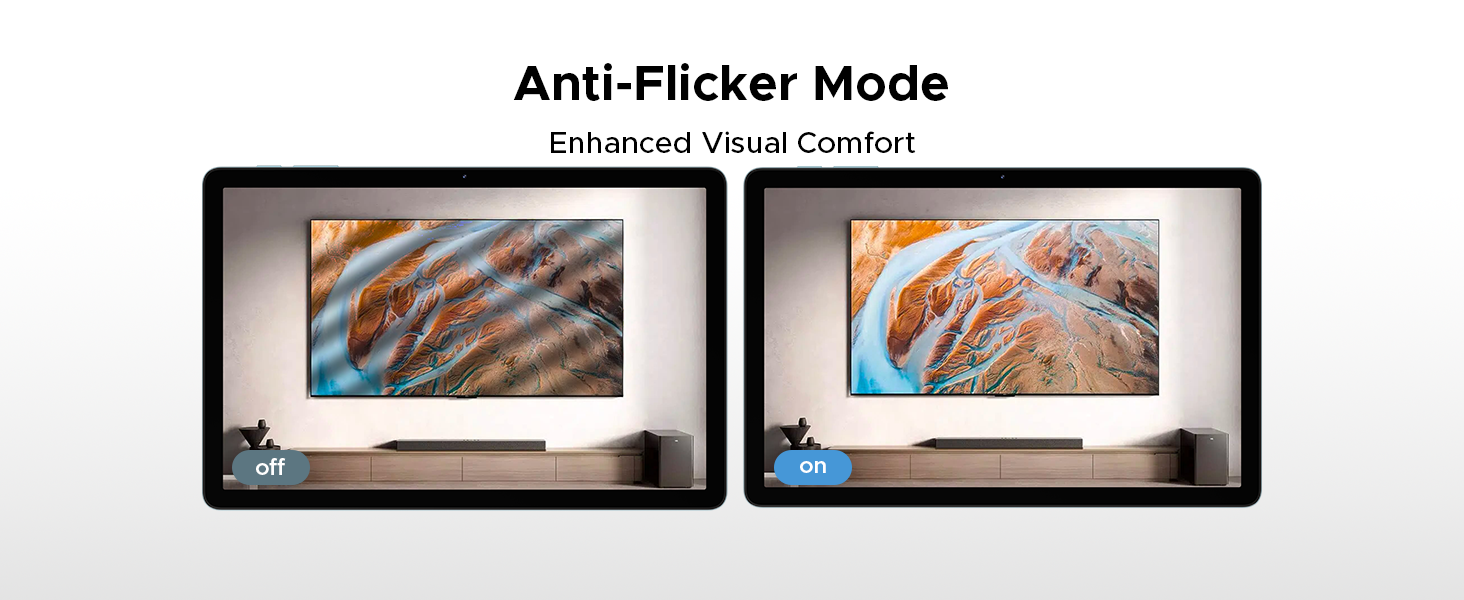
Image: Close-up of the tablet's rear camera module and example photos taken with the 13MP main camera.

Image: The tablet displaying a video call, showcasing the 5MP front camera's capability for clear communication.

Image: A comparison demonstrating the effect of Beauty Mode on a photograph.
10. Audio
Experience clear audio with the tablet's dual speakers and headphone jack.
- Dual Speakers: Premium 1217 BOX Dual Speakers provide a crystal-clear sound experience.
- 3.5mm Audio Jack: A standard headphone jack allows for private listening with stable and distortion-free transmission.
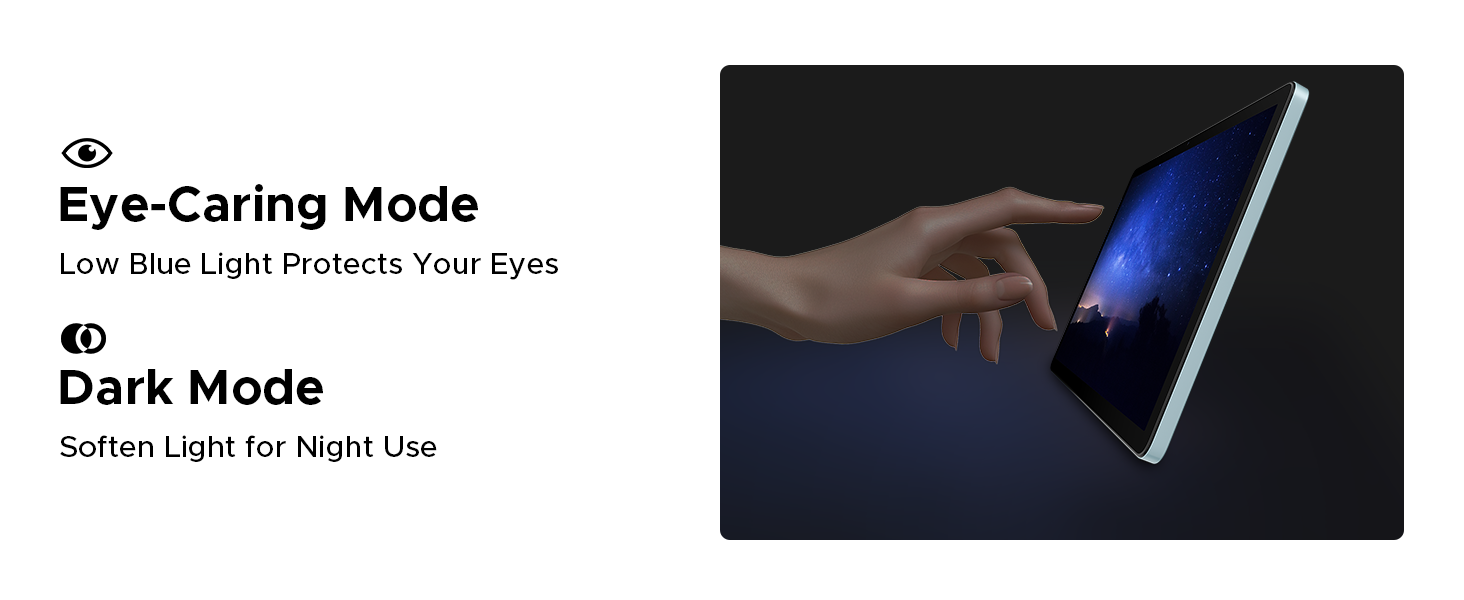
Image: The tablet displaying a music player interface, with visual cues indicating sound output from dual speakers.

Image: A person using headphones connected to the tablet via the 3.5mm audio jack.
11. Connectivity
The DOOGEE Tab A9 Pro+ offers various connectivity options for seamless integration into your digital life.
- Wi-Fi: Supports faster Wi-Fi 5 (2.4G/5G) for low latency, anti-congestion, wide coverage, low power consumption, and high-speed internet access.
- Bluetooth: Connect to wireless headphones, speakers, and other Bluetooth-enabled devices.
- Navigation System: Integrated GPS, Glonass, Galileo, and Beidou for precise location tracking and navigation.
- OTG (On-The-Go): Connect USB peripherals such as flash drives, keyboards, or mice directly to your tablet.

Image: A visual representation of WiFi 2.4G/5G connectivity, emphasizing low latency, anti-congestion, wide coverage, low power consumption, and high speed.
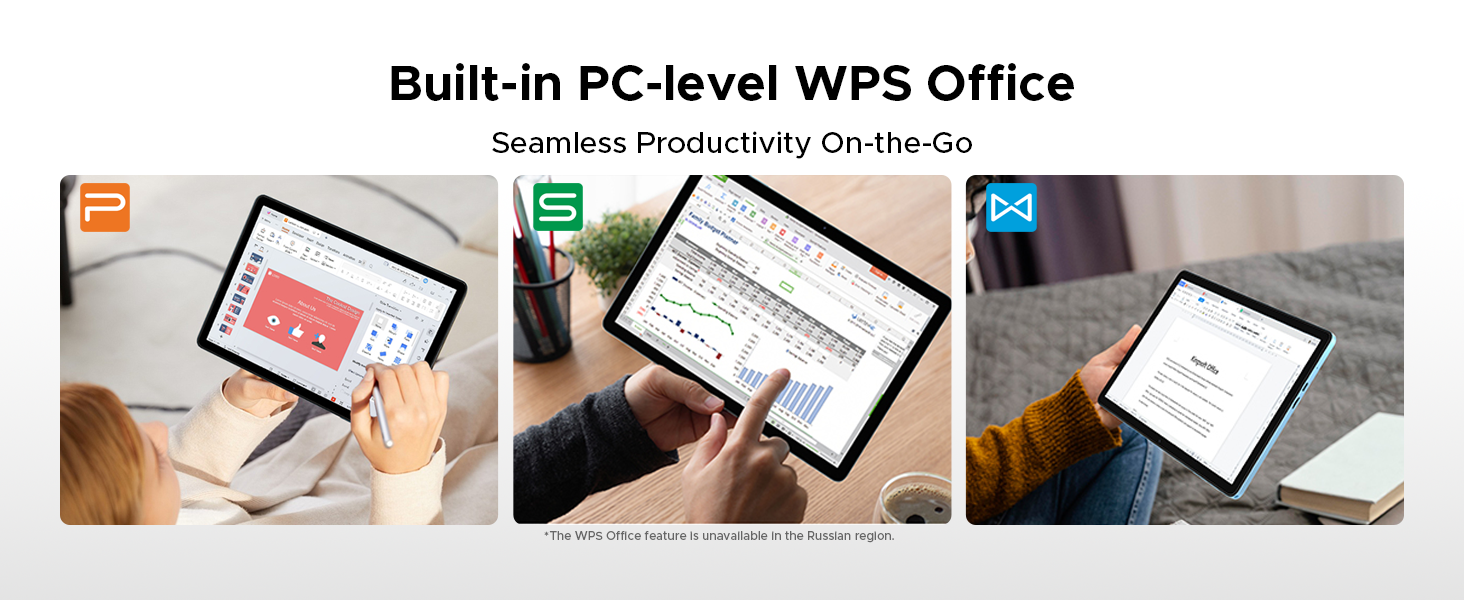
Image: A person using the tablet for navigation in a car, showing the GPS, Glonass, Galileo, and Beidou systems.
12. Accessories
The DOOGEE Tab A9 Pro+ VIP Edition includes several accessories to enhance your tablet experience, effectively turning it into a portable workstation.
- Bluetooth Keyboard: Connect wirelessly for comfortable typing.
- Stylus: For precise input, drawing, and note-taking.
- Bluetooth Mouse: Navigate the tablet interface with greater precision.
- Leather Protective Cover: Protects your tablet and often doubles as a stand.
- Tempered Film: Provides additional screen protection.
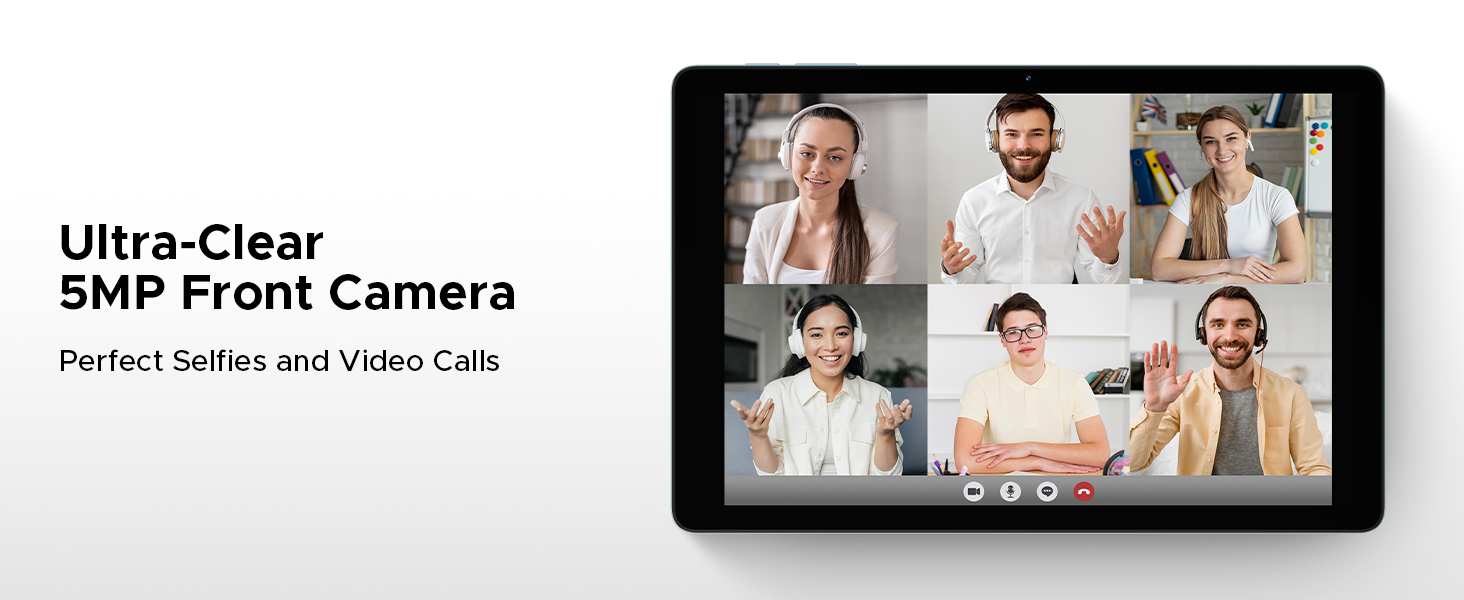
Image: A display of the included accessories: tempered film, stylus, leather protective cover, Bluetooth mouse, and Bluetooth keyboard.
12.1. Facial Recognition Unlock
For effortless access, the tablet supports facial recognition unlock. Set this up in Settings > Security & privacy > Face unlock.
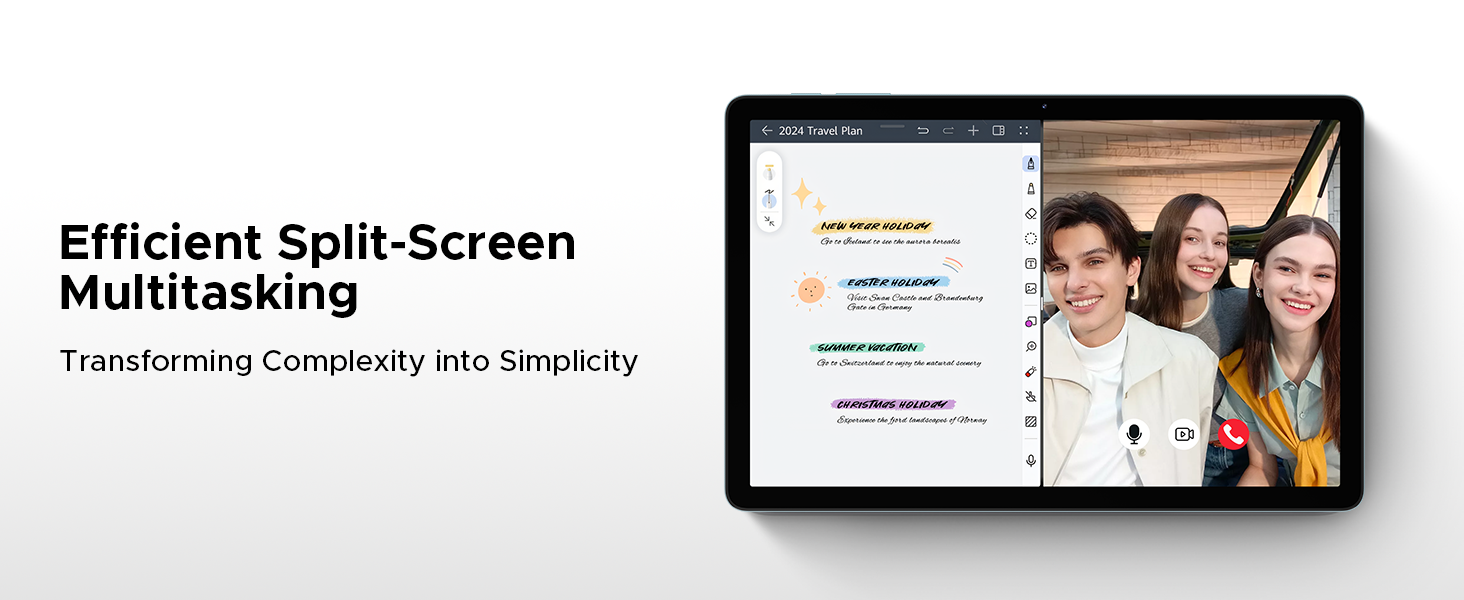
Image: An illustration depicting the facial recognition unlock feature for quick and secure device access.
12.2. Built-in WPS Office
The tablet comes with a built-in PC-level WPS Office suite, enabling seamless productivity for documents, spreadsheets, and presentations on the go. (Note: WPS Office feature may be unavailable in certain regions).
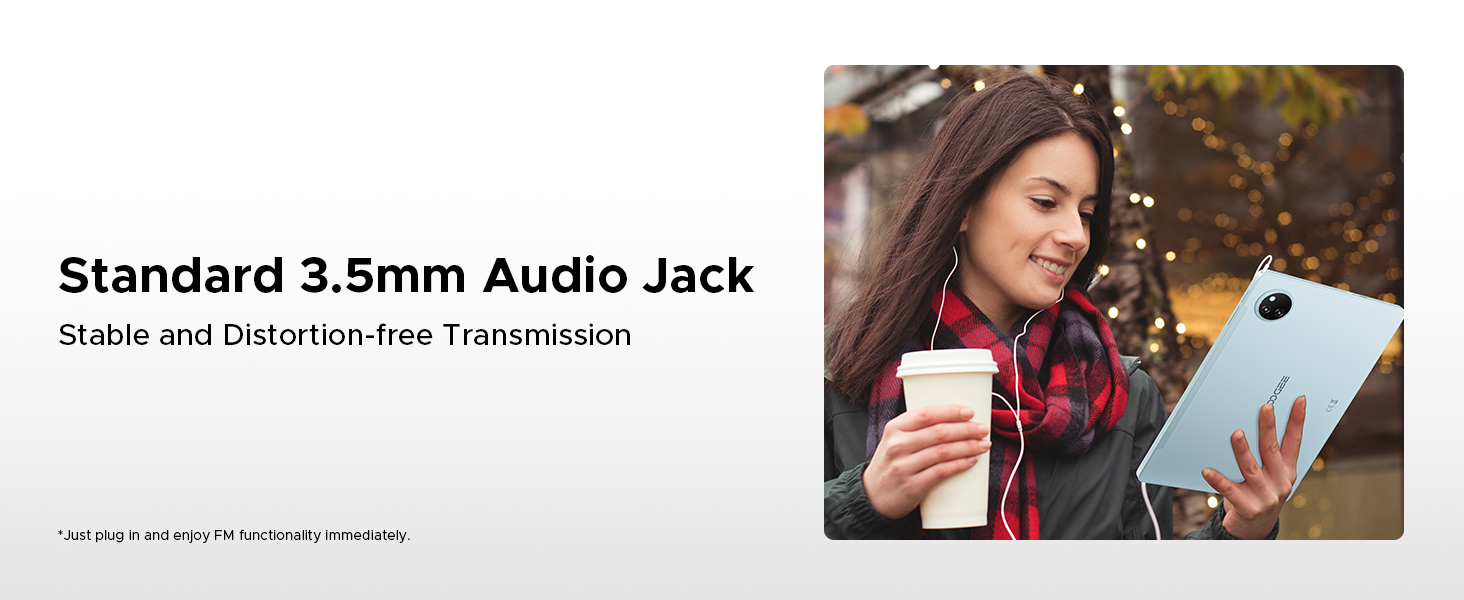
Image: Screenshots of the tablet running WPS Office applications for documents, spreadsheets, and presentations.
13. Maintenance
13.1. Cleaning the Device
Use a soft, lint-free cloth to clean the screen and body of the tablet. Avoid using abrasive cleaners or solvents, which can damage the surface. For stubborn smudges, slightly dampen the cloth with water or a screen-cleaning solution.
13.2. Software Updates
Regularly check for and install software updates to ensure your tablet has the latest features, security patches, and performance improvements. Go to Settings > System > System update.
13.3. Storage Management
To maintain optimal performance, periodically manage your tablet's storage. Delete unnecessary files, uninstall unused apps, and move large media files to expandable storage or cloud services. Check storage usage in Settings > Storage.
14. Troubleshooting
This section addresses common issues you might encounter with your DOOGEE Tab A9 Pro+.
| Problem | Solution |
|---|---|
| Tablet does not turn on | Ensure the battery is charged. Connect the charger and wait a few minutes before attempting to power on again. If unresponsive, press and hold the Power button for 10-15 seconds to force a restart. |
| Wi-Fi connection issues | Check if Wi-Fi is enabled in Settings. Restart your router and the tablet. Ensure you are entering the correct Wi-Fi password. Try forgetting the network and reconnecting. |
| Slow performance | Close unused applications. Clear cache for frequently used apps. Check for available software updates. Consider freeing up storage space. Restart the tablet. |
| Battery drains quickly | Reduce screen brightness. Disable Wi-Fi/Bluetooth when not in use. Close background apps. Limit location services. Check battery usage in Settings to identify power-hungry apps. |
| Apps crashing or freezing | Force close the app and reopen it. Clear the app's cache and data in Settings > Apps. Uninstall and reinstall the app. Ensure the app is updated to its latest version. |
15. Specifications
Detailed technical specifications for the DOOGEE Tab A9 Pro+.
| Feature | Detail |
|---|---|
| Brand | DOOGEE |
| Model Name | DOOGEE Tab A9 Pro+ |
| Operating System | Android 15 |
| Processor | Unisoc T7200 Octa-Core (1.6GHz, 12nm) |
| RAM | 30GB (6GB base + 24GB extended) |
| Internal Storage | 128GB |
| Expandable Storage | Up to 2TB via microSD card |
| Screen Size | 11 Inches |
| Display Type | IPS HD |
| Resolution | 1920 x 1200 pixels |
| Refresh Rate | 90Hz |
| Battery Capacity | 8580mAh Lithium Polymer |
| Charging | 10W Fast Charging, 5W Reverse Charging |
| Main Camera | 13MP |
| Front Camera | 5MP |
| Connectivity | Wi-Fi 5 (2.4G/5G), Bluetooth, OTG |
| Navigation | GPS, Glonass, Galileo, Beidou |
| Audio | Dual Speakers (1217 BOX), 3.5mm Audio Jack |
| Dimensions | 24.53 x 16.33 x 0.99 cm |
| Weight | 644 g |
16. Warranty and Support
Your DOOGEE Tab A9 Pro+ comes with a 2-year after-sales service, ensuring peace of mind regarding your purchase.
16.1. Warranty Information
The tablet is covered by a manufacturer's warranty against defects in materials and workmanship for a period of two years from the date of purchase. This warranty does not cover damage caused by misuse, accidents, unauthorized modifications, or normal wear and tear. Please retain your proof of purchase for warranty claims.
16.2. Customer Support
For technical assistance, warranty claims, or any other inquiries, please contact DOOGEE customer support through the following channels:
- Website: Visit the official DOOGEE website for support resources, FAQs, and contact forms.
- Email: Refer to your product packaging or the official website for the customer support email address.
- Online Retailer: For purchase-related issues, you may also contact the retailer where you purchased the tablet.


