
1. Introduction
Thank you for choosing the JEDEL KL69 60% Gaming Mechanical Keyboard. This compact and powerful keyboard is designed for an optimal gaming and typing experience, featuring durable blue mechanical switches and vibrant rainbow LED lighting. This manual provides detailed instructions on setting up, operating, maintaining, and troubleshooting your new keyboard.
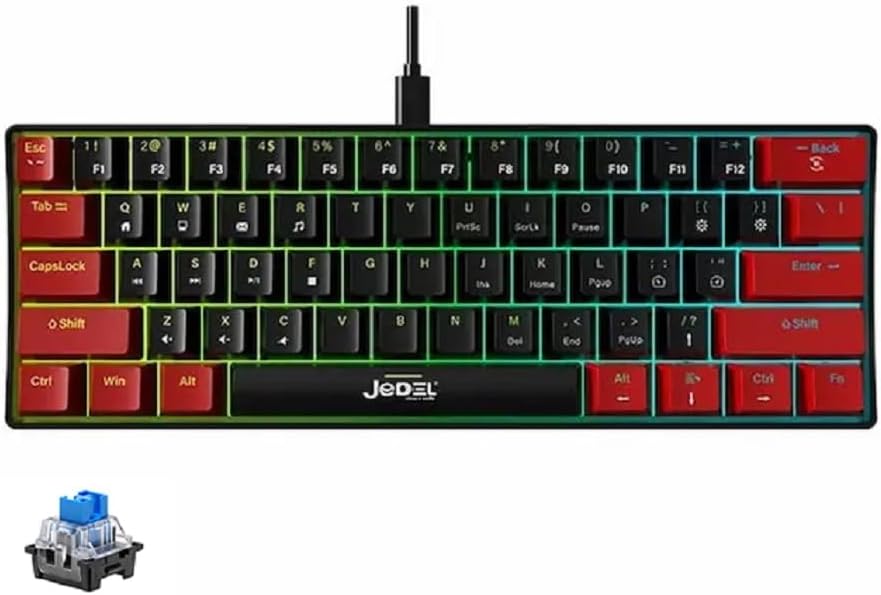
Image: The JEDEL KL69 60% Gaming Mechanical Keyboard, showcasing its compact design and colorful rainbow LED backlighting.
2. Product Features
- Smart Rainbow Backlit System: Provides multiple backlit modes for customization, with 10 distinct backlit effects.
- Durable Keycaps: Double-shot molded ABS keycaps with a thickened design, offering excellent light transmittance, smoothness, and durability.
- Blue Mechanical Switches: Equipped with responsive blue mechanical switches for tactile feedback and audible clicks.
- USB Connectivity: Features a convenient USB cable for reliable connection.
- Easy to Clean: Suspended and removable keycaps facilitate easy cleaning.
- Enhanced Durability: Characters on keycaps never fade, ensuring long-lasting use.
- Anti-Ghosting: All keys feature anti-ghosting for precise input during intense gaming sessions.
- Compact 60% Layout: A space-saving design with 61 keys, ideal for minimalist setups and portability.

Image: Visual representation highlighting key features of the JEDEL keyboard, including RGB lighting, anti-ghosting, and mechanical switches.
3. Setup
Setting up your JEDEL KL69 keyboard is straightforward. Follow these steps to get started:
- Unpack: Carefully remove the keyboard from its packaging.
- Connect: Locate the USB-A cable attached to the keyboard. Plug the USB-A connector into an available USB port on your computer (PC, Mac) or Android device.
- Driver Installation: The keyboard is plug-and-play and typically does not require additional drivers. Your operating system should automatically recognize and install the necessary drivers.
- Test: Open a text editor or a web browser and type to ensure all keys are functioning correctly.
Image: The JEDEL KL69 keyboard with its integrated USB cable, ready for connection to a device.
4. Operating Instructions
4.1 Keyboard Layout and Functions
The JEDEL KL69 features a 60% compact layout with 61 keys. Many functions are accessed via the Fn (Function) key in combination with other keys. This allows for a smaller footprint while retaining essential functionalities.

Image: A diagram illustrating the compact 60% layout of the keyboard, highlighting its 61-key configuration compared to a full-size keyboard.
4.2 LED Lighting Control
The keyboard features a smart rainbow backlit system with multiple lighting effects. Use the following Fn key combinations to control the lighting:
- Fn + [Key with light icon]: Switch between 10 stunning LED lighting effects.
- Fn + [Key with brightness down icon]: Decrease the brightness of the lighting.
- Fn + [Key with brightness up icon]: Increase the brightness of the lighting.
- Fn + [Key with speed down icon]: Slow down the light effect speed.
- Fn + [Key with speed up icon]: Speed up the light effect speed.

Image: A visual guide demonstrating the function key combinations used to adjust the keyboard's LED lighting effects, brightness, and speed.
5. Maintenance
Proper maintenance will extend the life and performance of your JEDEL KL69 keyboard. The suspended and removable keycaps make cleaning easy.
- General Cleaning: Use a soft, lint-free cloth slightly dampened with water or a mild cleaning solution to wipe down the keycaps and keyboard surface. Avoid excessive moisture.
- Dust Removal: Use compressed air to blow away dust and debris from between the keycaps and switches.
- Keycap Removal (Optional): For deeper cleaning, gently pull keycaps straight up to remove them. Be careful not to damage the switches. Clean the keycaps separately with water and mild soap, then ensure they are completely dry before reattaching.
- Avoid Harsh Chemicals: Do not use abrasive cleaners, solvents, or strong chemicals, as these can damage the keycaps or keyboard finish.

Image: A detailed view of the JEDEL KL69's blue mechanical switches and double-shot keycaps, illustrating their design which facilitates easy cleaning.
6. Troubleshooting
If you encounter issues with your JEDEL KL69 keyboard, please refer to the following common troubleshooting steps:
- Keyboard Not Responding:
- Ensure the USB cable is securely plugged into both the keyboard and the computer's USB port.
- Try plugging the keyboard into a different USB port on your computer.
- Restart your computer.
- Test the keyboard on another computer to determine if the issue is with the keyboard or your system.
- LED Lights Not Working or Flickering:
- Check if the lighting is turned off using the Fn key combinations (refer to Section 4.2).
- Ensure the keyboard is receiving sufficient power from the USB port. Try a different port.
- If the issue persists, a factory reset (if available, check manufacturer's website) or contacting support may be necessary.
- Keys Not Registering or Double-Typing:
- Clean under the affected keycap to remove any debris that might be obstructing the switch (refer to Section 5).
- Ensure the keycap is properly seated on the switch.
- This could indicate a faulty switch. If under warranty, contact support.
- Anti-Ghosting Issues:
- The KL69 features all-keys anti-ghosting. If you experience issues, ensure your operating system and any gaming software are not interfering.
- Try updating your computer's USB drivers.
7. Specifications
Detailed technical specifications for the JEDEL KL69 60% Gaming Mechanical Keyboard:
| Feature | Detail |
|---|---|
| Brand | JEDEL |
| Model | KL69 |
| Product Type | Keyboard |
| Switch Type | Mechanical Blue Switches |
| Total Travel | 4-0.2mm |
| Initial Pressure | 55±5G |
| Lighting | 10 Rainbow Lighting Modes |
| Interface | USB Type A |
| Anti-Ghosting | All Keys Anti-Ghost |
| Conduction Stroke | 2±0.2mm |
| Conduction/Touch Bottom Pressure | 55±5G |
| Keyboard Standard | 61 Keys |
| Keycap Type | Two-Color Dual Injection ABS |
| Keyboard Size | 290 x 101 x 38mm |
| Switch Life | 50 Million Times |
| Color | Black / Red |
| Compatible OS | Windows, Android, Mac |
| Weight | About 404 ±5g |

Image: A detailed view of the blue mechanical switch, which provides the tactile and audible feedback characteristic of the JEDEL KL69 keyboard.
8. Warranty and Support
8.1 Warranty Information
The JEDEL KL69 keyboard comes with a warranty covering manufacturing defects. Please retain your proof of purchase for warranty claims.
- Covered in Warranty: Dead on Arrival (DOA), Defective products, Product missing in the box.
- Not Covered in Warranty: Forceful tampering, Burnt components, Mishandling, Physical damages.
For specific warranty periods and terms, please refer to the documentation provided at the time of purchase or contact your retailer.
8.2 Customer Support
If you require further assistance, have questions, or need to make a warranty claim, please contact the retailer or manufacturer's customer support. For general inquiries, you may visit the JEDEL official website or contact their support channels.
Please have your product model (KL69) and proof of purchase ready when contacting support.


