
Introduction
This guide provides detailed instructions for using your Motorola Razr Plus 2025. Whether you are new to foldable phones or upgrading, this manual will help you understand and utilize all features of your device, running on Android 14.
It covers initial setup, daily operation, advanced features, and troubleshooting tips to ensure a smooth user experience.
Getting Started: Initial Setup
Follow these steps to set up your Motorola Razr Plus 2025 for the first time:
- Unboxing and Power On: Carefully remove your device from its packaging. Press and hold the power button until the Motorola logo appears.
- Language and Region Selection: Choose your preferred language and region from the on-screen prompts.
- Connect to Wi-Fi: Select your Wi-Fi network and enter the password to connect to the internet.
- Google Account Setup: Sign in with your Google account or create a new one. This is essential for accessing the Google Play Store and other Google services.
- Data Transfer: If you are upgrading from another device, follow the on-screen instructions to transfer your data, apps, and settings.
- Security Setup: Set up your preferred screen lock method (PIN, pattern, password, fingerprint, or face unlock).
- Motorola Account (Optional): Consider signing in with or creating a Motorola account to access additional services and support.
Tip: Ensure your device is sufficiently charged before beginning the setup process.
Operating Your Device
Understanding the Foldable Screen
The Motorola Razr Plus 2025 features an innovative foldable display. This allows for a compact form factor when closed and an expansive screen when open.
- Flex View: Partially fold the phone to use it in Flex View, ideal for video calls, watching media, or taking photos hands-free.
- Cover Screen: The external display provides quick access to notifications, widgets, and camera controls without opening the phone.
Navigating Android 14
Your device runs on Android 14, offering enhanced privacy controls, customizable interface options, and improved performance.
- Gestures: Utilize intuitive gestures for navigation, such as swiping up to go home, swiping from the sides to go back, and swiping up and holding for recent apps.
- Quick Settings: Swipe down from the top of the screen to access quick settings for Wi-Fi, Bluetooth, brightness, and more.
- Personalization: Customize your home screen, widgets, and themes to match your preferences.
Motorola-Exclusive Features
Leverage unique Motorola features to enhance your device experience:
- Moto Display: Glance at notifications and time without touching your phone.
- Moto Actions: Use simple gestures like a chop motion for the flashlight or a twist for the camera.
- Ready For: Connect your phone wirelessly to a larger screen for a desktop-like experience, gaming, or video calls.
Camera Tools
Take stunning photos with AI-powered camera tools. Explore various modes and settings to capture high-quality images and videos.
Maintenance and Care
Proper care ensures the longevity and optimal performance of your Motorola Razr Plus 2025.
- Screen Care: Avoid pressing hard on the foldable screen. Clean with a soft, lint-free cloth. Do not use harsh chemicals.
- Battery Management: Optimize battery life by adjusting screen brightness, closing unused apps, and using power-saving modes.
- Software Updates: Regularly check for and install software updates to ensure your device has the latest features and security patches.
- Storage Management: Periodically clear cache, delete unnecessary files, and uninstall unused apps to free up storage space.
- Environmental Protection: Protect your phone from extreme temperatures, dust, and water, even if it has some water resistance.
Troubleshooting Common Issues
Here are solutions to some common problems you might encounter:
| Issue | Solution |
|---|---|
| Device Not Responding: | Press and hold the power button for about 10-15 seconds to force a restart. |
| Battery Drains Quickly: | Check battery usage in settings to identify power-hungry apps. Reduce screen brightness and disable unnecessary features like GPS or Bluetooth when not in use. |
| Apps Crashing: | Clear the app's cache and data in settings. If the issue persists, uninstall and reinstall the app. Ensure all apps are updated. |
| Wi-Fi Connectivity Problems: | Restart your phone and router. Forget the Wi-Fi network and reconnect. Ensure your router firmware is up to date. |
| Screen Not Folding Properly: | Ensure there are no obstructions in the hinge area. Avoid applying excessive force. If the issue persists, contact Motorola support. |
Specifications (User Guide Book)
This section outlines key specifications of the Motorola Razr Plus 2025 user guide book:
- ASIN: B0F5WGQVYJ
- Publisher: Independently published
- Publication Date: April 21, 2025
- Language: English
- Print Length: 161 pages
- ISBN-13: 979-8280887749
- Item Weight: 10.7 ounces
- Dimensions: 6 x 0.56 x 9 inches
Warranty and Support
For information regarding the warranty of your Motorola Razr Plus 2025 device, please refer to the official Motorola website or the warranty card included with your phone purchase. This user guide book does not provide warranty for the device itself.
For technical support, device repairs, or further assistance, please visit the official Motorola support website or contact their customer service directly. You can typically find contact information on the Motorola website or within your device's settings under "About phone" or "Support".
Note: This book is a third-party user guide and is not directly affiliated with Motorola's official support channels.
Product Images
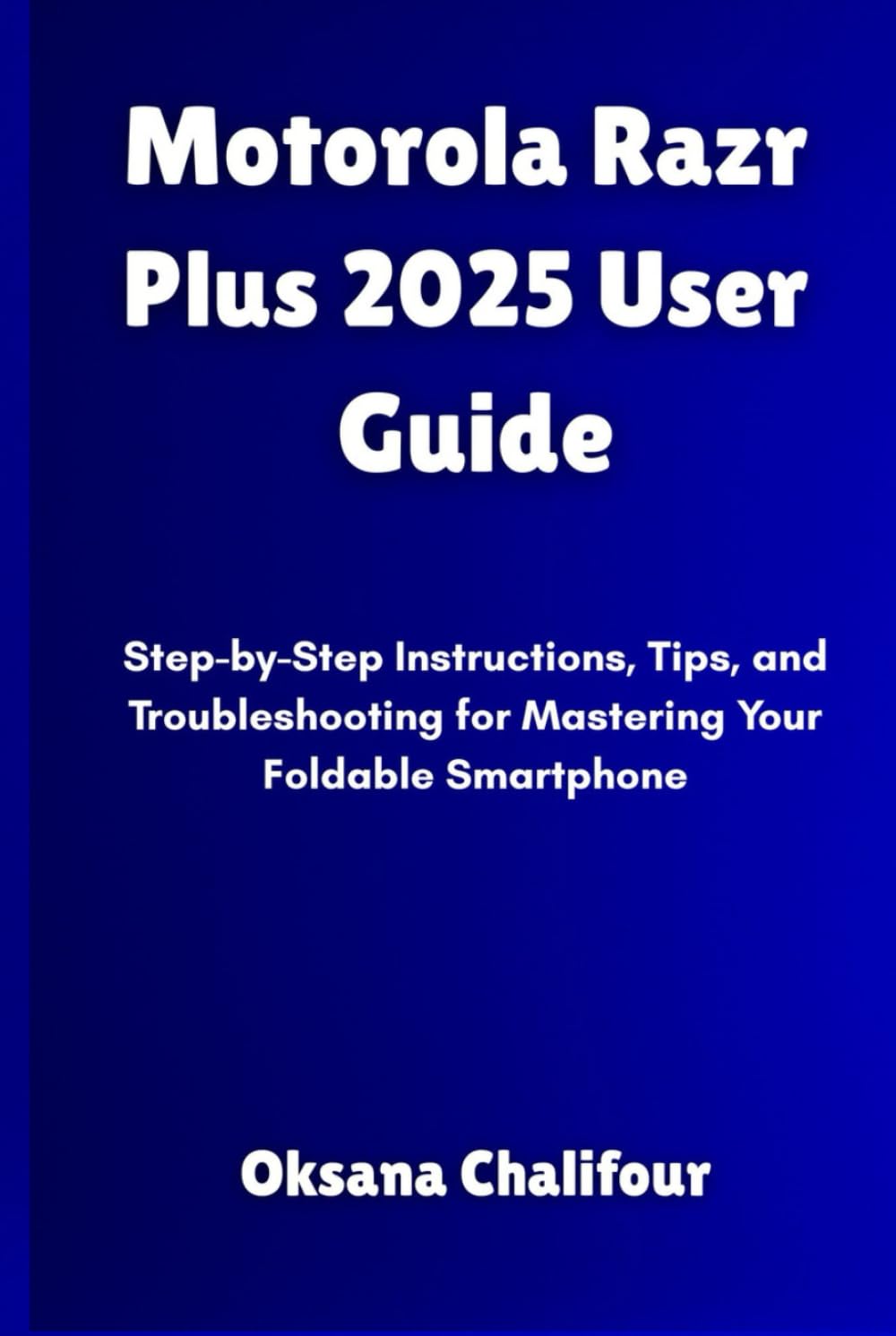
Front cover of the "Motorola Razr Plus 2025 User Guide" book, featuring the title and author information.

Back cover of the "Motorola Razr Plus 2025 User Guide" book, displaying the ISBN barcode and publisher information. ISBN: 979-8280887749.
Official Product Videos
There are no official product videos from the seller available for this user guide book.


