
luckeu I25 Ultra - Gold
I25 Ultra Unlocked Cell Phone User Manual
Model: I25 Ultra - Gold | Brand: luckeu
1. Introduction
This user manual provides essential information for the safe and efficient operation of your new luckeu I25 Ultra Unlocked Cell Phone. Please read this manual thoroughly before using the device to ensure proper functionality and to understand its features. Keep this manual for future reference.
The I25 Ultra is a high-performance Android smartphone designed for versatile communication and multimedia experiences. It features advanced camera capabilities, a powerful processor, and a long-lasting battery.
2. What's in the Box
Carefully unpack your I25 Ultra and ensure all items are present:
- I25 Ultra Smartphone (Gold)
- Phone Case
- USB-C Cable
- Power Adapter
- Screen Protector
- Earphone
- SIM Tray Ejector
- User Manual (this document)

Image: All items included in the I25 Ultra retail packaging.
3. Device Overview
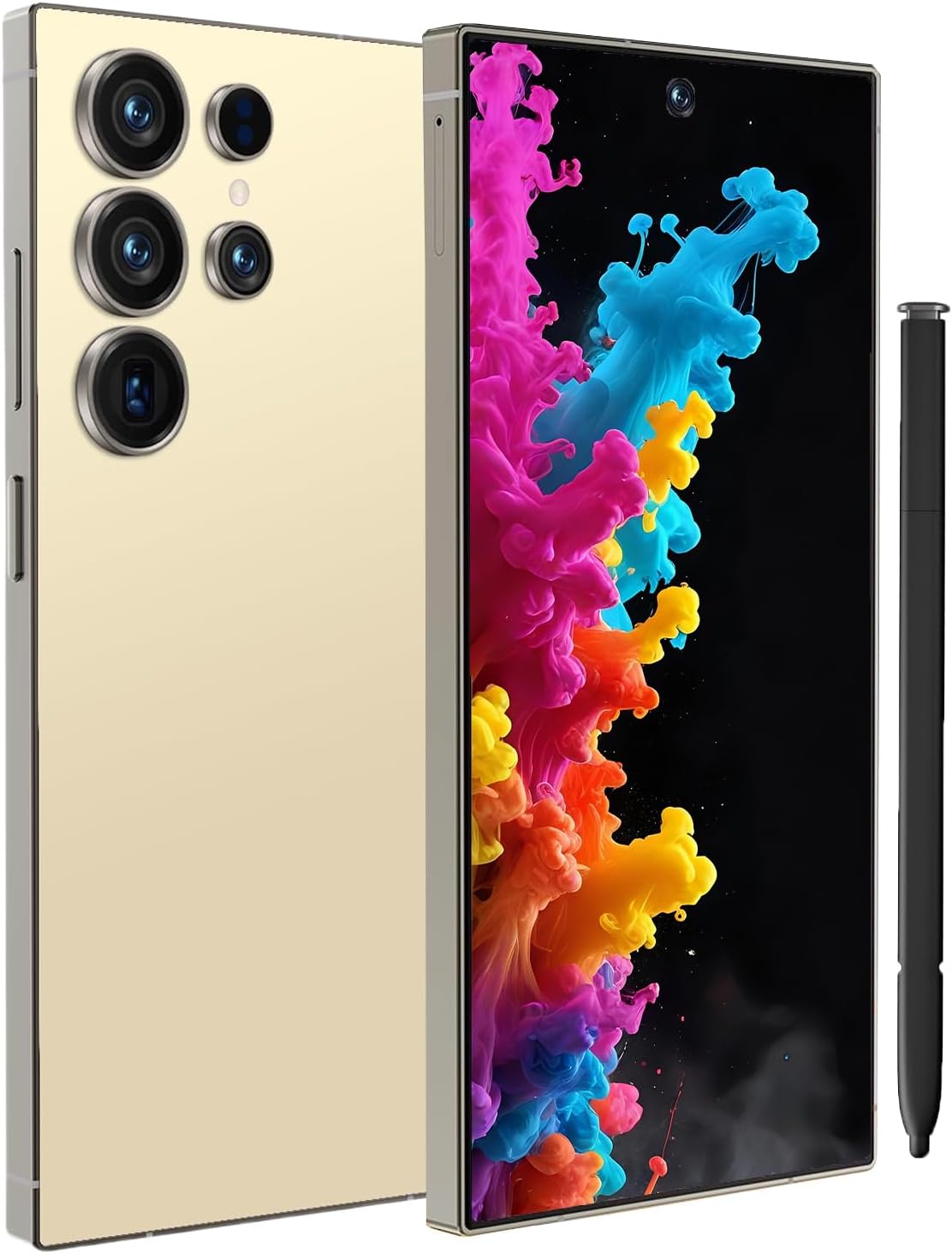
Image: Front and rear view of the I25 Ultra smartphone in Gold, alongside a stylus.
Key Features:
- Display: 6.99-inch FHD+ 120Hz Screen (2340 x 1080 resolution)
- Processor: Octa-core Snapdragon 8 Gen 3
- Memory & Storage: 8GB RAM + 256GB ROM
- Cameras: 108MP Main Camera, 50MP Front Camera, 2MP Macro Camera
- Battery: 7000mAh with 18W Fast Charging
- Operating System: Android 14
- Security: AI Face Unlock, Fingerprint Sensor
- Connectivity: Dual SIM, Global 5G Bands, Bluetooth, GPS
4. Setup
4.1 Inserting SIM Cards and MicroSD Card
- Locate the SIM card tray on the side of your phone.
- Insert the SIM tray ejector tool into the small hole next to the tray and push gently until the tray pops out.
- Place your Nano-SIM card(s) and/or MicroSD card into the designated slots on the tray. Ensure the gold contacts face downwards. The I25 Ultra supports Dual SIM functionality.
- Carefully reinsert the tray back into the phone until it clicks into place.

Image: Illustration of Dual SIM card insertion and security features.
4.2 Charging the Battery
- Connect the USB-C cable to the charging port at the bottom of your phone.
- Connect the other end of the USB-C cable to the provided power adapter.
- Plug the power adapter into a wall outlet.
- Allow the phone to charge until the battery indicator shows a full charge. The I25 Ultra supports 18W fast charging.

Image: The I25 Ultra connected to its charger, highlighting its 7000mAh battery and fast charging capability.
4.3 Powering On/Off
- To Power On: Press and hold the Power button (located on the right side) until the luckeu logo appears.
- To Power Off: Press and hold the Power button, then select 'Power off' from the options on the screen.
- To Restart: Press and hold the Power button, then select 'Restart' from the options.
4.4 Initial Setup Wizard
Upon first power-on, the phone will guide you through an initial setup process. Follow the on-screen prompts to:
- Select your language.
- Connect to a Wi-Fi network.
- Sign in with your Google account or create a new one.
- Set up screen lock (PIN, pattern, password, fingerprint, or Face ID).
- Restore data from a previous device (optional).
5. Operating Your Phone
5.1 Basic Navigation
- Home Screen: Swipe left or right to navigate between home screens.
- App Drawer: Swipe up from the bottom of the screen to access all installed applications.
- Notifications & Quick Settings: Swipe down from the top of the screen to view notifications and quick settings toggles.
- Recent Apps: Swipe up and hold from the bottom of the screen (or tap the square navigation button if enabled) to view recently used applications.
5.2 Calls and Messaging
- Making Calls: Open the Phone app, enter the number, and tap the call icon.
- Sending Messages: Open the Messages app, tap 'Start chat', enter recipient(s), type your message, and tap send.
5.3 Camera Functions
The I25 Ultra features a 108MP main camera and a 50MP front camera.
- Open the Camera app.
- Select your desired mode (Photo, Video, Portrait, Macro, etc.).
- Tap the shutter button to capture a photo or start/stop recording a video.
- Switch between front and rear cameras using the camera switch icon.

Image: Detailed view of the I25 Ultra's camera system, highlighting the 108MP main camera.

Image: Internal components illustrating the Snapdragon 8 Gen 2 processor, 8GB RAM, and 256GB ROM.
5.4 Internet and Connectivity
- Wi-Fi: Go to Settings > Network & internet > Wi-Fi to connect to available networks.
- Mobile Data: Ensure mobile data is enabled in Quick Settings or Settings > Network & internet > Mobile network. The phone supports Global 5G Bands.
- Bluetooth: Go to Settings > Connected devices > Bluetooth to pair with Bluetooth accessories.
- GPS: Location services are enabled by default for navigation and location-based apps.

Image: The I25 Ultra supports global 5G network bands.
5.5 Security Features
The I25 Ultra offers multiple security options to protect your device and data:
- Fingerprint Unlock: Register your fingerprints in Settings > Security & privacy > Device unlock > Fingerprint unlock.
- Face ID: Set up AI Face Unlock in Settings > Security & privacy > Device unlock > Face unlock.
- Screen Lock: Choose from PIN, Pattern, or Password for basic screen security.
6. Maintenance
6.1 Battery Care
- Avoid exposing the phone to extreme temperatures (hot or cold).
- Use only the provided charger and cable for optimal charging and to prevent damage.
- Do not leave the phone charging for extended periods after it reaches 100%.
- For long-term storage, charge the battery to around 50% and power off the device.
6.2 Cleaning Your Device
- Gently wipe the screen and back of the phone with a soft, lint-free cloth.
- For stubborn smudges, slightly dampen the cloth with water or a screen cleaner designed for electronics.
- Avoid using harsh chemicals, abrasive materials, or excessive moisture.
- Keep charging ports and speaker grilles free of dust and debris.
7. Troubleshooting
If you encounter issues with your I25 Ultra, try the following solutions:
7.1 Phone Not Turning On
- Ensure the battery is charged. Connect the phone to the charger and wait a few minutes before attempting to power on.
- Press and hold the Power button for at least 10-15 seconds to force a restart.
7.2 Apps Crashing or Freezing
- Close the problematic app and reopen it.
- Clear the app's cache and data (Settings > Apps > [App Name] > Storage & cache).
- Restart the phone.
- Ensure the app and your phone's operating system are updated to the latest versions.
7.3 Poor Network Connectivity
- Check if Airplane Mode is off.
- Restart your phone.
- Verify that your SIM card is properly inserted.
- If using Wi-Fi, restart your router.
- Contact your carrier if mobile data issues persist.
7.4 Battery Draining Quickly
- Reduce screen brightness.
- Close unused apps running in the background.
- Disable Wi-Fi, Bluetooth, and GPS when not in use.
- Check battery usage in Settings > Battery to identify power-hungry apps.
8. Specifications
| Feature | Description |
|---|---|
| Model Name | I25 Ultra - Gold |
| Operating System | Android 14 |
| Processor | Snapdragon 8 Gen 3 (Octa-core) |
| RAM | 8 GB |
| Internal Storage | 256 GB |
| Display Size | 6.99 Inches FHD+ |
| Display Resolution | 2340 x 1080 |
| Refresh Rate | 120 Hz |
| Rear Camera | 108 MP |
| Front Camera | 50 MP |
| Battery Capacity | 7000 mAh |
| Charging | 18W Fast Charging |
| Connectivity | Bluetooth, GPS, Global 5G Bands |
| SIM Support | Dual SIM (Unlocked for All Carriers) |
| Security | AI Face ID, Fingerprint Unlock |
| Dimensions | 6.79 x 4 x 3 inches (Package) |
| Item Weight | 12 ounces |
9. Warranty and Support
Your luckeu I25 Ultra Unlocked Cell Phone comes with a one-year warranty from the date of purchase. This warranty covers manufacturing defects and malfunctions under normal use conditions.
The warranty does not cover:
- Damage caused by misuse, accident, neglect, or unauthorized modification.
- Normal wear and tear.
- Cosmetic damage.
For warranty claims, technical support, or any inquiries, please contact luckeu customer service. We aim to reply within 24 hours to ensure customer satisfaction.
Please refer to the contact information provided on the official luckeu website or your purchase documentation for the most up-to-date support channels.
Related Documents - I25 Ultra - Gold
 |
Tenda Ceiling AP Series User Manual: Installation and Configuration Guide Comprehensive user manual for Tenda Ceiling AP Series (models i9, i21, i24, i25, i27, i29) covering installation, power supply, network configuration, safety precautions, and regulatory compliance. |
 |
Tenda Ceiling AP Series Quick Installation Guide Quick installation guide for Tenda Ceiling Access Points, covering ceiling and wall mounting, network deployment scenarios, and basic configuration. |
 |
Hearth & Home Technologies LINER-BK Series Glass Refractory Panel Installation Guide Step-by-step installation instructions for Hearth & Home Technologies LINER-BK-25, LINER-BK-30, and LINER-BK-35 glass refractory panel kits. Includes kit components, service parts, and safety precautions for various compatible models. |
 |
Tenda User Manual: Ceiling AP Series - Installation and Configuration Guide Comprehensive user manual for Tenda Ceiling AP Series, covering installation, power supply, network connection, and configuration. Includes safety precautions and compliance information for models like i27, i21, i24, i25, i29. |
 |
I25 Wireless Earbuds User Guide Comprehensive user guide for the I25 wireless earbuds, covering setup, pairing, functions, charging, maintenance, and FAQs. |
 |
VEVOR NWA-I25 Air Hose Reel User Manual Comprehensive user manual for the VEVOR NWA-I25 Air Hose Reel. Includes installation instructions, safety guidelines, maintenance tips, and technical specifications. |
Ask a question about this manual
Ask about setup, troubleshooting, compatibility, parts, safety, or missing instructions. Manuals+ will review the question and use this page’s manual context to help answer it.