
1. Introduction
This manual provides detailed instructions for the installation, operation, and maintenance of your Camcamp Wireless Security Camera (Model SC53XA). Please read this manual thoroughly before using the product to ensure proper functionality and safety. This variant includes one camera and does not come with an NVR system.
2. Product Overview
2.1 Key Features
- HD Video & Full-Color Night Vision: Offers HD video recording with 10 LED spotlights for clear, full-color images in low-light conditions.
- PTZ and Two-Way Audio: Rotates 350° horizontally and 90° vertically for a 360° field of view. Built-in microphone and high-fidelity speakers enable two-way communication.
- Motion Tracking and Instant Alerts: Advanced motion detection tracks individuals or objects, activating spotlights and sirens, and sending real-time alerts to your mobile phone.
- IP66 Weatherproof Design: Ensures stable operation in various extreme weather conditions.
- Dual-Band Wi-Fi: Supports 2.4GHz and 5GHz Wi-Fi for stronger signals and faster transmission.
- Local Storage: Supports Micro SD card for continuous recording.
2.2 Package Contents (1-Pcs - NO NVR Variant)
- 1x Camcamp Wireless Security Camera (Model SC53XA)
- 1x Power Adapter
- 1x Mounting Kit (Screws, Wall Anchors)
- 1x User Manual
Note: This specific variant does not include an NVR system. For remote control features like PTZ and alerts, the camera's associated application needs to be linked to a compatible NVR system (sold separately) or utilize cloud services/local SD card storage.
3. Safety Information
- Ensure the power supply meets the camera's specifications.
- Keep the electrical plug away from water to maintain IP66 waterproofing integrity.
- Avoid placing the camera in direct sunlight for extended periods or near heat sources.
- Do not attempt to disassemble or repair the camera yourself. Contact customer support for assistance.
- Install the camera securely to prevent accidental falls.
4. Setup
4.1 Unboxing and Initial Inspection
Carefully remove all components from the packaging. Verify that all items listed in the "Package Contents" section are present and undamaged.
4.2 Powering On
- Connect the power adapter to the camera's power input port.
- Plug the power adapter into a standard electrical outlet.
- The camera will power on and initiate its startup sequence.
4.3 Network Connection (Wi-Fi)
The Camcamp camera supports both 2.4GHz and 5GHz Wi-Fi networks for flexible connectivity.
- Download the official Camcamp application from your smartphone's app store (iOS or Android).
- Create an account or log in if you already have one.
- Follow the in-app instructions to add your new camera. This typically involves scanning a QR code on the camera or manually entering its ID.
- Select your Wi-Fi network (2.4GHz or 5GHz) and enter the password.
- Once connected, the camera's status indicator will confirm a successful connection.
4.4 Mounting the Camera
The camera is designed for easy installation on walls or ceilings. Its lightweight construction allows for various mounting options.

Figure 1: Camcamp Wireless Security Camera and companion mobile application interface.
- Choose a suitable location for installation, ensuring a clear field of view and proximity to a power outlet.
- Use the provided mounting template (if included) to mark the drill holes on the wall or ceiling.
- Drill holes and insert wall anchors if necessary.
- Secure the mounting bracket to the surface using the screws.
- Attach the camera to the mounting bracket. Ensure it is firmly secured.

Figure 2: Examples of wall and ceiling mounting for the Camcamp camera.
5. Operating Instructions
5.1 Live View
Access the live video feed from your camera through the Camcamp mobile application. This allows real-time monitoring of your property.
5.2 PTZ Control (Pan, Tilt, Zoom)
Utilize the pan and tilt functions within the app to adjust the camera's viewing angle. The camera offers 350° horizontal rotation and 90° vertical tilt.

Figure 3: The camera's pan and tilt capabilities provide extensive coverage.
5.3 Two-Way Audio
The built-in microphone and speaker allow for two-way communication. Tap the microphone icon in the app to speak, and listen through the app's speaker.

Figure 4: Two-way audio feature in use, allowing communication via the mobile app.
5.4 Motion Detection & Tracking
Configure motion detection zones and sensitivity in the app. When motion is detected, the camera can automatically track the object, activate its spotlight and siren, and send instant alerts to your phone.

Figure 5: AI tracking capabilities for various moving objects.

Figure 6: Acoustic deterrent and instant push notifications for detected events.
5.5 Night Vision Modes
The camera offers multiple night vision options:
- Full-Color Night Vision: Utilizes 10 LED spotlights to provide vivid, color images in dark environments.
- Infrared (IR) Night Vision: Standard black and white night vision using IR LEDs.
- Smart Night Vision: Automatically switches between IR and full-color mode based on detected motion or events.
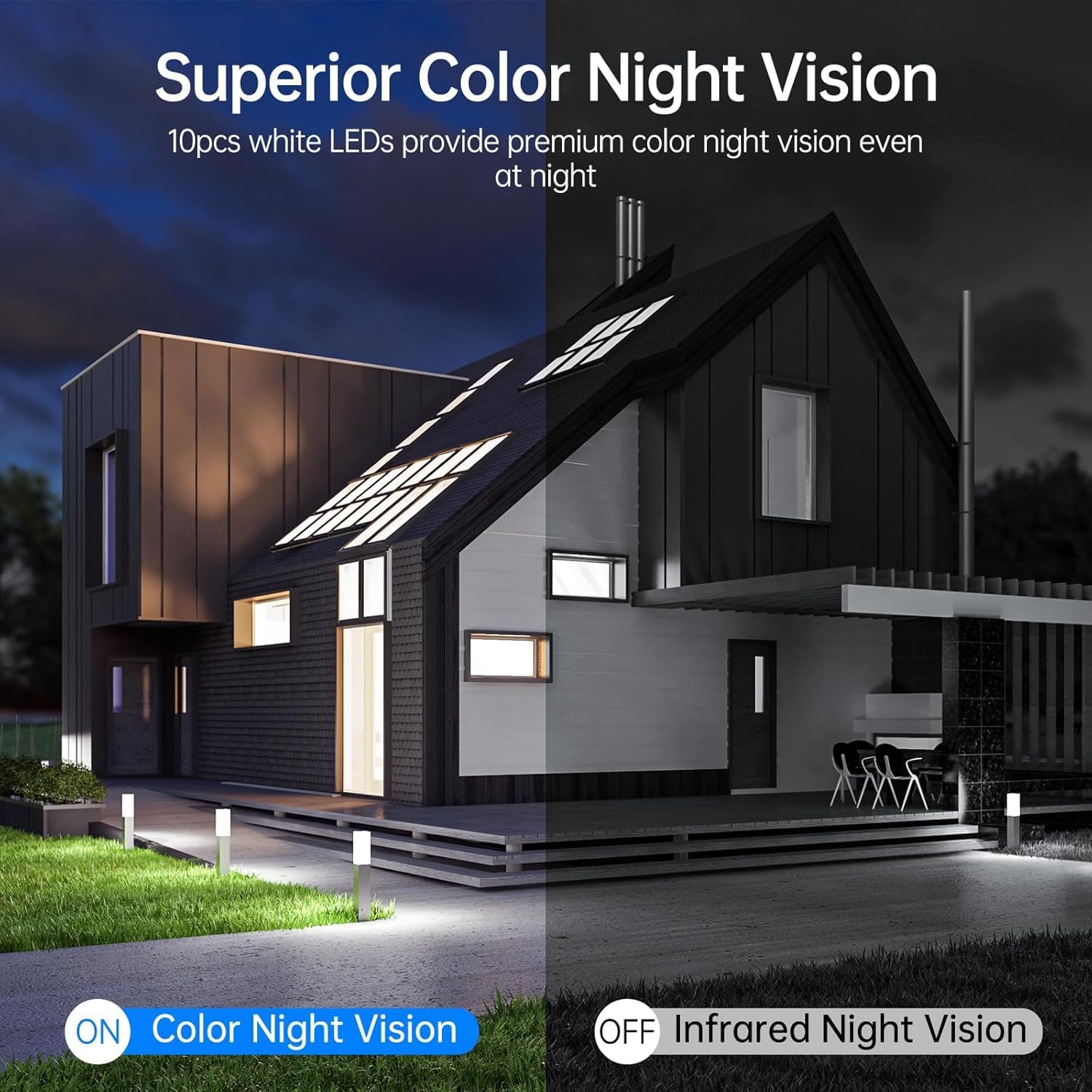
Figure 7: Visual comparison of color night vision versus infrared night vision.
5.6 Recording and Storage
The camera supports continuous recording and loop recording to a Micro SD card (not included). This ensures that footage is always captured and older recordings are overwritten when the card is full.
- Insert a Micro SD card (up to 128GB, Class 10 or higher recommended) into the camera's SD card slot.
- Format the SD card via the Camcamp app settings.
- Configure recording settings (continuous, event-triggered) within the app.
Note: While this camera can be part of a larger NVR system for advanced features and storage, this specific variant operates independently with local SD card storage or cloud services (if offered by the app provider).
6. Maintenance
6.1 Cleaning
Regularly clean the camera lens and housing with a soft, dry cloth to ensure optimal image clarity. Do not use harsh chemicals or abrasive materials.
6.2 Firmware Updates
Check the Camcamp app periodically for firmware updates. Keeping your camera's firmware up-to-date ensures access to the latest features, security enhancements, and bug fixes. Follow the in-app instructions for updating.
6.3 Storage Management
If using a Micro SD card, regularly review and back up important footage. Consider replacing the SD card every 1-2 years to prevent data loss due to wear and tear.
7. Troubleshooting
- Camera Offline:
- Check Wi-Fi connection and signal strength.
- Ensure the camera is powered on.
- Restart the camera and your Wi-Fi router.
- Verify that the camera is connected to the correct 2.4GHz or 5GHz network.
- Poor Image Quality:
- Clean the camera lens.
- Ensure adequate lighting, especially for full-color night vision.
- Check your internet speed; a stable connection is crucial for HD streaming.
- Motion Alerts Not Received:
- Verify motion detection settings and sensitivity in the app.
- Check app notification permissions on your smartphone.
- Ensure the camera is online and connected to the internet.
- Two-Way Audio Issues:
- Check microphone and speaker settings in the app.
- Ensure there are no obstructions blocking the microphone or speaker on the camera.
- Adjust volume levels on your smartphone and within the app.
8. Specifications
| Feature | Detail |
|---|---|
| Brand | Camcamp |
| Model Number | SC53XA |
| Connectivity Technology | Wireless (2.4GHz & 5GHz Wi-Fi) |
| Video Capture Resolution | 1080p (2MP) |
| Special Features | 360° Pan & Tilt, Automatic Tracking, Color Night Vision, 2-Way Audio, Weatherproof, No Monthly Fee (for local storage) |
| Power Source | Corded Electric |
| Item Dimensions (L x W x H) | 7 x 8 x 11.54 inches |
| Recommended Uses | Indoor, Outdoor |
| Compatible Devices | Smartphones, TV (via compatible NVR/streaming device) |
| Low Light Technology | Night Color |
| Night Vision Range | 15 Meters |
| Viewing Angle | 360 Degrees (Pan/Tilt combined) |
| Weather Resistance | IP66 |
| Item Weight | 14.4 ounces |
9. Warranty and Support
Camcamp provides a 1-year warranty for this wireless camera. Additionally, a 30-day no-reason return policy is offered. Should you encounter any questions or problems, please contact our professional customer service team. We are committed to providing a satisfactory reply within 12 hours.
For support, please refer to the contact information provided in your product packaging or visit the official Camcamp website.


