1. Introduction
This manual provides detailed instructions for the safe and efficient use of your DOOGEE Tab A9 Pro+ Android 15 Tablet. Please read this manual thoroughly before operating the device to ensure optimal performance and longevity. The DOOGEE Tab A9 Pro+ is designed for versatile use, offering powerful performance for work, study, and entertainment.
2. Package Contents
Verify that all items listed below are present in your product package:
- 1x DOOGEE Tab A9 Pro+ Tablet
- 1x Type-C USB Cable
- 1x Charger
- 1x Packing Box
- 1x User Manual
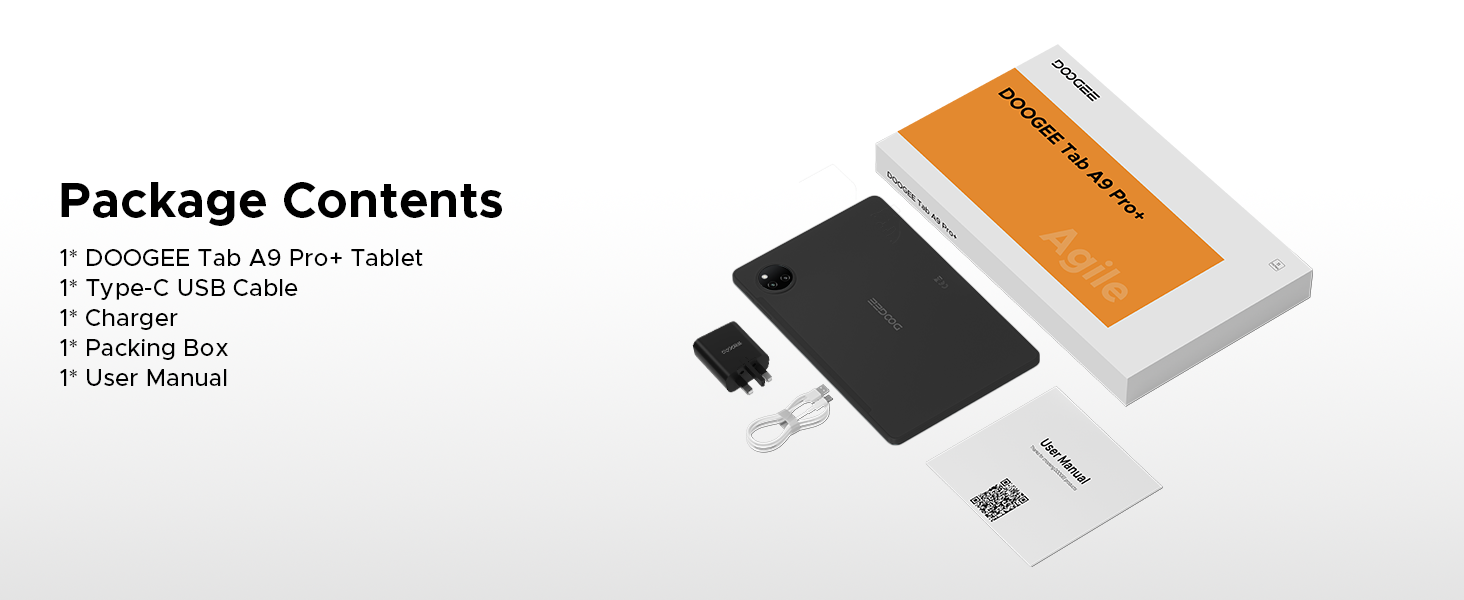
Figure 2.1: Contents of the DOOGEE Tab A9 Pro+ package.
3. Product Overview and Features
The DOOGEE Tab A9 Pro+ is equipped with advanced features for a superior user experience.
3.1 Display
The tablet features an 11-inch HD IPS display with a 90Hz refresh rate, providing a wide field of view and smooth visuals. It supports Widevine L1 for high-definition streaming content, ensuring a clear and vibrant viewing experience.

Figure 3.1: The 11-inch 90Hz HD IPS display of the DOOGEE Tab A9 Pro+.
3.2 Performance and Storage
Powered by an Octa-Core Unisoc T7200 processor, the tablet offers efficient performance. It comes with 6GB of physical RAM, expandable up to 30GB with virtual RAM, and 128GB of internal storage, expandable up to 2TB via a TF card (sold separately).

Figure 3.2: Overview of RAM and ROM capabilities.

Figure 3.3: The Unisoc T7200 Octa-Core Processor.
3.3 Battery Life
The 8580mAh battery provides extended usage times, including up to 24 days standby, 36 hours of music playback, 6.5 hours of video watching, and 7 hours of web browsing. It supports 10W fast charging and 5W reverse charging.

Figure 3.4: Battery capacity and estimated usage times.
3.4 Operating System
The tablet runs on Android 15, offering an intelligent, seamless, and secure user experience with features like split-screen multitasking, advanced privacy controls, and low blue light mode.

Figure 3.5: The Android 15 operating system interface.
3.5 Cameras and Audio
Equipped with a 13MP main camera and a 5MP front camera for capturing photos and video calls. Dual speakers provide clear audio, and a standard 3.5mm audio jack is included for private listening.

Figure 3.6: Camera specifications and sample images.
Figure 3.7: High-Quality Dual Speakers for immersive audio.
4. Setup Guide
4.1 Initial Charging
Before first use, fully charge your tablet using the provided Type-C USB cable and charger. Connect the USB cable to the tablet's charging port and the charger to a power outlet. The charging indicator will show the charging status.
4.2 Powering On/Off
- To Power On: Press and hold the Power button until the DOOGEE logo appears on the screen.
- To Power Off: Press and hold the Power button until the power options menu appears, then select "Power off".
- To Restart: Press and hold the Power button until the power options menu appears, then select "Restart".
4.3 Initial Setup Wizard
Upon first power-on, the tablet will guide you through an initial setup wizard. Follow the on-screen prompts to:
- Select your language.
- Connect to a Wi-Fi network.
- Sign in with your Google account or create a new one.
- Set up screen lock (PIN, pattern, password, or Face ID).
- Review and accept terms and conditions.
5. Operating Instructions
5.1 Navigation and Gestures
The Android 15 operating system uses intuitive gestures for navigation:
- Home: Swipe up from the bottom of the screen.
- Back: Swipe from the left or right edge of the screen.
- Recent Apps: Swipe up from the bottom and hold.
- Notifications/Quick Settings: Swipe down from the top of the screen.
5.2 App Management
- Install Apps: Download applications from the Google Play Store.
- Uninstall Apps: Press and hold an app icon, then drag it to "Uninstall" or go to Settings > Apps.
- Split-Screen Multitasking: Access recent apps, tap the app icon at the top of the window, and select "Split screen". This allows two apps to run simultaneously.
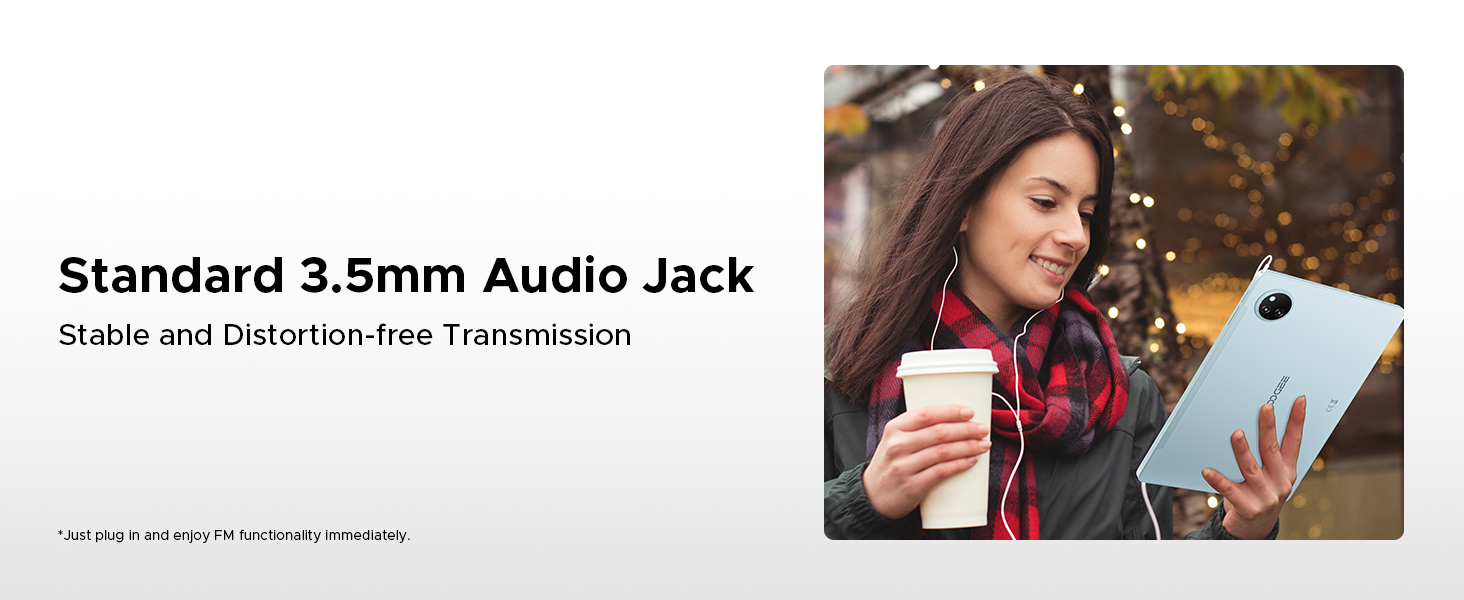
Figure 5.1: Efficient Split-Screen Multitasking.
5.3 Security Features
- Face ID: Set up facial recognition for quick and secure unlocking via Settings > Security > Face Unlock.
- Privacy Controls: Android 15 offers enhanced privacy settings. Manage app permissions and data access in Settings > Privacy.
Figure 5.2: Fortified Privacy Shield features.
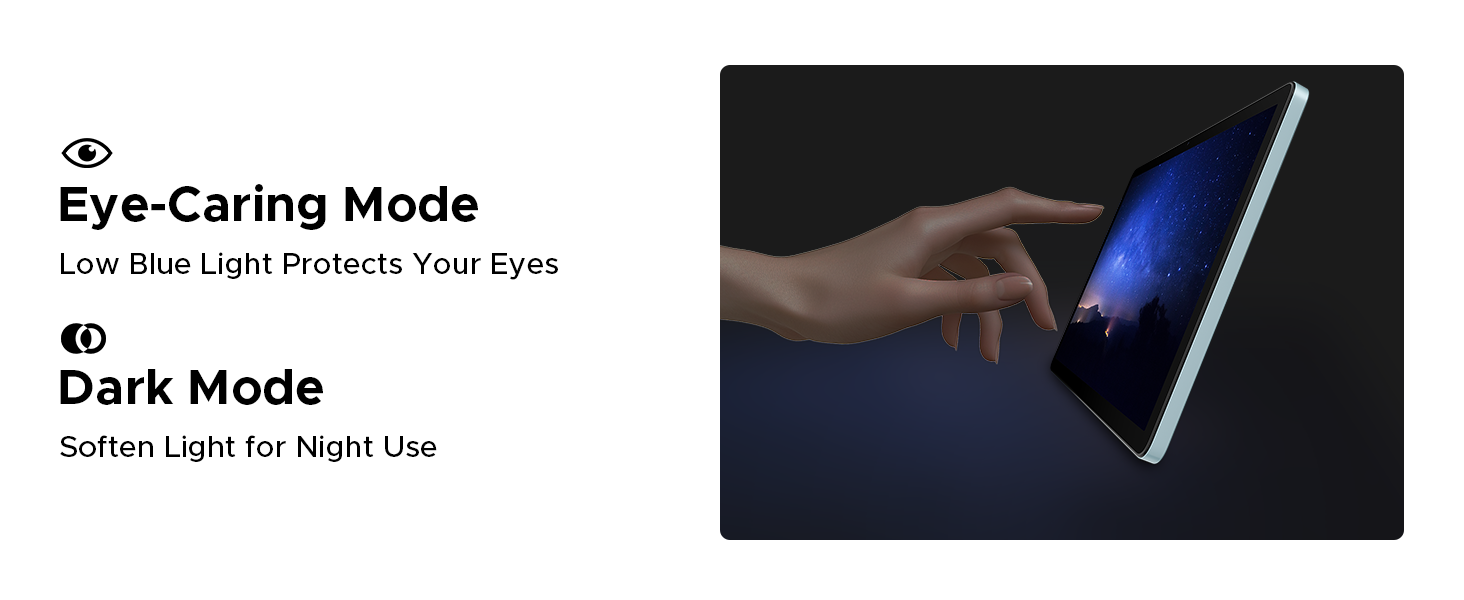
Figure 5.3: Facial Recognition Unlock.
5.4 Eye Comfort Modes
The tablet includes features to reduce eye strain:
- Low Blue Light Mode: Reduces blue light emission for comfortable reading, especially in low light. Activate this in Display Settings.
- Dark Mode: Softens screen light for night use, reducing glare.
- Anti-Flicker Mode: Enhances visual comfort by reducing screen flickering.
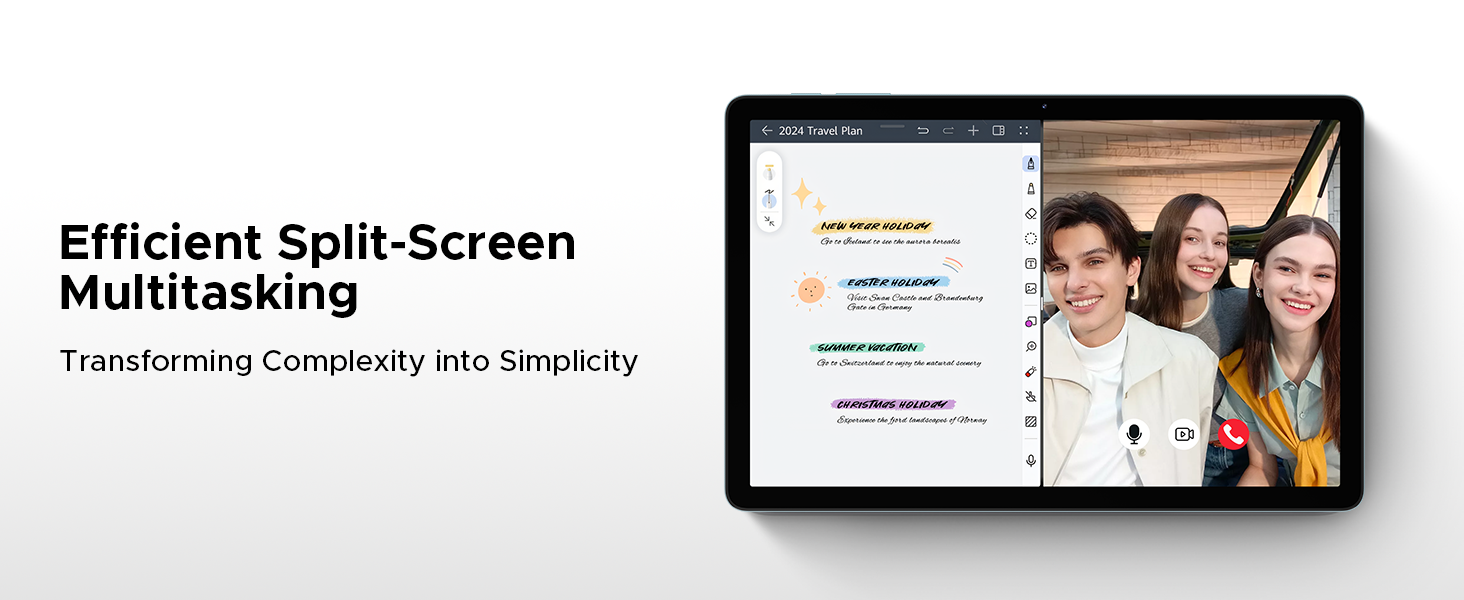
Figure 5.4: Anti-Flicker Mode comparison.
Figure 5.5: Eye-Caring Mode and Dark Mode.
6. Maintenance
6.1 Cleaning Your Tablet
To clean the tablet, use a soft, lint-free cloth. For stubborn smudges, slightly dampen the cloth with water or a screen cleaner designed for electronics. Avoid using harsh chemicals, abrasive materials, or excessive moisture.
6.2 Software Updates
Regularly check for and install software updates to ensure your tablet has the latest features, security patches, and performance improvements. Go to Settings > System > System update to check for updates.
6.3 Battery Care
To prolong battery life:
- Avoid extreme temperatures.
- Do not let the battery completely drain frequently.
- Use the original charger and cable.
- If storing the tablet for a long period, charge it to about 50% before turning it off.
7. Troubleshooting
This section addresses common issues you might encounter with your DOOGEE Tab A9 Pro+.
| Problem | Possible Cause / Solution |
|---|---|
| Tablet does not turn on. | Battery might be depleted. Connect the charger and wait a few minutes before attempting to power on. If still unresponsive, try holding the power button for 10-15 seconds for a forced restart. |
| Slow performance or apps crashing. | Too many apps running in the background. Close unused apps. Clear cache for problematic apps (Settings > Apps > [App Name] > Storage > Clear cache). Consider a factory reset if issues persist (backup data first). |
| Wi-Fi connection issues. | Ensure Wi-Fi is enabled. Restart your router and the tablet. Forget the network and reconnect. Check if other devices can connect to the same Wi-Fi. |
| Battery drains quickly. | High screen brightness, many background apps, or heavy usage. Reduce screen brightness, close unused apps, disable unnecessary notifications, and limit background data usage. |
| Screen is unresponsive. | Perform a forced restart by holding the power button for 10-15 seconds. Ensure the screen is clean and dry. |
8. Specifications
Detailed technical specifications for the DOOGEE Tab A9 Pro+ tablet:
| Feature | Detail |
|---|---|
| Brand | DOOGEE |
| Model Number | Tab A9+ |
| Operating System | Android 15 |
| Display Size | 11 inches (10.92 inches standing screen display size) |
| Display Type | IPS HD, 90Hz Refresh Rate |
| Resolution | 1280*800 |
| Processor | Unisoc T7200 Octa-Core, 1.6GHz |
| RAM | 6GB (expandable to 30GB with virtual RAM) |
| Internal Storage | 128GB |
| Expandable Storage | Up to 2TB (TF card not included) |
| Battery Capacity | 8580mAh Lithium Polymer |
| Charging | 10W Fast Charging, 5W Reverse Charging |
| Main Camera | 13MP |
| Front Camera | 5MP |
| Audio | Dual Speakers, 3.5mm Audio Jack |
| Connectivity | 5G WiFi (2.4G/5G), Bluetooth |
| Security | Face ID |
| Dimensions | 24.53 x 16.33 x 0.99 cm |
| Weight | 644 g |
| Color | Gray (as per current product variant) |
9. Warranty and Support
DOOGEE provides a 2-year after-sales service for the Tab A9 Pro+ tablet, ensuring peace of mind. For technical support, warranty claims, or further assistance, please refer to the contact information provided on the official DOOGEE website or your purchase documentation.
For more information, visit the official DOOGEE store: DOOGEE Store on Amazon UK


