
1. Introduction
This manual provides detailed instructions for the installation, operation, and maintenance of your Orbitell Q50 1080p WiFi Outdoor Security Camera. Please read this manual thoroughly before using the product to ensure correct usage and optimal performance.

Image 1.1: Orbitell Q50 Outdoor Security Camera with integrated solar panel and a smartphone displaying live feed.
2. Package Contents
Verify that all items listed below are present in your package:
- Orbitell Q50 Security Camera
- Instruction Manual (this document)
- Mounting Screws and Wall Plugs
3. Product Features
The Orbitell Q50 camera offers a range of advanced features for comprehensive outdoor surveillance:
- 1080p Full HD: Provides clear and detailed video.
- Solar Panel & Battery Powered: Ensures continuous operation with solar charging and a built-in rechargeable battery.
- AI Motion & Human Detection: Intelligent alerts differentiate people from other movements, reducing false alarms.
- Two-Way Audio: Allows for real-time communication through the camera.
- IP65 Weather Resistant: Designed to withstand various weather conditions.
- 2.4GHz Wi-Fi Support: For stable wireless connectivity.
- Pan & Tilt Control: Remote adjustment of viewing angles for wide coverage.

Image 3.1: Visual representation of key features including AI Human Detection, Color Night Vision, 355° Panoramic Surveillance, 2.4GHz Wi-Fi, Two-way Talk, and Cloud Storage.
4. Setup
4.1 Initial Charging
Before first use, ensure the camera's battery is fully charged. The integrated solar panel will charge the battery when exposed to direct sunlight. For initial setup or if the battery is depleted, connect the camera to a standard 5V/2A USB power adapter (not included) using the provided USB cable.

Image 4.1: The camera mounted outdoors, illustrating how the solar panel charges the device using sunlight.
4.2 App Installation
Download the official Orbitell security camera application from your smartphone's app store (iOS App Store or Android Google Play Store). Search for "Orbitell" or scan the QR code provided in the quick start guide (if applicable).
4.3 Camera Pairing
- Open the Orbitell app and create an account or log in.
- Tap the "Add Device" or "+" icon.
- Follow the on-screen instructions to connect the camera to your 2.4GHz Wi-Fi network. Ensure your phone is connected to the same 2.4GHz Wi-Fi network during setup.
- Scan the QR code displayed on your phone with the camera lens when prompted.
- Once connected, name your camera and complete the setup process.
4.4 Mounting the Camera
Choose a suitable outdoor location with good Wi-Fi signal and direct sunlight exposure for the solar panel. Use the provided mounting screws and wall plugs to securely attach the camera to a wall or other stable surface. Ensure the camera has a clear field of view.
5. Operating Instructions
5.1 Live View
Open the Orbitell app and select your camera from the device list to access the live video feed. You can view real-time footage from your camera anytime, anywhere.
5.2 Pan & Tilt Control
From the live view interface in the app, use the directional controls to remotely adjust the camera's horizontal (pan) and vertical (tilt) angles. The camera offers 355° horizontal rotation and 90° vertical rotation for extensive coverage.

Image 5.1: Diagram illustrating the 355° horizontal and 90° vertical rotation capabilities of the camera.
5.3 Two-Way Audio
To use the two-way audio feature, tap the microphone icon in the live view interface. You can then speak through your phone, and your voice will be projected through the camera's speaker. Similarly, you can hear audio from the camera's vicinity through your phone.
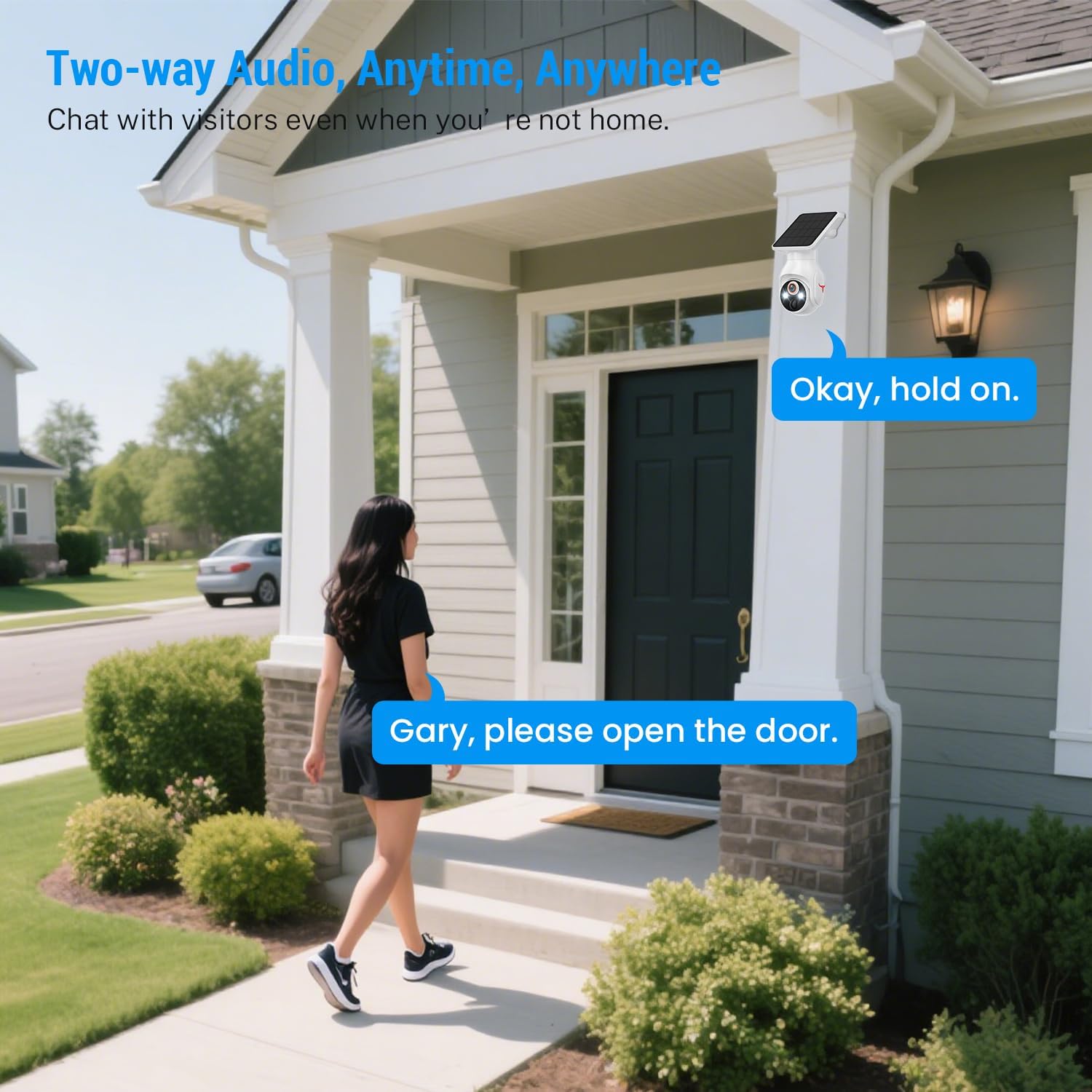
Image 5.2: A person interacting with a visitor at their door using the camera's two-way audio feature.
5.4 Motion Detection & Alerts
The camera features AI-powered human detection. When a human is detected within the camera's field of view, you will receive a notification on your smartphone. This intelligent detection helps minimize false alarms from pets or vehicles.
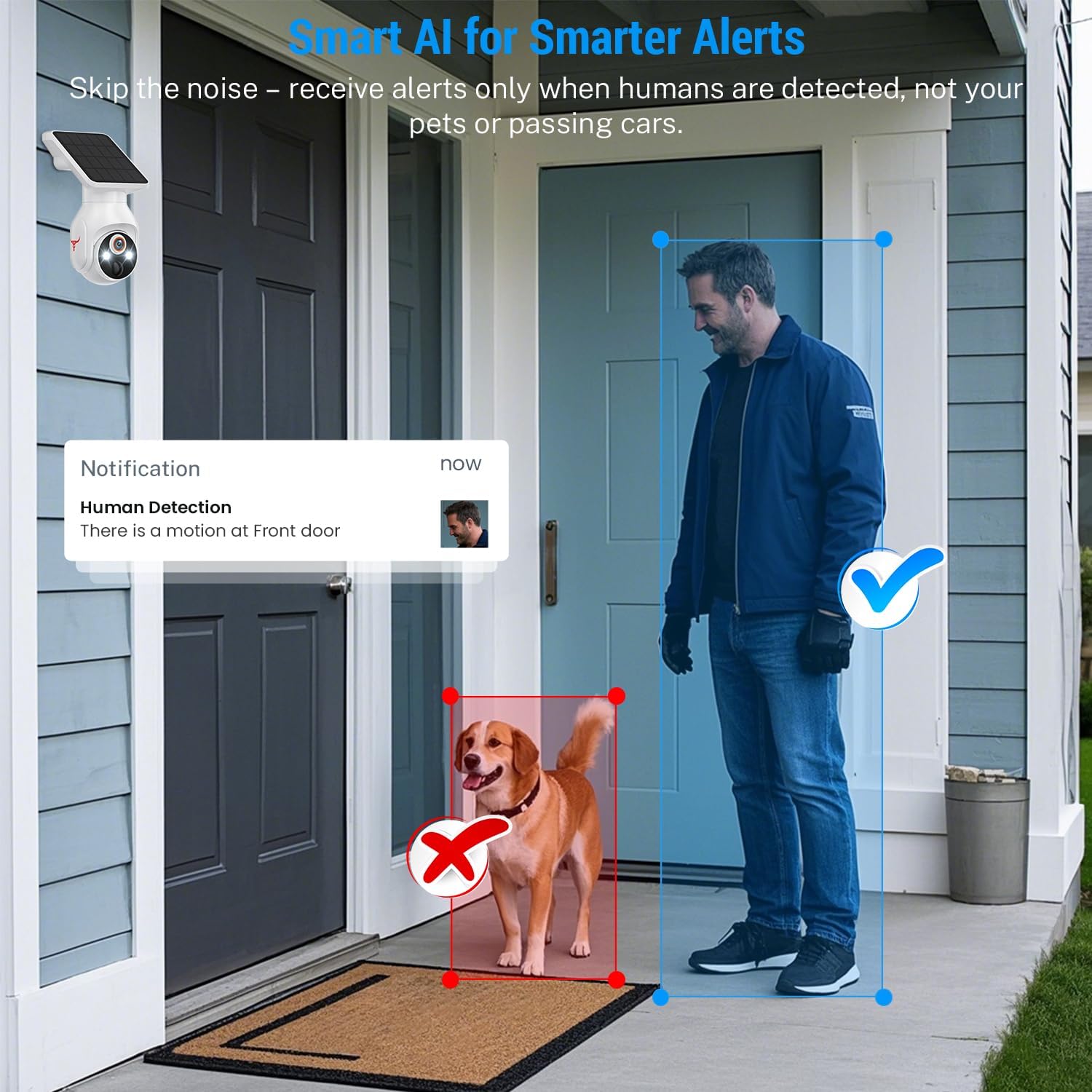
Image 5.3: An illustration showing the camera detecting a human while ignoring a dog, demonstrating the AI human detection feature.
5.5 Night Vision
The Orbitell Q50 camera provides both color night vision and infrared (IR) night vision for clear visibility in low-light conditions. The camera automatically switches to the appropriate mode based on ambient light.
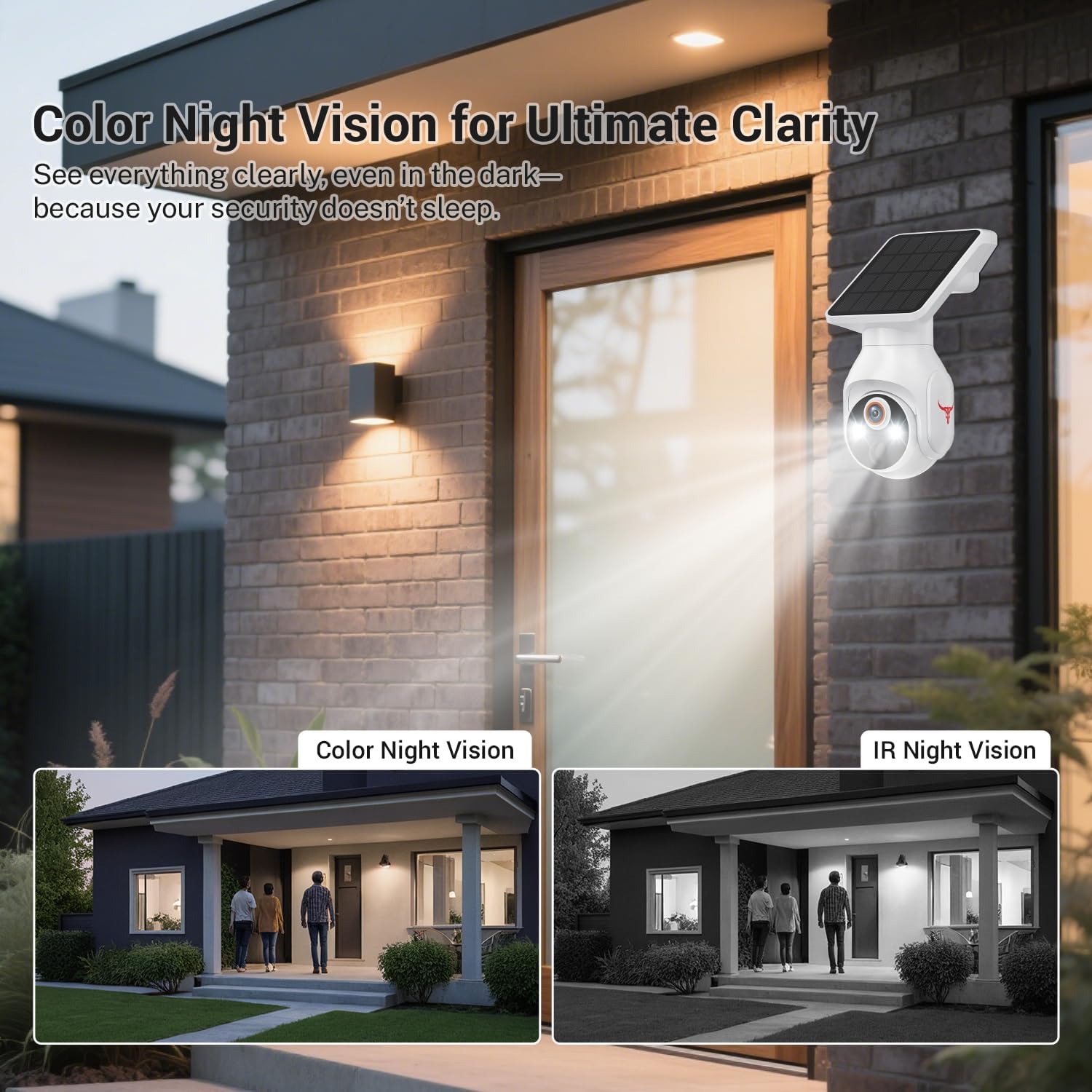
Image 5.4: Comparison of color night vision and IR night vision, showing enhanced clarity in dark environments.
5.6 Cloud Storage
The camera supports optional cloud storage for recorded video footage. An active subscription plan (sold separately) is required to utilize this feature. Refer to the Orbitell app for details on available plans.

Image 5.5: Visual representation of cloud storage functionality, showing various recorded events.
6. Maintenance
6.1 Cleaning
Regularly clean the camera lens and solar panel with a soft, damp cloth to ensure optimal performance. Avoid using abrasive cleaners or solvents that could damage the surfaces.
6.2 Battery Management
The camera's battery is designed for long-term use with solar charging. If the camera is installed in an area with limited sunlight, occasional manual charging via USB may be necessary to maintain battery health.
6.3 Firmware Updates
Periodically check the Orbitell app for available firmware updates. Keeping your camera's firmware up-to-date ensures access to the latest features and security enhancements.
7. Troubleshooting
- Camera not connecting to Wi-Fi: Ensure your Wi-Fi network is 2.4GHz. Check Wi-Fi signal strength at the camera's location. Restart your router and the camera.
- No live view: Check your internet connection and the camera's power status. Ensure the camera is online in the app.
- Poor image quality: Clean the camera lens. Ensure there are no obstructions in the field of view. Check your network speed.
- Battery not charging: Ensure the solar panel is receiving direct sunlight and is free from dirt or obstructions. If necessary, manually charge the camera via USB.
- False motion alerts: Adjust the motion detection sensitivity settings in the app. Ensure AI human detection is enabled.
8. Specifications
| Feature | Specification |
|---|---|
| Model Name | Q50 |
| Video Capture Resolution | 1080p |
| Indoor/Outdoor Usage | Outdoor |
| Power Source | Battery Powered and Solar Powered |
| Connectivity Technology | Wireless (2.4GHz Wi-Fi) |
| Mounting Type | Wall Mount |
| Special Features | 2-Way Audio, Built-In Light, Motion Sensor (AI Human Detection) |
| IP Rating | IP65 Weather Resistant |
| Battery Capacity | 5200 Milliamp Hours |
| Product Dimensions | 4.52 x 3.42 x 7.44 inches |
| Item Weight | 1.39 pounds (0.63 Kilograms) |
9. Warranty and Support
Orbitell products come with a limited warranty. For detailed warranty information, technical support, or service inquiries, please visit the official Orbitell website or contact customer support through the Orbitell app. Please retain your proof of purchase for warranty claims.