
Introduction
This manual provides detailed instructions for the setup, operation, maintenance, and troubleshooting of your Dinosoo Wireless Controller. Please read this manual thoroughly before using the product to ensure optimal performance and longevity.
The Dinosoo Wireless Controller is designed for use with Xbox One, Xbox Series X|S, and Windows PC, offering a versatile gaming experience with features like dual vibration, a six-axis gyroscope, TURBO function, and programmable buttons.
Product Overview
Familiarize yourself with the components and layout of your Dinosoo Wireless Controller.

Image: Front and back view of the Dinosoo Wireless Controller with key buttons and ports labeled, including USB-C, Pairing Key, PR/PL buttons, SET button, HOME button, View button, Menu button, Left Joystick, Direction-Pad, A/B/X/Y buttons, Right Joystick, and TURBO button.
Key Features:
- Hall Effect Joysticks: Designed for high sensitivity and precision, reducing drift and input delay.
- Dual Vibration Motors: Embedded in the side grips and triggers for immersive haptic feedback.
- Six-Axis Gyroscope: Detects movement for enhanced control in compatible games.
- TURBO Function: Allows for rapid, repeated input of a button.
- Programmable Buttons (PL/PR): Advanced game buttons for custom macro assignments.
- 3.5mm Audio Jack: For connecting headphones or headsets.
- Multi-Platform Compatibility: Supports Xbox One, Xbox Series X|S, Android, iOS, and Windows 11/10/8/7 via Bluetooth, Wi-Fi, or wired connection.
Setup
Important: Initial PC Upgrade Required for Xbox Connectivity
Before connecting the controller to an Xbox console, an essential firmware upgrade must be performed using a Windows PC. Failure to complete this upgrade will prevent the controller from connecting to Xbox consoles.

Image: Illustration of the controller connected via USB to a Windows PC, indicating an upgrade process is underway. Text highlights the necessity of the upgrade for Xbox connectivity and provides a download link.
- Download Upgrade Program: On a Windows PC, open your web browser and navigate to the following URL: we.tl/t-QpFRxal2Mc. Download the upgrade program.
- Connect Controller: Connect your Dinosoo Wireless Controller to the Windows PC using a USB-C cable.
- Run Upgrade: Execute the downloaded upgrade program and follow the on-screen instructions. The upgrade process typically takes 2-3 minutes.
- Verify Completion: Once the upgrade is complete, disconnect the controller from the PC.
After the upgrade, the controller is ready for connection to your desired platform.
Connecting to Xbox Consoles (Xbox One, Xbox Series X|S)
- Ensure the controller has been upgraded via PC as described above.
- Turn on your Xbox console.
- Press and hold the HOME button on the controller to power it on.
- Press the Pairing Key (located on the top edge of the controller, near the USB-C port) for 3 seconds until the HOME button light flashes rapidly.
- On your Xbox console, press the pairing button (usually located on the front or side of the console).
- The HOME button light on the controller will become solid when successfully paired.
Connecting to Windows PC (Bluetooth)
- Ensure your Windows PC has Bluetooth enabled.
- Press and hold the HOME button on the controller to power it on.
- Press the Pairing Key for 3 seconds until the HOME button light flashes rapidly.
- On your PC, go to "Settings" > "Devices" > "Bluetooth & other devices".
- Click "Add Bluetooth or other device" and select "Bluetooth".
- Select "Dinosoo Controller" from the list of available devices.
- The HOME button light on the controller will become solid when successfully paired.
Connecting to Windows PC (Wired)
- Connect the controller to your Windows PC using a USB-C cable. The controller will be automatically recognized.
Connecting to Android/iOS Devices
- Ensure Bluetooth is enabled on your Android or iOS device.
- Press and hold the HOME button on the controller to power it on.
- Press the Pairing Key for 3 seconds until the HOME button light flashes rapidly.
- On your device, go to Bluetooth settings and select "Dinosoo Controller" from the list of available devices.
- The HOME button light on the controller will become solid when successfully paired.
Operating Instructions
TURBO Function
The TURBO function allows a button to be pressed repeatedly as long as it is held down, which can be useful in certain games.

Image: The Dinosoo Wireless Controller with a visual effect emanating from the TURBO button, indicating its function.
- Activate TURBO: Press and hold the TURBO button, then press the desired action button (e.g., A, B, X, Y, LB, RB, LT, RT). The TURBO function is now assigned to that button.
- Deactivate TURBO: To remove the TURBO function from a button, press and hold the TURBO button again, then press the same action button.
Programmable Buttons (Macro Function)
The PL (left paddle) and PR (right paddle) buttons on the back of the controller can be programmed to perform a sequence of actions (macros).
- Enter Programming Mode: Press and hold the SET button (located on the back of the controller) for 3 seconds. The indicator light will flash.
- Assign Macro: While in programming mode, press either the PL or PR button, then input the sequence of buttons you wish to program.
- Exit Programming Mode: Press the SET button again to save the macro and exit programming mode. The indicator light will stop flashing.
- Clear Macro: To clear a programmed macro, press and hold the SET button for 3 seconds, then press the PL or PR button you wish to clear. Press SET again to confirm.
Dual Vibration
The controller features dual vibration motors in the grips and pulse triggers to provide realistic feedback during gameplay. Vibration intensity is typically controlled by the game itself.

Image: The Dinosoo Wireless Controller with blue wave effects emanating from the grips, illustrating the dual vibration feature.
3.5mm Audio Jack
Connect any standard 3.5mm headset or headphones to the audio jack located at the bottom of the controller for in-game audio and chat functionality.
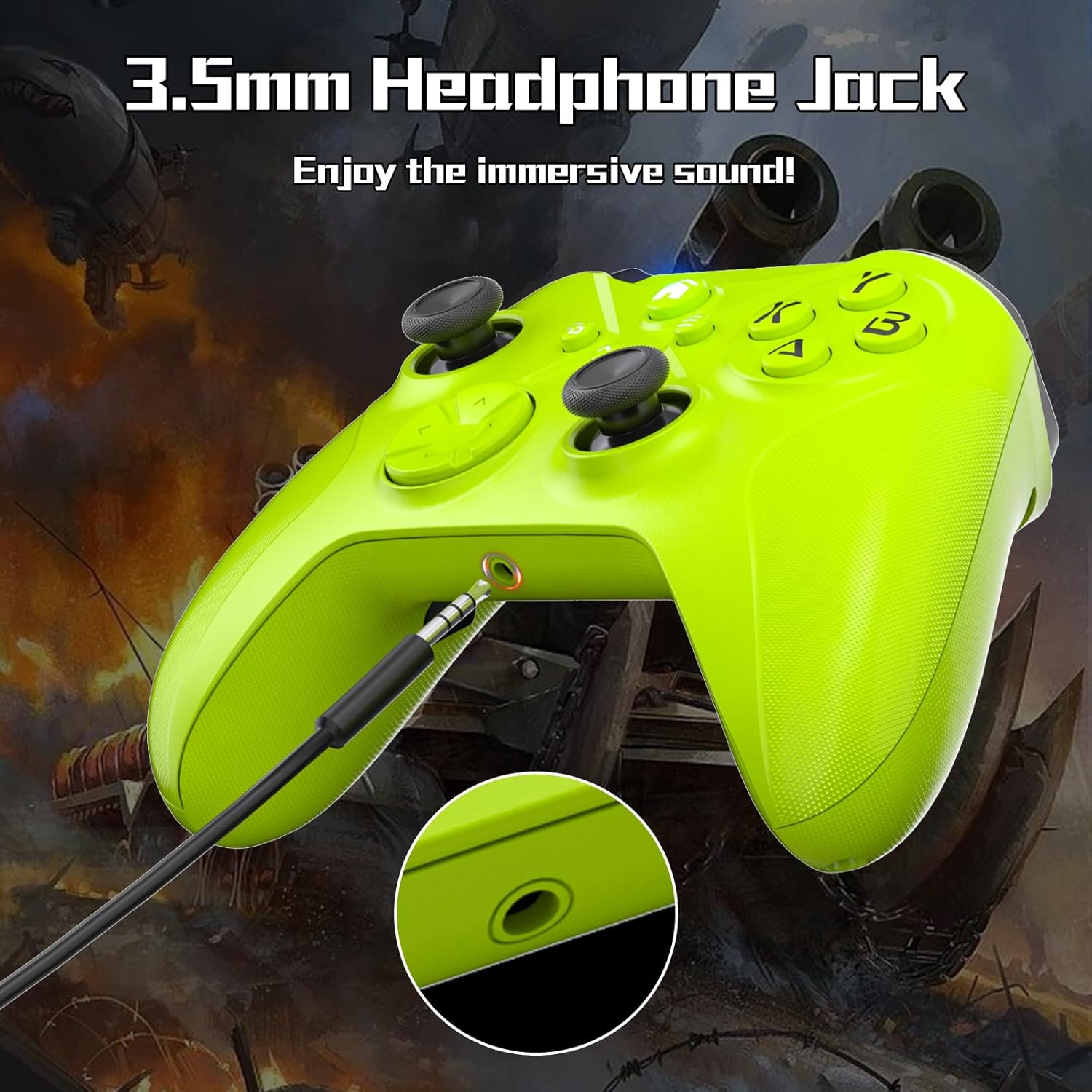
Image: The Dinosoo Wireless Controller with a 3.5mm audio cable plugged into the bottom port, with a close-up inset of the audio jack.
Maintenance
- Cleaning: Use a soft, dry cloth to clean the controller. For stubborn dirt, a slightly damp cloth can be used, but ensure no moisture enters the ports or internal components.
- Storage: Store the controller in a cool, dry place away from direct sunlight and extreme temperatures.
- Battery: If the controller uses removable batteries (not specified if included or type), ensure they are inserted correctly. Remove batteries if the controller will not be used for an extended period to prevent leakage.
- Avoid Drops: Protect the controller from drops and impacts, which can damage internal components.
Troubleshooting
- Controller not connecting to Xbox:
Solution: Ensure the controller has undergone the mandatory PC firmware upgrade as detailed in the "Setup" section. This is a critical step for Xbox compatibility.
- Controller not pairing via Bluetooth:
Solution: Ensure the controller is in pairing mode (HOME button flashing rapidly). Check that Bluetooth is enabled on your device and that the controller is within range. Try restarting both the controller and the device.
- Input lag or unresponsiveness:
Solution: Ensure the controller is fully charged or has fresh batteries. Reduce interference by moving closer to the console/PC or by removing other wireless devices. For PC, try a wired connection to rule out wireless issues.
- Vibration not working:
Solution: Check in-game settings to ensure vibration feedback is enabled. Some games allow you to adjust vibration intensity.
- Audio jack not working:
Solution: Ensure the headset is fully plugged into the 3.5mm jack. Test the headset with another device to confirm it is functional. Check audio settings on your console/PC to ensure output is directed to the controller.
Specifications
| Brand | Dinosoo |
| Model | B0F5VJF7CK |
| Connectivity | Bluetooth, Wired (USB-C) |
| Compatibility | Xbox One, Xbox Series X|S, Windows 11/10/8/7, Android, iOS |
| Special Features | Hall Effect Joysticks, Dual Vibration, Six-Axis Gyroscope, TURBO Function, Programmable Buttons (PL/PR), 3.5mm Audio Jack |
| Dimensions | 6.81 x 4.76 x 2.83 inches |
| Weight | 10.5 ounces |
Support
For further assistance, technical support, or warranty inquiries, please contact Dinosoo customer service through the retailer where the product was purchased. When contacting support, please provide your product model (B0F5VJF7CK) and a detailed description of the issue.
You can typically find contact information on the retailer's website or within your purchase history.