
1. Introduction
This manual provides detailed instructions for the installation, operation, and maintenance of your NZXT Kraken Plus 360 AIO CPU Liquid Cooler. The Kraken Plus 360 is designed to deliver efficient cooling performance for your CPU, featuring a custom NZXT Turbine pump, high-performance F120P fans, and a customizable 1.54-inch square LCD display.
For optimal performance and longevity, please read this manual thoroughly before installation and use.

Image 1.1: Overview of the NZXT Kraken Plus 360 AIO CPU Liquid Cooler.
2. Safety Information
Please observe the following safety guidelines to prevent damage to the product or injury to yourself:
- Ensure all power is disconnected from your computer before installation or maintenance.
- Handle components with care to avoid damage.
- Do not open the pump or radiator as this may void the warranty and cause leakage.
- Keep the product away from liquids and extreme temperatures.
- Only use the provided mounting hardware and cables.
3. Package Contents
Verify that all components are present in your package:
- NZXT Kraken Plus 360 AIO Liquid Cooler (Radiator, Pump, Tubing)
- 3 x NZXT F120P Performance Fans
- Mounting Hardware for Intel Sockets (LGA 1851, 1700, 1200, 115X)
- Mounting Hardware for AMD Sockets (AM5, AM4)
- USB Cable for Pump Control
- Fan Splitter Cable
- Installation Guide

Image 3.1: Front view of the cooler and its main components.
4. Setup and Installation
Follow these steps for proper installation of your Kraken Plus 360 AIO cooler:
4.1 Prepare the Radiator and Fans
- Attach the three F120P fans to the radiator using the provided screws. Ensure the fan airflow direction is appropriate for your case configuration (typically pushing air through the radiator).
- Connect the fan cables to the included fan splitter cable.

Image 4.1: Radiator and fan airflow diagram.
4.2 Install Mounting Brackets
- Identify the correct mounting brackets for your CPU socket (Intel or AMD).
- Secure the appropriate brackets to the pump unit. The cooler comes with pre-applied thermal paste on the copper cold plate, so no additional application is needed.
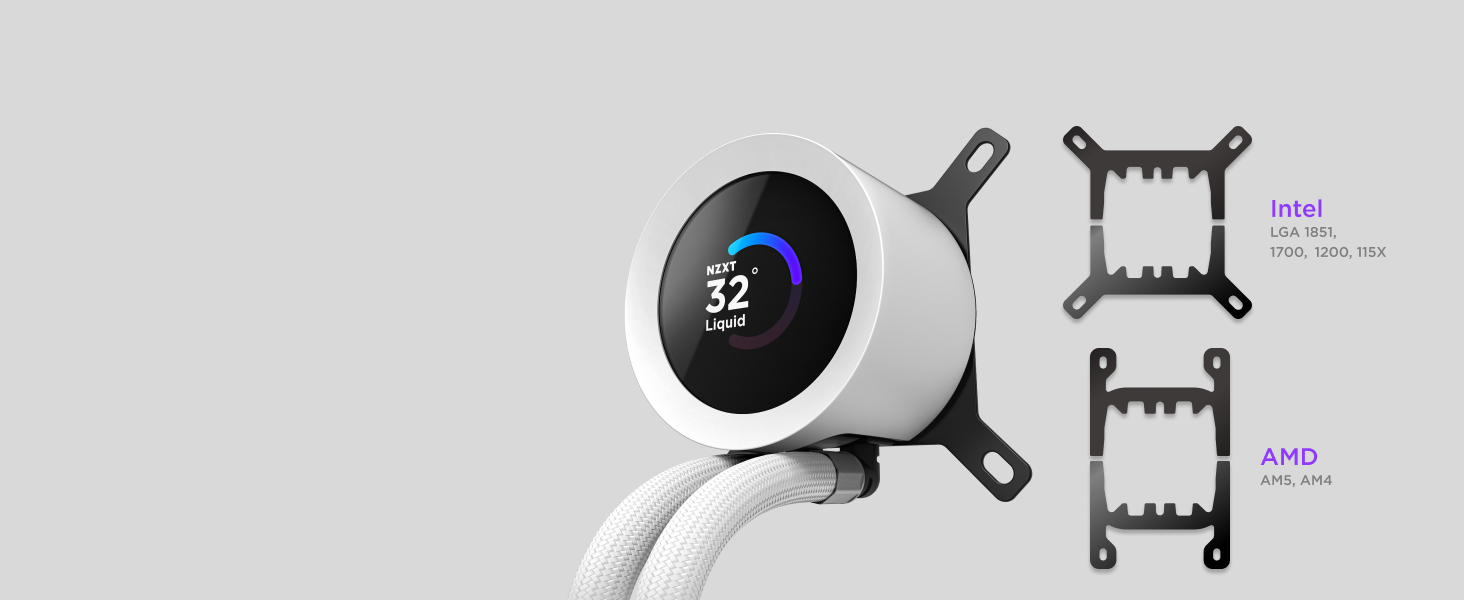
Image 4.2: Intel and AMD mounting brackets.

Image 4.3: Pump cold plate with pre-applied thermal paste.
4.3 Mount the Pump and Radiator
- Carefully place the pump unit onto your CPU, aligning it with the motherboard's mounting holes.
- Secure the pump with the provided thumb screws.
- Mount the radiator assembly into your PC case in an appropriate location (e.g., top, front, or side panel), ensuring adequate clearance and airflow.
4.4 Cable Connections
The Kraken Plus 360 features a single breakout cable from the pump cap for simplified cable management.
- Connect the pump's main cable to the CPU_FAN header on your motherboard.
- Connect the fan splitter cable (with fans attached) to an available fan header on your motherboard (e.g., SYS_FAN).
- Connect the USB cable from the pump to an internal USB 2.0 header on your motherboard. This is essential for NZXT CAM software control and LCD functionality.
- Ensure all cables are routed neatly to avoid interference with other components or airflow.

Image 4.4: Simplified cable management with single breakout cable.
5. Operating Instructions
5.1 NZXT CAM Software
The NZXT CAM software is required to fully utilize the features of your Kraken Plus 360 cooler. Download and install the latest version from the official NZXT website (www.nzxt.com/cam).
With NZXT CAM, you can:
- Monitor CPU and liquid temperatures.
- Adjust pump and fan speeds.
- Customize the 1.54-inch square LCD display with real-time system stats, custom images, or animated GIFs.
- Enable Zero RPM Mode for silent operation at low loads.

Image 5.1: Customizable LCD display on the pump.

Image 5.2: LCD customization options via NZXT CAM.
5.2 Cooling Performance
The NZXT Turbine pump is engineered for high flow and head pressure, providing efficient cooling. The F120P fans are designed for high static pressure, effectively moving air through the radiator to dissipate heat. Adjust fan and pump curves in NZXT CAM to balance cooling performance and noise levels according to your preferences.
6. Maintenance
Regular maintenance helps ensure optimal performance and longevity of your AIO cooler:
- Dust Cleaning: Periodically clean dust from the radiator fins and fan blades using compressed air or a soft brush. Ensure fans are not spinning during cleaning.
- Cable Management: Check cable connections periodically to ensure they are secure and not obstructing airflow.
- Software Updates: Keep your NZXT CAM software updated to benefit from performance improvements and new features.
- Liquid Level: The AIO is a closed-loop system and does not require liquid refills. Do not attempt to open the unit.
7. Troubleshooting
If you encounter issues with your Kraken Plus 360, refer to the following common solutions:
7.1 High CPU Temperatures
- Ensure the pump is securely mounted to the CPU and making good contact.
- Verify that the pump and fans are connected correctly and receiving power. Check fan headers in BIOS/UEFI.
- Confirm that NZXT CAM software is running and controlling the pump and fan speeds.
- Check for excessive dust buildup on the radiator fins and clean if necessary.
- Ensure proper airflow within your PC case.
7.2 LCD Display Not Working / Showing Incorrect Information
- Verify the USB cable from the pump is securely connected to an internal USB 2.0 header on your motherboard.
- Ensure NZXT CAM software is installed and running.
- Restart NZXT CAM or your computer.
- Check for NZXT CAM software updates.
7.3 Fans Not Spinning or Spinning Incorrectly
- Check all fan connections, including the fan splitter, to the motherboard fan headers.
- Ensure the fan headers are configured correctly in your motherboard's BIOS/UEFI.
- Verify fan speed settings in NZXT CAM. If Zero RPM Mode is enabled, fans may not spin at low temperatures.
- If using a fan splitter, ensure your motherboard header can provide sufficient power for all connected fans. In some cases, connecting fans directly to separate headers or using a powered fan hub may resolve issues.
For further assistance, please refer to the NZXT support website or contact their customer service.
8. Specifications
| Feature | Detail |
|---|---|
| Model Number | RL-KN360-B2 |
| Radiator Size | 360mm |
| Fan Type | NZXT F120P Fans (3 included) |
| Pump Type | NZXT Turbine Pump |
| LCD Display | 1.54-inch Square LCD |
| Compatible Intel Sockets | LGA 1851, 1700, 1200, 115X |
| Compatible AMD Sockets | AM5, AM4 |
| Cooling Method | Liquid (Water) |
| Power Connector Type | 3-Pin or 4-Pin |
| Voltage | 12 Volts (DC) |
| Wattage | 2.16 watts |
| Product Dimensions | 18.46 x 7.4 x 5.47 inches |
| Weight | 5.49 Pounds |
| UPC | 810074845304 |
9. Warranty and Support
NZXT products are backed by a comprehensive warranty. For specific warranty terms and conditions, please visit the official NZXT website. Keep your proof of purchase for warranty claims.
For technical support, troubleshooting guides, FAQs, and driver downloads (including NZXT CAM software), please visit the NZXT support page:
You may also contact NZXT customer service directly for personalized assistance.