
1. Introduction
This manual provides essential information for the setup, operation, maintenance, and troubleshooting of your Samsung QN50QN90FA Neo QLED 4K Smart TV. Please read this manual thoroughly to ensure proper use and to maximize your viewing experience.
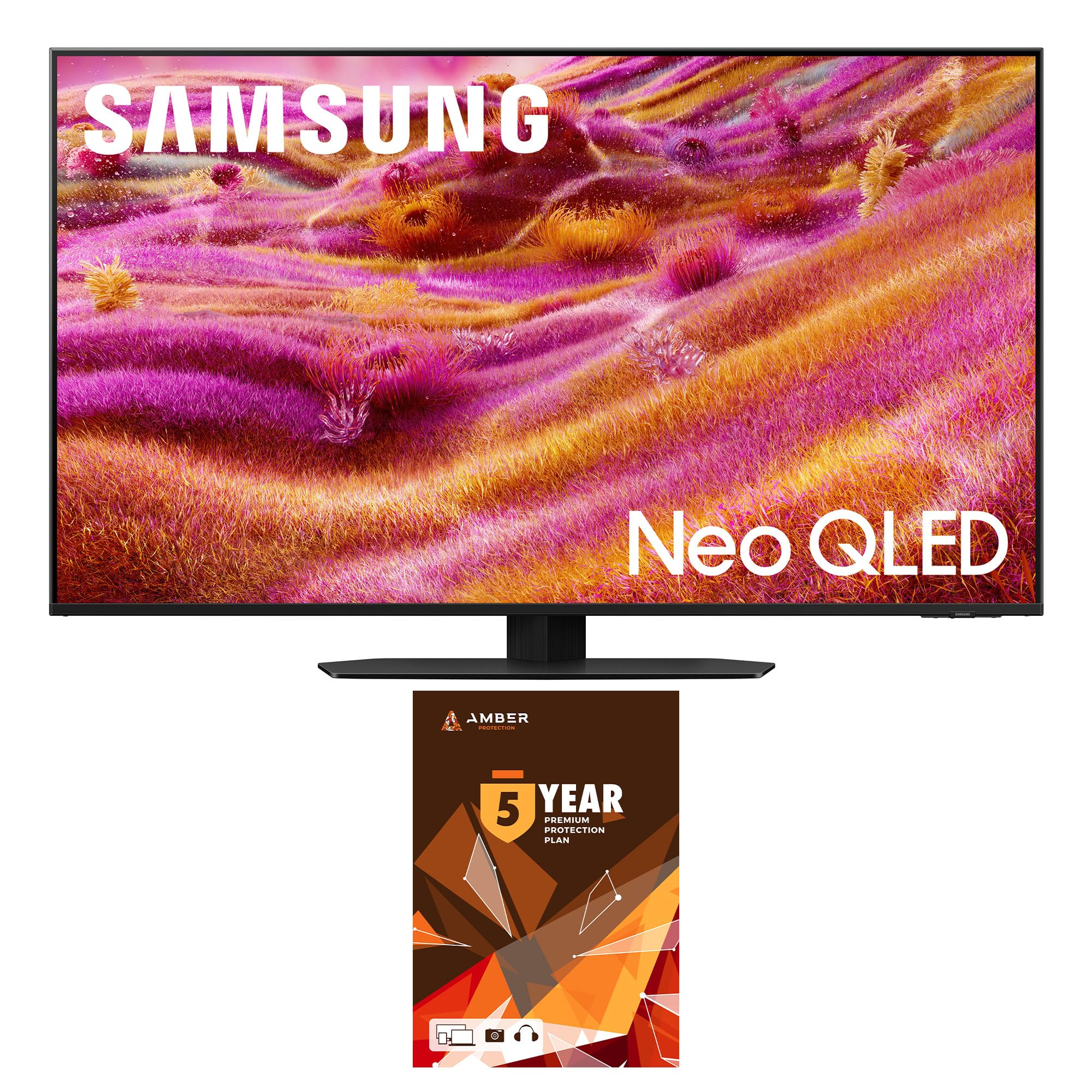
Figure 1.1: Front view of the Samsung QN50QN90FA Neo QLED 4K Smart TV.
The Samsung QN50QN90FA is a 50-inch Neo QLED 4K Smart TV featuring advanced picture and sound technologies, including the NQ4 AI Gen3 Processor, Glare Free screen, and Quantum Matrix Technology Plus. It offers a high-quality visual and audio experience for various entertainment needs.
2. Setup
2.1 Unpacking and Placement
Carefully remove the TV from its packaging. Due to its size and weight (approximately 38.8 pounds), it is recommended that two people handle the TV during unpacking and placement to prevent injury or damage. Ensure the TV is placed on a stable, level surface or securely mounted to a wall using a compatible VESA 200mm x 200mm mount (sold separately).

Figure 2.1: Side view of the TV, illustrating its slim profile.
2.2 Connecting External Devices
Your TV is equipped with multiple ports for connecting various devices:
- HDMI Ports (4): Connect Blu-ray players, gaming consoles, soundbars, and other HDMI-compatible devices.
- USB Ports (2): Connect USB storage devices for media playback or other compatible accessories.
- LAN Port: For a wired internet connection.
- Optical Digital Audio Out: For connecting to external audio systems.
- RF Input: For connecting an antenna or cable.

Figure 2.2: Rear view of the TV's input/output ports.
2.3 Initial Power-On and Network Connection
After connecting all necessary cables, plug the TV into a power outlet. The TV will guide you through the initial setup process, including language selection, channel scanning, and network configuration. For smart TV features, connect to your home Wi-Fi network (Wi-Fi 5 supported) or use a wired LAN connection.
3. Key Features
3.1 NQ4 AI Gen3 Processor & 4K AI Upscaling Pro
The NQ4 AI Gen3 Processor utilizes artificial intelligence to optimize both picture and sound. The 4K AI Upscaling Pro feature enhances lower-resolution content to near 4K quality, providing improved clarity and detail regardless of the original source.

Figure 3.1: The NQ4 AI Gen3 Processor enhances picture and sound.
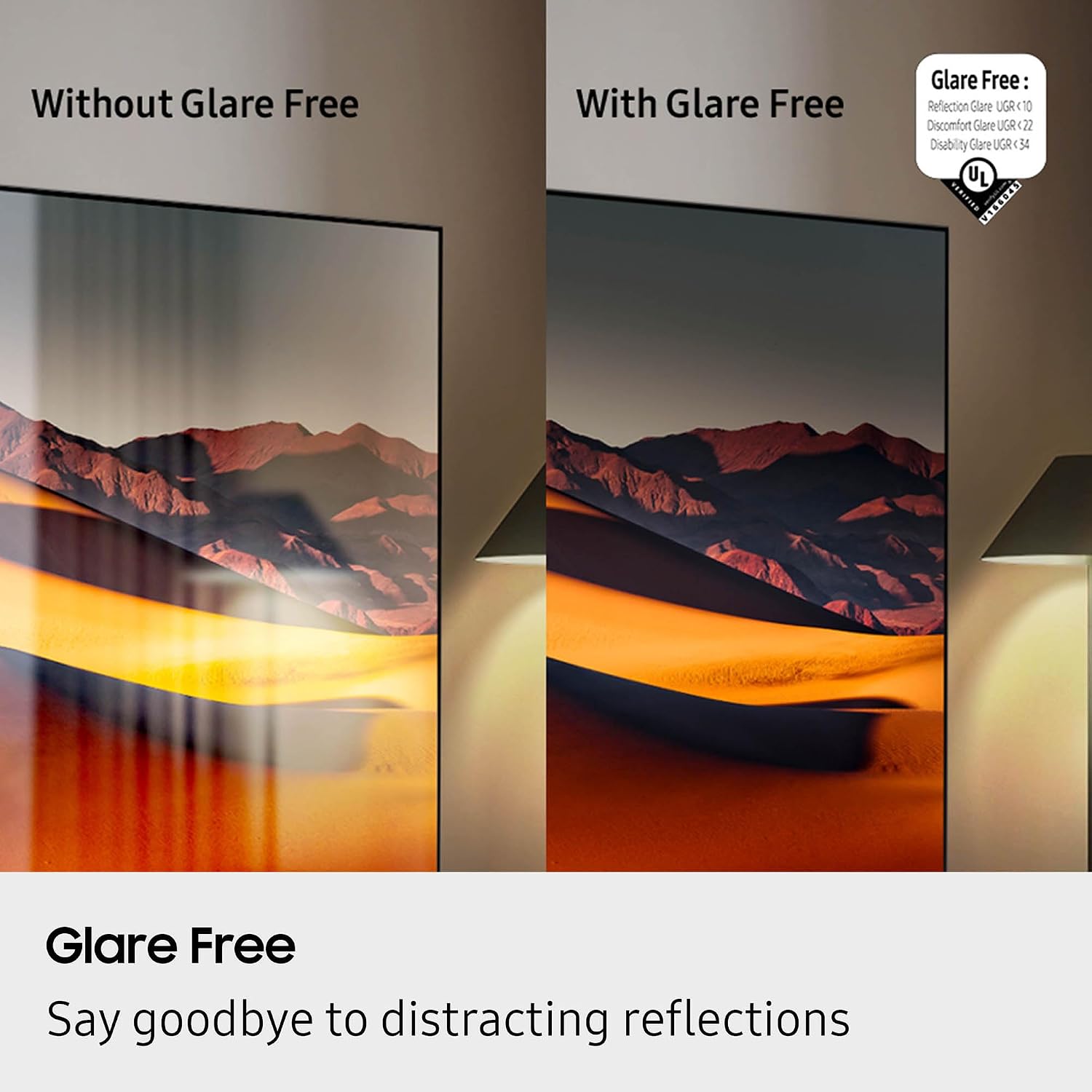
Figure 3.2: 4K AI Upscaling Pro in action.
3.2 Glare Free Screen
The Glare Free screen technology minimizes reflections from ambient light sources, allowing for a clearer view of the content even in brightly lit rooms. This feature enhances viewing comfort by reducing distractions caused by glare.

Figure 3.3: Glare Free screen technology reduces reflections.
3.3 Neo Quantum HDR+ & Quantum Matrix Technology Plus
Neo Quantum HDR+ delivers expanded contrast and vibrant brights, revealing nuanced details in 4K clarity. This is supported by Quantum Matrix Technology Plus, which precisely controls the TV's Mini LEDs to manage light with exceptional accuracy, resulting in deeper blacks and brighter whites.

Figure 3.4: Quantum Matrix Technology for precise light control.
3.4 Audio Features
The TV supports Dolby Atmos for immersive sound. Object Tracking Sound Lite (OTS Lite) provides dynamic audio that follows the action on screen. Q-Symphony Pro allows the TV's speakers to synchronize with compatible Samsung soundbars for an enhanced audio experience.
4. Operating Your TV
4.1 Remote Control
The TV comes with a BT SolarCell Remote. This remote uses Bluetooth for connectivity, allowing control without direct line-of-sight. It can be charged via solar power or USB-C. Familiarize yourself with the button layout for easy navigation.
4.2 Tizen Smart TV Platform
Your Samsung TV runs on the Tizen Smart TV operating system, providing access to a wide range of streaming services and applications. Navigate the home screen to find apps like Netflix, Prime Video, Disney+, Hulu, Apple TV, YouTube, HBO Max, Peacock, and Sling. You can also download additional apps from the app store.
4.3 Voice Assistant Compatibility
The TV is compatible with multiple voice assistants, allowing you to control the TV, search for content, and perform other functions using voice commands. Refer to the on-screen guide for specific voice assistant setup and commands.
4.4 Art Store
Transform your TV into a piece of art with the Art Store feature. This allows you to display a collection of artworks on your screen when the TV is not in active use. A Samsung Account and Wi-Fi connection are required, and a paid subscription may be needed for full access to the art collection.
4.5 Live Translate
The Live Translate feature can provide subtitles in your preferred language for broadcast content. This feature works with antenna broadcast only, and available languages may vary. Translation accuracy is not guaranteed.
Video 4.1: An overview of the Samsung QN90F Series TV features, including its smart capabilities and picture quality enhancements.
5. Maintenance
5.1 Screen Cleaning
To clean the TV screen, use a soft, microfiber cloth. For stubborn smudges or fingerprints, lightly dampen the cloth with a non-ammonia and alcohol-free screen cleaning solution. Avoid spraying liquid directly onto the screen. The Amber Protection HDTV Screen Cleaner Kit, which may be included with your purchase, is suitable for this purpose.

Figure 5.1: Example of a suitable screen cleaning kit.
5.2 General Care
Keep the TV free from dust by regularly wiping the frame and stand with a dry, soft cloth. Ensure proper ventilation around the TV to prevent overheating. Avoid placing heavy objects on top of the TV or blocking its ventilation openings.
6. Troubleshooting
6.1 No Sound or Intermittent Sound
If you experience no sound or intermittent sound, try the following:
- Check the volume level on both the TV and any connected audio devices.
- Ensure all audio cables are securely connected.
- Reset the TV by holding the power button on the remote control for a few seconds until the TV restarts.
- Verify the audio output settings in the TV's menu.
6.2 Picture Quality Issues (e.g., incorrect colors)
If the picture quality appears off, such as incorrect skin tones or excessive brightness/contrast, you can adjust the picture settings in the TV's menu. While the TV features AI color adjustments, personal preferences may vary. If issues persist, consider performing a factory reset of the picture settings. Note that a full factory reset will erase all personalized settings and downloaded apps.
6.3 Smart TV/App Issues
If smart features or apps are not working correctly:
- Check your internet connection (Wi-Fi or LAN).
- Ensure the TV's software is up to date.
- Try restarting the specific app or the TV itself.
- Clear the cache of problematic apps.
7. Specifications
| Feature | Specification |
|---|---|
| Model Name | QN50QN90FAFXZA |
| Screen Size | 50 Inches |
| Display Technology | Neo QLED |
| Resolution | 4K (3840 x 2160) |
| Refresh Rate | 120 Hz (Up to 165Hz) |
| Processor | NQ4 AI Gen3 Processor |
| Operating System | One UI Tizen |
| HDMI Ports | 4 |
| USB Ports | 2 |
| Wireless Technology | Bluetooth, Wi-Fi 5 |
| Dimensions (D x W x H) | 8.7"D x 43.8"W x 27.8"H |
| Item Weight | 38.8 Pounds |
| VESA Mount Compatible | 200mm x 200mm |
8. Warranty and Support
8.1 Manufacturer's Warranty
Your Samsung QN50QN90FA TV comes with a full 1-year manufacturer's warranty. Please retain your proof of purchase for warranty claims. For specific terms and conditions of the warranty, refer to the documentation included with your TV or visit the official Samsung support website.
8.2 Customer Support
For technical assistance, troubleshooting beyond this manual, or warranty inquiries, please contact Samsung customer support. You can find contact information on the official Samsung website or in your TV's on-screen support menu.


