
Introduction
The NZXT Kraken Plus 360 RGB is an all-in-one (AIO) CPU liquid cooler designed to provide efficient and quiet cooling for your processor. It features a 360mm radiator, F360 RGB Core single-frame fans, and a customizable 1.54-inch square LCD on the pump cap. This manual provides essential information for installation, operation, maintenance, and troubleshooting to ensure optimal performance and longevity of your cooler.
What's in the Box
Verify that all components are present before beginning installation:
- NZXT Kraken Plus 360 RGB AIO Cooler (Pump, Radiator, and Fans pre-assembled)
- Mounting Hardware for Intel (LGA 1851, 1700, 1200, 115X)
- Mounting Hardware for AMD (AM5, AM4)
- Breakout Cable for Pump Connections
- Documentation (Quick Start Guide, Warranty Information)

Image: Components of the NZXT Kraken Plus 360 RGB AIO liquid cooler, showing the radiator with three fans, the pump head, and tubing.
Setup and Installation
The Kraken Plus 360 RGB is designed for straightforward installation with pre-applied thermal paste and tool-free mounting brackets. Ensure your PC is powered off and unplugged before installation.
1. Prepare the CPU Socket
Identify the correct mounting brackets for your CPU socket (Intel LGA 1851/1700/1200/115X or AMD AM5/AM4). The cooler comes with Intel brackets pre-installed. If using AMD, replace the Intel brackets with the provided AMD brackets.
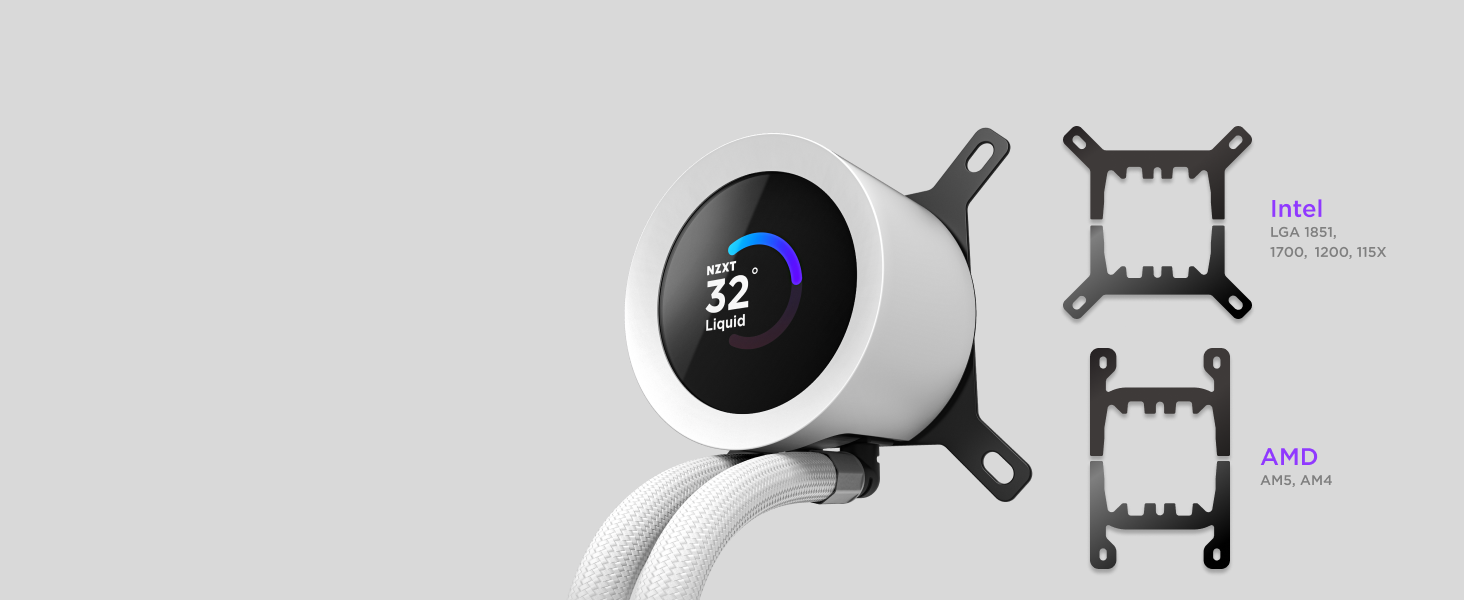
Image: Illustration of Intel LGA 1851, 1700, 1200, 115X and AMD AM5, AM4 mounting brackets for wide compatibility.
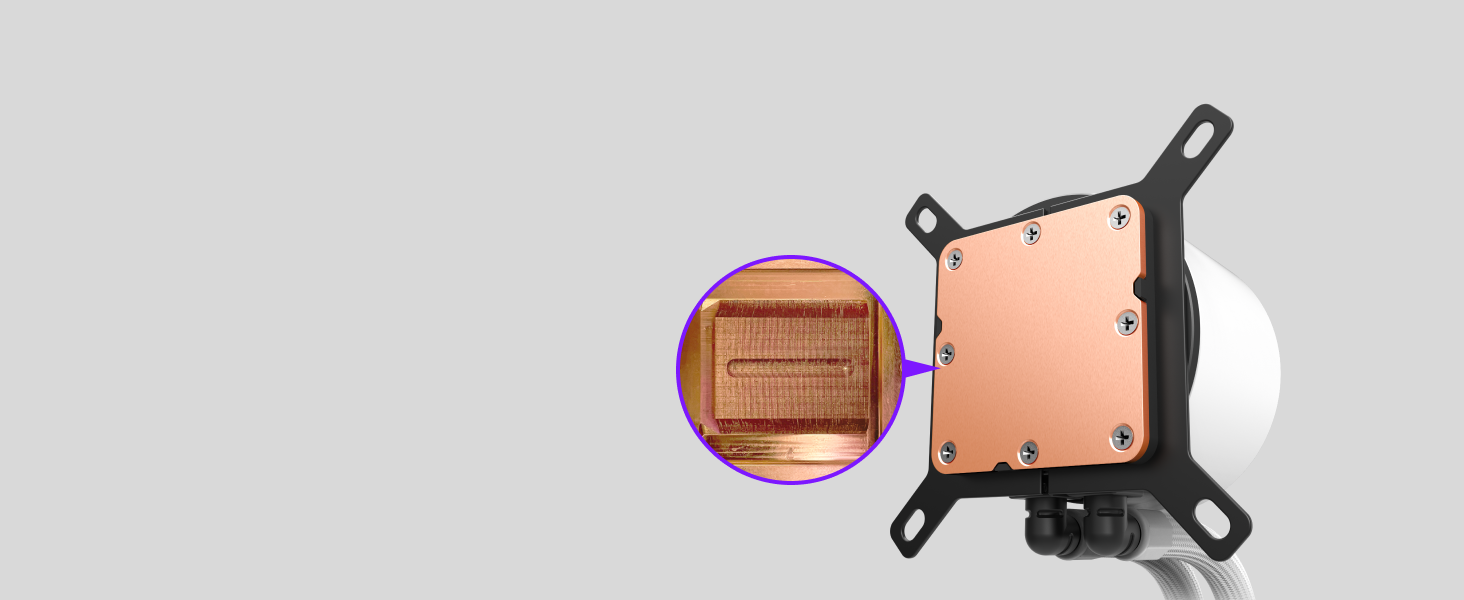
Image: Close-up of the cooler's cold plate with pre-applied thermal paste, ready for installation.
2. Mount the Radiator and Fans
Install the 360mm radiator with its integrated F360 RGB Core fans into your PC case. Typically, this is mounted at the top or front of the case. Secure the radiator using the provided screws.
3. Install the Pump
Carefully place the pump block onto your CPU, aligning it with the mounting holes. The cooler comes with pre-applied thermal paste, so no additional paste is needed. Secure the pump using the thumb screws or mounting hardware appropriate for your socket.

Image: The NZXT Kraken Plus 360 RGB AIO cooler installed at the top of a white PC case, showcasing its RGB lighting.
4. Connect Cables
Connect the pump's single breakout cable to the appropriate headers on your motherboard and power supply. This includes connections for pump power, fan power, and USB for NZXT CAM software control. Ensure all connections are secure.
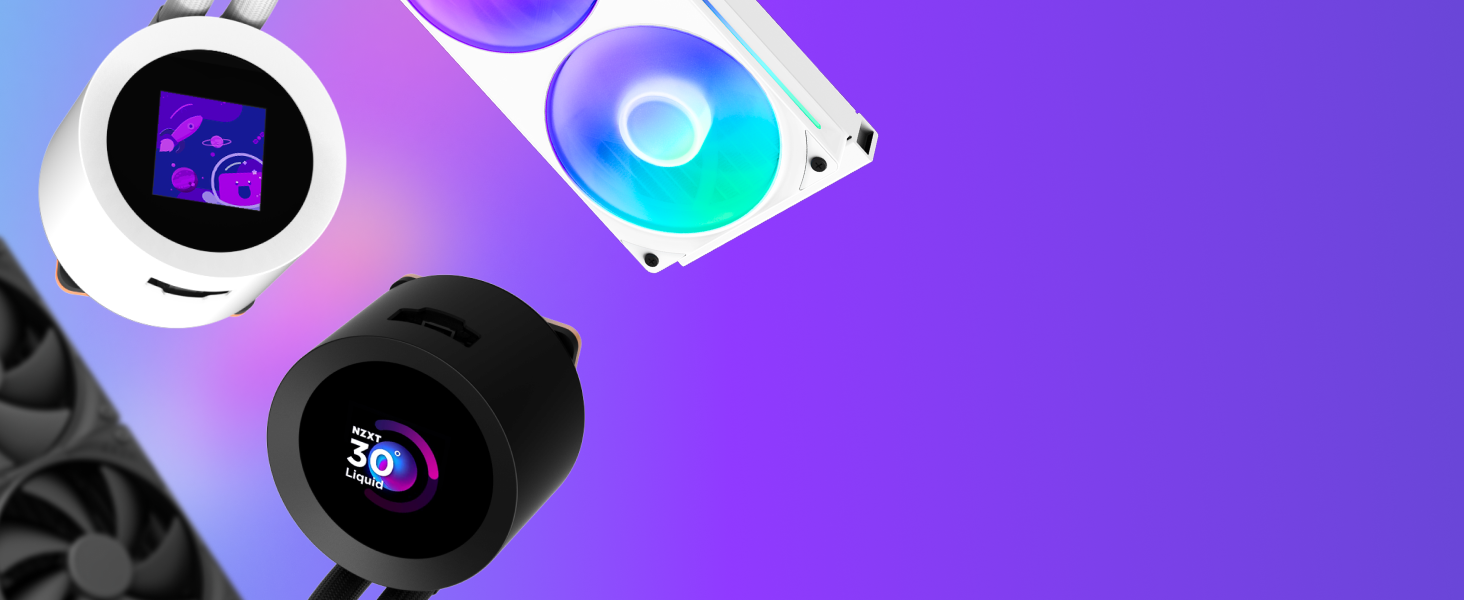
Image: Diagram illustrating the streamlined cabling of the Kraken Plus RGB, highlighting the single breakout cable from the pump cap for simplified management.
Installation Video Guide
Video: A detailed guide on installing the NZXT Kraken Plus 360 RGB AIO cooler, including tips for mounting and cable management. This video demonstrates the process of setting up the cooler within a PC build.
Operating the Kraken Plus 360 RGB
Once installed, the Kraken Plus 360 RGB offers advanced control and customization through the NZXT CAM software.
1. NZXT CAM Software
Download and install the NZXT CAM software from the official NZXT website. This software allows you to monitor system temperatures, customize RGB lighting effects for the fans and pump, and configure the 1.54-inch LCD display.
2. LCD Display Customization
The 1.54-inch square LCD on the pump cap can display real-time system statistics (CPU/GPU temperature, liquid temperature), custom images, or animated GIFs. Use the NZXT CAM software to upload and manage your preferred content for the display.

Image: The pump head of the NZXT Kraken Plus 360 RGB, featuring a vibrant 1.54-inch square LCD displaying the liquid temperature.
3. Fan and Pump Control
Within NZXT CAM, you can adjust the pump speed and fan curves to optimize cooling performance and noise levels. Choose from preset profiles (e.g., Silent, Performance) or create custom profiles based on your system's needs.
Video: A demonstration of the NZXT CAM software interface, showing how to monitor CPU/GPU temperatures, adjust pump and fan speeds, and customize the LCD display settings for the Kraken AIO cooler.
Maintenance
Regular maintenance ensures the longevity and optimal performance of your NZXT Kraken Plus 360 RGB cooler.
- Dust Cleaning: Periodically clean the radiator fins and fan blades with compressed air to prevent dust buildup, which can impede airflow and cooling efficiency.
- Cable Management: Ensure all cables are neatly routed and not obstructing airflow or fan operation.
- Software Updates: Keep your NZXT CAM software updated to the latest version for new features, bug fixes, and improved compatibility.
- Liquid Level: As a closed-loop system, the liquid cooler does not require regular refilling. However, monitor liquid temperatures via NZXT CAM for any unusual spikes that might indicate an issue.
Troubleshooting
If you encounter issues with your Kraken Plus 360 RGB, refer to the following common troubleshooting steps:
- No Power/RGB: Check all cable connections, especially the SATA power and motherboard headers. Ensure the USB cable is securely connected for NZXT CAM functionality.
- High Temperatures: Verify that the pump is running (check NZXT CAM for RPMs). Ensure fans are spinning correctly and not obstructed. Re-check pump mounting pressure on the CPU.
- LCD Not Displaying: Confirm the USB connection to the motherboard. Reinstall or update NZXT CAM software. Check display settings within CAM.
- Excessive Noise: Adjust fan curves and pump speed in NZXT CAM to a quieter profile. Ensure no cables are hitting fan blades.
For further assistance, contact NZXT customer support.
Specifications
| Feature | Detail |
|---|---|
| Model Number | RL-KR360-W2 |
| Radiator Size | 360mm |
| Cooling Method | Water |
| Compatible CPU Sockets | AMD AM5, AM4; Intel LGA 1851, 1700, 1200, 115X |
| Fan Type | F360 RGB Core Single Frame Fan |
| LCD Display | 1.54-inch Square LCD |
| Noise Level | 31.9 Decibels (Max) |
| Material | Metal, Plastic |
| Item Weight | 5.4 pounds |
| Product Dimensions | 18.46 x 7.4 x 5.47 inches |
Warranty and Support
The NZXT Kraken Plus 360 RGB AIO CPU Liquid Cooler comes with a manufacturer's warranty. For specific warranty terms and conditions, please refer to the documentation included with your product or visit the official NZXT website. For technical support, troubleshooting, or replacement parts, please contact NZXT customer service directly.
- 3-Year Protection Plan: Available for purchase.
- 4-Year Protection Plan: Available for purchase.


