
1. Introduction
The FLAMMA FB200 is an intelligent bass multi-effects pedal designed to provide a comprehensive suite of effects and features for bass players. It integrates various effect modules, amplifier models, cabinet simulations, and advanced functionalities like app control, IR loading, a drum machine, and OTG recording, all within a compact and portable unit.

Figure 1.1: The FLAMMA FB200 Intelligent Bass Multi-Effects Pedal.

Figure 1.2: Overview of FB200 features including 2000mAh battery, Tone Editor App, and 2 Play Modes (Live & Preset).
2. What's in the Box
Please check the package contents upon unboxing:
- FB200 Pedal
- Quick Start Guide
- USB Data Cable (USB-C to USB-A)
3. Product Overview
3.1 Controls and Interface
The FB200 features a user-friendly interface with dedicated knobs and footswitches for intuitive control over your sound.
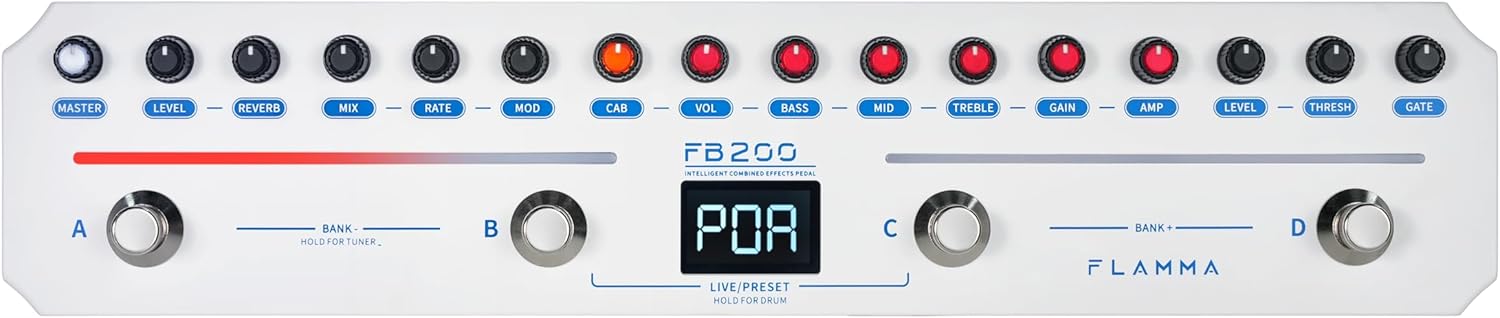
Figure 3.1: Top panel controls including Master, Level, Reverb, Mix, Rate, Mod, Cab, Vol, Bass, Mid, Treble, Gain, Amp, Level, Thresh, Gate knobs, and footswitches A, B, C, D.
- Knobs: Dedicated controls for Master volume, various effect parameters (Level, Reverb, Mix, Rate, Mod, Cab, Vol, Bass, Mid, Treble, Gain, Amp, Level, Thresh, Gate).
- Footswitches (A, B, C, D): Used for bank switching, preset selection, tuner activation, drum machine control, and Live/Preset mode toggling.
- Display: A central LED display shows current preset numbers, tuner information, and other operational statuses.

Figure 3.2: Close-up of the FB200's digital display, indicating the current preset or mode.
3.2 Connections
The FB200 offers essential connectivity for various setups.

Figure 3.3: Rear panel connections including Input, Output, Phones, USB-C port, and Power switch.
- Input (6.35mm): Connect your bass guitar here.
- Output (6.35mm): Connect to an amplifier, mixer, or audio interface.
- Headphone Output (3.5mm): For silent practice or monitoring.
- USB-C Port: Used for charging, OTG recording, and connecting to a PC for firmware updates or IR loading.
- Power Switch: To turn the unit on or off.

Figure 3.4: Connection diagram illustrating how to connect the FB200 to a bass, sound console, speaker box, or sound card, and headphones or a smartphone.
4. Setup and Basic Operation
4.1 Powering On/Off and Charging
The FB200 is equipped with a built-in 2000mAh lithium battery, providing up to 6 hours of continuous use. Charging takes approximately 2.5 hours.
- To power on, slide the power switch to the 'ON' position.
- To power off, slide the power switch to the 'OFF' position.
- Connect the supplied USB-C to USB-A cable to the USB-C port on the FB200 and a DC 5V/2A power adapter (not included) for charging.

Figure 4.1: The FB200 offers 6 hours of battery life and a 2.5-hour quick charge time.

Figure 4.2: The display indicates battery charge level.
4.2 Connecting Your Instrument
Connect your bass guitar to the Input jack. Connect the Output jack to your amplifier, mixer, or audio interface. For silent practice, connect headphones to the Phones jack.
4.3 Operating Modes: LIVE and PRESET
The FB200 offers two primary operating modes:
- LIVE Mode: Allows direct control over individual effect parameters using the physical knobs. Changes are applied in real-time.
- PRESET Mode: Accesses and recalls saved effect configurations. The FB200 has 40 preset slots. Use footswitches to navigate through presets.
To switch between LIVE and PRESET modes, press footswitches B and C simultaneously.

Figure 4.3: Pressing footswitches B and C simultaneously to switch between Live and Preset modes.
5. Effect Modules
The FB200 is preloaded with a variety of effect modules, including Noise Gate, Compressor, Amplifier Models, Cabinet Simulations, Modulation, and Reverb.
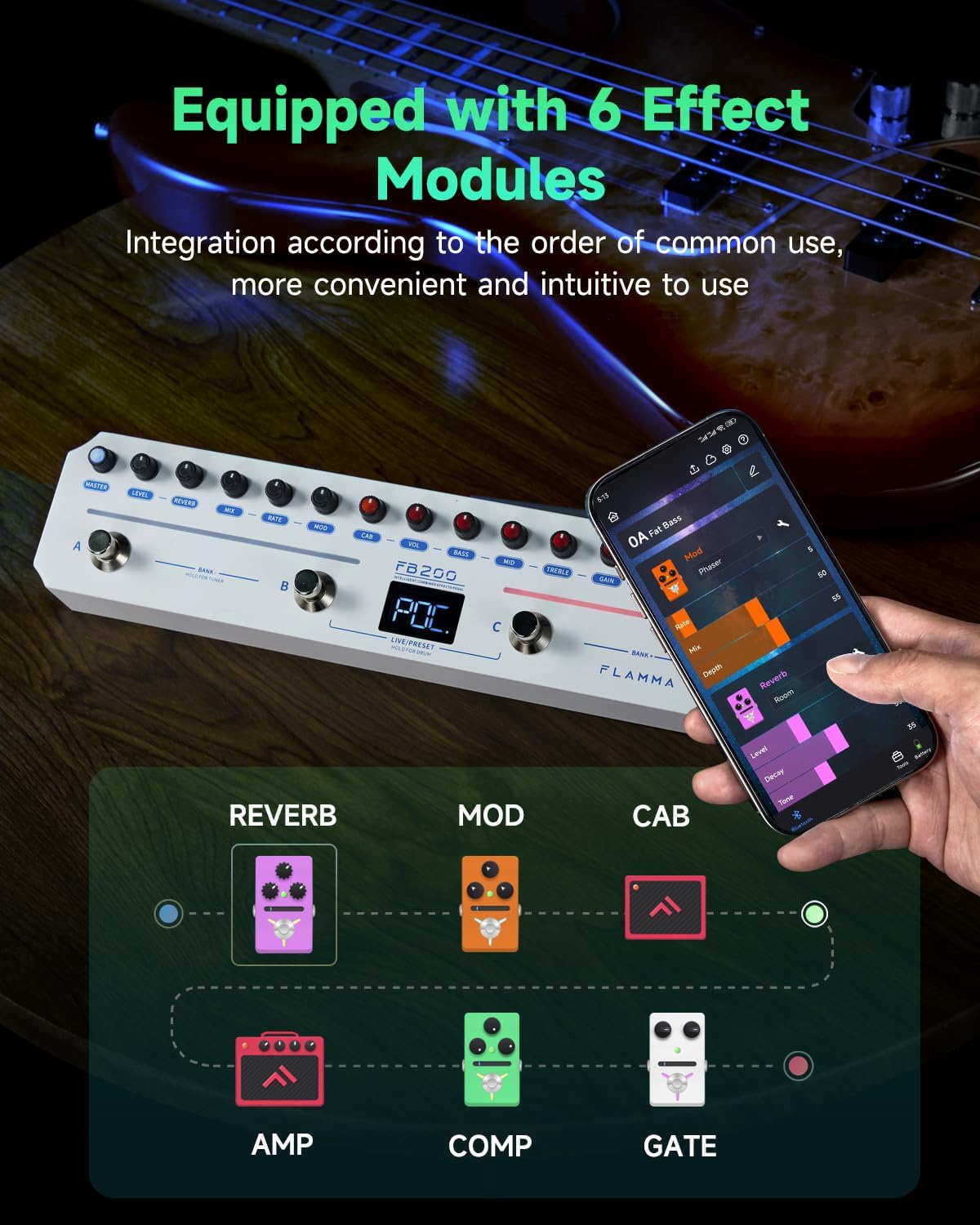
Figure 5.1: The FB200 is equipped with 6 effect modules: Reverb, Mod, Cab, Amp, Comp, and Gate.

Figure 5.2: Detailed breakdown of the FB200's effects, including 5 Reverb types, 12 Modulation effects, 20 bass-specific AMP/CAB models with 9 IR slots, and a Compressor.
- NOISE GATE: Reduces unwanted noise and hum.
- COMP (Compressor): Controls dynamic range for a more consistent sound.
- AMP Models (10 types): Offers a selection of 10 bass-specific amplifier models.
- CAB Simulations (10 types): Provides 10 cabinet simulations to shape your tone.
- MOD (Modulation - 12 types): Includes Phaser, Tremolo, Flanger, Chorus, and other modulation effects.
- REVERB (5 types): Features Room, Hall, Plate, Spring, and Modulated reverb effects.
Adjust parameters for each effect using the corresponding knobs on the pedal or through the mobile application.
6. Advanced Features
6.1 APP Control
The FB200 supports intuitive control via a dedicated mobile application (Android/iOS).
- Customized Settings: Adjust effect parameters and save presets directly from your smartphone or tablet.
- Ambient Light Bar Adjustment: Customize the color of the pedal's ambient light bars.
- Tone-Sharing: Share and download tones with other users through the app.

Figure 6.1: The FB200 supports app control for effect modules, parameters, and LED strip color adjustment.

Figure 6.2: Screenshot of the mobile app showing parameter adjustment for effects.

Figure 6.3: The app allows customization of the ambient light bar colors.

Figure 6.4: The FLAMMA Mobile App provides parameter adjustment, drum machine control, and tone sharing/downloading capabilities.
6.2 Third-Party IR Loading
The FB200 features 9 available IR loading slots, allowing you to expand your cabinet simulation options with third-party Impulse Responses.
- Connect the FB200 to a PC via the USB-C port.
- Use the dedicated software (available on the FLAMMA official website) to load WAV format IR files (44.1kHz sample rate, 24-bit, 512 sample points) into the pedal.

Figure 6.5: The FB200 supports third-party IR loading via a PC connection and dedicated software.
6.3 Built-in Drum Machine
Practice with a built-in drum machine featuring 40 common rhythm styles.
- Use footswitches A and B to switch between drum types.
- Press footswitch C twice or more to set the BPM (Beats Per Minute). The footswitch light will flash to indicate the BPM.
- Use footswitch D to turn the drum machine on or off.

Figure 6.6: Footswitches A, B, C, and D are used to control the drum machine functions.
6.4 Tuner Function
The FB200 includes a built-in tuning meter for accurate instrument tuning.
- To activate the tuner, press and hold footswitches A and B simultaneously.
- The display will show tuning information.
- To exit the tuner, press any footswitch.

Figure 6.7: Press and hold footswitches A and B to activate the tuner.
6.5 OTG Recording
Connect the FB200 to a smartphone or tablet using a USB cable for direct OTG recording.
- An OTG adapter may be required depending on your device's port type.
- Adjust the OTG recording volume via the mobile application.
- Monitoring is supported through the headphone or OUTPUT jack during recording.
6.6 Bluetooth Audio Playback
The FB200 supports Bluetooth Version 5.0, allowing you to play backing tracks from your mobile device directly through the pedal.
- Pair your Bluetooth-enabled device with the FB200.
- Audio from your device will be routed through the FB200's output, allowing you to play along.

Figure 6.8: The FB200 supports Bluetooth audio playback for playing backing tracks.
7. Maintenance
To ensure the longevity and optimal performance of your FB200 pedal, follow these maintenance guidelines:
- Cleaning: Use a soft, dry cloth to clean the pedal's surface. Avoid using abrasive cleaners, solvents, or waxes.
- Storage: Store the pedal in a cool, dry place away from direct sunlight, extreme temperatures, and high humidity.
- Handling: Avoid dropping the pedal or subjecting it to strong impacts.
- Power: Always use the specified power adapter (DC 5V/2A) for charging.
8. Troubleshooting
If you encounter issues with your FB200, refer to the following common troubleshooting tips:
- No Power: Ensure the pedal is charged or connected to a working 5V/2A power source. Check the power switch position.
- No Sound: Verify all cables (instrument, output, headphones) are securely connected. Check volume levels on the pedal, your instrument, and your amplifier/headphones. Ensure the correct preset or effect is active.
- Distorted Sound: Check input gain levels on the pedal and your instrument. Reduce volume if necessary.
- App Connectivity Issues: Ensure Bluetooth is enabled on your mobile device and the FB200. Restart both the pedal and the app if connection fails.
- IR Loading Problems: Ensure the FB200 is correctly connected to your PC and the correct software is being used. Verify IR file format (WAV, 44.1kHz, 24-bit, 512 points).
For further assistance, please visit the official FLAMMA website or contact customer support.
9. Specifications

Figure 9.1: Summary of technical specifications for the FB200.
| Feature | Specification |
|---|---|
| Input | 6.35mm, 2MΩ |
| Output | 6.35mm, 100Ω |
| Headphone Output | 3.5mm, 32Ω |
| USB | USB-C, for charging or OTG recording |
| Bluetooth | Version 5.0 |
| Battery | 2000mAh Lithium Polymer |
| Battery Life | Up to 6 hours |
| Charging Time | Approximately 2.5 hours |
| Charging Standard | DC 5V/2A, supports USB-C to USB-A cables only |
| IR Format | WAV |
| IR Sample Rate | 44.1kHz (supports importing full-sample-rate IR files) |
| IR Bit Depth | 24-bit |
| IR Sample Points | 512 points |
| Weight | 576g (approximately 1.27 lbs) |
| Dimensions (L x W x H) | 311mm × 67.5mm × 49.7mm (approximately 12.24" x 2.66" x 1.96") |
10. Warranty and Support
For detailed warranty information, software downloads, firmware updates, and further technical support, please visit the official FLAMMA website. The complete user manual can also be downloaded from the official website.
FLAMMA Official Website: www.flamma.com

