
1. Setup and Installation
1.1 Package Contents
Verify all components are present in the package:
- 1x Touchscreen Car Stereo
- 1x Bluetooth/WIFI Antenna
- 1x Audio Cable Adapter
- 1x ISO Power Cable
- 1x USB Cable
- 1x User Manual
- 1x Remote Control (no battery)
- 1x Steering Wheel Remote Control (no battery)
- 1x Backup Camera
- 1x External Microphone
- 2x Brackets
- 1x Installation Tool

This image displays the complete package contents, including the touchscreen car stereo, Bluetooth/WiFi antenna, audio cable adapter, ISO power cable, USB cable, user manual, remote controls, backup camera, external microphone, brackets, and installation tool. It also shows a detailed wiring diagram.
1.2 Wiring Diagram
Refer to the wiring diagram above for proper connections. Incorrect wiring can damage the unit.
1.3 Powering On Conditions
For the unit to power on correctly, ensure the following conditions are met:
- Red (ACC) Wire: This wire must be connected to a 12V power source controlled by the car key (ignition).
- Black (Ground) Wire: Ensure the ground wire is properly connected to the car's chassis.
- Yellow (B+) Wire: This wire must receive constant 12V power from the battery.
Important: If the ACC cable is not connected correctly, the battery may drain, and the device will not be controlled by the key. If the yellow and black cables are not properly connected, the device will not turn on.
Voltage Warning: The car stereo cannot be used in vehicles with a voltage exceeding 14V, such as large trucks. Use step-down conversion wires to avoid damage if your vehicle operates at a higher voltage.

This image highlights the wiring protection feature and visually represents the correct connections for battery, ACC, and ground wires, along with other features like FM/AM radio, Type-C charging, and steering wheel control.
2. Operating Instructions
2.1 Apple CarPlay and Android Auto
The stereo supports both wired and wireless Apple CarPlay and Android Auto for seamless smartphone integration, including voice control for navigation and music.

This image illustrates the Apple CarPlay and Android Auto interfaces on the car stereo screen, demonstrating voice control capabilities for navigation and music, along with wired Mirror Link.
This video demonstrates the user interface of the car stereo with Apple CarPlay and Android Auto, showcasing music playback and voice control features.
2.1.1 Connecting to Apple CarPlay
- Switch on your iPhone's Wi-Fi and Bluetooth functions.
- In the iPhone settings menu, find the car stereo Bluetooth (SWL-BT) and connect.
- Select "PhoneLink" on the car stereo. On "Auto Connect," shift to "CarPlay."
To turn off automatic CarPlay connection:
- Method 1: In iPhone settings, find SWL-BT and turn off CarPlay.
- Method 2: Enter the Bluetooth interface on your iPhone and select "Forget This Device" for "PhoneLink" on the car stereo. On "Auto Connect," shift to "Off."

This diagram provides a visual guide for connecting to Apple CarPlay and disabling its automatic connection.
2.1.2 Connecting to Android Auto
- Switch on Wi-Fi and Bluetooth on your Android phone.
- In the Android phone settings menu, find the car stereo Bluetooth (SWL-BT) and connect.
- Select "PhoneLink" on the car stereo. On "Auto Connect," shift to "Auto."
To turn off automatic Android Auto connection:
- Turn off Wi-Fi on your Android phone.
- Select "PhoneLink" on the car stereo.
- On "Auto Connect," shift to "Off."

This diagram provides a visual guide for connecting to Android Auto and disabling its automatic connection.
2.2 Mirror Link
The Mirror Link function allows real-time synchronization of your smartphone screen content to the car stereo display. This enables viewing of maps, videos, and other apps from your phone.

This image shows a smartphone connected via a USB cable, mirroring its display onto the car stereo screen, illustrating the Mirror Link feature.
2.3 Bluetooth 5.1
The built-in Bluetooth 5.1 module allows for hands-free calling and audio streaming.
- Pair your smartphone to the stereo via Bluetooth to make calls, play music, and use voice navigation.
- The independent Bluetooth module ensures stable connectivity.

This image displays the Bluetooth interface on the car stereo, showing a dial pad for making calls and icons for music playback.
2.4 AM/FM Radio
The stereo includes an AM/FM radio tuner.
- FM frequency range: 87.5-108 MHz
- AM frequency range: 522-1620 KHz
- Quickly find and save your favorite stations.
This image shows the car stereo's radio interface, displaying current frequency and preset station buttons, as part of a composite image also showing wiring protection, Type-C charging, and steering wheel control.
2.5 Backup Camera
The system includes a waterproof HD backup camera. When reversing, the rear camera input automatically displays on the screen, providing guidance for safer parking.
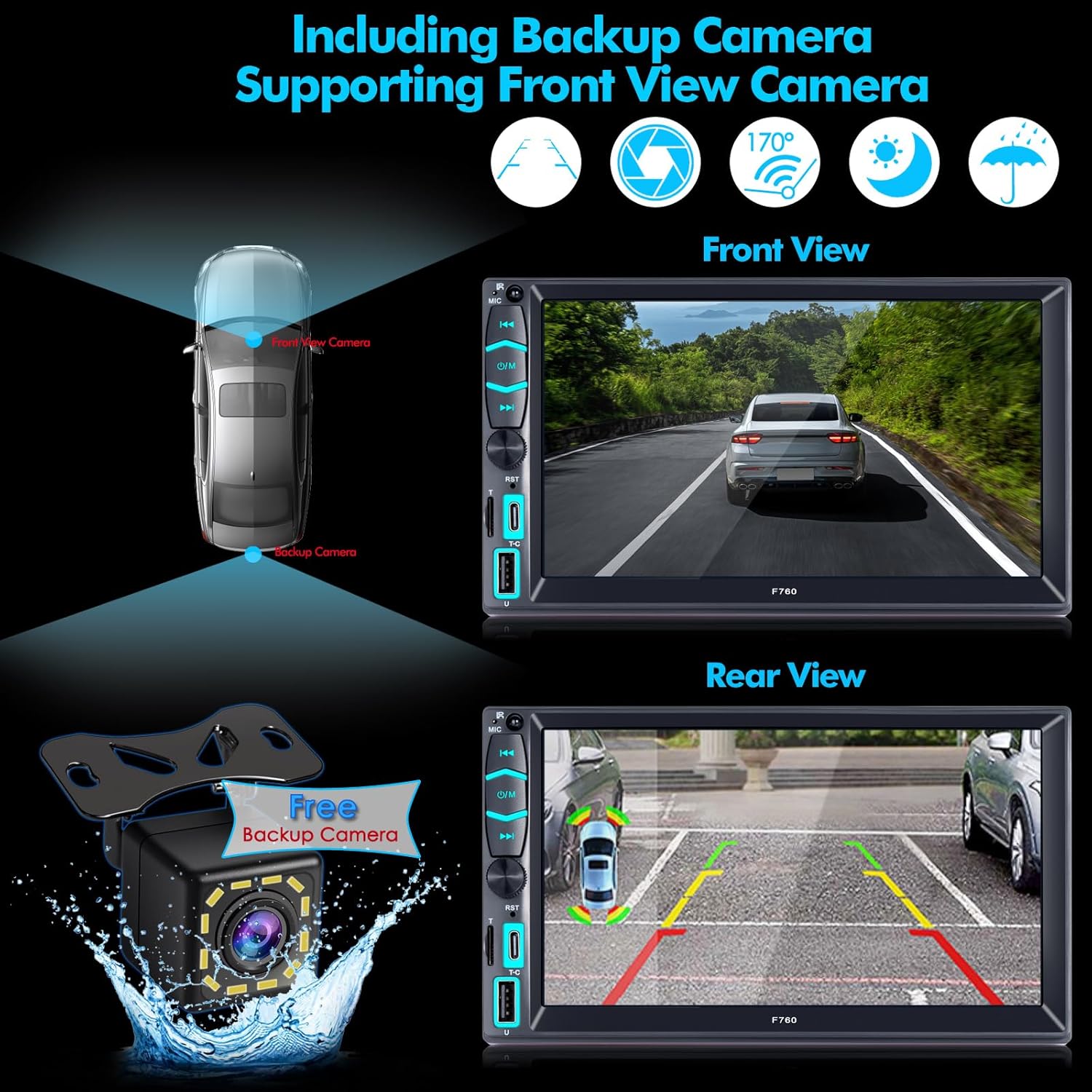
This image shows the car stereo displaying the rear view from the backup camera, complete with parking assist lines.
This video demonstrates the functionality of the backup camera, showing the rear view display on the car stereo screen as a vehicle reverses.
2.6 Audio Settings and Equalizer
The stereo features multiple preset EQ modes (Jazz, Rock, Pop, etc.) and precise manual controls for bass, treble, and balance. It supports connection to an external subwoofer.

This image displays the 10-band equalizer settings on the car stereo screen, along with a diagram of the RCA pre-amplifier outputs for connecting external audio components like subwoofers.
2.7 Steering Wheel Control (SWC)
Connect your vehicle's steering wheel controls to the stereo to manage tracks, volume, and other functions without taking your hands off the wheel.
This image shows the car stereo's interface for configuring steering wheel controls, allowing users to map vehicle buttons to stereo functions, as part of a composite image.
2.8 Quick Charge and Media Playback
The unit supports various playback methods including TF cards (up to 16 GB), U-Disc, and Bluetooth. It also features a Type-C charging port for quick phone charging.
This image highlights the Type-C charging port, TF card slot, and USB port available on the car stereo for media playback and device charging, as part of a composite image.
2.9 7-Color LED Backlights
The radio features 7 adjustable LED backlight colors, allowing you to customize the aesthetic to match your vehicle's interior or personal preference.

This image demonstrates the car stereo's customizable 7-color LED backlights and illustrates the difference between daylight and night mode display settings.
3. Maintenance
To ensure optimal performance and longevity of your iFreGo car stereo, follow these general maintenance guidelines:
- Cleaning: Use a soft, dry cloth to clean the screen and exterior. Avoid abrasive cleaners or solvents.
- Temperature: Do not expose the unit to extreme temperatures or direct sunlight for extended periods.
- Connections: Periodically check all wiring connections to ensure they are secure.
- Software Updates: Check the manufacturer's website for any available software or firmware updates.
4. Troubleshooting
4.1 Power Issues
If the unit does not power on, review the "Powering On Conditions" in the Setup section. Ensure the Red (ACC), Black (Ground), and Yellow (B+) cables are correctly connected and receiving appropriate voltage.
If you have an electric pen, you can test these three wires. The car stereo has a memory function. If the ACC line (Red wire) and the B+ line (Yellow wire) are reversed during installation, the product will lose its memory function after the power is turned off.
This image provides a visual troubleshooting guide, emphasizing correct wiring for power and memory retention, as part of a composite image.
4.2 Audio Issues
- No Sound: Check speaker connections. Ensure volume is not muted or set too low. Verify audio source selection.
- Distorted Sound: Check speaker impedance compatibility. Adjust EQ settings. Ensure proper wiring.
4.3 Connectivity Issues (CarPlay/Android Auto/Bluetooth)
- Connection Failure: Ensure Wi-Fi and Bluetooth are enabled on your smartphone. Re-pair the device. Check for software updates on both the stereo and your phone.
- Intermittent Connection: Ensure the external antenna is securely connected. Minimize interference from other electronic devices.
5. Specifications
| Feature | Specification |
|---|---|
| Brand | iFreGo |
| Model Number | US-FW760U |
| Connectivity Technology | Bluetooth |
| Controller Type | Push Button |
| Special Features | AM Tuner, Android Auto, Apple CarPlay, FM Tuner |
| Compatible Devices | Smartphone |
| Connector Type | USB Type A |
| Audio Output Mode | Stereo |
| Surround Sound Channel Configuration | 5.1 |
| Video Encoding | H.264, H.265/HEVC |
| Color | Black |
| Output Power | 60 Watts |
| Wattage | 65 watts |
| Number of Channels | 4 |
| Output Wattage (Max) | 240 Watts |
| Supported Internet Services | Spotify, YouTube, Google Maps |
| Audio Output Type | Bluetooth, Speakers |
| Manufacturer | iFreGo |
| UPC | 787309793702 |
| ASIN | B0F5Q7BRL9 |
6. Warranty and Support
6.1 Product Warranty
This iFreGo car stereo comes with a 2-year manufacturer's warranty. This includes a 2-year replacement/refund guarantee for defects.
For warranty claims or assistance, please contact iFreGo customer service.
6.2 Customer Support
For further assistance, technical support, or inquiries regarding your iFreGo Double Din Car Stereo, please refer to the contact information provided in the original product packaging or visit the official iFreGo website.