1. Introduction
The YUNZII QL75 is a retro-inspired mechanical keyboard designed for both style and functionality. It features tri-mode connectivity, hot-swappable switches, customizable RGB backlighting, and QMK/VIA programmability, making it suitable for various users and setups.

Figure 1: YUNZII QL75 Keyboard Overview
2. What's in the Box
- 1x YUNZII QL75 Keyboard
- 1x USB Cable (Type-C)
- 1x Keycap Puller
- 1x Switch Puller
- 2x Extra Switches
- 1x 2.4G Dongle
- 1x Dust Cover
- 1x Function Card & User Manual
Figure 2: Package Contents
3. Product Overview
The YUNZII QL75 combines a vintage typewriter aesthetic with modern mechanical keyboard technology. Its 75% layout offers a compact design while retaining essential keys. The keyboard features a durable construction and thoughtful design elements for an enhanced user experience.

Figure 3: Internal Structure and Components
Key Features:
- Tri-Mode Connectivity: Seamlessly switch between Bluetooth 5.0, 2.4GHz wireless, and wired (Type-C) connections.
- Hot-Swappable Switches: Easily change 3-pin/5-pin mechanical switches without soldering.
- QMK/VIA Programmable: Full customization of key mappings, macros, and RGB lighting effects.
- RGB Backlighting: Dynamic LED effects with various lighting styles and brightness levels.
- Built-in Stand: Integrated holder for tablets, phones, or pads.
- Multi-functional Knobs & Lever: Dedicated controls for volume, device switching, scrolling, and a programmable lever.
- Retro Design: Typewriter-style aesthetic with punk round keycaps and an ergonomic stepped layout.
- Durable Construction: UV-coated finish and sturdy materials for longevity.
4. Setup and Connectivity
4.1 Powering On/Off
To power on the keyboard, ensure it has sufficient charge. The keyboard will automatically enter standby mode after a period of inactivity to conserve battery.
4.2 Tri-Mode Connection
The YUNZII QL75 supports three connection modes: Bluetooth, 2.4GHz wireless, and wired (Type-C).

Figure 4: Tri-Mode Connectivity
4.2.1 Bluetooth Connection
- Turn the keyboard on.
- Rotate the right metal knob to the Bluetooth icon.
- Long press the right metal knob to enter pairing mode. The indicator lights (BT1/BT2/BT3) will blink.
- On your device (PC, laptop, smartphone, tablet), search for "YUNZII QL75" in Bluetooth settings and connect.
- The corresponding indicator light will become solid when connected.
4.2.2 2.4GHz Wireless Connection
- Turn the keyboard on.
- Insert the 2.4G USB dongle into your device's USB port.
- Rotate the right metal knob to the 2.4GHz icon.
- The keyboard will automatically connect. The indicator lights will blink slowly together during connection and become solid when connected.

Figure 5: 2.4GHz Wireless Dongle
4.2.3 Wired (Type-C) Connection
- Connect the keyboard to your device using the provided Type-C USB cable.
- Rotate the right metal knob to the wired icon.
- The keyboard will be ready for use.
4.3 Operating System Mode Switch
Use the switch on the side of the keyboard to select between Windows and Mac modes for optimal compatibility.

Figure 6: Operating System Mode Switch
5. Key Functions and Controls
5.1 Multi-functional Knobs and Lever
- Left Knob: Controls volume. Short press to mute/unmute, rotate to adjust volume.
- Right Knob: Manages connectivity and scrolling. Short press to change connection channel, long press to change pairing mode, rotate for scroll function.
- Typewriter Lever: Functions as the Enter key by default. Fully programmable via QMK/VIA.
Figure 7: Typewriter Lever
Figure 8: Left Knob (Volume)
Figure 9: Right Knob (Connection/Scroll)
5.2 FN Key Combinations
The keyboard includes various FN key combinations for quick access to functions on both Windows and macOS.

Figure 10: FN Key Functions
6. Customization
6.1 Hot-Swappable Switches
The YUNZII QL75 is a hot-swappable mechanical keyboard, allowing you to easily change switches without soldering. It is compatible with both 3-pin and 5-pin switches.
- Use the provided switch puller to carefully remove the existing switch.
- Align the pins of the new switch with the holes on the PCB.
- Gently press the new switch into place until it clicks.

Figure 11: Hot-Swappable Switches
6.2 RGB Backlight Control
Customize your typing experience with dynamic RGB backlighting. Use FN key combinations to adjust effects, colors, brightness, and blinking speed.
Figure 12: RGB Backlight Controls
6.3 QMK/VIA Programmability
Unlock advanced customization with QMK/VIA support. This allows for full remapping of keys, creation of macros, and fine-tuning of RGB effects.
- Download the QMK/VIA software from the official YUNZII website.
- Connect the keyboard in wired mode.
- Use the software interface to customize key assignments, create macros, and personalize lighting.

Figure 13: QMK/VIA Software Interface
7. Battery and Charging
The YUNZII QL75 is equipped with a 4000mAh rechargeable battery. To check the battery level in wireless mode, press FN + Backspace.

Figure 14: Battery and Charging Information
Connect the provided Type-C USB cable to the keyboard and a power source to charge. The keyboard supports auto-sleep and one-touch wake functions to extend battery life.
8. Built-in Stand
The keyboard features an integrated stand holder designed to securely hold your tablet, phone, or pad, helping to save desk space and maintain a cohesive aesthetic.
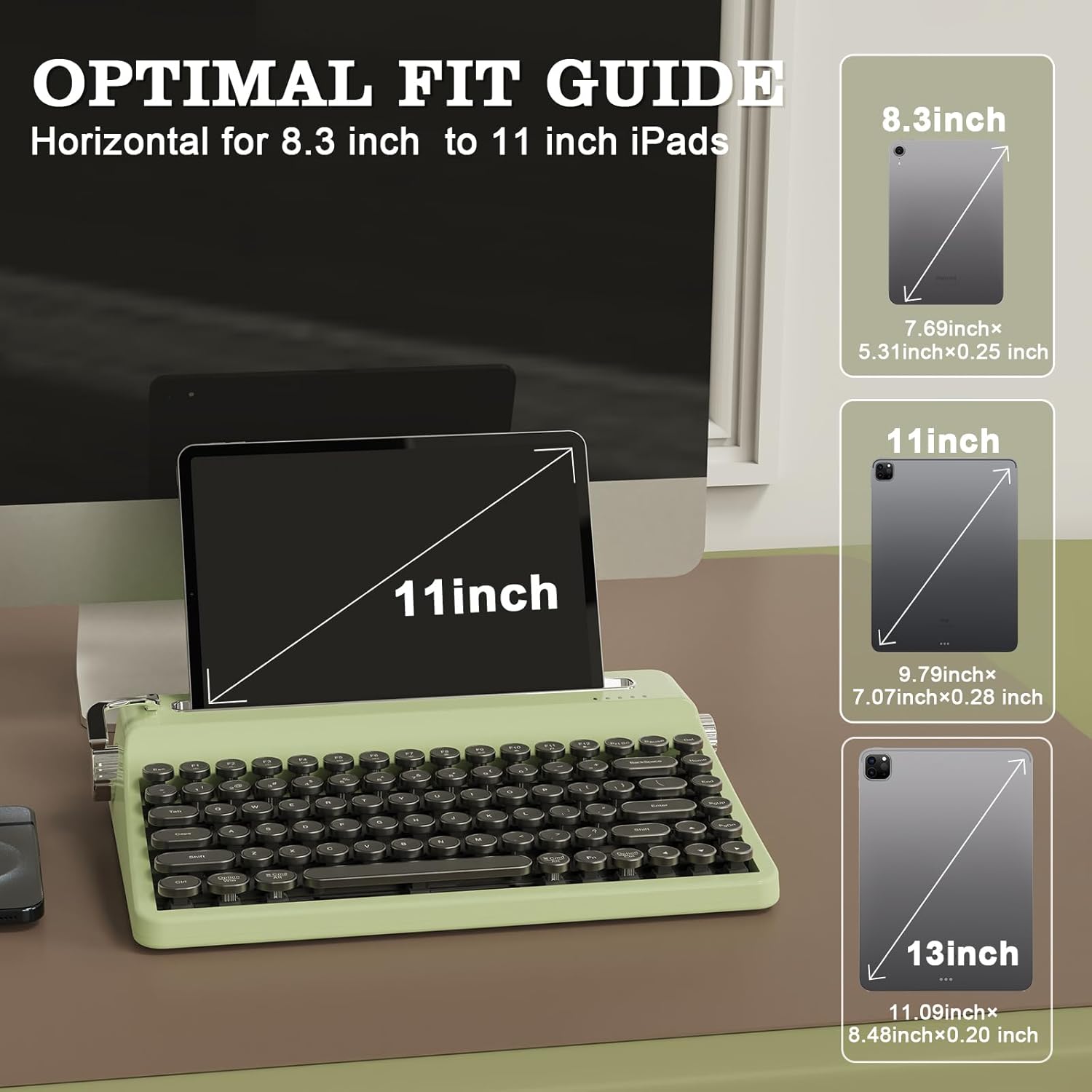
Figure 15: Built-in Stand with Tablet
The stand is optimized for horizontal placement of 8.3-inch to 11-inch iPads. Larger devices, such as 13-inch screens, can only be placed upright, not horizontally.
9. Removable Keycaps
The keyboard comes with removable typewriter-style round keycaps. These electroplated matte chrome keycaps are fade-proof and easy to clean, allowing for effortless maintenance and customization.

Figure 16: Removable Keycaps
Use the provided keycap puller to carefully remove keycaps for cleaning or replacement.
10. Specifications
| Feature | Detail |
|---|---|
| Product Dimensions | 12.6 x 8.27 x 2.52 inches |
| Item Weight | 3.3 pounds |
| Manufacturer | YUNZII |
| Connectivity Technology | Bluetooth, 2.4GHz, Type-C |
| Keyboard Description | Mechanical |
| Special Feature | Backlit, Ergonomic, 3 Modes, Customizable Display Keys, Hot-Swappable |
| Keyboard Backlighting | RGB |
| Material | Plastic |
| Battery Capacity | 4000 mAh (included) |
| Compatible Devices | Laptop, PC, Smartphone |
11. Troubleshooting
If you encounter any issues with your YUNZII QL75 keyboard, please refer to the following common troubleshooting steps:
- Connectivity Issues: Ensure the keyboard is in the correct mode (Bluetooth, 2.4GHz, or wired) for your device. Re-pair Bluetooth devices or re-insert the 2.4G dongle.
- Keys Not Responding: Check if the keyboard is powered on and connected. If using wireless modes, ensure the battery is charged. Try connecting via wired mode to rule out wireless issues.
- RGB Lighting Problems: Verify that RGB is enabled (FN+F7). Adjust brightness and effects using the FN key combinations.
- QMK/VIA Not Working: Ensure the keyboard is connected via Type-C USB and the correct software version is installed.
- Battery Not Charging: Check the Type-C cable and power source. Ensure the cable is securely connected.
For further assistance, please contact YUNZII customer support.
12. Warranty and Support
YUNZII products typically come with a manufacturer's warranty. Please refer to the warranty card included in your package or visit the official YUNZII website for detailed warranty information and terms.
For technical support, product inquiries, or warranty claims, please contact YUNZII customer service through their official channels. Contact information can usually be found in the user manual or on the YUNZII website.