
1. Introduction
This manual provides detailed instructions for the installation, operation, and maintenance of your Roinvou Android 13 Car Stereo. This unit is specifically designed for Kia Soul models manufactured between 2010 and 2013, offering a seamless upgrade to your vehicle's infotainment system. It features a 9-inch HD touchscreen, wireless CarPlay and Android Auto, 5G WiFi, GPS navigation, Bluetooth 5.0, and a 32-band equalizer for an enhanced driving experience.

Image 1.1: Comparison of the Kia Soul dashboard before and after installing the Roinvou car stereo. The 'Before' image shows the original radio unit, while the 'After' image displays the new 9-inch Roinvou Android 13 Car Stereo seamlessly integrated into the dashboard.
2. Setup and Installation
2.1 Vehicle Compatibility
This car radio stereo is compatible with Kia Soul models from 2010, 2011, 2012, and 2013. It is designed for a seamless replacement of the original dash panel without requiring wiring modifications. For verification, please confirm your car's model and production year.
2.2 Wiring Connections
Refer to the wiring diagram below for proper connection of the power cable, RCA cable, USB cable, camera input, radio antenna, and GPS antenna.

Image 2.1: Detailed diagram illustrating the various wiring ports on the Roinvou car stereo unit and their corresponding cables for power, RCA, USB, camera input, radio antenna, and GPS antenna.
2.3 Reversing Camera Connection
To connect the backup camera, follow these steps:
- Red Cable (1): Connects to the positive terminal of the car's reverse light cable.
- Black Cable (2): Connects to the negative terminal of the car's reverse light cable.
- It is not necessary to connect the other two red extension cables (3) and (4).
Important: The reverse input cable must be plugged in even if a reverse camera is not being used. Failure to do so may affect Bluetooth and WiFi signal reception.

Image 2.2: Visual guide for connecting the AHD backup camera, detailing the red and black cable connections to the vehicle's reverse light system.
2.4 Steering Wheel Control (SWC) Setup
The method for setting up steering wheel controls depends on whether your vehicle uses a CANBUS decoder.
- Without CANBUS Decoder: Connect the plugs or the steering wheel control wires (Key1/Key2) in the power cable to the corresponding port or wire of your original car. Then, navigate to "SteeringWheel Key" in the unit's settings for manual matching to activate the button functions.
- With CANBUS Decoder: Connect the CANBUS before powering on the machine. Then, follow this path: Apps > Settings > Factory Settings (8888/8317) > Vehicle > Automotive type. Select the brand of the CANBUS decoder and then the matching model and year according to your vehicle's actual situation to ensure SWC works properly.
3. Operating Instructions
3.1 HD Touchscreen Display
The unit features a vibrant 9-inch IPS display with a 1280x760 resolution, providing crystal-clear visuals and wide viewing angles. The responsive capacitive touchscreen allows for easy and intuitive control of all functions.

Image 3.1: The Roinvou car stereo features a QLED Quantum Screen with 1280x720 HD resolution, ensuring a clear and vibrant display.
3.2 Wireless CarPlay & Android Auto
Connect your iPhone or Android smartphone wirelessly to access CarPlay or Android Auto. This feature enables hands-free calls, music streaming, navigation, and voice assistant control (Siri/Google Assistant) directly from the car stereo. Supported applications include Spotify, Waze, WhatsApp, YouTube, and Twitter.

Image 3.2: The Roinvou car stereo supports wireless CarPlay and Android Auto, allowing seamless integration of smartphone features like voice control, hands-free calling, online music, and navigation.
3.3 Mirror Link Function
The Mirror Link function allows you to synchronize your Android or iOS smartphone screen with the car stereo. This enables you to view and interact with your phone's content, such as videos and apps, on the larger 9-inch display. For iOS, Mirror Link uses WiFi; for Android, it supports both USB and WiFi connections.
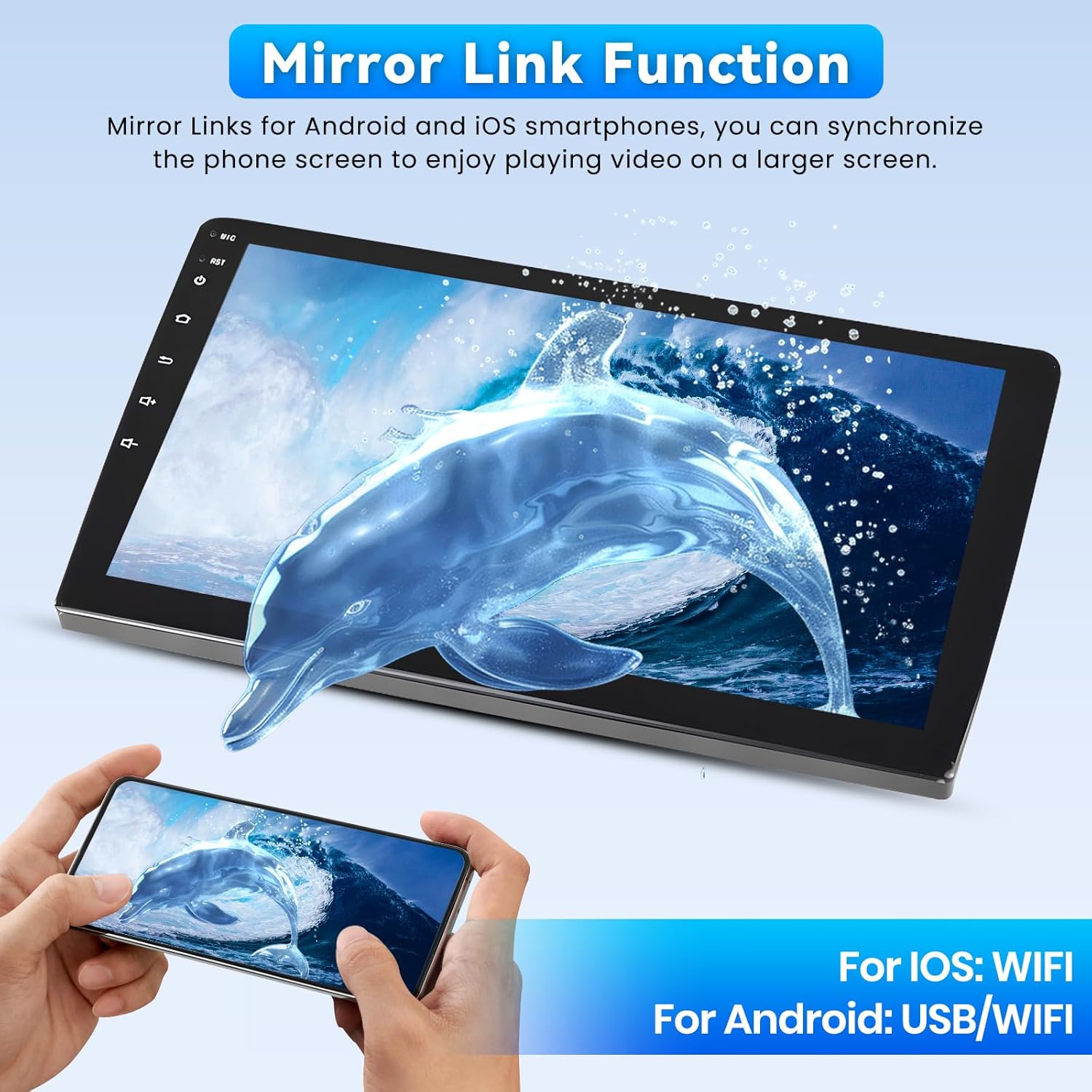
Image 3.3: The Mirror Link function allows users to display their smartphone screen on the car stereo, supporting both iOS (via WiFi) and Android (via USB/WiFi).
3.4 5G WiFi & Bluetooth 5.0
The integrated 5G WiFi module provides faster internet browsing, app updates, and online navigation. Bluetooth 5.0 ensures stable and high-quality connections for hands-free calls, music streaming, and phonebook synchronization.

Image 3.4: The Bluetooth 5.1 interface on the Roinvou car stereo enables stable hands-free calls and music streaming, with visual cues for incoming messages and calls.
3.5 Advanced GPS Navigation
The unit comes with preloaded offline maps. You can download additional offline navigation maps directly from the Google Play Store. When connected to WiFi, online maps with real-time traffic updates can also be used for accurate navigation.

Image 3.5: The GPS navigation feature on the Roinvou car stereo displays detailed maps and allows access to various online applications via WiFi.
3.6 32-Band Equalizer (EQ)
Customize your audio experience with the professional 32-band equalizer. This feature allows for precise sound tuning to achieve immersive audio quality tailored to your preferences.

Image 3.6: The 32-band equalizer settings provide detailed control over audio frequencies and sound balance within the vehicle cabin.
3.7 FM/RDS Radio
Enjoy your favorite radio stations with the built-in FM/RDS tuner. The Radio Data System (RDS) provides additional information such as station name, program type, and traffic announcements where available.

Image 3.7: The FM/RDS radio interface allows for easy tuning and display of radio station information.
3.8 Split Screen and Shortcut Functions
The unit supports a three-panel homepage display and split-screen functionality, allowing you to run multiple applications simultaneously. For example, you can view navigation on one side and control music on the other. Shortcut functions provide quick access to frequently used features.

Image 3.8: The Roinvou car stereo supports a three-panel homepage display and split-screen mode, enabling multitasking with various applications.
3.9 Steering Wheel Control
Retain your factory steering wheel buttons for safe and convenient control of the car stereo. This allows you to manage volume, track selection, answer/hang up calls, and access other functions without taking your hands off the wheel.

Image 3.9: The car stereo supports steering wheel controls for safe operation and displays the view from the AHD backup camera for easier parking.
4. Maintenance
To ensure the longevity and optimal performance of your Roinvou car stereo, follow these general maintenance guidelines:
- Cleaning: Use a soft, dry cloth to clean the touchscreen and exterior surfaces. Avoid abrasive cleaners or solvents, which can damage the display or finish.
- Temperature: Avoid exposing the unit to extreme temperatures, both hot and cold, for extended periods.
- Software Updates: Periodically check for software updates to ensure you have the latest features and performance enhancements. These can typically be found in the system settings or through the manufacturer's website.
- Cable Connections: Ensure all cables are securely connected to prevent intermittent issues with power, audio, or data transmission.
5. Troubleshooting
If you encounter issues with your Roinvou car stereo, consider the following common troubleshooting steps:
- No Power: Check all power cable connections. Ensure the vehicle's ignition is on and the fuse for the stereo is not blown.
- No Sound: Verify speaker connections. Check volume levels and ensure the mute function is not activated. Confirm audio output settings are correct.
- Touchscreen Unresponsive: Try restarting the unit. If the issue persists, a factory reset might be necessary (note: this will erase personal settings).
- GPS Signal Loss: Ensure the GPS antenna is properly installed and has a clear view of the sky. Check for any obstructions.
- Bluetooth/WiFi Connectivity Issues: Ensure the reverse input cable is connected, even if no camera is used, as it affects signal reception. Restart the unit and your mobile device. Forget and re-pair Bluetooth devices.
- Steering Wheel Controls Not Working: Re-check the SWC wiring. If using a CANBUS decoder, verify its settings in the factory menu. If without CANBUS, re-perform the manual key learning process.
- Backup Camera Not Displaying: Ensure the camera is properly connected and receiving power. Verify the reverse input cable is correctly wired to the reverse light signal.
For persistent issues, please refer to the Support section for contact information.
6. Specifications
| Brand | Roinvou |
| Model Name | Roinvou |
| Mfr Part Number | Roinvou-A7900A3662H1MI2-31US |
| Vehicle Service Type | Car (Kia Soul 2010-2013) |
| Screen Size | 9 inches |
| Display Type | LCD (Capacitive Touchscreen) |
| Resolution | 1280x720 |
| Operating System | Android 13 |
| Memory Storage Capacity | 64 GB |
| RAM | 4 GB |
| Connectivity Technology | Bluetooth 5.0, USB, Wi-Fi (5G) |
| Supported Navigation System | GPS (North America maps preloaded) |
| Audio Output Mode | Stereo (32-Band EQ) |
| Special Features | Wireless CarPlay, Wireless Android Auto, Mirror Link, FM RDS Radio, Support Reverse Input, Split Screen, Steering Wheel Control |
7. Package Contents
The following items are included in your Roinvou Car Stereo package:
- Roinvou Car Stereo Unit for Kia Soul
- 2 x Power Cable
- 1 x RCA Harness
- 1 x GPS Antenna
- 1 x AHD Backup Camera
- 1 x External Microphone
- 1 x Rear Camera Input Cable
- 2 x USB Cable
- 1 x Installation Tool

Image 7.1: Visual representation of the complete package contents, including the main stereo unit and all accessories required for installation and operation.
8. Warranty Information
Your Roinvou Car Stereo comes with a 1-Year Warranty from the date of purchase. This warranty covers manufacturing defects and malfunctions under normal use. Please retain your proof of purchase for warranty claims. The warranty does not cover damage caused by improper installation, misuse, accidents, or unauthorized modifications.
9. Customer Support
For any questions, technical assistance, or support regarding your Roinvou Car Stereo, please contact our customer service team. We offer 24-hour customer support.

Image 9.1: Roinvou customer service details, including the email address roinvouservices@163.com and instructions for contacting support through Amazon.
You can reach us via email at: roinvouservices@163.com
Alternatively, you can contact us through Amazon:
- Click on the "Roinvou Store" link on the product page.
- Click "Ask a question" to send us a message.


