1. Introduction
Thank you for choosing the wowlink W206 Projector. This manual provides essential information for setting up, operating, and maintaining your projector. The W206 features 1080P native resolution with 4K support, AI autofocus, auto-correction, WiFi 6, Bluetooth 5.4, and built-in streaming applications for a comprehensive home entertainment experience.
For optimal performance and longevity, please read this manual thoroughly before use and retain it for future reference.

Figure 1.1: wowlink W206 Projector with highlighted features.
2. Safety Information
- Ventilation: Ensure adequate ventilation around the projector. Do not block ventilation openings. Maintain a minimum distance of 30 cm (12 inches) from walls or other objects.
- Power Source: Use only the provided power adapter. Ensure the power outlet voltage matches the projector's requirements.
- Heat: The projector generates heat during operation. Avoid touching the exhaust vents. Do not place flammable materials near the projector.
- Eye Safety: Do not look directly into the projector lens when the lamp is on. The bright light can cause eye damage.
- Moisture: Keep the projector away from water or other liquids. Do not operate in high humidity environments.
- Cleaning: Disconnect power before cleaning. Use a soft, dry cloth. Avoid liquid cleaners or abrasive materials.
- Children: Keep the projector out of reach of children.
3. Package Contents
Verify that all items are present in your package:
- wowlink W206 Projector
- Remote Control (requires 2x AAA batteries, not included)
- Wireless Mouse (requires 2x AAA batteries, not included)
- Power Adapter
- HDMI Cable
- User Manual
4. Product Overview
Familiarize yourself with the projector's components and interfaces.
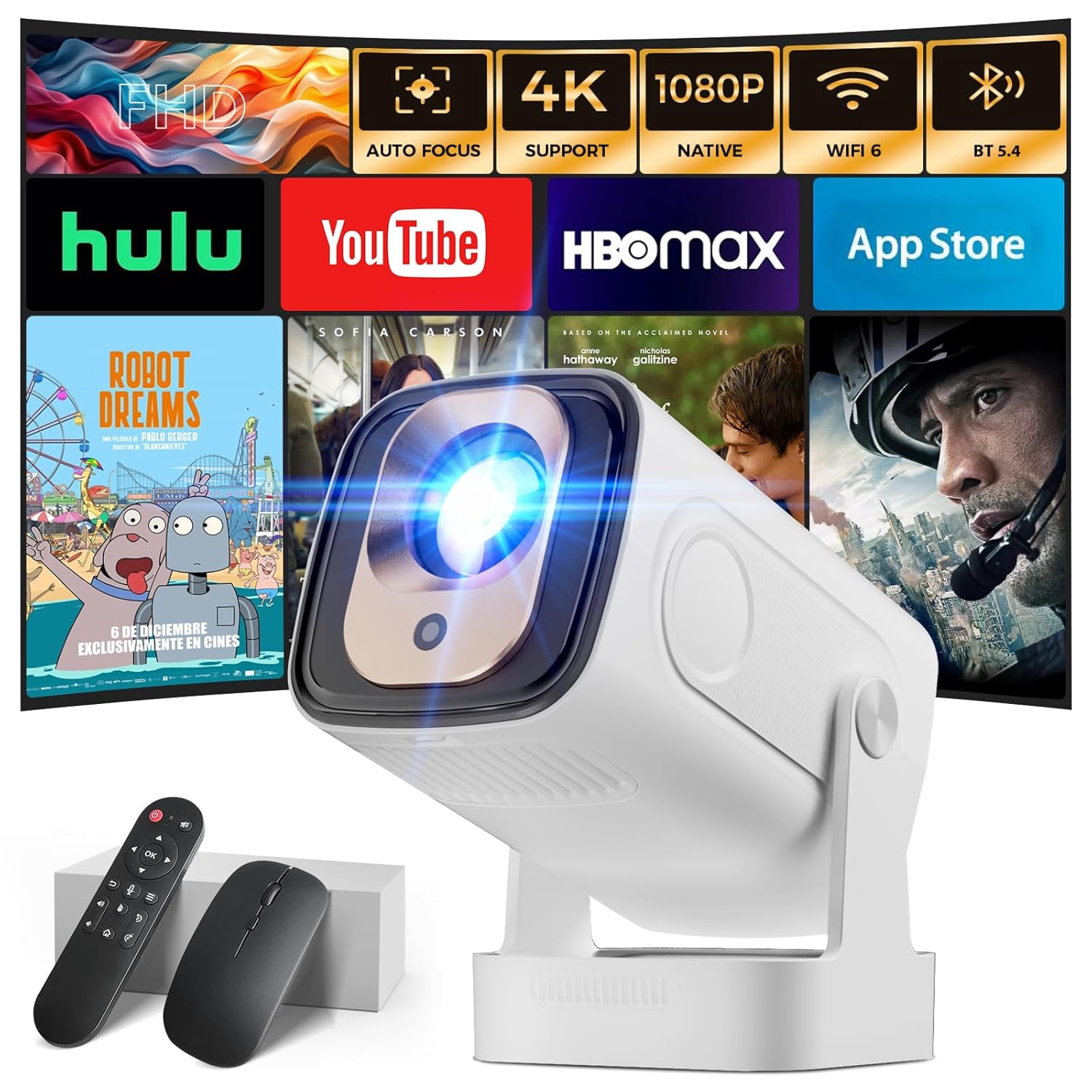
Figure 4.1: wowlink W206 Projector and accessories.
4.1 Projector Components
- Lens: Projects the image.
- Ventilation Openings: For heat dissipation.
- Power Input: Connects to the power adapter.
- HDMI Port: Connects to external video sources.
- USB Port: Connects to USB storage devices.
- Audio Output: For connecting external speakers or headphones.
- Built-in Speaker: Provides integrated audio.
- Tripod Mount: 0.25-inch screw hole for tripod or ceiling mounting.
5. Setup
5.1 Placement
Position the projector on a stable, flat surface. The W206 features a 180° rotation capability, allowing projection onto walls or ceilings. Ensure the projector is placed within the optimal projection distance for your desired screen size.
Figure 5.1: Projector with 180° rotation feature.
5.2 Power Connection
- Connect the power adapter to the projector's power input port.
- Plug the power adapter into a suitable electrical outlet.
- Press the power button on the projector or remote control to turn it on.
5.3 Automatic Focus and Correction
The wowlink W206 is equipped with AI autofocus and auto-correction features. Upon startup or movement, the projector will automatically adjust the focus and keystone to present a clear and perfectly aligned image. Manual adjustments can also be made via the settings menu if desired.

Figure 5.2: Automatic focus and correction in action.
6. Operating Instructions
6.1 Remote Control and Navigation
The projector comes with a remote control featuring a gyro sensor for air mouse functionality. This allows for intuitive navigation by moving the remote in the air.

Figure 6.1: Gyro Sensor Air Remote Control.
- Power Button: Turns the projector on/off.
- Navigation Buttons: Up, Down, Left, Right for menu navigation.
- OK Button: Confirms selections.
- Back Button: Returns to the previous screen.
- Home Button: Accesses the main menu.
- Air Mouse Button: Activates/deactivates the air mouse function.
- Volume Buttons: Adjusts audio volume.
6.2 Built-in Applications
The wowlink W206 has pre-installed streaming applications such as Netflix, Prime Video, YouTube, and D+. You can access additional applications through the integrated app store.
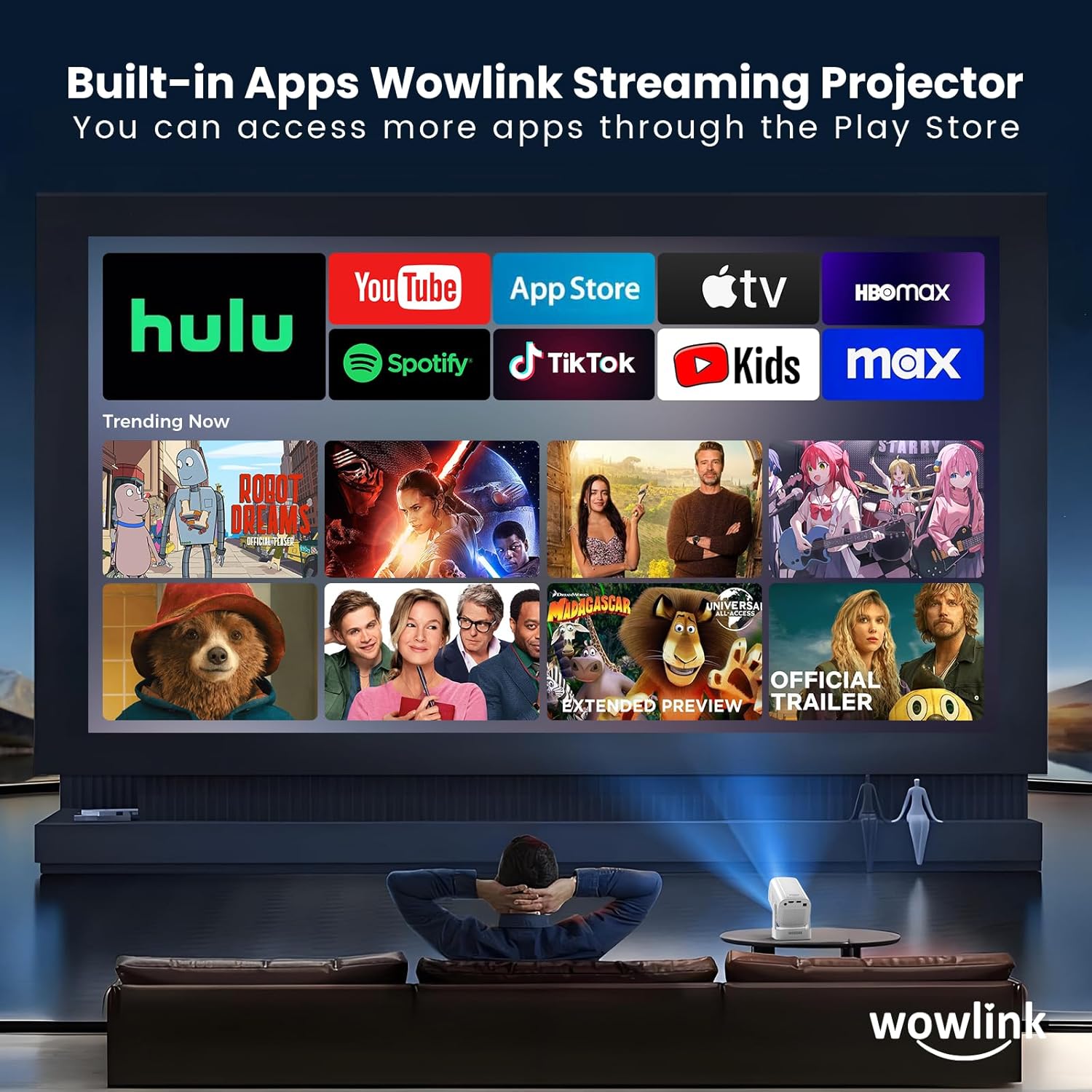
Figure 6.2: Built-in applications interface.
6.3 Connectivity
The projector supports various connectivity options for seamless integration with your devices.
- WiFi 6 (5GHz + 2.4GHz): Connect to your wireless network for internet access and screen mirroring from iOS, Android, and Windows devices. Navigate to the 'Settings' menu, select 'Network', and choose your WiFi network.
- Bluetooth 5.4: Connect to external Bluetooth audio devices such as headphones or speakers. Go to 'Settings', select 'Bluetooth', and pair with your desired device.
- HDMI: Connect external devices like Blu-ray players, gaming consoles, or laptops using the HDMI cable. Select the HDMI input source from the projector's menu.
- USB: Insert a USB flash drive to play media files directly from the drive. Select the USB input source from the projector's menu.

Figure 6.3: WiFi 6 screen mirroring.
6.4 Audio Output
The W206 features a built-in base-type stereo speaker for immersive sound. For enhanced audio, connect external speakers via Bluetooth or the audio output port.

Figure 6.4: Built-in stereo speaker.
7. Maintenance
- Lens Cleaning: Gently wipe the projector lens with a soft, lint-free cloth specifically designed for optical surfaces. Do not use abrasive cleaners or excessive force.
- Exterior Cleaning: Clean the projector's exterior with a soft, dry cloth. Avoid using solvents or harsh chemicals.
- Fan Filter: Periodically check and clean the removable fan filter located on the projector. This helps maintain optimal airflow and prevents overheating. The filter can be rinsed with mild soap and water, then thoroughly dried before reinstallation.
- Storage: When not in use for extended periods, store the projector in a cool, dry place, protected from dust and direct sunlight.
8. Troubleshooting
If you encounter issues with your wowlink W206 Projector, refer to the following common problems and solutions:
| Problem | Possible Cause | Solution |
|---|---|---|
| No power | Power cable loose; Power outlet faulty; Projector off. | Check power cable connection; Try a different outlet; Press power button. |
| No image | Input source incorrect; HDMI/USB cable loose; Lens cap on. | Select correct input source; Reconnect cables; Remove lens cap. |
| Image blurry | Out of focus; Projector moved. | Allow auto-focus to adjust; Manually adjust focus in settings. |
| No sound | Volume too low; Muted; External audio device not connected. | Increase volume; Unmute; Connect Bluetooth or wired audio device. |
| WiFi/Bluetooth connection issues | Incorrect password; Device out of range; Interference. | Verify password; Move closer to router/device; Reduce interference. |
If the problem persists after trying these solutions, please contact customer support.
9. Specifications
Detailed technical specifications for the wowlink W206 Projector:
| Feature | Specification |
|---|---|
| Brand | wowlink |
| Model | W206 |
| Native Resolution | 1920 x 1080 (1080P Full HD) |
| Supported Resolution | Up to 4K HDR |
| Display Technology | LCD |
| Aspect Ratio | 16:9 |
| Special Features | Auto Focus, Auto Correction, Built-in Apps, Built-in Speaker, 180° Rotation |
| Wireless Connectivity | WiFi 6 (5GHz+2.4GHz), Bluetooth 5.4 |
| Wired Connectivity | HDMI, USB |
| Product Dimensions | 19.51 x 8.99 x 10.01 cm |
| Item Weight | 600 g |
| Recommended Use | Home Cinema |
10. Warranty and Support
The wowlink W206 Projector comes with a standard manufacturer's warranty. For specific warranty terms and conditions, please refer to the warranty card included in your package or visit the official wowlink website.
For technical support, troubleshooting assistance, or any inquiries regarding your product, please contact wowlink customer service. Our professional customer service team is available to provide effective support.
Contact Information: Please refer to the contact details provided on the wowlink official website or your product packaging for the most up-to-date support channels.