
Introduction
Thank you for choosing the IOWODO Z30 4G Kids Smartwatch. This manual provides essential information for setting up, operating, and maintaining your device. Please read it carefully to ensure proper use and to maximize the watch's features for your child's safety and enjoyment.
What's in the Box
Upon opening the package, please verify that all the following items are included:
- 1x IOWODO Z30 Smartwatch (with silicone strap)
- 1x USB Charging Cable
- 1x Silicone Protective Case
- 1x User Manual

Image: The IOWODO Z30 Smartwatch, showing its dimensions and the items included in the package: the smartwatch, a USB charger, a silicone protective case, and the user manual.
Product Overview
Familiarize yourself with the watch's components and controls:
- 1.75-inch HD Touchscreen: For interactive control and display.
- Camera: Located on the front for photos and video calls.
- Power Button: Press and hold to turn on/off. Short press to return to the previous screen.
- SOS Button: Press and hold for 3 seconds to activate emergency call function. Short press to return to the home screen.
- LED Flashlight: Integrated for night safety.
- SIM Card Slot: Located on the side for 4G Nano SIM card installation.
- Microphone & Speaker: For calls and voice interactions.

Image: Diagram illustrating the functional buttons (Power, SOS, Flashlight), camera, microphone, speaker, and SIM card slot on the IOWODO Z30 Smartwatch.
Setup
1. SIM Card Installation
The IOWODO Z30 requires a 4G Nano SIM card (purchased separately) for full functionality, including calls, video calls, and advanced location tracking. Ensure the SIM card is compatible with 4G networks from providers like Movistar, Orange, Vodafone, or Yoigo.
- Turn off the smartwatch completely.
- Locate the SIM card slot on the side of the watch.
- Carefully insert the Nano SIM card into the slot with the metal contacts facing up, ensuring it clicks into place.
- Close the SIM card slot cover securely to maintain water resistance.
- Power on the smartwatch.
Image: Close-up view of the SIM card slot on the IOWODO Z30 Smartwatch, indicating the correct Nano SIM card type for insertion.
2. App Installation and Pairing
To manage the smartwatch features, download the "SeTracker2" app on your smartphone.
- Scan the QR code provided in the watch's packaging or search for "SeTracker2" in your smartphone's app store (iOS/Android).
- Install and open the app.
- Register a new account following the on-screen instructions.
- Bind the smartwatch to your account by scanning the QR code displayed on the watch screen or entering its unique registration code.
- Once paired, you can configure settings, add contacts, and monitor the watch from your smartphone.
3. Initial Configuration
- Set Time and Date: The watch will usually synchronize automatically once connected to the network. If not, adjust it via the app.
- Add Contacts: Use the "SeTracker2" app to add up to 30 contacts that the watch can call or receive calls from. This ensures secure communication.
- Set Safe Zones: Define geographical safe zones (e.g., home, school) in the app. You will receive alerts if your child enters or exits these zones.
- Emergency SOS Numbers: Configure up to 3 emergency contacts in the app. These numbers will be called sequentially when the SOS button is pressed.

Image: Illustration of the IOWODO Z30 Smartwatch's GPS + WiFi + LBS positioning system, showing real-time location, safe zones, and historical route tracking on a map interface.
Operating Instructions
1. Making and Receiving Calls
Once a 4G SIM card is installed and contacts are set up in the app:
- To Make a Call: Navigate to the 'Contacts' or 'Dial Pad' on the watch, select a contact, or dial a number, then press the call icon.
- To Receive a Call: When a call comes in, the watch will ring. Tap the green answer icon to accept or the red hang-up icon to reject. Only pre-approved contacts can call the watch if smart blocking is enabled.
2. 4G HD Video Calls
The watch supports clear 4G video calls with approved contacts.
- Navigate to the 'Video Call' function on the watch.
- Select the contact you wish to video call.
- Ensure both devices have a stable 4G connection.

Image: A child wearing the IOWODO Z30 Smartwatch, with insets showing the watch's capabilities for HD video calls, real-time voice chat, and making standard calls over a 4G network.
3. SOS Emergency Function
In an emergency, your child can quickly alert pre-set contacts:
- Press and hold the SOS button on the side of the watch for 3 seconds.
- The watch will automatically dial the 3 emergency contacts in a loop until one answers.
- An emergency notification will also be sent to the paired smartphone app.

Image: Illustration of the SOS emergency call feature on the IOWODO Z30 Smartwatch, showing how pressing the SOS button initiates a call to emergency contacts and sends alerts.
4. Class Mode (Do Not Disturb)
To help your child focus during school hours:
- Set specific silent periods in the "SeTracker2" app.
- During these times, the watch will automatically block all incoming calls and messages, except for SOS calls.
- The watch will still display the time.
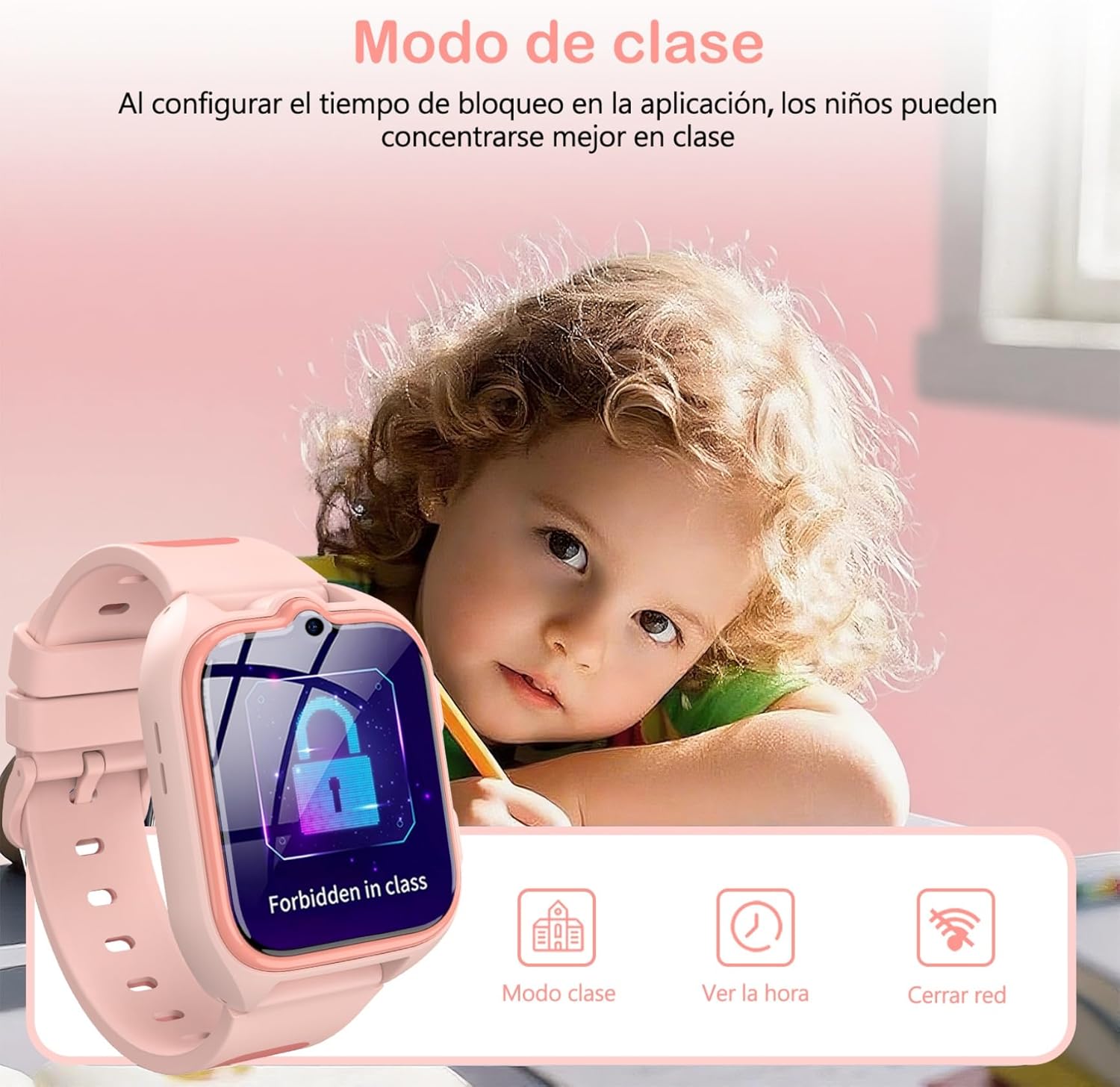
Image: A child studying with the IOWODO Z30 Smartwatch on their wrist, displaying the 'Forbidden in class' screen, illustrating the Class Mode feature.
5. GPS + LBS + WiFi Positioning System
The watch uses a combination of GPS, LBS (Location Based Service), and WiFi for comprehensive real-time location tracking and historical route monitoring. This allows you to:
- View your child's current location on a map via the app.
- Review past routes taken by the watch.
- Receive alerts when your child enters or leaves pre-defined safe zones.
6. Camera
The integrated camera allows your child to capture photos:
- Access the 'Camera' application on the watch.
- Tap the screen to take a photo.
- Photos can be viewed on the watch or uploaded to the app.
7. Educational Games
The watch includes 7 educational games for entertainment and learning:
- Navigate to the 'Games' section on the watch.
- Select a game to play.
8. LED Flashlight
Activate the built-in LED flashlight for visibility in low-light conditions:
- Locate the flashlight icon or button on the watch interface/side.
- Tap or press to turn the flashlight on/off.
9. Other Features
The IOWODO Z30 also includes:
- Pedometer: Tracks steps taken.
- Alarm: Set multiple alarms for reminders.
- Timer & Stopwatch: For various activities.
- Calculator: Basic arithmetic functions.
- Friend Function: Allows two watches to add each other as friends (if supported by the app).

Image: A collage showing various functions of the IOWODO Z30 Smartwatch, including the 1.75-inch color screen, step counter, alarm, flashlight, IP68 water resistance, and camera.
Maintenance
1. Charging
The watch is equipped with an 800mAh battery, providing up to 2 days of active use and 4 days of standby time. A full charge takes approximately 2 hours.
- Use the provided USB charging cable.
- Connect the magnetic end of the cable to the charging contacts on the back of the watch.
- Connect the USB end to a standard USB power adapter (not included) or a computer USB port.
- Ensure the watch is charging by checking the battery indicator on the screen.
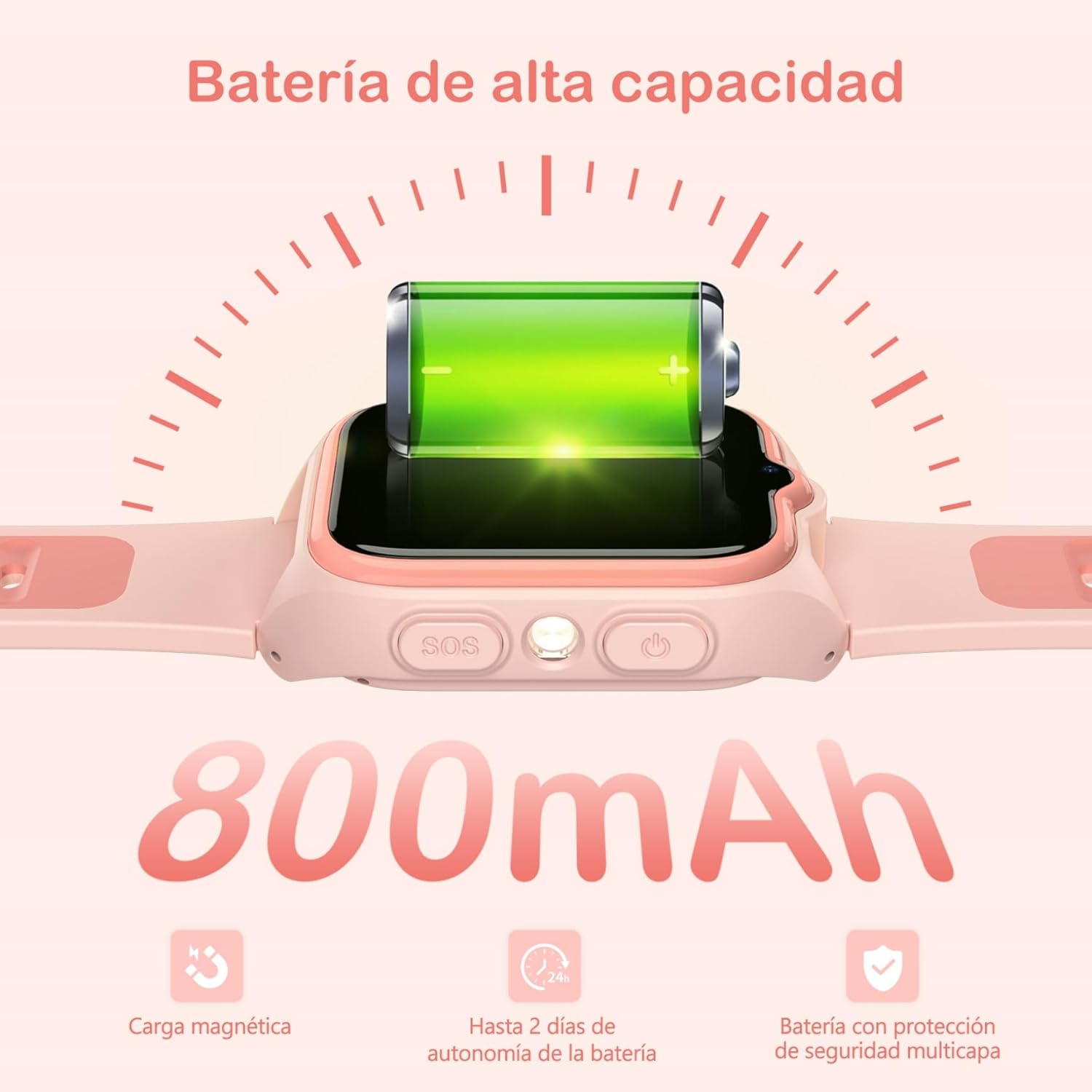
Image: Close-up of the IOWODO Z30 Smartwatch showing a full battery icon and indicating its 800mAh high-capacity battery, magnetic charging, and up to 2 days of autonomy.
2. Water Resistance (IP68)
The IOWODO Z30 Smartwatch has an IP68 water resistance rating, meaning it is resistant to rain and daily splashes. However, it is not recommended for bathing, swimming, or submersion in water. Prolonged exposure to water or high-pressure water jets may damage the device.

Image: Illustration depicting the IOWODO Z30 Smartwatch being splashed with water, emphasizing its IP68 water resistance for rain and daily splashes.
3. Cleaning
- Wipe the watch and strap with a soft, damp cloth.
- Do not use harsh chemicals or abrasive cleaners.
- Ensure the charging contacts are clean and dry before charging.
Troubleshooting
| Issue | Possible Cause | Solution |
|---|---|---|
| Watch does not turn on | Low battery; Power button not pressed long enough | Charge the watch for at least 30 minutes. Press and hold the power button for 5-10 seconds. |
| No network signal / Cannot make calls | SIM card not inserted correctly; SIM card not activated; No 4G coverage; Incorrect APN settings | Reinsert SIM card. Contact your SIM provider to ensure activation and 4G service. Check network coverage. Configure APN settings via the app if necessary. |
| Inaccurate location tracking | Poor GPS/LBS/WiFi signal; Watch indoors or in dense areas | Ensure the watch has clear sky view for GPS. Location accuracy may vary indoors or in areas with weak signals. |
| Cannot pair with app | Incorrect registration code; Watch not connected to network; App issues | Verify the registration code. Ensure the watch has a working SIM and network connection. Restart both watch and phone. Reinstall the app. |
| Short battery life | Frequent use of features (calls, GPS); High screen brightness | Reduce screen brightness. Limit continuous GPS tracking. Close unused applications. |
Specifications
| Feature | Detail |
|---|---|
| Brand | IOWODO |
| Model Name | Z30 |
| Product Model Number | Z30 4G Kids Smartwatch |
| Screen Size | 1.75 Inches |
| Display Type | Digital, 240 x 280 Resolution |
| Battery Capacity | 800 mAh |
| Average Battery Life | 48 Hours (active use) |
| Charging Time | 2 Hours |
| Memory Capacity | 512 MB |
| Installed Flash Memory | 128 MB |
| Digital Storage Capacity | 128 MB |
| Connectivity Technology | 4G GSM, Bluetooth |
| Positioning System | GPS + LBS + WiFi |
| Water Resistance | IP68 (Rain and splash resistant, not for swimming/bathing) |
| Human Interface Input | Buttons, Touch Screen |
| Product Weight | 170 g |
| Compatible Devices | Smartphone |
| Recommended Age | 4-13 Years |
Warranty and Support
Warranty
The IOWODO Z30 Smartwatch comes with a 2-year extended warranty from the date of purchase. This warranty covers manufacturing defects and malfunctions under normal use. Please retain your proof of purchase for warranty claims.
Customer Support
For any questions, technical assistance, or warranty claims, please contact IOWODO customer support:
- 24/7 Customer Support: Available to assist you with any inquiries.
- Lifetime Technical Support: We provide ongoing technical assistance for the lifespan of your product.
Refer to the contact information provided in your product packaging or visit the official IOWODO website for support details.


