
1. Product Overview
The JUSTONE A1 is an 11.3-inch portable touch screen designed to bring wireless CarPlay and Android Auto functionality to your vehicle. It features an in-Cell fully laminated display, 1920x720 resolution, and supports up to 60 frames per second for a smooth user experience. Control is available via the capacitive touchscreen or a wireless button knob. It also includes a BT Display Only Mode for audio streaming and offers multiple mounting options.
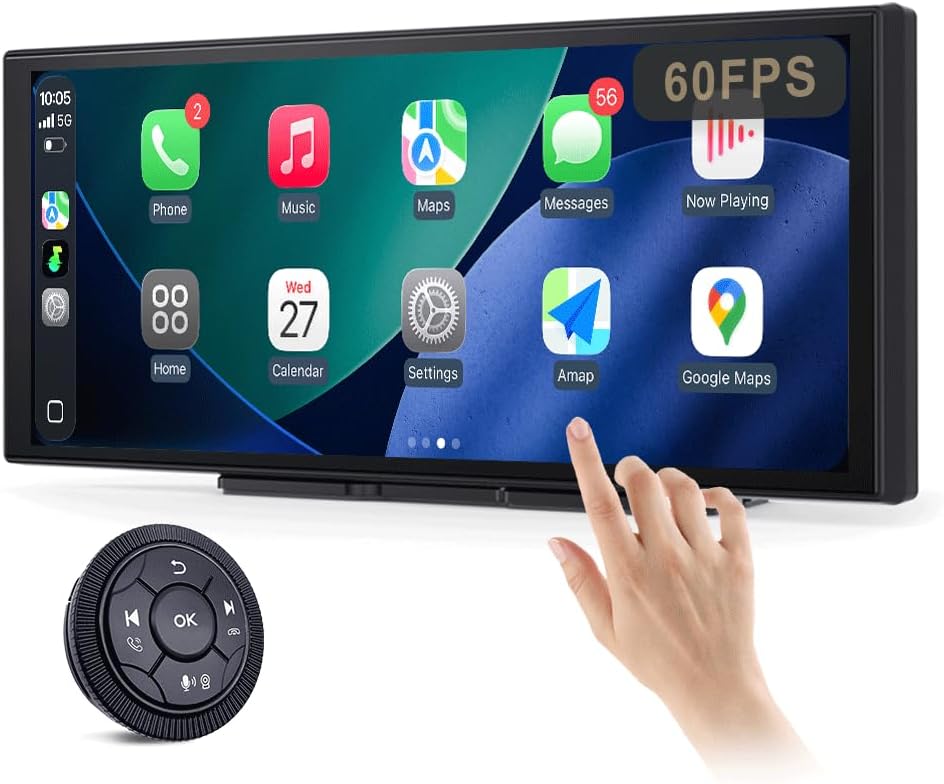
Figure 1: JUSTONE A1 Portable Touch Screen with CarPlay interface and wireless control knob.
2. Package Contents
Verify that all items listed below are included in your package. If any items are missing or damaged, please contact customer support.

Figure 2: Included accessories for the JUSTONE A1.
- Screen Host
- 4 Clip Bracket
- Double-sided Tape
- Suction Cup Bracket
- Control Button (Wireless Knob)
- Car Power Adapter
- Ball Shaped Bracket Converter
- TYPE-C Power Cable
- AUX Audio Cable
- Base for Suction Cup
- Camera Input Cable (Camera optional)
- User Manual
3. Setup
3.1 Mounting Options
The JUSTONE A1 offers two primary mounting methods to suit various vehicle dashboards. Ensure the screen is securely mounted and does not obstruct your view of the road.

Figure 3: Examples of suction cup and dashboard mounting.
- 4-Clip Vertical Base: Use this bracket to rest the bottom of the screen directly on your dashboard. Secure it with the provided double-sided tape for stability.
- 17mm Ball-Joint Extendable Arm Mount (Suction Cup Bracket): This option allows for more flexible positioning, typically on the windshield or a smooth dashboard surface. Ensure the suction cup is firmly attached.
Note: Always ensure the chosen mounting location complies with local traffic laws regarding windshield obstructions.
3.2 Power Connection
- Connect the TYPE-C Power Cable to the screen host.
- Plug the Car Power Adapter into your vehicle's 12V power outlet (cigarette lighter socket).
- The screen will power on automatically when the vehicle's ignition is turned on.
3.3 Initial Wireless Connection (CarPlay/Android Auto)
- Ensure Bluetooth and Wi-Fi are enabled on your smartphone.
- On the JUSTONE A1 screen, select either 'CarPlay' or 'Android Auto' from the main menu.
- Follow the on-screen instructions to pair your phone via Bluetooth.
- Once Bluetooth is paired, the system will automatically establish a Wi-Fi connection for wireless CarPlay or Android Auto.
- The device is designed to auto-connect to your paired phone when you start your car after the initial setup.
4. Operating Instructions
4.1 Display Features

Figure 4: Display features including 11.3-inch size and in-cell full lamination.
- 11.3" In-Cell Full-Laminated Display: Provides a premium look and feel, appearing darker when off compared to standard lamination. The actual panel size is approximately 10.5" x 4.13".
- 1920x720 Resolution: Delivers clear and sharp visuals.
- 60Hz Refresh Rate: Ensures smoother performance, especially for CarPlay.
4.2 Control Methods
The device offers two ways to interact with its interface:

Figure 5: Touchscreen and wireless knob control options.
- Capacitive Touchscreen: Directly interact with the display by touching icons and swiping.
- Wireless Button Knob: For safer operation while driving, especially if the screen is difficult to reach. This knob allows navigation, volume control, and other functions without direct screen interaction.
4.3 Connectivity Features

Figure 6: Supported phone connectivity options.
- Wireless CarPlay: Access navigation, music, messages, and more from your iPhone.
- Wireless Android Auto: Access navigation, music, and communication features from your Android phone.
- AirPlay: Mirror content from your Apple devices.
- MiraCast: Mirror content from compatible Android devices.
4.4 Audio Output Modes
The JUSTONE A1 supports multiple ways to output audio to your vehicle's sound system:
- BT Display Only Mode: When your phone is connected to the JUSTONE A1, audio streams directly from your phone to your vehicle's built-in Bluetooth audio system. This requires your vehicle to have its own Bluetooth audio input.
- AUX Output: Connect the provided AUX Audio Cable from the JUSTONE A1 to your vehicle's AUX input port.
- FM Transmitter: The device can transmit audio via an FM frequency. Tune your car radio to the same frequency set on the JUSTONE A1.
4.5 Automatic Day/Night Mode

Figure 7: Automatic brightness adjustment for day and night conditions.
The built-in light sensor automatically detects ambient light conditions and switches between dark and light themes, adjusting screen brightness for optimal visibility and glare resistance during both day and night driving.
5. Maintenance
- Cleaning: Use a soft, lint-free cloth to clean the screen. For stubborn smudges, slightly dampen the cloth with water or a screen-safe cleaner. Avoid harsh chemicals or abrasive materials.
- Temperature: Avoid exposing the device to extreme temperatures, both hot and cold, for extended periods.
- Storage: If storing the device for a long time, disconnect it from power and store it in a cool, dry place.
- Cables: Regularly check power and audio cables for any signs of wear or damage. Replace if necessary.
6. Troubleshooting
- Device does not power on:
- Ensure the car power adapter is securely plugged into the vehicle's 12V outlet and the TYPE-C cable is firmly connected to the screen.
- Check if the vehicle's 12V outlet is receiving power (e.g., by testing with another device).
- Wireless CarPlay/Android Auto fails to connect:
- Verify Bluetooth and Wi-Fi are enabled on your smartphone.
- Ensure your phone is not connected to another CarPlay/Android Auto device.
- Try forgetting the device in your phone's Bluetooth settings and re-pairing.
- Restart both your phone and the JUSTONE A1 device.
- No audio output:
- If using BT Display Only Mode, ensure your phone is connected to your car's native Bluetooth audio system.
- If using AUX, check that the AUX cable is properly connected to both the JUSTONE A1 and your car's AUX input, and your car's audio source is set to AUX.
- If using FM transmitter, ensure the frequency on the JUSTONE A1 matches your car radio's frequency and there is no strong interference on that frequency.
- Check the volume levels on both the JUSTONE A1 and your car's audio system.
- Screen is unresponsive or frozen:
- Disconnect the power cable from the JUSTONE A1 for 10 seconds, then reconnect it to perform a restart.
- Wireless control knob is not working:
- Ensure the knob's battery is not depleted. Replace if necessary.
- Re-pair the knob with the main unit if it has become disconnected.
7. Specifications
| Feature | Specification |
|---|---|
| Model Name | A1 |
| Brand | JUSTONE |
| Display Size | 11.3 Inches (10.5" x 4.13" actual panel) |
| Display Type | In-Cell Full-Laminated Touch Screen |
| Resolution | 1920x720 |
| Refresh Rate | Up to 60Hz (for CarPlay) |
| Connectivity Technology | Bluetooth, Wi-Fi (for Wireless CarPlay/Android Auto) |
| Audio Output Mode | BT Display Only, AUX, FM Transmitter |
| Control Interface | Touchscreen, Wireless Button Knob |
| Mounting Type | Panel Mount (4-clip vertical base), Dashboard Mount (17mm ball-joint extendable arm) |
| Special Feature | Portable, Auto Day/Night Mode (Light Sensor) |
| Item Weight | 14.8 ounces (420 Grams) |
| Package Dimensions | 12.01 x 5.51 x 3.98 inches |
8. Warranty and Support
8.1 Warranty Information
The JUSTONE A1 portable touch screen comes with a one-year manufacturer's warranty from the date of purchase. This warranty covers defects in materials and workmanship under normal use. It does not cover damage caused by misuse, accidents, unauthorized modifications, or improper installation.
Please retain your proof of purchase for warranty claims.
8.2 Customer Support
For technical assistance, troubleshooting, or warranty inquiries, please contact JUSTONE customer support through the retailer's platform where the product was purchased or visit the official JUSTONE website for contact information.
When contacting support, please have your product model (A1) and purchase details ready.