
1. Introduction
The IOWODO Z30 Kids 4G Smartwatch is designed to provide communication, safety, and entertainment for children, while offering peace of mind for parents. This manual will guide you through the setup, operation, and maintenance of your new smartwatch.
2. Package Contents
- IOWODO Z30 Smartwatch
- Silicone Strap
- Protective Case
- Magnetic Charging Cable
- User Manual
- SIM Ejector Tool
3. Setup Guide
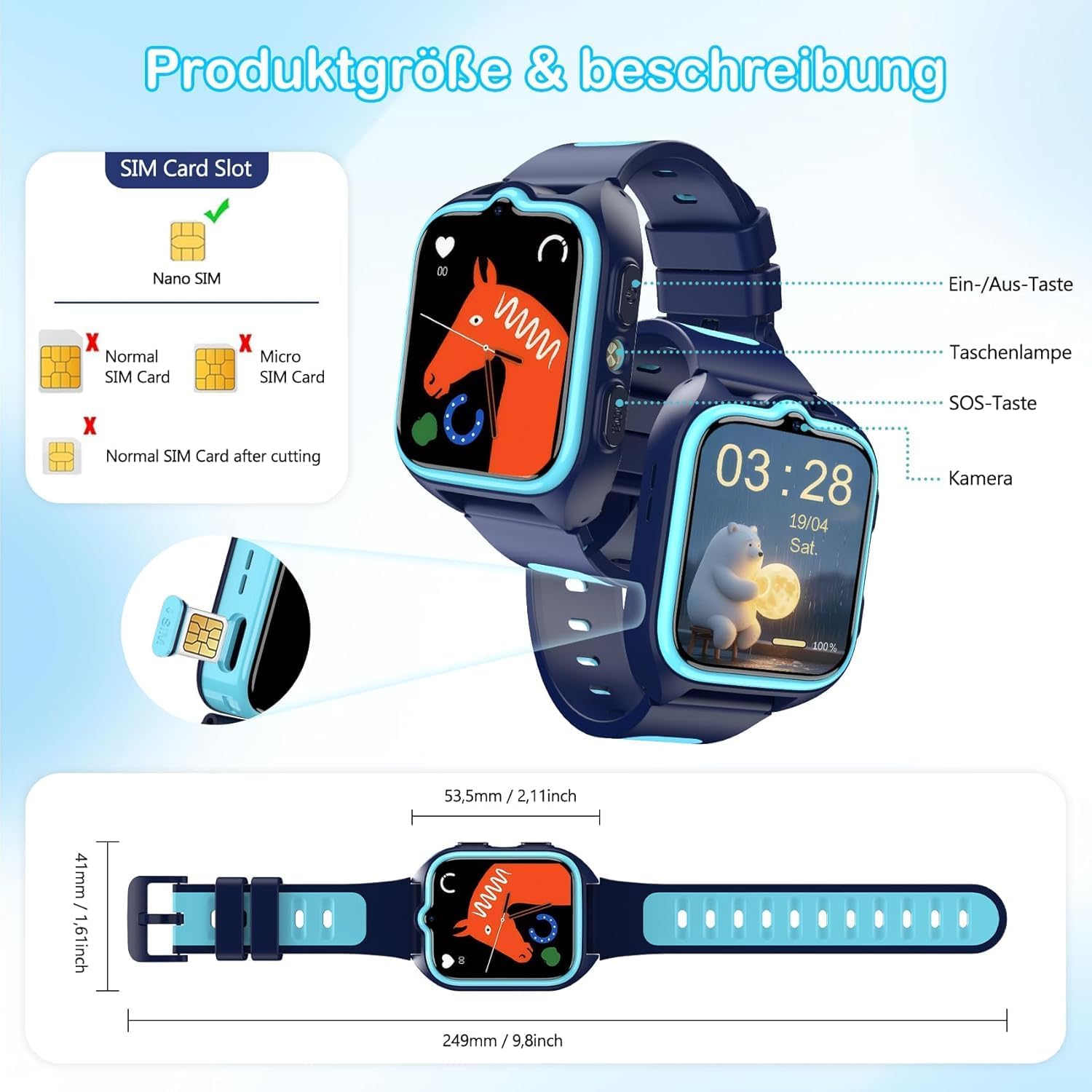
3.1. SIM Card Installation
The IOWODO Z30 Smartwatch requires a Nano-SIM card (not included) for 4G connectivity, video calls, and other communication features. Ensure the SIM card is activated with a data plan before insertion.
- Carefully remove the protective case from the smartwatch.
- Locate the SIM card slot on the side of the watch.
- Using the provided SIM ejector tool, gently push into the small hole next to the SIM tray to eject it.
- Place the Nano-SIM card into the tray with the gold contacts facing up and the notched corner aligned correctly.
- Insert the SIM tray back into the smartwatch until it clicks into place.
- Reattach the protective case.
3.2. Charging the Smartwatch
Before first use, fully charge the smartwatch. The watch features an 800mAh battery and uses magnetic charging.
- Connect the magnetic charging cable to a USB power adapter (not included).
- Attach the magnetic end of the cable to the charging contacts on the back of the smartwatch. It will snap into place.
- The watch screen will display a charging indicator. A full charge typically takes 2-3 hours.

3.3. App Installation and Pairing
To manage the smartwatch and access all its features, you need to install the 'SeTracker2' app on your smartphone (compatible with Android and iOS).
- On the smartwatch, navigate to the QR code display (usually found in the 'App' or 'Settings' menu).
- Using your smartphone's camera, scan the QR code displayed on the watch. This will direct you to download the 'SeTracker2' app from your app store.
- Install and open the 'SeTracker2' app.
- Register a new account if you don't have one, or log in.
- In the app, select 'Add Device' and scan the registration QR code from the watch again, or manually enter the device ID.
- Follow the on-screen prompts to complete the pairing process, including setting a nickname for the watch and assigning yourself as 'Papa' or 'Mama'.
- Grant necessary permissions to the app (e.g., location, notifications, camera, microphone) for full functionality.
4. Operating Instructions
4.1. Basic Navigation
- Power On/Off: Long press the Power button.
- Screen Navigation: Swipe left/right or up/down on the touchscreen to access different menus and features.
- Return: Short press the Power button to return to the previous screen or the main interface.
4.2. 4G Video Calls and Voice Chat
With a Nano-SIM card inserted and activated, your child can make and receive calls and video calls.
- Making Calls: Access the 'Contacts' menu on the watch, select a contact, and tap the call icon.
- Video Calls: Access the 'Video Call' menu for high-definition video communication.
- Voice Chat: Use the 'Chat' function for sending and receiving voice messages with approved contacts.

4.3. GPS Tracking and Safety Zones
Monitor your child's location in real-time using the 'SeTracker2' app.
- Real-time Location: View your child's current location on a map within the app (GPS, LBS, Wi-Fi triple positioning).
- Safety Zones: Set up virtual boundaries (geofences) in the app. You will receive notifications if your child enters or leaves these designated safe areas.
- Route History: Review your child's movement history for the past 30 days through the app.

4.4. SOS Emergency Function
In case of an emergency, the SOS function provides a quick way for your child to alert pre-set contacts.
- Activation: Press and hold the SOS button (usually located on the side of the watch) for 3 seconds.
- Emergency Call: The watch will automatically dial up to three pre-configured emergency numbers in a loop until one is answered.

4.5. School Mode and Educational Games
- School Mode: Parents can set specific times in the app during which the watch will block calls and messages, allowing the child to focus on studies. Only the time will be displayed on the screen, but the SOS function remains active.
- Educational Games: The watch includes age-appropriate educational games (e.g., math, language) to stimulate learning.

4.6. Pedometer and Sleep Monitoring
The smartwatch can track your child's activity and sleep patterns.
- Pedometer: Activate the pedometer in the 'SeTracker2' app to track steps, distance, and calories burned.
- Sleep Monitoring: Enable sleep observation in the app to monitor sleep quality and duration.
4.7. Other Features
- Camera: The watch features a 1MP camera for taking photos.
- Flashlight: A built-in LED flashlight can be activated for convenience.
- Alarm Clock: Set alarms via the app for reminders.
- Customizable Dials: Choose from various watch faces to personalize the display.
5. Maintenance
5.1. Water Resistance (IP68)
The IOWODO Z30 Smartwatch is IP68 waterproof, meaning it is resistant to dust and can withstand immersion in water up to 1.5 meters for 30 minutes. It is suitable for daily use, such as hand washing or playing in the rain, but not recommended for swimming or showering with hot water.
5.2. Cleaning and Care
- Wipe the watch regularly with a soft, dry cloth.
- Avoid using harsh chemicals or abrasive materials.
- Keep the charging contacts clean and dry.
5.3. Battery Care
- Charge the watch regularly, even if not in use, to maintain battery health.
- Avoid extreme temperatures, which can affect battery performance.
6. Troubleshooting
- Watch not turning on: Ensure the watch is fully charged. If it still doesn't turn on, try a different charging cable or adapter.
- No network signal: Check if the Nano-SIM card is correctly inserted and activated. Verify that the area has 4G coverage.
- GPS inaccuracy: GPS accuracy can be affected by environmental factors (e.g., dense buildings, indoors). Ensure the watch has a clear view of the sky.
- App not connecting: Ensure the watch is powered on and has network connectivity. Check your phone's internet connection and that the 'SeTracker2' app has all necessary permissions. Try restarting both the watch and the app.
- Short battery life: Adjust screen brightness, reduce the frequency of location updates in the app, and close unnecessary background applications on the watch.
7. Specifications
| Feature | Specification |
|---|---|
| Model Number | Z30 |
| Screen Size | 1.75 inches HD Touchscreen |
| Connectivity | 4G, Wi-Fi, Bluetooth |
| Positioning | GPS + LBS + Wi-Fi |
| SIM Card Type | Nano-SIM (not included) |
| Battery Capacity | 800 mAh |
| Water Resistance | IP68 |
| Camera | 1 MP |
| Operating System | Compatible with Android and iOS |
8. Warranty and Support
The IOWODO Z30 Smartwatch comes with a 2-year manufacturer's warranty. For technical support, troubleshooting, or warranty claims, please contact IOWODO customer service through their official website or the retailer where the product was purchased.
For more information, visit the IOWODO Brand Store.


