
1. Introduction
This manual provides essential instructions for the setup, operation, and maintenance of your UnionSine HD3513 Desktop External Hard Drive. This 3.5-inch external hard drive offers significant storage capacity and high-speed data transfer for various devices.
2. Package Contents
Please verify that all items are present in your package:
- 1 x UnionSine Desktop External Hard Drive (HD3513)
- 1 x USB 3.0 Data Cable
- 1 x Power Adapter
- 1 x User Manual (this document)
3. Setup Instructions
Follow these steps to set up your UnionSine HD3513 external hard drive.
3.1 Power Adapter Assembly
The power adapter is equipped with a detachable plug. Follow the instructions below to install the plug onto the adapter.
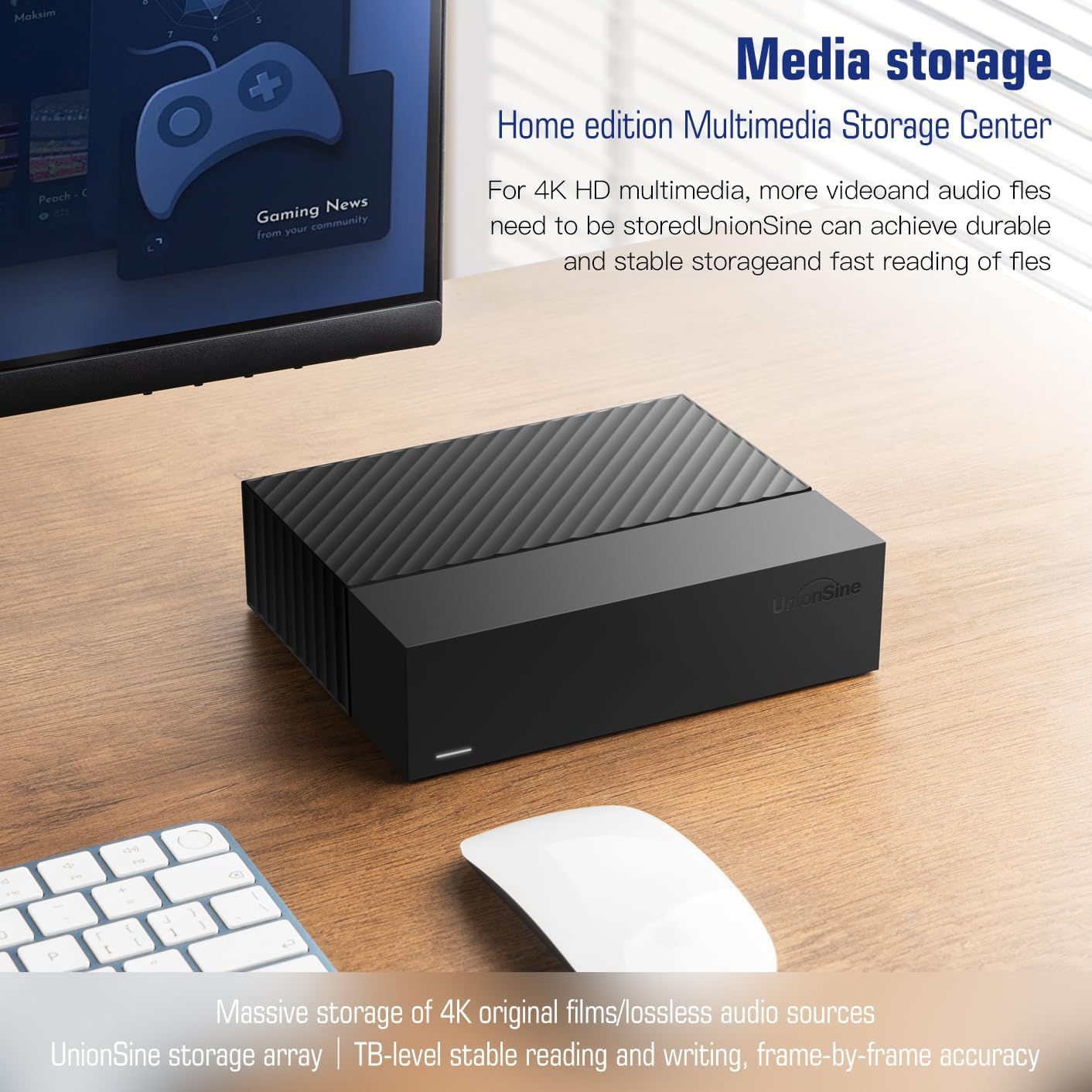
Image: Power adapter assembly steps. This diagram illustrates how to securely attach the regional plug to the main power adapter unit.
3.2 Connecting the Hard Drive
The UnionSine HD3513 is designed for plug-and-play functionality, requiring no driver installation. Ensure the power source is connected before the USB cable.
- Connect the power adapter to the hard drive's DC IN port and then to a power outlet.
- Connect the USB 3.0 data cable to the hard drive's USB 3.0 MicroB port.
- Connect the other end of the USB 3.0 data cable to an available USB port on your computer or compatible device.

Image: Connection guide for the external hard drive. This image shows the sequence of connecting the data cable to the computer and then the power adapter to the device.

Image: External power supply connection. The hard drive is shown connected to a laptop, highlighting the importance of the external power supply for stable operation.
4. Operating Instructions
The UnionSine HD3513 provides high-speed data transfer and broad compatibility for various uses.
4.1 Data Transfer and Storage
Utilizing a USB 3.0 MicroB 5G high-speed transmission solution, the drive offers theoretical read/write speeds of up to 130-270MB/s. It supports large file storage over 4GB, suitable for PC office tasks, image storage, TV recording, 4K video storage, and gaming needs.
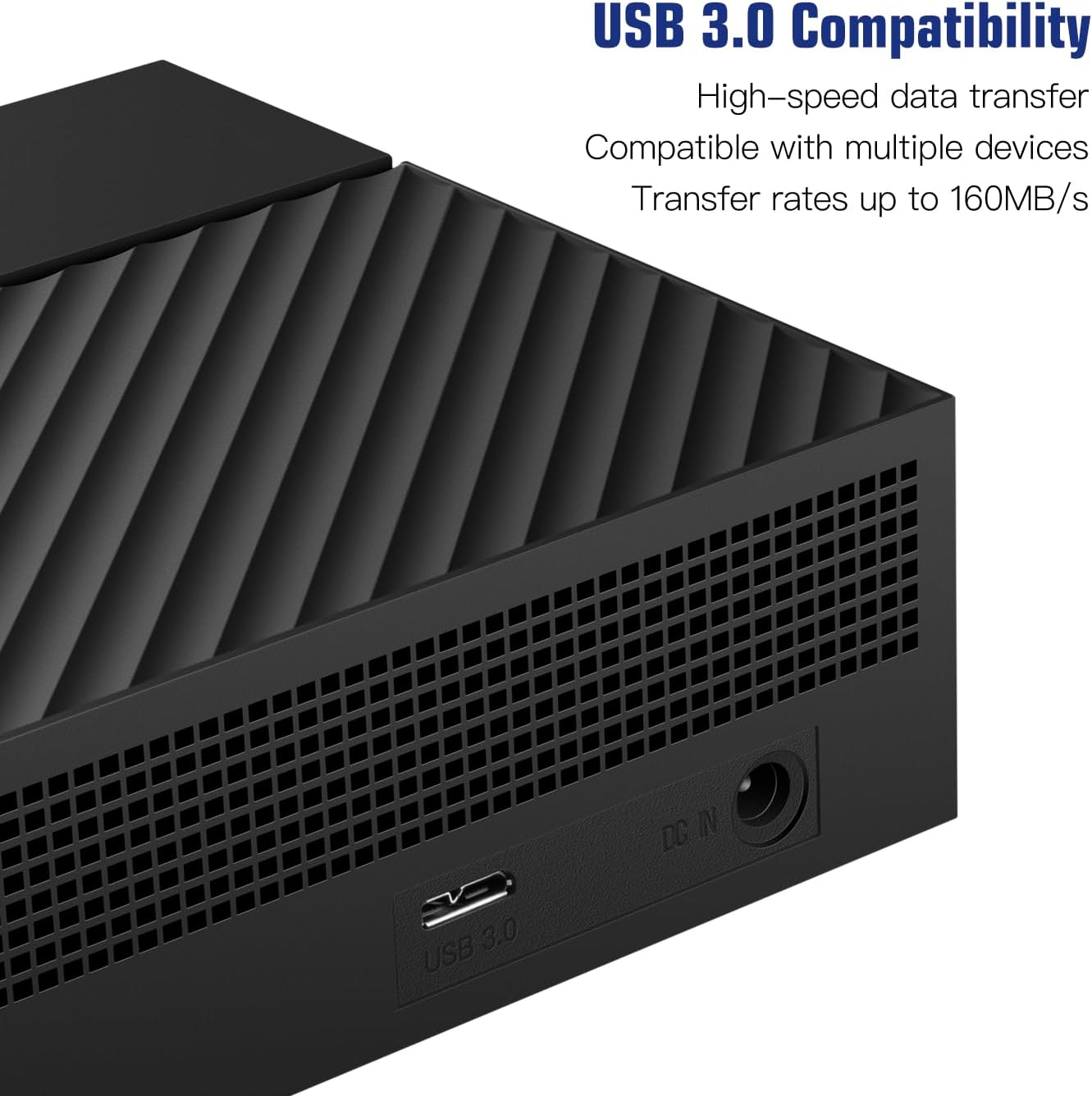
Image: Media storage setup. The external hard drive is shown in a home office environment, indicating its use as a multimedia storage center.

Image: High-speed data transfer. This image highlights the USB 3.0 MicroB connection, capable of fast read and write speeds.
4.2 Compatibility
The hard drive features an ASM chip solution for enhanced compatibility. It is compatible with a wide range of operating systems and devices:
- Operating Systems: Windows, Mac, Linux, Android
- Devices: PC, Mac, TV, DVD players, Xbox game consoles
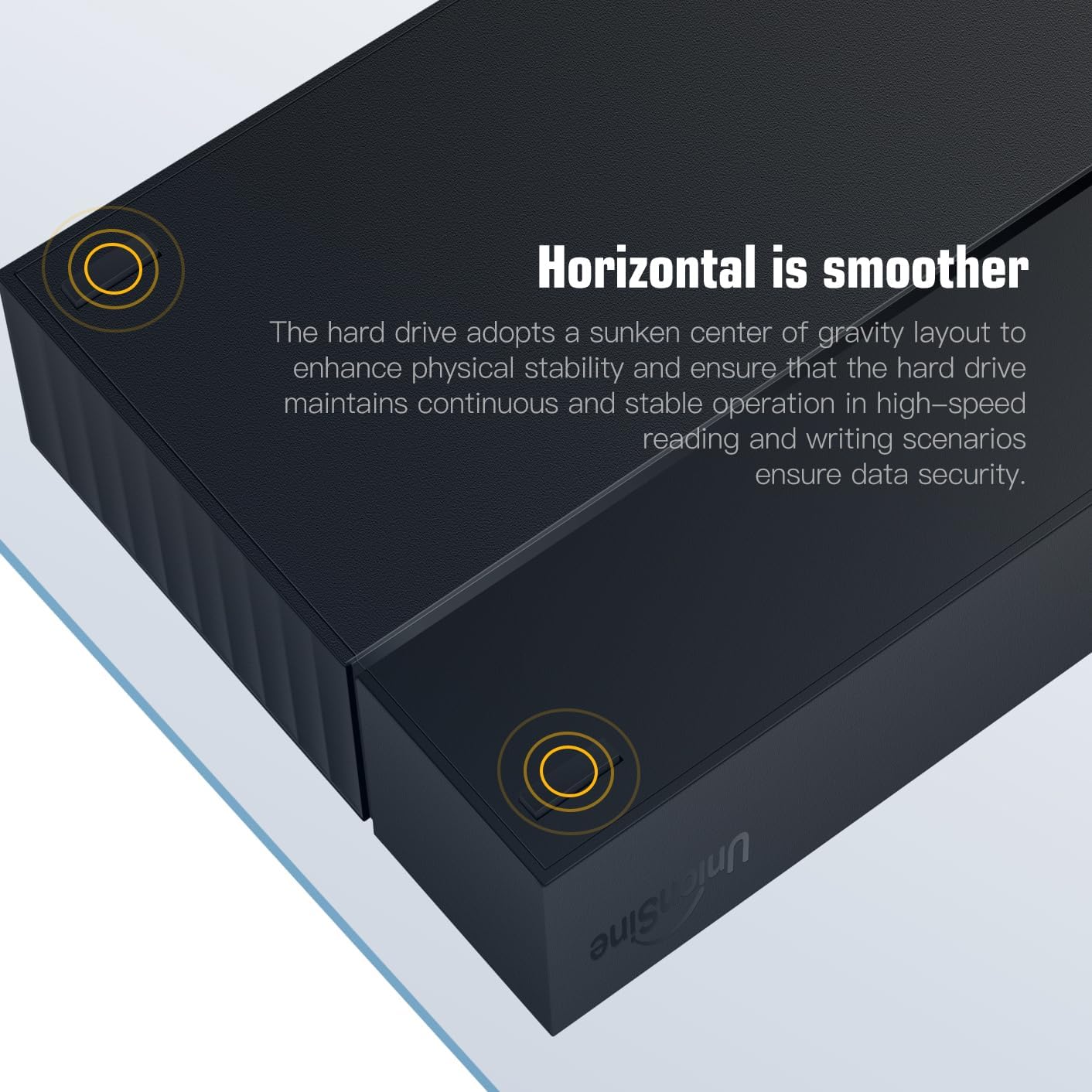
Image: Operating system compatibility. The hard drive is shown with icons representing its compatibility with Windows, macOS, and Linux.
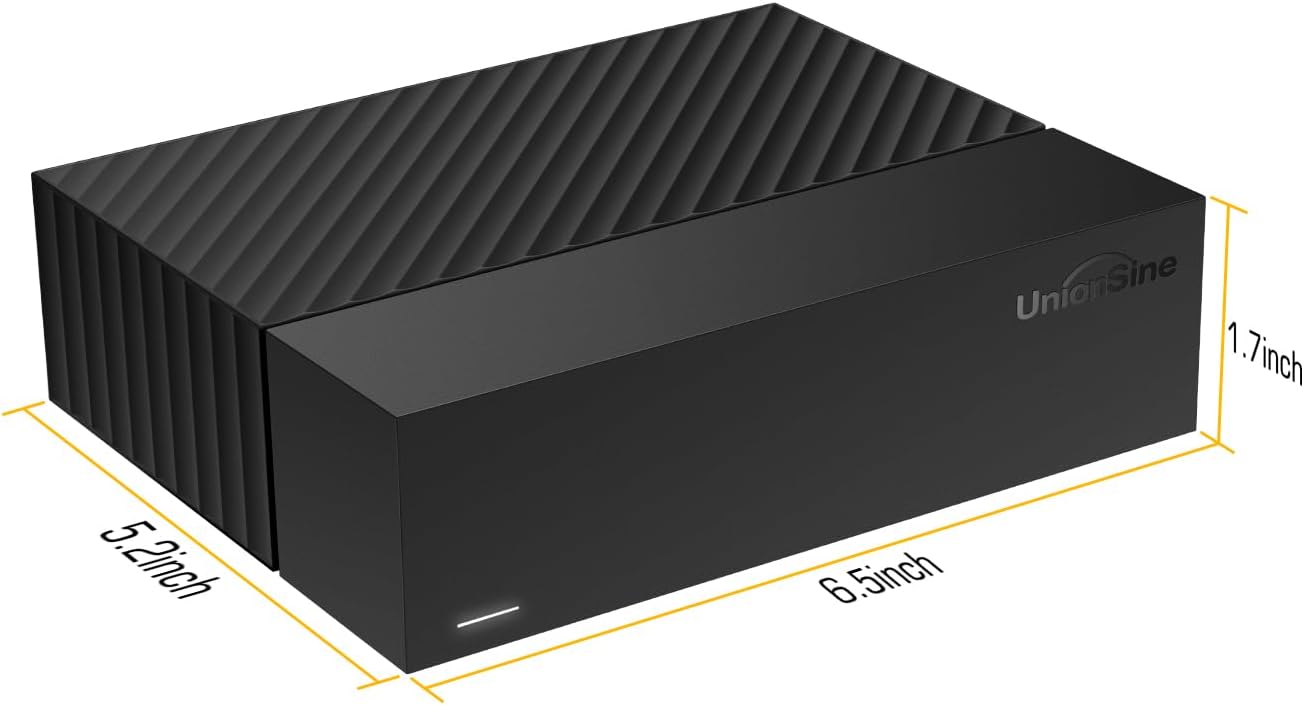
Image: USB 3.0 compatibility. A detailed view of the device's ports, emphasizing its high-speed USB 3.0 interface.
4.3 Default Format and Reformatting
The default format of this hard drive is EXFAT. Reformatting may be required if the default format is not compatible with your device or specific usage needs.

Image: File system compatibility table. This table lists recommended file formats for different operating systems and devices.
| Device / System | Compatible Format |
|---|---|
| Windows 7/8/10 | EXFAT/NTFS/FAT16/FAT32 |
| Mac OS | EXFAT/APFS/FAT32/HFS+ |
| Linux | EXT2/EXT3/EXT4/FAT16/FAT32 |
| Android | EXFAT/NTFS/FAT32 |
| Xbox | NTFS/FAT32 |
| PS4 | EXFAT/FAT32 |
| TV | NTFS/FAT32 |
5. Maintenance
Proper care ensures the longevity and reliable performance of your hard drive.
5.1 Physical Stability and Noise Reduction
The hard drive features a sunken center of gravity layout to enhance physical stability, ensuring continuous and stable operation during high-speed reading and writing. Anti-vibration silicone is used internally to reduce noise, providing a quieter working environment.

Image: Horizontal stability features. This image shows the design elements that contribute to the drive's physical stability during operation.

Image: Noise reduction processing. An internal diagram illustrating the use of silicone cushioning to minimize operational noise.
5.2 Heat Dissipation
The honeycomb-patterned panel design enhances heat dissipation efficiency, optimizing the operational environment for the hard drive during use.

Image: Honeycomb-patterned panel design. This graphic demonstrates how the design facilitates efficient heat dissipation from the device.
6. Troubleshooting
If you encounter issues with your UnionSine HD3513, please refer to the following common solutions:
- Device Not Recognized: Ensure both the power adapter and USB data cable are securely connected to the hard drive and your computer. Try connecting to a different USB port or computer to rule out port-specific issues.
- Slow Transfer Speeds: Verify that you are using a USB 3.0 port on your computer. USB 2.0 ports will result in significantly slower speeds. Ensure the data cable is not damaged.
- Drive Not Appearing in File Explorer/Finder: For new drives or after reformatting, the drive may need to be initialized and partitioned in Disk Management (Windows) or Disk Utility (Mac) before it appears.
- Power Issues: Confirm the power adapter is correctly assembled and plugged into a working power outlet. The drive requires external power for operation.
7. Specifications
| Feature | Detail |
|---|---|
| Model Number | HD3513 |
| Digital Storage Capacity | 14 TB |
| Hard Disk Interface | USB 3.0 |
| Connectivity Technology | USB |
| Hard Disk Form Factor | 3.5 Inches |
| Hard Disk Description | Mechanical Hard Disk |
| Compatible Devices | Desktop, Laptop, Mac, Game Console, TV |
| Installation Type | External Hard Drive |
| Color | Black |
| Hard Disk Rotational Speed | 7200 RPM |
| Read Speed | Up to 270 Megabytes Per Second |
| Data Transfer Rate | Up to 130 Megabytes Per Second |
| Hardware Connectivity | USB 3.2 Gen 2 |
| Hardware Platform | Linux, Mac, PC |
| Enclosure Material | Aluminum/Glass |
| Country of Origin | China |
8. Warranty and Support
8.1 Warranty Information
The UnionSine HD3513 Desktop External Hard Drive comes with a 2-Year Warranty from the date of purchase. This warranty covers manufacturing defects and ensures the product meets its specified performance standards under normal use.
8.2 Customer Support
For technical assistance, troubleshooting, or warranty claims, please contact UnionSine customer support. Refer to the contact information provided with your product packaging or visit the official UnionSine website for the most up-to-date support details.
Manufacturer: UnionSine


