
SYNCO XView M4
SYNCO XView M4 Vlog Selfie Monitor Screen User Manual
Model: XView M4
1. Introduction
The SYNCO XView M4 is a compact and versatile selfie monitor designed to enhance your mobile content creation. It allows you to utilize your phone's higher-resolution rear camera for vlogging, live streaming, and selfies, providing a clear view of your framing and expression. Featuring a strong magnetic mount, P2P wireless technology for low-latency connection, and a long-lasting battery, the XView M4 is an ideal companion for creators on the go.
2. Safety Information
- Do not expose the device to extreme temperatures, direct sunlight, or high humidity.
- Keep the device away from water and other liquids.
- Avoid dropping or subjecting the device to strong impacts.
- Do not attempt to disassemble or repair the device yourself. Refer to qualified service personnel.
- Use only the provided charging cable or a certified equivalent.
- Keep out of reach of children.
3. Product Overview
3.1 Package Contents
Upon unboxing, please ensure all items listed below are present:
- SYNCO XView M4 Mobile Monitor x1
- Magnetic Ring Sticker x1
- Charging Cable x1 (USB-C to USB-C)

Image: Contents of the SYNCO XView M4 package, including the monitor, magnetic ring sticker, and charging cable.
3.2 Key Features
- 40ms Ultra-Low Latency: Ensures real-time mirroring for smooth vlogging and live streaming.
- Strong Magnetic Mount: Securely attaches to MagSafe-compatible phones or via the included magnetic ring sticker.
- P2P Wireless Technology: Direct connection without Wi-Fi, maintaining network stability on your phone.
- Bluetooth Remote Control: Control your phone's camera from up to 10 meters away.
- 1300mAh Battery: Provides up to 3 hours of continuous operation.
- Vivid Display: 480P resolution, 100% RGB color gamut, and 400cd/m² brightness for clear visuals.
- Flexible Display: One-click screen flip, adjustable screen size, and left-right mirror mode.
- Lightweight and Portable: Designed for creators on the move.

Image: Visual representation of key features including 50m range, magnetic mount, low latency, quiet operation, TFT display, and P2P connection.
4. Setup
4.1 Charging the Monitor
Before first use, fully charge the SYNCO XView M4 monitor. Connect the provided USB-C charging cable to the monitor's charging port and the other end to a USB power adapter (not included). The charging indicator will show the charging status.

Image: An internal view of the SYNCO XView M4 highlighting its 1300mAh battery, indicating 3 hours of uninterrupted operation.
4.2 Attaching to Your Phone
The XView M4 features a strong N56 Neodymium magnetic mount for secure attachment.
- For MagSafe-compatible Phones: Simply align the monitor with the MagSafe area on the back of your iPhone (iPhone 12 series and later) until it snaps into place.
- For Other Phones (Android, older iPhones): Use the included magnetic ring sticker. Clean the back of your phone or phone case thoroughly. Peel off the adhesive backing from the magnetic ring sticker and firmly press it onto the center of the back of your phone or case. Allow it to set for a few minutes before attaching the monitor.

Image: The SYNCO XView M4 attached magnetically to a smartphone, demonstrating the N56 Neodymium Magnetic Mount. A magnetic case ring is also shown, indicating compatibility with various phone models.

Image: A sequence showing the ease of attaching the SYNCO XView M4 to a phone with one hand, highlighting the "Snap on → Flip screen → Go LIVE in 3 seconds" process.
4.3 P2P Wireless Connection
The XView M4 uses P2P (Peer-to-Peer) technology for a direct, stable, and low-latency connection with your smartphone, eliminating the need for Wi-Fi.
- Ensure your phone's Bluetooth is enabled.
- Power on the XView M4 monitor.
- On your phone, open the camera app or the app you intend to use for content creation.
- The monitor will automatically detect and connect to your phone, mirroring its display.
This P2P connection allows you to continue using your phone's Wi-Fi for browsing or live streaming without interruption.

Image: A smartphone displaying a social media feed next to the SYNCO XView M4, illustrating the instant, WiFi-free connection that allows continuous browsing or streaming.
4.4 Bluetooth Remote Pairing
The XView M4 comes with a built-in Bluetooth remote function to control your phone's camera remotely.
- Ensure the XView M4 is powered on and connected to your phone.
- On the XView M4, locate the Bluetooth button (refer to the device diagram if available). Press and hold it to enter pairing mode.
- On your phone, go to Bluetooth settings and select "SYNCO XView M4 Remote" (or similar name) to pair.
- Once paired, you can use the remote button on the monitor to trigger your phone's camera shutter (take photos or start/stop video recording).

Image: A person holding the SYNCO XView M4, demonstrating the use of its Bluetooth remote function to control a phone's camera from a distance.
5. Operating Instructions
5.1 Powering On/Off
- Power On: Press and hold the power button on the side of the monitor until the screen illuminates.
- Power Off: Press and hold the power button until the screen turns off.
5.2 Screen Orientation and Mirroring
The XView M4 offers flexible display options:
- Automatic Rotation: The screen will automatically adjust its orientation (portrait/landscape) based on your phone's orientation.
- One-Click Screen Flip: Use the dedicated screen rotation button on the monitor to quickly flip the display for low-angle or high-angle shots.
- Adjustable Screen Size and Full-Screen Display: The monitor can display your phone's camera feed in various sizes, including a full-screen mode for maximum visibility.
- Left-Right Mirror Mode: Activate this mode for live streams to ensure your audience sees the correct orientation of text or gestures.

Image: The SYNCO XView M4 demonstrating its flexible display capabilities, including one-click screen flip for different angles, adjustable screen size, and left-right mirror mode for livestreams.

Image: A close-up of the SYNCO XView M4 showing the screen rotation button and its effect on the mirrored phone display.
5.3 Utilizing Your Phone's Rear Camera
The primary benefit of the XView M4 is to enable the use of your phone's superior rear camera for self-recording.
- Attach the XView M4 to your phone.
- Open your phone's camera application.
- Switch to the rear camera. The XView M4 will display the rear camera's feed, allowing you to monitor your shot in real-time.
- This setup provides significantly higher resolution and better image quality compared to typical front-facing cameras, ideal for professional-looking content.
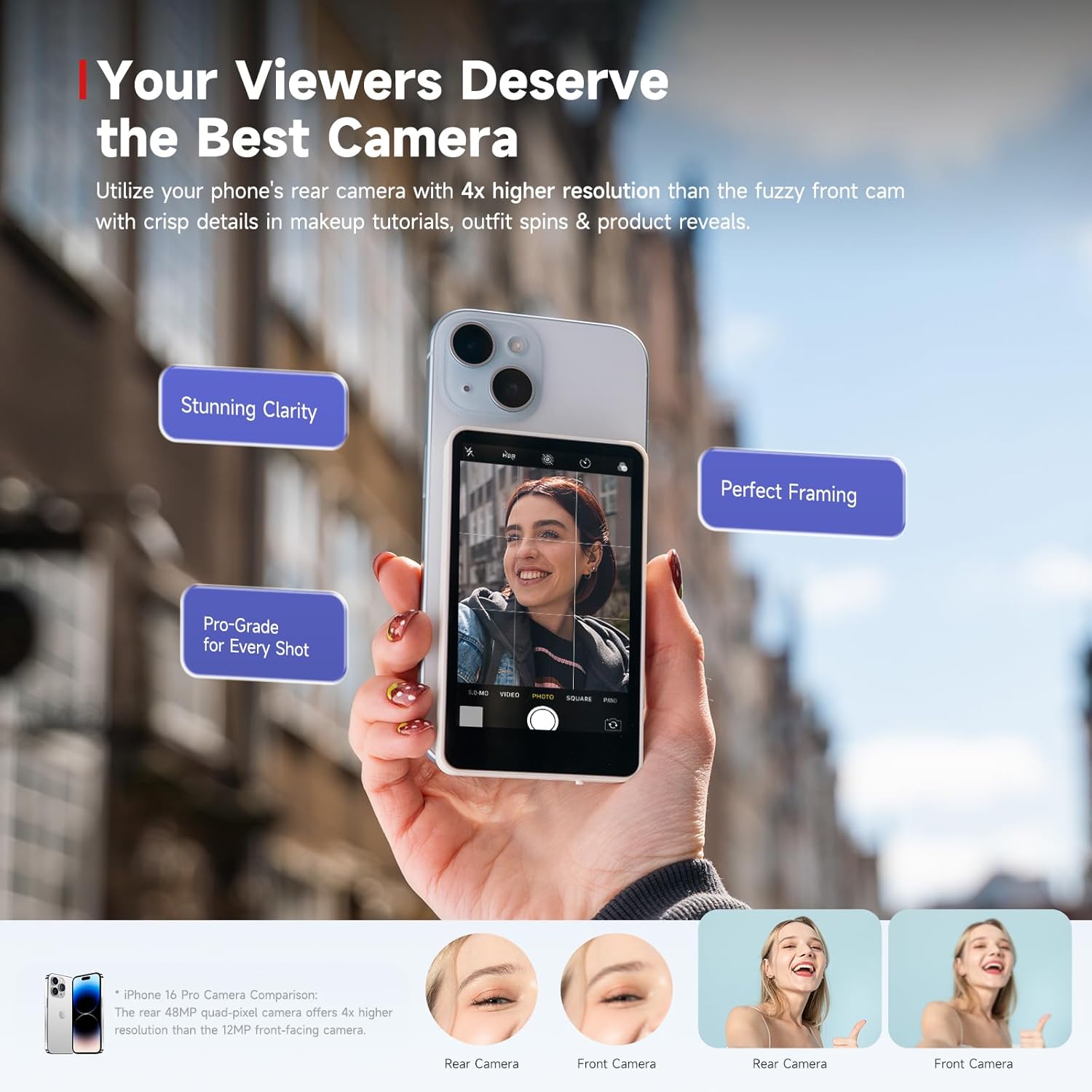
Image: A comparison illustrating the superior clarity and framing achieved by using a phone's rear camera with the SYNCO XView M4, as opposed to a front camera.

Image: A visual comparison demonstrating the difference in image quality between a phone's front camera (blurry) and rear camera (sharp) when used with the SYNCO XView M4.
5.4 Usage Scenarios
The SYNCO XView M4 is versatile for various content creation needs:
- Vlogging: Capture high-quality video of yourself while monitoring your frame.
- Live Streaming: Engage with your audience confidently, knowing you are perfectly framed.
- Selfies: Take crisp, detailed selfies using your phone's main camera.
- Fitness Videos: Ensure proper form and framing during workout recordings.
- Product Reviews/Tutorials: Present clear, professional visuals.

Image: A collage of images depicting various usage scenarios for the SYNCO XView M4, including travel vlogging, live streaming, selfies, and fitness videos.
6. Maintenance
- Cleaning: Use a soft, dry, lint-free cloth to clean the monitor screen and body. Do not use liquid cleaners or aerosols.
- Storage: When not in use, store the monitor in a cool, dry place, away from direct sunlight and extreme temperatures.
- Battery Care: To prolong battery life, avoid fully discharging the battery frequently. Charge the device regularly, even if not in use for extended periods.
7. Troubleshooting
| Problem | Possible Cause | Solution |
|---|---|---|
| Monitor does not power on. | Low battery. | Charge the monitor fully. |
| No display on monitor. | Not connected to phone; Phone camera app not open; Phone screen off. | Ensure P2P connection is established. Open phone's camera app. Ensure phone screen is active. |
| Bluetooth remote not working. | Not paired; Out of range; Battery low. | Re-pair the Bluetooth remote. Ensure monitor is within 10m of phone. Charge monitor. |
| Unstable connection/lag. | Interference; Distance too far. | Move closer to the phone. Avoid strong electromagnetic interference. |
| Magnetic attachment is weak. | Incorrect placement; Magnetic ring sticker not applied correctly. | Ensure proper alignment. If using sticker, ensure it's firmly attached and centered. |
8. Specifications
| Feature | Detail |
|---|---|
| Model | XView M4 |
| Brand | SYNCO |
| Display Resolution | 480P |
| Brightness | 400cd/m² |
| Color Gamut | 100% RGB |
| Latency | 40ms |
| Connection Type | P2P Wireless |
| Wireless Range | Up to 50 meters (Line of Sight) |
| Bluetooth Remote Range | Up to 10 meters |
| Battery Capacity | 1300mAh |
| Operating Time | Up to 3 hours |
| Power Consumption | 1.75W |
| Mounting | N56 Neodymium Magnetic Mount |
| Item Weight | 2.82 ounces (80 Grams) |
| Package Dimensions | 6.3 x 3.94 x 1.18 inches |
| Compatible Devices | Cellphone (MagSafe compatible or with magnetic ring sticker) |
9. Warranty and Support
SYNCO products are designed and manufactured to the highest quality standards. For information regarding warranty coverage, technical support, or service inquiries, please refer to the official SYNCO website or contact their customer support directly. Please retain your proof of purchase for warranty claims.
Official SYNCO Website: www.syncoaudio.com
Related documentsXView M4


Ask a question about this manual
Ask about setup, troubleshooting, compatibility, parts, safety, or missing instructions. Manuals+ will review the question and use this page’s manual context to help answer it.