Introduction
This manual provides instructions for setting up and operating your Hidalife Bluetooth Gateway (Model TYBL1). This device enables remote control and voice control functionalities for compatible smart door locks and other Tuya/SmartLife ecosystem devices via a 2.4G WiFi connection.
Product Specifications
| Feature | Detail |
|---|---|
| Brand | HIDALIFE |
| Model Number | TYBL1 |
| Color | White |
| Dimensions (L x W x H) | 2.67 x 1.5 x 2.63 inches (64 x 15 x 64 mm) |
| Item Weight | 1.76 ounces |
| Network | Only supports 2.4GHz WiFi |
| Power Input | 5V/1A (Power adapter not included) |
| Working Temperature | -13°F - 113°F (-25°C - 45°C) |
| Control Method | App (SmartLife/Tuya) |
| Included Components | 1 Gateway |
 Image: Hidalife Gateway with labeled Micro Port, Reset Button, Red Indicator (network configuration), and Blue Indicator (subdevice). Dimensions are 64mm x 15mm x 64mm.
Setup Instructions
Follow these steps to set up your Hidalife Bluetooth Gateway and connect it to your smart devices.
- Power On: Connect the gateway to a 5V/1A power source using a Micro USB cable (not included).
- App Installation: Download the "Smart Life" or "Tuya Smart" app from your smartphone's app store (available for iOS 8.0+ and Android 4.4+).
- Add Device (Gateway):
- Open the Smart Life/Tuya app.
- Tap on "Home" and then "Add Device".
- Select "Wireless Bluetooth gateway" from the device list.
- Ensure your smartphone is connected to a 2.4GHz WiFi network. The gateway only supports 2.4GHz WiFi.
- Enter your 2.4GHz WiFi password when prompted.
- Follow the on-screen instructions to complete the gateway pairing.
- Associate Smart Lock/Device:
- Once the gateway is added, select your smart door lock or other compatible Bluetooth device within the app.
- Tap "Associate To" and then "Associa" to link the device with the gateway.
- The ideal installation location for the gateway is within 16.4 feet (5 meters) of the smart door lock, without any walls in between, to ensure a smooth and stable connection.
 Image: Visual guide for setting up the Hidalife Gateway using the Smart Life app, showing steps for adding the device and associating a smart door lock.
 Image: Illustration showing the recommended placement of the Hidalife Gateway within 16.4 feet (5 meters) of the smart door lock for optimal signal, and its compatibility with Google Assistant and Amazon Alexa.
Operating Instructions
Once your Hidalife Gateway is successfully set up and connected to your smart devices, you can utilize its features for enhanced control.
Remote Control via App
With the gateway connected, you can manage your smart door lock and other devices from anywhere using the Smart Life/Tuya app, even when you are away from home and not connected to the local WiFi network.
- Remote Unlock: Unlock your smart door lock remotely.
- Member Management: Add or remove users and manage their access permissions.
- Code Management: Generate and manage temporary, permanent, or scheduled access codes.
- Access Logs: View a history of who accessed your door and when.
- Notifications: Receive real-time notifications regarding door activity.
- Battery Level Check: Monitor the battery status of your connected smart lock.
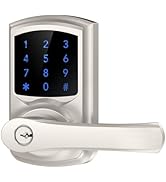 Image: The Hidalife Gateway enables remote app unlocking and control, including remote unlock, member management, code management, remote notifications, access log checking, and remote battery level monitoring.
 Image: A user remotely unlocks a smart door lock using the Smart Life app, facilitated by the Hidalife Gateway, allowing access for a visitor.
Voice Control
The Hidalife Gateway supports voice control for smart home devices and is compatible with Amazon Alexa and Google Assistant. Link your Smart Life/Tuya account to your Alexa or Google Home app to enable voice commands.
- Alexa: "Alexa, unlock the front door." (You may need to set up a voice code for security.)
- Google Assistant: "Hey Google, lock the back door."
Device Compatibility
The gateway is designed to work with various Tuya-compatible Bluetooth devices, extending smart control beyond just door locks.
 Image: The Hidalife Gateway integrates with various Tuya devices such as smart door locks, smart light bulbs, smart switches, smart sockets, and cameras to "Smarten Your Life".
Maintenance
- Power Supply: Ensure the gateway is continuously powered by a stable 5V/1A power source.
- Network Connection: Verify that the gateway remains connected to a 2.4GHz WiFi network. If the network changes or disconnects, reconfigure the WiFi settings in the app.
- Placement: Maintain the gateway within the recommended range (within 16.4 feet or 5 meters) of your smart door lock and other Bluetooth devices for optimal performance. Avoid placing it behind thick walls or large metal objects that could interfere with the signal.
- Cleaning: Wipe the device with a soft, dry cloth. Do not use liquid cleaners or abrasive materials.
Troubleshooting
- Gateway not connecting to WiFi:
- Ensure your WiFi router is broadcasting a 2.4GHz signal. The gateway does not support 5GHz WiFi.
- Verify the WiFi password entered in the app is correct.
- Move the gateway closer to your WiFi router.
- Restart your WiFi router and the gateway.
- Remote control not working:
- Confirm the gateway is online and connected to the internet in the Smart Life/Tuya app.
- Ensure the smart door lock (or other Bluetooth device) is within 16.4 feet (5 meters) of the gateway and there are no significant obstructions.
- Check the battery level of your smart door lock.
- Restart both the gateway and the smart door lock.
- Voice control not responding:
- Ensure your Smart Life/Tuya account is correctly linked to your Alexa or Google Assistant app.
- Verify the device names in the Smart Life/Tuya app match those used in voice commands.
- Check your internet connection and the status of your voice assistant device.
- Gateway indicator lights:
- Red Indicator: Indicates network configuration status.
- Blue Indicator: Indicates subdevice (Bluetooth device) connection status.
- Refer to the app for detailed status information if indicators are not clear.
Warranty Information
HIDALIFE products typically come with a limited manufacturer's warranty. Please refer to the product packaging or the official HIDALIFE website for specific warranty terms and conditions. Keep your proof of purchase for warranty claims.
Support
For technical assistance, troubleshooting, or further inquiries, please contact HIDALIFE customer support. Contact details can usually be found on the product packaging, the official HIDALIFE website, or through your purchase platform.


