
1. Introduction
This manual provides essential information for setting up, operating, maintaining, and troubleshooting your Lenovo IdeaCentre Business Tower Desktop, Model 90X10009US. Please read this manual thoroughly before using your new desktop computer.

This image displays the front panel of the Lenovo IdeaCentre Business Tower Desktop, highlighting its sleek gray design and the vertical strip containing the power button, front ports, and the Lenovo logo.
2. Setup
2.1 Unboxing and Contents
Carefully remove all components from the packaging. The box should contain:
- Lenovo IdeaCentre Business Tower Desktop
- US Wired Keyboard
- US Wired Mouse
- Power Cable
- Documentation (this manual, warranty information)
2.2 Connecting Peripherals
Before powering on your desktop, connect all necessary peripherals:
- Connect Monitor: Use an HDMI or VGA cable to connect your monitor to the corresponding port on the rear of the desktop.
- Connect Keyboard and Mouse: Plug the wired keyboard and mouse into any available USB-A ports on the rear or front of the desktop.
- Connect Network (Optional): For a wired internet connection, connect an Ethernet cable from your router/modem to the RJ45 port on the rear. For wireless, ensure your Wi-Fi network is available during initial setup.
- Connect Power: Plug the power cable into the power connector on the rear of the desktop, then into a grounded electrical outlet.

A detailed diagram illustrating the various input/output ports available on the Lenovo IdeaCentre Business Tower Desktop. The front panel includes the power button, card reader, microphone port, headphone/mic combo, USB-C 3.2 Gen 1, and two USB-A 3.2 Gen 1 ports. The rear panel features a line-out (3.5mm) audio port, HDMI, VGA, Ethernet (RJ-45), two USB-A 2.0 ports, two USB-A 3.2 Gen 1 ports, and the power connector.
2.3 Initial Power-On and Windows Setup
- Press the power button located on the front panel of the desktop.
- The system will boot up and guide you through the Windows 11 Home initial setup process. Follow the on-screen instructions to configure language, region, network, user accounts, and privacy settings.
3. Operating Your Desktop
3.1 Power On/Off and Restart
- Power On: Press the power button on the front panel.
- Shut Down: Click the Start button in Windows, then select Power > Shut down.
- Restart: Click the Start button in Windows, then select Power > Restart.
3.2 Connecting to Wi-Fi
If you did not connect via Ethernet during setup, you can connect to a wireless network:
- Click the Wi-Fi icon in the system tray (bottom right of the screen).
- Select your desired Wi-Fi network from the list.
- Enter the network security key (password) if prompted, then click Connect.
3.3 Using Ports and Media
- USB Ports: Use the front or rear USB-A and USB-C ports to connect external devices such as USB drives, printers, or other peripherals.
- Audio Ports: The front headphone/mic combo jack allows for convenient connection of headsets. The rear audio out port can be used for external speakers.
- SD Card Reader: Insert SD cards into the front card reader slot to access photos and other media.
- Optical Disk Drive Bay: Note that while a bay for an optical disk drive may be present, this model does not include an optical disk drive by default.
4. Maintenance
4.1 Cleaning Your Desktop
- Exterior: Use a soft, lint-free cloth slightly dampened with water or a mild cleaning solution. Avoid harsh chemicals.
- Vents: Periodically use compressed air to clear dust from the ventilation grilles to ensure proper airflow and prevent overheating.
- Screen (if applicable): For connected monitors, follow the monitor manufacturer's cleaning instructions.
4.2 Software Updates
Regularly update your Windows 11 Home operating system and drivers to ensure optimal performance, security, and compatibility. Access Windows Update via Settings > Windows Update.
4.3 Data Backup
It is recommended to regularly back up your important data to an external drive or cloud storage service to prevent data loss.
5. Troubleshooting
This section addresses common issues you might encounter.
5.1 No Power
- Ensure the power cable is securely connected to both the desktop and the electrical outlet.
- Verify the electrical outlet is functional by plugging in another device.
- Check for any tripped circuit breakers.
5.2 No Display on Monitor
- Confirm the monitor is powered on and its power indicator light is active.
- Check that the video cable (HDMI or VGA) is securely connected to both the desktop and the monitor.
- Try connecting the monitor to a different video port on the desktop if available, or test with another monitor if possible.
- Ensure the correct input source is selected on your monitor.
5.3 Network Connectivity Issues
- Wired: Check if the Ethernet cable is properly connected and if the network indicator lights on the RJ45 port are active. Restart your router/modem.
- Wireless: Verify that Wi-Fi is enabled in Windows settings. Ensure you are connected to the correct network and have entered the password correctly. Restart your router/modem.
5.4 System Slowdown or Freezing
- Close unnecessary applications running in the background.
- Check for available Windows updates and install them.
- Run a system scan for malware or viruses.
- Ensure adequate free space on your primary drive.
If issues persist, refer to the Lenovo support website for further assistance.
6. Specifications
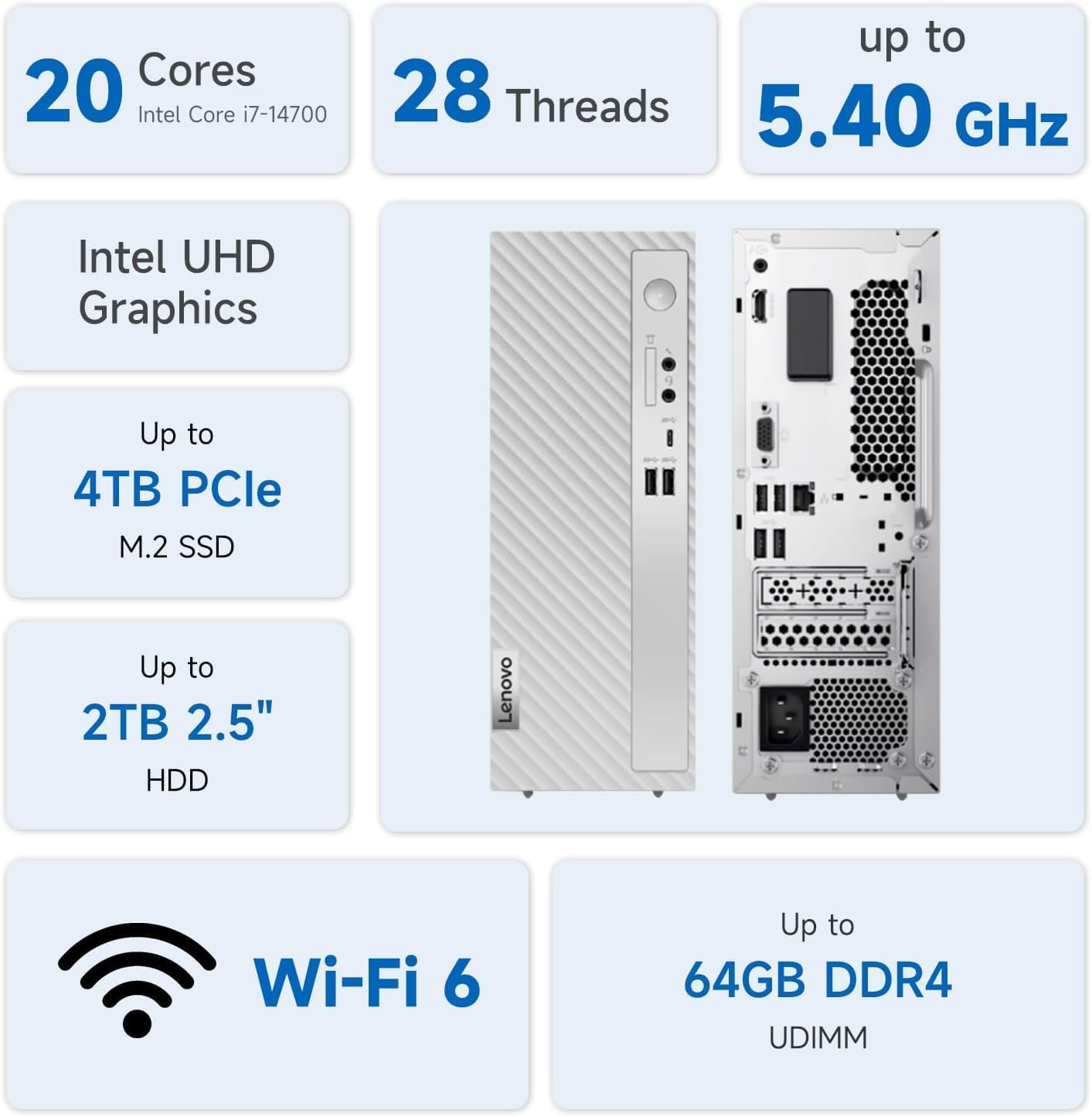
This graphic provides a summary of key features, including the Intel Core i7-14700 processor (20 Cores, 28 Threads, up to 5.40 GHz), Intel UHD Graphics, storage options (up to 4TB PCIe M.2 SSD, up to 2TB 2.5" HDD), Wi-Fi 6, and up to 64GB DDR4 UDIMM RAM. It also includes smaller images of the front and rear of the desktop tower.
| Feature | Detail |
|---|---|
| Model | Lenovo IdeaCentre Business Tower Desktop (90X10009US) |
| Processor | Intel Core i7-14700 (20 Cores, 28 Threads, up to 5.30 GHz P-cores, 4.20 GHz E-cores) |
| Graphics | Intel UHD Graphics 770 (Integrated) |
| RAM | 32GB DDR5 (Configurable up to 64GB DDR4 UDIMM) |
| Storage | 1TB SSD (Configurable up to 4TB PCIe M.2 SSD or 2TB 2.5" HDD) |
| Operating System | Windows 11 Home |
| Wireless Connectivity | Wi-Fi 6E 2x2, Bluetooth 5.1 |
| Ethernet | Gigabit Ethernet (RJ45) |
| Front Ports | 2x USB-A (5Gbps), 1x USB-C (5Gbps), Headphone/mic combo, Card Reader |
| Rear Ports | 4x USB-A (480Mbps), Gigabit Ethernet (RJ45), Audio out, HDMI 2.1 TMDS, VGA |
| Optical Drive | None (Optical Disk Drive bay present) |
| Power Supply | 260W |
| Dimensions (HxWxD) | 13.39 x 5.71 x 11.33 inches (340 x 145 x 287.8 mm) |
| Weight | 10.8 lbs (4.9 kg) |
| Color | Gray |
7. Warranty and Support
Your Lenovo IdeaCentre Business Tower Desktop comes with a standard manufacturer's warranty. For detailed warranty terms and conditions, please refer to the warranty documentation included with your product or visit the official Lenovo support website.
For technical support, driver downloads, and additional resources, please visit the official Lenovo support portal: