
Introduction
This manual provides detailed instructions to help you understand and utilize all the features of your Moto G Stylus 5G 2025. It covers initial setup, daily operation, maintenance tips, and troubleshooting common issues. Please read this guide thoroughly to ensure optimal performance and longevity of your device.
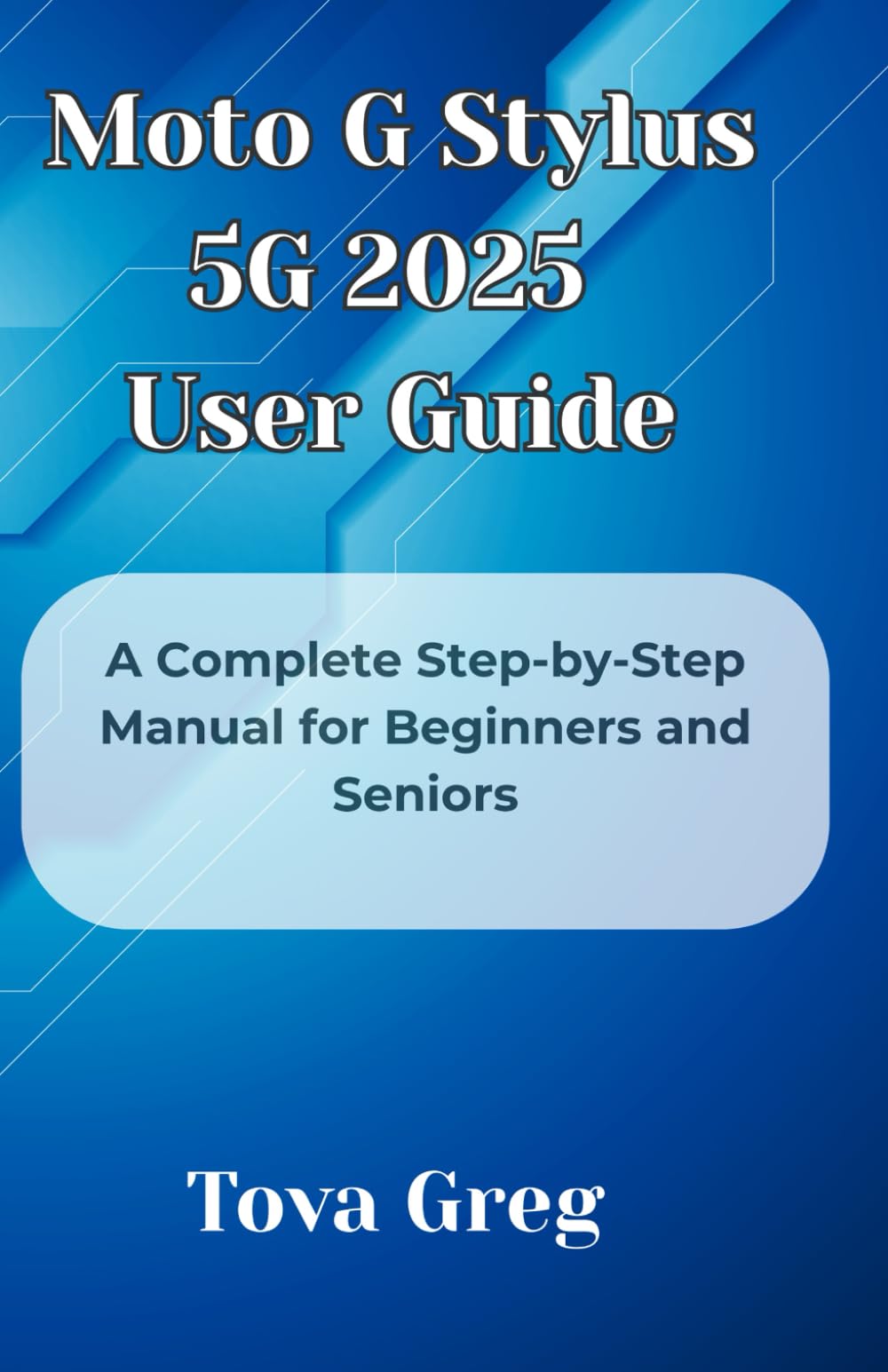
Image: Front cover of the Moto G Stylus 5G 2025 User Manual. This image displays the title and design of the manual, indicating its purpose as a guide for the smartphone.
1. Initial Setup
Follow these steps to set up your Moto G Stylus 5G 2025 for the first time:
- Unboxing and Power On: Carefully remove your device and accessories from the packaging. Press and hold the power button until the Motorola logo appears.
- Language and Region Selection: Choose your preferred language and region from the on-screen prompts.
- Connect to Wi-Fi: Select your Wi-Fi network from the list and enter the password. This is essential for downloading updates and setting up your Google account.
- Google Account Setup: Sign in with your existing Google account or create a new one. This is required for accessing the Google Play Store and other Google services.
- Data Transfer (Optional): If you are switching from another device, follow the on-screen instructions to transfer your data.
- Security Setup: Configure your preferred security method, such as a PIN, pattern, password, fingerprint, or face unlock.
- Review and Finish: Review the terms and conditions, and complete the setup process. Your device is now ready for use.
2. Operating Your Device
This section details the primary functions and features of your Moto G Stylus 5G 2025.
2.1 Navigation and Customization
- Home Screen: Swipe left or right to access different home screens. Pinch to customize widgets and wallpaper.
- Notification Panel: Swipe down from the top of the screen to view notifications and quick settings.
- App Drawer: Swipe up from the bottom of the screen to access all installed applications.
2.2 Stylus Functionality
The built-in stylus enhances productivity and creativity:
- Removing the Stylus: Gently pull the stylus from its slot at the bottom of the device.
- Note-Taking: When the stylus is removed, a shortcut menu appears, allowing quick access to note-taking apps.
- Drawing and Sketching: Use the stylus with compatible drawing applications for precise input.
- Screen Capture: Utilize the stylus for precise screen selections and annotations.
2.3 Communication
- Making Calls: Tap the Phone icon, enter the number, and tap the call button.
- Sending Messages: Open the Messages app, tap 'Start chat', enter a contact or number, and type your message.
- Email Management: Set up your email accounts in the Gmail app or your preferred email client.
2.4 Camera Features
Capture stunning photos and videos with your device's camera:
- Opening the Camera: Tap the Camera icon or use a quick gesture (e.g., twist wrist twice).
- Photo Modes: Explore various modes such as Portrait, Night Vision, Panorama, and Pro Mode for advanced settings.
- Video Recording: Switch to video mode to record high-quality videos.
2.5 Accessibility and Security
- Accessibility Settings: Navigate to Settings > Accessibility to adjust text size, display size, color correction, and other features for enhanced usability.
- Security Settings: Access Settings > Security & privacy to manage screen lock, fingerprint unlock, face unlock, and app permissions.
3. Maintenance and Care
Proper maintenance ensures the longevity and optimal performance of your device.
- Battery Life: To maximize battery life, reduce screen brightness, disable unnecessary background apps, and use power-saving modes.
- Storage Management: Regularly check your storage via Settings > Storage. Delete unused apps, clear cache, and transfer large files to cloud storage or an external drive.
- Software Updates: Keep your device's software updated to benefit from the latest features and security patches. Check for updates in Settings > System > System updates.
- Backups: Regularly back up your data to your Google account or a computer to prevent data loss.
- Cleaning: Use a soft, lint-free cloth to clean the screen and body of the device. Avoid harsh chemicals.
4. Troubleshooting Common Issues
This section provides solutions for common problems you might encounter.
- Device Not Responding: If your device is frozen, press and hold the power button for about 10-15 seconds to force a restart.
- Battery Draining Quickly: Check background app usage, reduce screen brightness, and ensure Wi-Fi/Bluetooth are off when not in use.
- Connectivity Issues (Wi-Fi/Bluetooth): Try toggling Wi-Fi/Bluetooth off and on. Restart your device and the router/paired device.
- App Crashing: Clear the app's cache (Settings > Apps > [App Name] > Storage & cache > Clear cache) or reinstall the app.
- Poor Call Quality: Ensure you have good network signal. Try moving to a different location or restarting your device.
5. Specifications
Key specifications for the Moto G Stylus 5G 2025:
| ASIN | B0F5MRBNY3 |
| Publisher | Independently published |
| Publication Date | April 18, 2025 |
| Language | English |
| Print Length | 124 pages |
| ISBN-13 | 979-8280455108 |
| Item Weight | 5.4 ounces |
| Dimensions | 5.5 x 0.28 x 8.5 inches |
Image: Back cover of the Moto G Stylus 5G 2025 User Manual. This image displays the ISBN barcode and other publication details.
6. Warranty and Support
This instruction manual does not contain specific warranty information or direct customer support contact details for the Moto G Stylus 5G 2025. For warranty claims, technical support, or service inquiries, please refer to the official Motorola website or contact your retailer.