
Introduction
This manual provides essential information for setting up, operating, maintaining, and troubleshooting your Acer Nitro V Gaming Laptop, model ANV15-52-586Z. Please read this guide thoroughly to ensure proper use and longevity of your device.
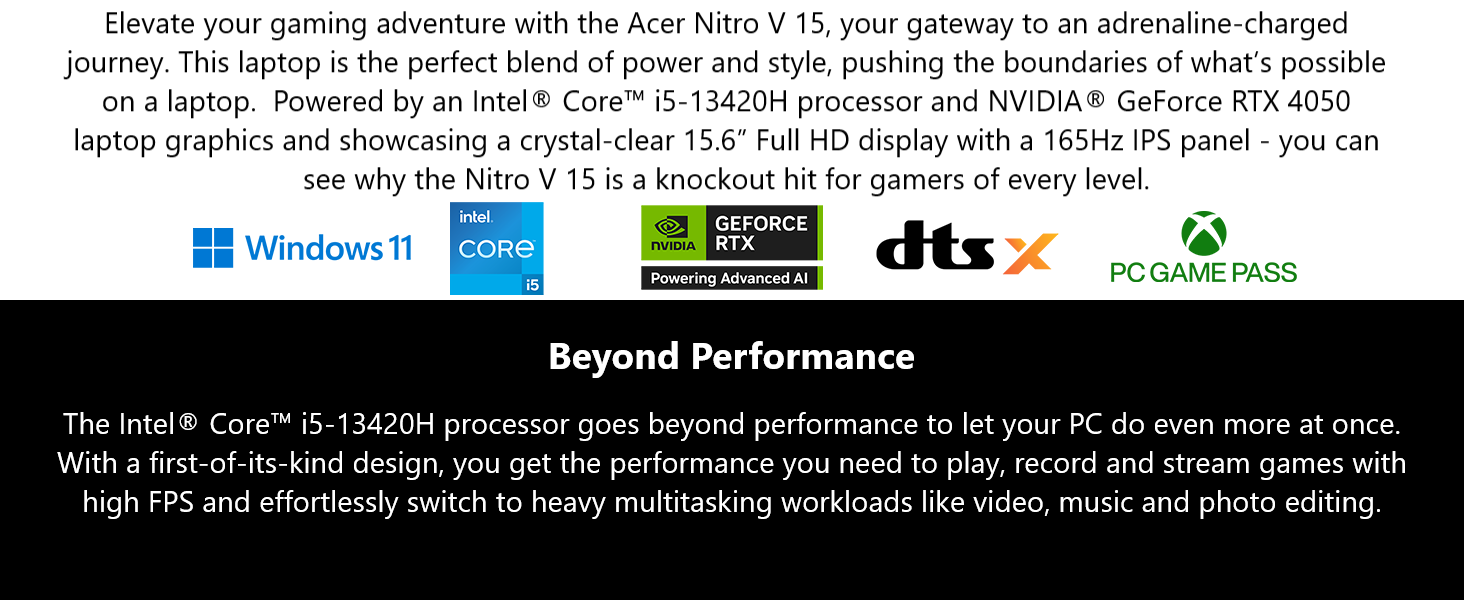
Image: Overview of the Acer Nitro V 15.6" Gaming Laptop, highlighting key software and hardware integrations.
1. Setup
1.1 Unpacking and Initial Inspection
Carefully remove all components from the packaging. Inspect the laptop and accessories for any signs of damage. If any items are missing or damaged, contact your retailer or Acer support immediately.
1.2 Package Contents
The following items are included with your Acer Nitro V Gaming Laptop:
- Laptop
- 135W AC Adapter
- Power Cord
- Protective Sleeve

Image: The included protective sleeve for the Acer Nitro V laptop.
1.3 Connecting Power
- Connect the AC adapter to the DC-in jack on the laptop.
- Plug the power cord into the AC adapter.
- Connect the other end of the power cord to a power outlet.
It is recommended to fully charge the battery before initial use.
1.4 First Power On
Press the power button to turn on the laptop. Follow the on-screen instructions to complete the initial setup of Windows 11 Home.

Image: Front view of the Acer Nitro V Gaming Laptop with its screen illuminated, showing the Acer Nitro logo.
2. Operating Your Laptop
2.1 Key Features
- Processor: Equipped with an Intel Core i5-13420H processor for efficient multitasking and gaming performance.
- Graphics: Features an NVIDIA GeForce RTX 4050 Laptop GPU with 6GB GDDR6 VRAM, supporting advanced graphics technologies like DLSS 3.5 and ray tracing.
- Display: A 15.6-inch Full HD (1920x1080) IPS display with a 165Hz refresh rate and 16:9 aspect ratio for smooth visuals.
- Memory: 8GB DDR5 RAM, expandable up to 32GB across two slots.
- Storage: 512GB PCIe Gen 4 SSD for fast boot times and application loading.
- Connectivity: Supports Wi-Fi 6 (802.11ax) and Killer Ethernet E2600 Gigabit Ethernet for reliable network connections. Includes Thunderbolt 4 for versatile connectivity.
- Cooling: Dual-fan, dual-intake, dual-exhaust cooling design to maintain optimal temperatures during intensive use.
- Audio & Visual Enhancements: Acer PurifiedView and PurifiedVoice with AI noise reduction for clear communication.
- Keyboard: Backlit keyboard with a numeric keypad.
2.2 Processor Performance
The Intel Core i5-13420H processor is designed to handle demanding tasks, allowing for gaming, recording, streaming, and multitasking such as video and photo editing with high efficiency.

Image: An illustration of the Intel Core i5 processor, emphasizing its advanced architecture.
2.3 Graphics Capabilities
The NVIDIA GeForce RTX 4050 graphics card provides advanced visual performance. DLSS 3.5 technology, enhanced by AI, improves ray tracing quality for increased visual fidelity and realism in supported applications and games.

Image: The NVIDIA GeForce RTX 4050 Laptop GPU, highlighting its AI capabilities.
2.4 Display Features
The 15.6-inch Full HD IPS display provides a clear and responsive visual experience, crucial for gaming and multimedia. The 165Hz refresh rate minimizes motion blur, offering smoother gameplay.
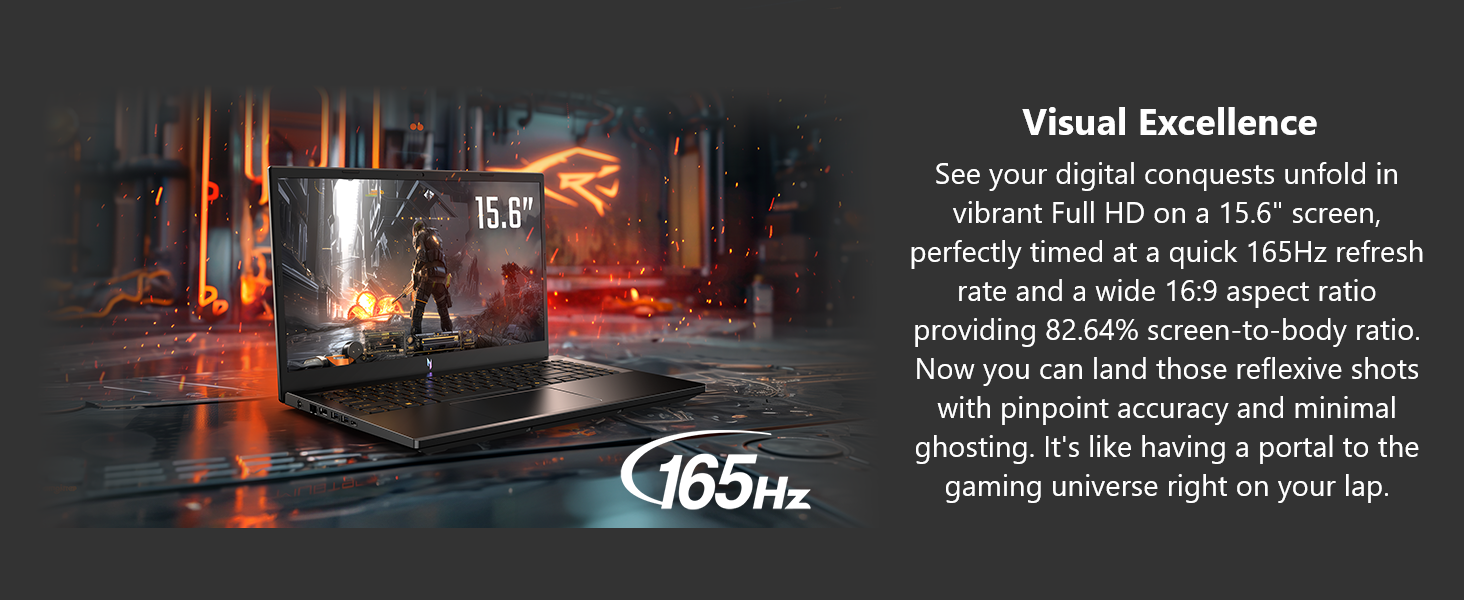
Image: The laptop's display highlighting its 15.6-inch size, 16:9 aspect ratio, and 165Hz refresh rate for visual excellence.
2.5 Cooling System
Your laptop is equipped with an advanced dual-fan, dual-intake, dual-exhaust cooling system designed to dissipate heat effectively, ensuring stable performance during extended gaming sessions.

Image: An internal view illustrating the dual-fan cooling system of the Acer Nitro V laptop.
2.6 AI-Powered Audio and Efficiency Tools
The laptop integrates several AI-powered features to enhance user experience, including Acer PurifiedVoice for clear communication and Copilot for improved performance and energy efficiency.
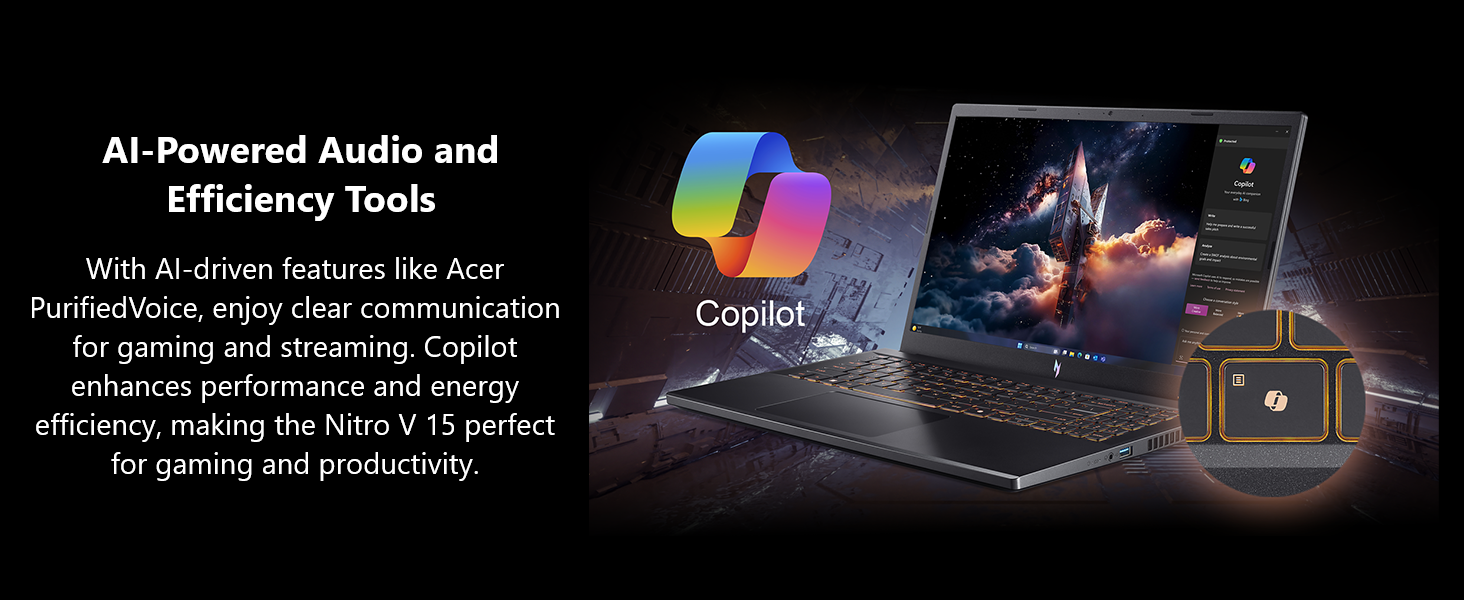
Image: The Acer Nitro V laptop showcasing AI-powered audio and efficiency tools like Copilot.
2.7 Acer PurifiedView
Experience automatic framing, advanced background blur, and gaze correction for AI-enhanced video calls. Acer TNR technology further steps in for sharper images in low light conditions.
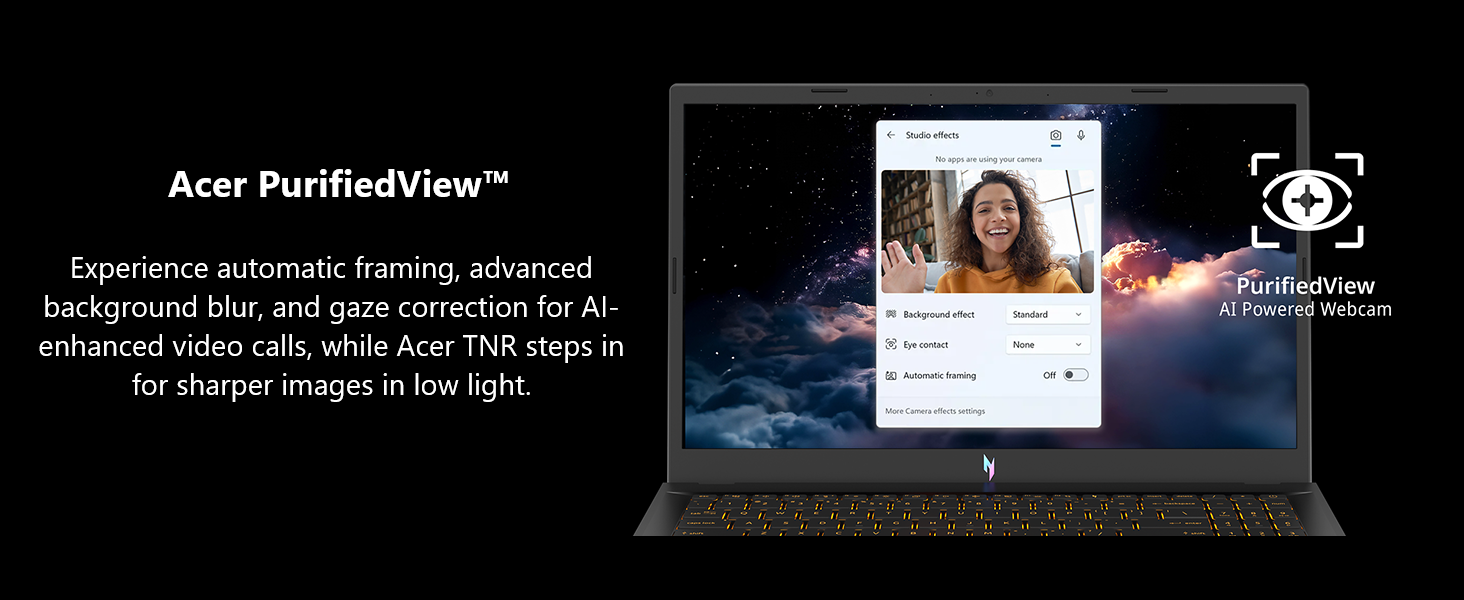
Image: A laptop screen displaying the Acer PurifiedView settings for webcam enhancements.
2.8 Acer PurifiedVoice
This technology suppresses unwanted background noise, delivering distraction-free audio for more engaging communication experiences during calls, streaming, or gaming.
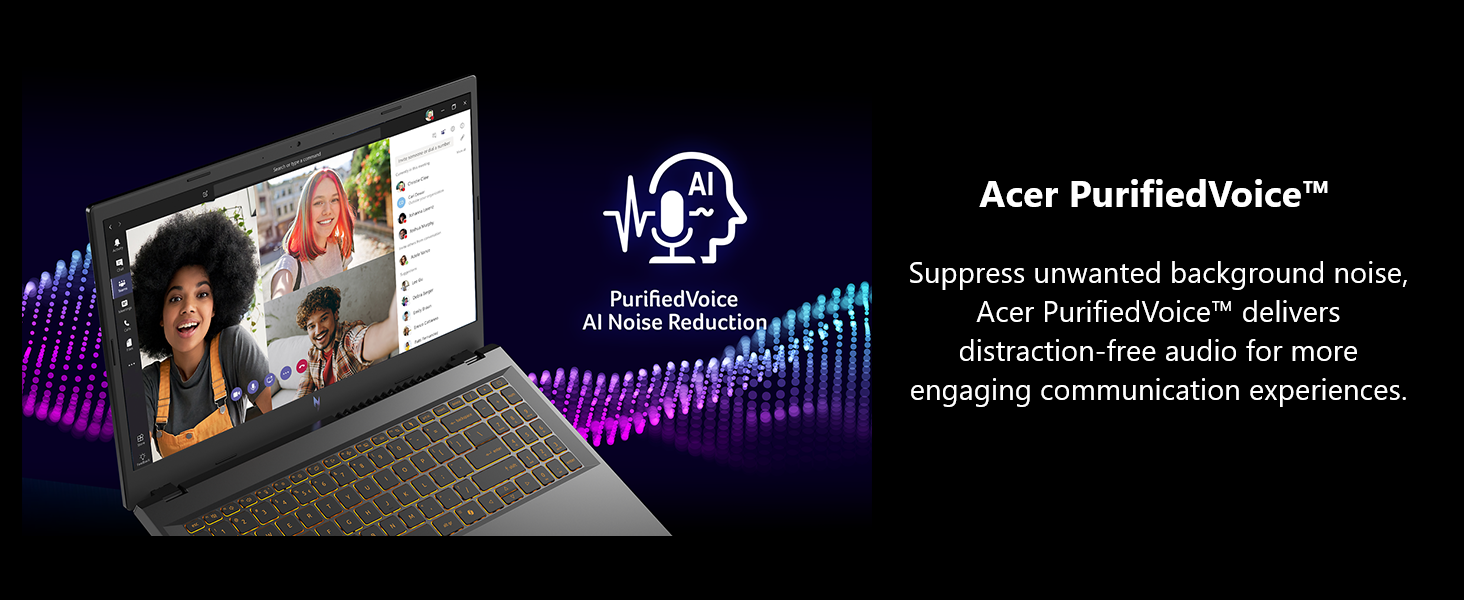
Image: A laptop displaying a video call, illustrating Acer PurifiedVoice AI Noise Reduction for clear audio.
2.9 Understanding Your Laptop's Ports
The Acer Nitro V ANV15-52-586Z offers a variety of ports for connecting peripherals and external devices.

Image: Detailed view of the laptop's side ports and their labels.
- USB Type-C Port (1): USB 3.2 Gen 2 (up to 10 Gbps) with DisplayPort over USB Type-C, Thunderbolt 4, and USB Charging (Up to 65W).
- USB 3.2 Gen 1 Port (1): Features Power-off Charging.
- USB 3.2 Gen 1 Ports (2): Standard USB ports for peripherals.
- HDMI 2.1 Port (1): With HDCP support for external displays.
- Headphone/Speaker/Line-out Jack (1): For audio output and input.
- Ethernet (RJ-45) (1): For wired network connection.
- DC-in Jack (1): For connecting the AC adapter.
- Kensington Lock Slot (1): For physical security.
3. Maintenance
3.1 Cleaning Your Laptop
- Use a soft, lint-free cloth to clean the screen. Avoid harsh chemicals.
- For the keyboard and chassis, use a slightly damp cloth. Ensure no liquid enters the device.
- Regularly clean the cooling vents to prevent dust buildup, which can impede airflow and lead to overheating.
3.2 Software Updates
Regularly update your operating system (Windows 11 Home), drivers (especially graphics drivers), and Acer utilities (like NitroSense) to ensure optimal performance and security. These updates often include performance enhancements and bug fixes.
3.3 Hardware Upgrades
The laptop supports memory upgrades. It has two DDR5 slots, allowing for a maximum of 32GB RAM. The 512GB PCIe Gen 4 SSD can also be upgraded. Consult the official Acer service manual or a qualified technician for hardware upgrades to avoid voiding your warranty.
4. Troubleshooting
4.1 Common Issues and Solutions
- Laptop does not power on:
- Ensure the AC adapter is securely connected to both the laptop and a working power outlet.
- Verify the power outlet is functional by plugging in another device.
- If the battery is completely drained, allow it to charge for a few minutes before attempting to power on.
- Poor performance or slow operation:
- Close unnecessary applications running in the background.
- Check system resources (Task Manager in Windows) for high CPU, RAM, or disk usage.
- Ensure the laptop is adequately cooled; use NitroSense to monitor temperatures and adjust fan speeds.
- Consider upgrading RAM if frequently encountering high memory usage during demanding tasks.
- Fan noise is excessive:
- Use the NitroSense application to adjust fan profiles.
- Ensure cooling vents are clear of obstructions.
- High fan speeds are normal during intensive tasks like gaming to prevent overheating.
- Display issues (no image, flickering):
- Ensure the laptop is powered on.
- If an external monitor is connected, try disconnecting it or pressing the display toggle key (often Fn + F5 or similar) to switch display outputs.
- Restart the laptop.
For persistent issues, refer to the Acer support website or contact technical support.
5. Specifications
| Feature | Detail |
|---|---|
| Brand | Acer |
| Model Name | Nitro V |
| Item Model Number | ANV15-52-586Z |
| Operating System | Windows 11 Home |
| Processor | Intel Core i5-13420H (2.1 GHz) |
| Graphics Coprocessor | NVIDIA GeForce RTX 4050 |
| Graphics Card RAM Size | 6 GB |
| RAM | 8 GB DDR5 (Max 32GB) |
| Hard Drive | 512 GB PCIe Gen 4 SSD |
| Screen Size | 15.6 Inches |
| Max Screen Resolution | 1920 x 1080 pixels (Full HD) |
| Refresh Rate | 165Hz |
| Wireless Type | 802.11ax (Wi-Fi 6), Bluetooth |
| USB Ports | 4 (including 1 Type-C with Thunderbolt 4) |
| Item Weight | 4.66 pounds |
| Product Dimensions (LxWxH) | 14.26 x 0.93 x 9.44 inches |
| Color | Black |
| Special Feature | Backlit Keyboard, Numeric Keypad |
6. Warranty Information
Your Acer Nitro V Gaming Laptop comes with a One-Year International Travelers Limited Warranty (ITW). This warranty covers manufacturing defects and hardware failures under normal use conditions for one year from the date of purchase.
For detailed terms and conditions, please refer to the warranty card included with your product or visit the official Acer support website.
7. Support
For further assistance, technical support, or to download the latest drivers and manuals, please visit the official Acer support website:
You can also find contact information for Acer customer service in your region on the support website.