
1. Safety Information
Please read all instructions carefully before using the printer. Keep this manual for future reference.
- Do not expose the printer to water or moisture.
- Avoid placing the printer in direct sunlight or near heat sources.
- Use only the provided power adapter.
- Do not attempt to disassemble or repair the printer yourself. Contact customer support if service is required.
- Ensure proper ventilation around the printer during operation.
2. Product Overview
The Bewinner Portable 58mm Thermal Receipt Printer is designed for efficient and reliable receipt printing in various environments such as restaurants, takeaways, supermarkets, and convenience stores. It features dual USB and Bluetooth connectivity and operates inklessly.
2.1 Package Contents
Verify that all items are present in the package:
- 1 x Receipt Printer
- 1 x Power Supply Cord (US Plug)
- 1 x Printing Paper Roll
- 1 x USB Cable
- 1 x User Manual

Figure 2.1: Package Contents
2.2 Printer Components
Familiarize yourself with the main parts of the printer:
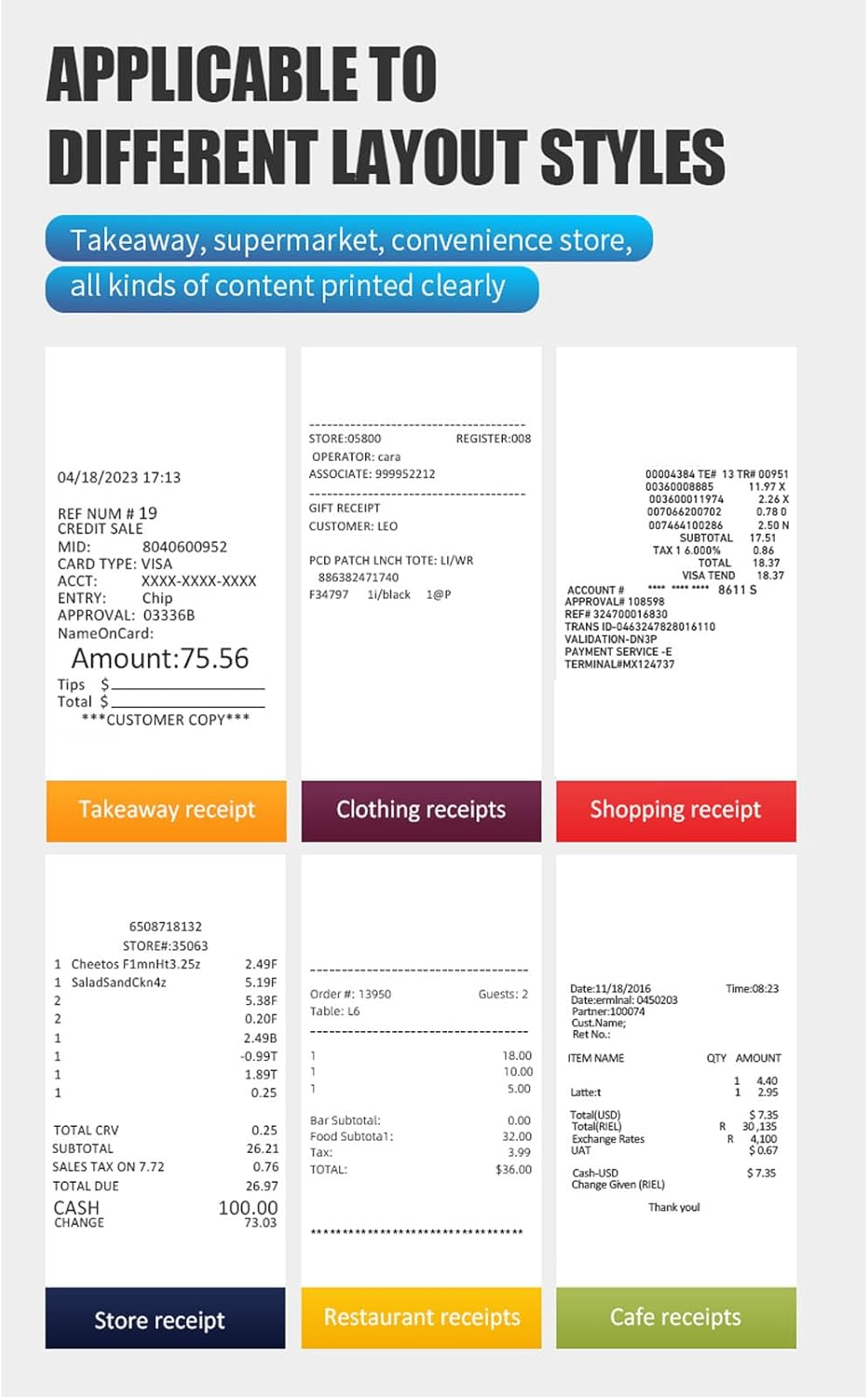
Figure 2.2: Top View (Power Switch, Status Indicator, Feed Button)
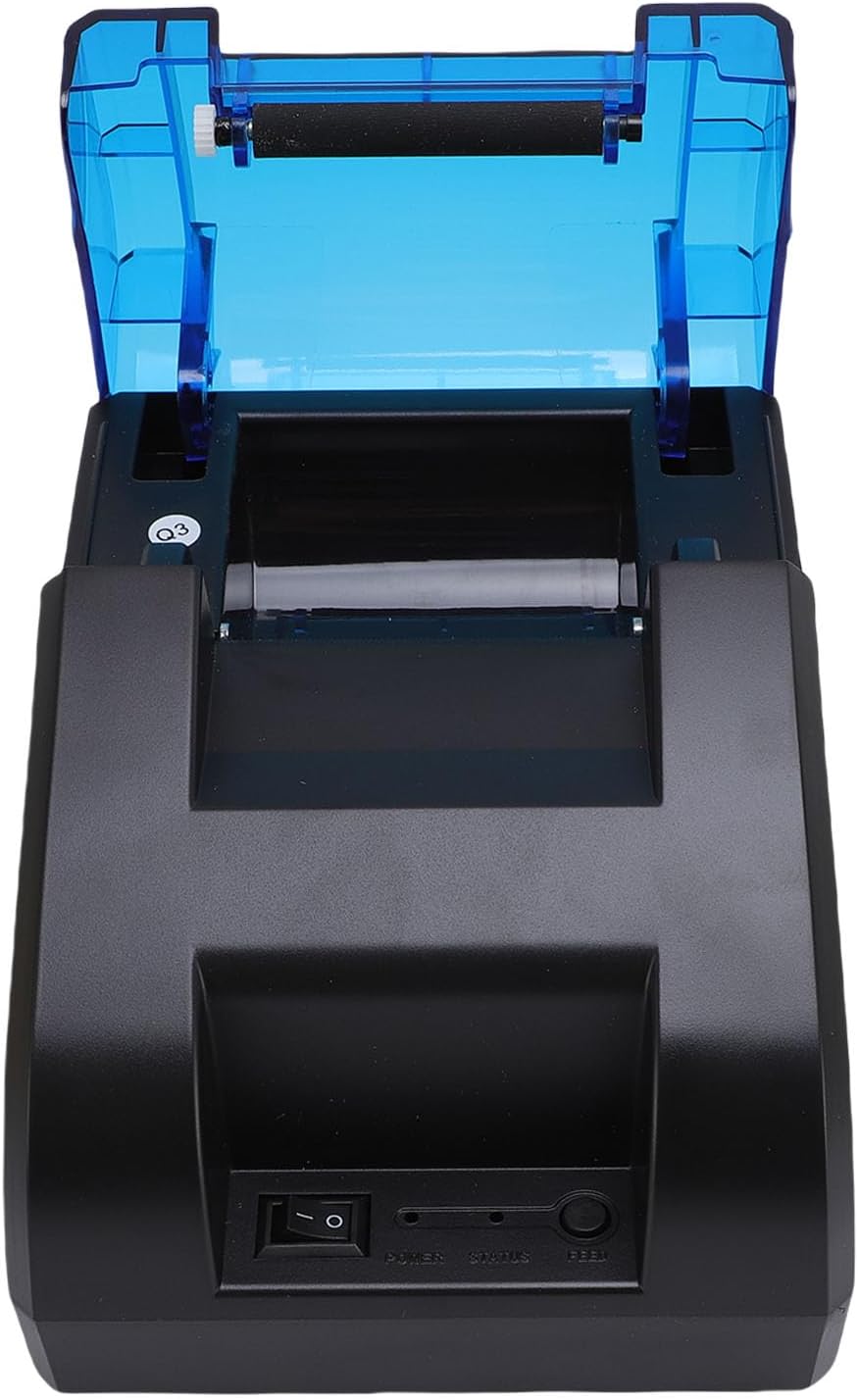
Figure 2.3: Rear View (USB Port, Power Port)
3. Setup
3.1 Paper Roll Installation
- Open the top cover of the printer by pressing the release button or lifting the cover firmly.
- Insert the thermal paper roll into the compartment, ensuring the paper feeds from the bottom and the leading edge is straight.
- Pull a small amount of paper out past the cutting edge.
- Close the top cover firmly until it clicks into place.

Figure 3.1: Paper Roll Compartment
3.2 Power Connection
- Connect the power supply cord to the power port on the rear of the printer.
- Plug the other end of the power supply cord into a standard electrical outlet.
- Flip the power switch (located on the front of the printer) to the 'ON' position. The power indicator light should illuminate.
4. Connectivity
The printer supports both USB and Bluetooth connections for versatile use with various devices.
4.1 USB Connection
- Ensure the printer is powered on.
- Connect one end of the provided USB cable to the USB port on the rear of the printer.
- Connect the other end of the USB cable to an available USB port on your computer or POS system.
- Install the necessary printer drivers on your computer. Refer to the driver installation guide (if provided separately) or the manufacturer's website for specific instructions.
4.2 Bluetooth Connection
The printer can connect to up to 7 Android phones simultaneously and one additional phone for maximum convenience.
- Ensure the printer is powered on and within range of your device.
- On your mobile device or computer, enable Bluetooth.
- Search for available Bluetooth devices. The printer will typically appear as a device named 'POS Printer' or similar.
- Select the printer from the list to pair. If prompted for a PIN, enter '0000' or '1234'.
- Once paired, you can select the printer within your application for printing.

Figure 4.1: Bluetooth Connection Example
5. Operation
5.1 Basic Printing
After connecting the printer via USB or Bluetooth and installing any necessary drivers or applications, you can initiate printing from your software. The printer supports ESC/POS commands for various printing functions.
- Feed Button: Press the 'FEED' button on the front of the printer to advance the paper manually.
- Status Indicator: The status light indicates the printer's current state (e.g., solid blue for ready, flashing for error).

Figure 5.1: High-Performance Print Head and Inkless Operation
5.2 Supported Receipt Types
The printer is capable of printing various receipt layouts clearly, making it suitable for diverse business needs.

Figure 5.2: Example of a Printed Receipt
6. Maintenance
6.1 Cleaning the Printer
Regular cleaning helps maintain print quality and extends the printer's lifespan.
- Turn off the printer and unplug the power cord before cleaning.
- Use a soft, lint-free cloth lightly dampened with water or isopropyl alcohol to clean the exterior of the printer.
- Gently wipe the print head with a cotton swab dampened with isopropyl alcohol. Allow it to dry completely before use.
- Remove any paper dust or debris from the paper compartment.
6.2 Replacing the Paper Roll
Follow the steps outlined in Section 3.1 for paper roll installation when the current roll runs out.
7. Troubleshooting
If you encounter issues with your printer, refer to the following common problems and solutions:
| Problem | Possible Cause | Solution |
|---|---|---|
| Printer does not power on | Power cord not connected, power outlet faulty, power switch off | Check power connections, try a different outlet, ensure power switch is ON. |
| Printer not connecting via Bluetooth | Bluetooth off on device, printer not in pairing mode, incorrect PIN | Ensure Bluetooth is enabled, restart printer, re-attempt pairing with correct PIN. |
| No printing or blank pages | Paper installed incorrectly, paper roll empty, print head dirty, driver issue | Reinstall paper correctly, replace paper roll, clean print head, reinstall drivers. |
| Poor print quality | Low quality paper, dirty print head, print density settings | Use recommended thermal paper, clean print head, adjust print density in software. |
| Paper jam | Incorrect paper loading, foreign object | Turn off printer, open cover, carefully remove jammed paper, ensure no obstructions. |
If the problem persists after trying these solutions, please contact Bewinner customer support.
8. Specifications
Detailed technical specifications for the Bewinner Portable 58mm Thermal Receipt Printer:
- Item Model Number: Bewinnerm4f6ydgk7q-12
- Product Dimensions: 6.69 x 5.12 x 4.72 inches
- Item Weight: 1.19 pounds
- Interface: USB, BT
- Print Command: ESC, POS command
- Print Speed: 70mm/s
- Resolution: 203DPI (8 points/mm)
- TPH Reliability: 50km
- Logo Support: Download and print logo
- Print Density: 384 dots/line
- Character Size: ANK, font A: 1.5x3.0mm (12x24 dots); font B: 1.1x2.1mm (9x17 dots) Chinese; Traditional Chinese: 3.0x3.0mm (24x24 dots)
- 1D Barcodes: UPC A / UPC E / JAN13 (EAN13) / JAN8 (EAN8) / CODE39 / ITF / CODABAR / CODE93 / CODE128
- 2D Barcodes: QR Code, PDF417
- Operating System Support: For Windows, for Linux, for OS X, for OPOS, for Android
- Print Width: Approx. 48mm/1.89in
- Paper Roll Diameter: ≤50mm
- Paper Width: ≤58mm
- Power Input: DC 5V/2A
9. Warranty and Support
For warranty information, technical support, or service inquiries, please refer to the documentation included with your purchase or contact Bewinner customer support directly. Keep your purchase receipt as proof of purchase.