1. Introduction
This manual provides detailed instructions for the Dfuorty 4+64G Android 13 Double Din Universal Car Stereo Radio. This head unit features a 10.1" IPS touchscreen, wireless CarPlay and Android Auto compatibility, GPS navigation, Steering Wheel Control (SWC), Wi-Fi, Bluetooth, FM radio, Digital Sound Processor (DSP), and AHD camera support. Please read this manual thoroughly before installation and operation to ensure proper use and optimal performance.

The Dfuorty 10.1 inch Android 13 Double Din Car Stereo Radio, showcasing its large touchscreen display and modern interface.
2. What's in the Box
Verify that all items listed below are included in your package:
- 1 x Car Stereo Radio
- 1 x Power Cable
- 1 x GPS Antenna
- 1 x RCA Cable
- 1 x Rear Camera Input Cable
- 2 x USB Cable
- 1 x AHD Camera
- 1 x Microphone
- 1 x Bracket Screws
- 1 x Instruction Manual
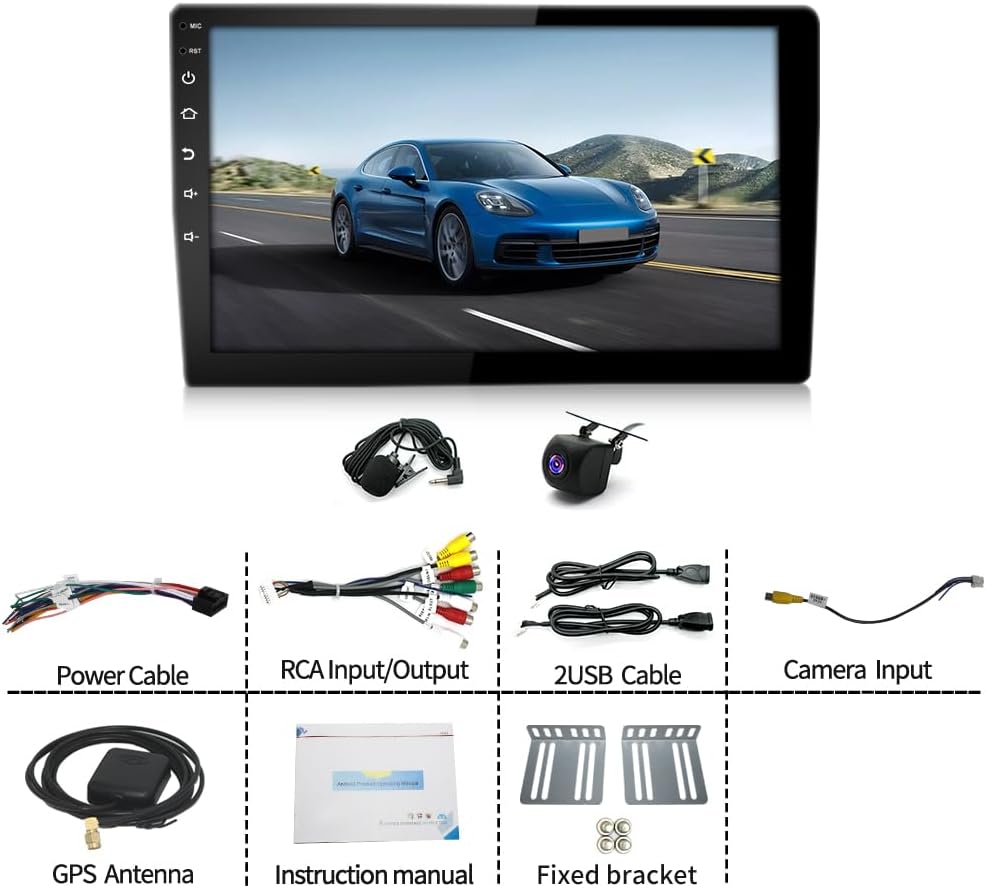
Visual representation of the components included in the Dfuorty car stereo package.
3. Product Features
- Android 13 System: Built-in with the latest Android 13 system and a 4-core processor for superior performance, energy efficiency, and faster response.
- Memory & Storage: Equipped with 4GB RAM for smooth operation and 64GB ROM for app installation. Supports convenient online firmware updates.
- Wireless CarPlay & Android Auto: Compatible with both wireless and wired CarPlay and Android Auto. Easily access phone contacts, emails, GPS navigation, music, and smart voice control via Siri and Google Assistant for a safer driving experience.
- GPS Navigation & Wi-Fi: Built-in navigation module supports offline and online GPS navigation. Connect to Wi-Fi to use real-time GPS navigation apps like Google Maps, Apple Maps, Here Maps, Waze, and Sygic. Allows installation and removal of apps from the app store.
- Steering Wheel Control (SWC): Supports steering wheel control function by connecting the vehicle's SWC cable, enabling direct calls, volume adjustment, and song changes for convenience and safety.
- Bluetooth Hands-free & DSP: Built-in Bluetooth A2DP for hands-free calls, phone book synchronization, and music streaming from your smartphone. Features DSP and EQ equalizer with Vbass, balance, loudness, and filter adjustment for high-quality sound.
- 10.1" IPS Touchscreen: Large, responsive 10.1-inch IPS touchscreen display.

Key features of the Dfuorty car stereo, including its Android 13 operating system and powerful processor.
4. Installation Guide
Professional installation is recommended for optimal results and safety. Ensure the vehicle's power is disconnected before beginning installation.
4.1 Rear Operation & Wiring Connections
Familiarize yourself with the rear ports and wiring diagrams before connecting the unit.

Rear operation panel with labeled ports for various connections.

Detailed wiring connections for the car stereo system.
4.2 Installation Steps
- Fix the Car Infotainment System: Secure the four corners of the car infotainment system onto the outer frame using the provided screws.
- Connect Power Cable: Connect the appropriate power cable (universal or dedicated) to the vehicle's wiring harness. Ensure all connections are fully insulated with electrical tape to prevent short circuits.
- Connect RCA Input/Output: If adding an external audio system, connect the RCA input/output cables.
- Connect Reverse Camera Cable: If installing a reverse camera, connect the 8-pin and reverse camera cables.
- Install GPS Antenna: Connect the GPS antenna to the designated port on the rear of the unit.
- Install Radio Antenna: Connect the radio antenna to the designated port.
- Install USB Cables: Connect the two USB cables for data transfer and charging.
- Secure the Unit: Carefully insert the car stereo into the dashboard opening and secure it in place.
- Test the Stereo: Start the car and test all functions of the car stereo to ensure proper operation.
Video tutorial demonstrating how to install the car stereo unit, including wiring and mounting.
Detailed installation and wiring video tutorial for the car stereo.
Video showing a 9-inch car audio installation process.
5. Operating Instructions
5.1 Basic Operation
- Power On/Off: Press and hold the power button on the side panel or touchscreen.
- Volume Control: Use the volume buttons on the side panel or the touchscreen controls.
- Home Screen: Navigate through various applications and widgets on the customizable home screen.

The main interface of the Android 13 car stereo.
5.2 CarPlay & Android Auto
Connect your smartphone via wired or wireless connection to access CarPlay or Android Auto features.
- Wireless Connection: Enable Bluetooth and Wi-Fi on your smartphone and connect to the car stereo. Follow on-screen prompts to initiate CarPlay or Android Auto.
- Wired Connection: Connect your smartphone to one of the USB ports using a compatible USB cable.
- Voice Control: Use Siri (for CarPlay) or Google Assistant (for Android Auto) for hands-free commands.

Seamless integration with Wireless CarPlay and Android Auto.
Video demonstrating the wireless CarPlay and Android Auto connection process.
5.3 GPS Navigation
Utilize the built-in GPS module for navigation.
- Online Navigation: Connect to Wi-Fi and use pre-installed or downloaded navigation apps.
- Offline Navigation: Download maps for offline use through compatible apps.

GPS Navigation interface with various map options.
5.4 Bluetooth & Audio
- Pairing: Go to Bluetooth settings on the stereo and your phone to pair devices for hands-free calls and music streaming.
- DSP & EQ: Access the Digital Sound Processor (DSP) and Equalizer (EQ) settings to customize audio output, including Vbass, balance, loudness, and filter adjustments.
- FM/RDS Radio: Tune into FM radio stations. RDS (Radio Data System) provides additional information like station name and song title.

FM/RDS Radio, Bluetooth Function, and Full RCA Output.
Video demonstrating the functional aspects of the Android car stereo.
5.5 Steering Wheel Control (SWC)
After connecting the SWC cable during installation, you can program the steering wheel buttons to control various functions of the stereo.
- Programming: Access the SWC settings in the stereo's menu to assign functions to your vehicle's steering wheel buttons.

Steering Wheel Control interface for custom button mapping.
Video demonstrating synchronous operation of steering wheel buttons with the car stereo.
6. Specifications
| Feature | Specification |
|---|---|
| Operating System | Android 13, iOS (for CarPlay/Android Auto) |
| Display Size | 10.1 Inches |
| Processor | 4 Cores, 1.5Ghz CPU |
| RAM | 4GB |
| ROM | 64GB |
| Connectivity | Bluetooth, USB, Wi-Fi |
| Special Features | Wireless CarPlay & Android Auto, Touchscreen, Voice Assistant, DSP |
| Audio Output Mode | Stereo, Digital, AUX |
| Map Type | North America (built-in navigation module) |
| Item Weight | 3 pounds |
| Product Dimensions | 11 x 6.8 x 3.4 inches |
7. Troubleshooting
If you encounter any issues, please refer to the following common troubleshooting steps:
- No Power: Check all power connections. Ensure the ignition wire (ACC) and battery wire (B+) are correctly connected and receiving power. Check the vehicle's fuse box.
- No Sound: Verify speaker connections. Check the volume level and mute settings. Ensure the correct audio source is selected. If using an external amplifier, check its power and connections.
- Touchscreen Unresponsive: Try restarting the unit by pressing the RST (Reset) button. Ensure the screen is clean and free from debris.
- Bluetooth Connection Issues: Ensure Bluetooth is enabled on both the stereo and your smartphone. Delete previous pairings and try reconnecting.
- GPS Signal Loss: Ensure the GPS antenna is properly installed and has a clear view of the sky. Check the GPS settings in the unit.
- CarPlay/Android Auto Not Connecting: Ensure your phone's operating system is up to date. Try a different USB cable if using a wired connection. Re-pair the device for wireless connections.
- Rear Camera Not Displaying: Check the camera input cable connection. Ensure the reverse trigger wire is correctly connected to the vehicle's reverse light circuit.
8. Warranty and Support
The Dfuorty car stereo comes with a 1-year warranty from the date of purchase.
- Returns/Exchanges: 30 days for exchange or return.
- Warranty Period: 365 days for product warranty.
- Customer Service: 24/7 service available.
For technical support, warranty claims, or any inquiries, please contact us:
- Email: Bongagho@126.com

Dfuorty service and support details.