
1. Introduction
The LONGER Ray5 mini is a compact and portable laser engraving machine designed for hobbyists, DIY enthusiasts, and small business owners. It features a 3.5W laser module capable of engraving and cutting a wide range of materials with high precision. This manual provides essential information for the safe and effective use of your device.
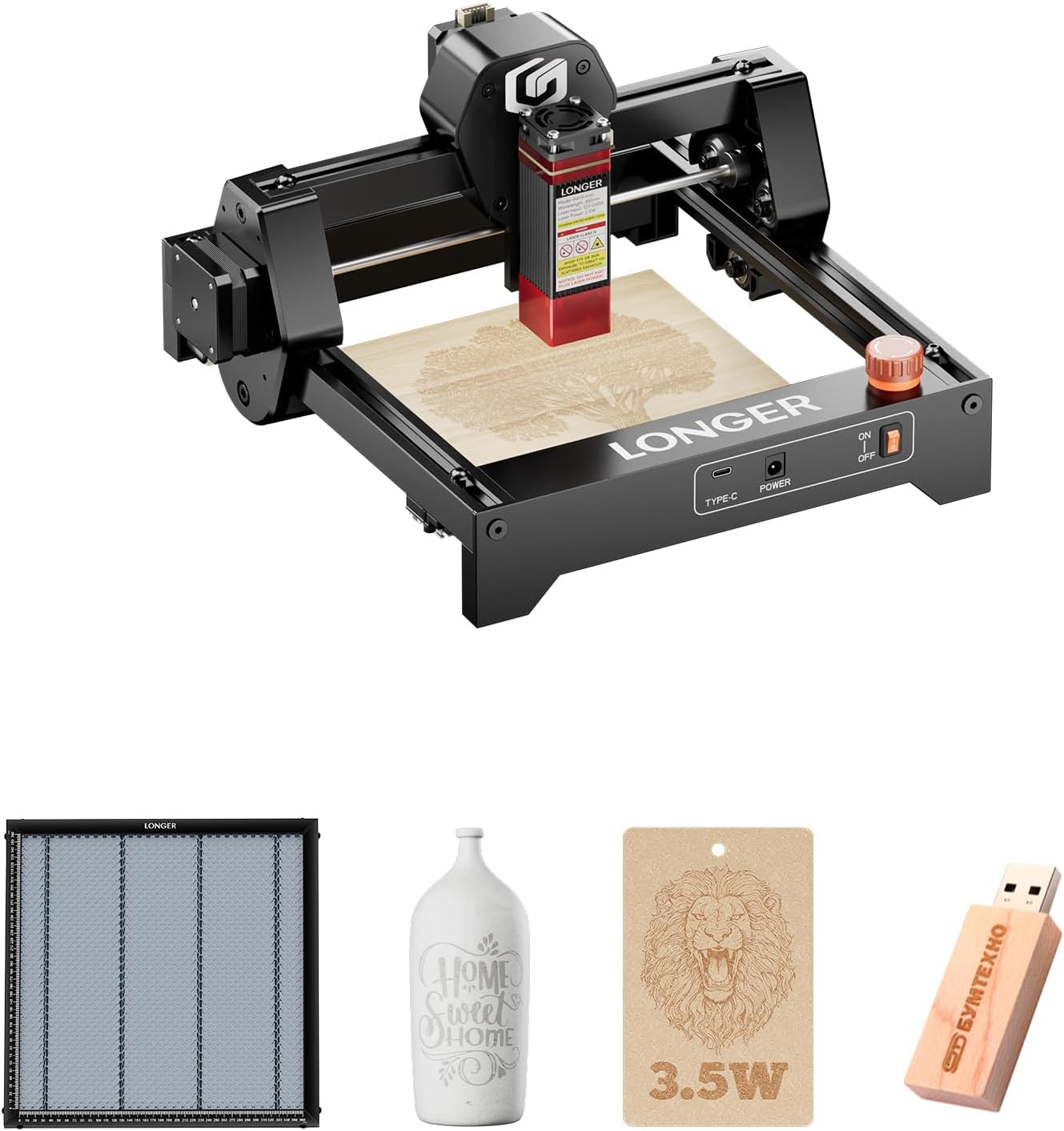
Figure 1: LONGER Ray5 mini Laser Engraver 3.5W. This image displays the compact laser engraving machine with its laser module positioned over a piece of wood, ready for engraving.
2. Safety Precautions
Operating a laser engraver involves potential hazards. Adhere strictly to the following safety guidelines to prevent injury or damage:
- Eye Protection: Always wear the provided laser safety glasses (IPL 200nm-2000nm) when the laser is active. Never look directly at the laser beam.
- Ventilation: Operate the machine in a well-ventilated area to dissipate fumes and smoke produced during engraving.
- Fire Hazard: Keep a fire extinguisher nearby. Do not leave the machine unattended during operation, especially when engraving flammable materials.
- Emergency Stop: Familiarize yourself with the emergency stop button and its location.
- Material Compatibility: Only engrave materials suitable for diode lasers. Avoid highly reflective materials or PVC, which can produce toxic fumes.

Figure 2: Safety features of the LONGER Ray5 mini. This image highlights the emergency stop button, the acrylic laser cover, and the included laser safety glasses, emphasizing the importance of eye protection during operation.
3. Package Contents
Upon unboxing your LONGER Ray5 mini, verify that all components are present:
- LONGER Ray5 mini Laser Engraver unit
- Laser Module (3.5W)
- Power Adapter
- USB-A to USB-C Cable
- Laser Safety Glasses
- Focus Block (Acrylic)
- Small Wrench (8mm & 10mm)
- Cleaning Brush
- Quick Start Guide

Figure 3: Included accessories for the LONGER Ray5 mini. This image shows the laser engraver unit alongside its accessories, including safety glasses, power adapter, USB cable, wrench, brush, and focus block.
Unboxing and Initial Inspection Video
Video 1: Longer Ray5 mini laser engraver. This video demonstrates the unboxing process, showing how to remove items from the box and check for missing components. It also covers the initial assembly of the laser module and cable connections.
4. Setup
4.1 Laser Module Installation
- Carefully insert the laser module into its designated slot on the X-axis carriage.
- Tighten the thumb screws to secure the laser module in place.
- Connect the laser module's cable to the corresponding port on the main unit.
4.2 Power Connection and Initial Checks
- Plug the DC power adapter into the machine's power input.
- Ensure all terminal connections are plugged in tightly.
- Turn on the emergency stop switch (rotate clockwise to release).
- Flip the rocker switch to the 'ON' position.
4.3 Focusing the Laser
Accurate focusing is crucial for optimal engraving and cutting results:
- Place the material to be engraved on the working surface.
- Position the acrylic focus block directly under the laser module, resting on the material.
- Loosen the thumb screw on the side of the laser module.
- Gently lower the laser module until its bottom edge touches the top of the focus block.
- Tighten the thumb screw to secure the laser module.
- Remove the focus block. Your laser is now focused for the material.
4.4 Software Installation (LightBurn / LaserGRBL)
The LONGER Ray5 mini is compatible with LightBurn and LaserGRBL software. Download the latest versions from their official websites.
- LightBurn: Visit lightburnsoftware.com to download the trial or full version.
- LaserGRBL: Visit lasergrbl.com to download the free software.
- Install the CH340 driver if prompted by the software or if the device is not recognized.
5. Operating Instructions
5.1 Connecting to the Engraver
- Connect the LONGER Ray5 mini to your computer using the provided USB-A to USB-C cable.
- Open your chosen software (LightBurn or LaserGRBL).
- In the software, select the correct COM port for your engraver and establish a connection.
5.2 Preparing Your Design
- Import your desired image or design file into the software.
- Adjust the size and position of your design to fit your material.
- Set the coordinate system to absolute coordinates for precise placement.
5.3 Setting Engraving Parameters
Parameters like speed, power, and line interval will vary based on material and desired effect. Refer to your software's documentation for detailed guidance.
- Access the 'Cut/Layers' or 'Engraving Settings' menu in your software.
- Adjust the engraving speed (e.g., up to 12,000mm/min).
- Set the laser power (e.g., 2.5W or 3.5W module, adjust percentage).
- Configure other settings such as line interval, image mode (dithering, grayscale), and air assist (if applicable).
5.4 Starting the Engraving Process
- Perform a 'Frame' or 'Border' test to ensure the design fits within your material.
- Ensure you are wearing your laser safety glasses.
- Click 'Start' or 'Run' in the software to begin engraving.
- Monitor the engraving process closely.
Engraving Demonstration Video
Video 2: Longer Ray5 mini laser engraver. This video demonstrates the software setup, parameter modification, and the actual engraving process on a piece of wood.
Creative Engraving Examples

Figure 4: Examples of customized gifts created with the LONGER Ray5 mini. This image showcases various engraved items such as leather keychains, metallic painted tumblers, wooden signs, painted metal, food, rubber, paper, ceramic cups, and glass.
Video 3: Butterfly engraving with Longer Ray5 mini. This short video demonstrates the cutting capability of the Ray5 mini on paper to create intricate butterfly designs.
6. Maintenance
6.1 Cleaning
- Regularly clean the laser lens with a soft, lint-free cloth and lens cleaning solution.
- Use the provided brush to remove dust and debris from the machine's rails and moving parts.
6.2 Checking for Loose Components
- Periodically inspect the X-axis and Y-axis belts for proper tension.
- Check the eccentric nuts on the wheels; if loose, adjust them using the provided wrench to ensure smooth movement of the laser module.
6.3 Honeycomb Working Table
The Longer honeycomb working table (if included in your package) offers effective desk and material protection, efficient heat dissipation, and cleaner cuts. Ensure it is clean and properly positioned for optimal results.

Figure 5: LONGER Ray5 mini with honeycomb panel. This image shows the laser engraver positioned on a honeycomb panel, which helps protect the work surface and improve cutting quality by allowing smoke and debris to pass through.
7. Troubleshooting
- Laser Not Firing: Check power connections, USB connection, and ensure the emergency stop button is disengaged. Verify laser module is correctly installed.
- Poor Engraving Quality: Re-focus the laser. Adjust speed and power settings in the software. Ensure material is flat and stable.
- Machine Not Connecting: Verify USB cable is securely connected. Reinstall CH340 drivers. Check COM port selection in software.
- Skipping/Misalignment: Check for loose belts or eccentric nuts. Ensure the work area is clear of obstructions.
8. Specifications
- Product Dimensions: 11.28 x 11.5 x 6.5 inches
- Item Model Number: ray5 mini
- Laser Power: 3.5W (Advanced Package)
- Engraving Speed: Up to 12,000mm/min
- Laser Spot Size: 0.04mm x 0.04mm
- Working Area: 400 x 400mm (with honeycomb panel)
- Item Weight: 5.51 pounds
- Manufacturer: LONGER
- Compatible Materials: Wood, Metal, Acrylic, Leather, Paper, Fabric, etc.
9. Warranty and Support
LONGER provides professional customer service and technical support. For any product issues or inquiries, please contact the support team.
- Technical Support Phone: +1 888-575-9099
- Support Hours (Mon-Fri): 9:00am–6:00pm (EST, UTC-5)
- Support Hours (Sun-Thu): 8:30pm–7:00am (EST, UTC-5)

Figure 6: LONGER customer support. This image shows a customer service representative, highlighting the availability of professional support.


