
1. Introduction
This manual provides detailed instructions for the installation, operation, and maintenance of your Ftoghe 4+64G Car Stereo Radio. This unit is designed to upgrade the in-car entertainment and navigation experience for specific Chevrolet and GMC models.
Compatibility: This car stereo is compatible with 2003, 2004, 2005, and 2006 Chevrolet Silverado, Tahoe, and GMC Sierra, Yukon models.

Image 1.1: Ftoghe 4+64G Car Stereo Radio with accessories.

Image 1.2: Example installation of the car stereo in a compatible vehicle dashboard.
2. What's in the Box
Please check the contents of your package against the list below:
- Android car stereo unit
- Power cable + RCA cable + Microphone
- USB cable + GPS antenna cable + Radio adapter
- AHD backup camera + Camera-in cable
- Instruction Manual

Image 2.1: Packing list and included components.
3. Setup & Installation
Professional installation is highly recommended for this product. Incorrect wiring or installation can damage the unit or your vehicle's electrical system.
3.1 Wiring Connections
Refer to the provided wiring diagram in the included paper manual for specific connections. Key connections include:
- Power Cable: Connects to your vehicle's power, ground, and accessory wires.
- RCA Cable: For audio output to external amplifiers or video input/output.
- USB Cable: For connecting USB devices or for wired CarPlay/Android Auto.
- GPS Antenna: Mount in a location with a clear view of the sky for optimal signal reception.
- Radio Adapter: Connects to your vehicle's existing radio antenna.
- Microphone: For hands-free calling and voice commands.
3.2 Backup Camera Installation
The included AHD backup camera provides a clear rear view. Connect the camera to the 'CAM-IN' input on the stereo unit and ensure the reverse trigger wire is connected to your vehicle's reverse light circuit. This will automatically display the camera feed when shifting into reverse.
3.3 Steering Wheel Control (SWC)
The unit supports retaining your original steering wheel control functions. After installation, navigate to the 'Steering Learn' or 'SWC Settings' menu in the stereo's settings to program the buttons according to your vehicle's configuration.

Image 3.1: Steering Wheel Control setup and AHD Backup Camera view.
4. Operating Instructions
4.1 Wireless CarPlay & Android Auto / Mirror Link
Connect your iPhone or Android phone wirelessly via Bluetooth and Wi-Fi to access CarPlay or Android Auto. This allows you to use your phone's apps for navigation, calls, messages, and music directly on the stereo's screen. The unit also supports Mirror Link via USB cable or Wi-Fi, mirroring your phone's display.
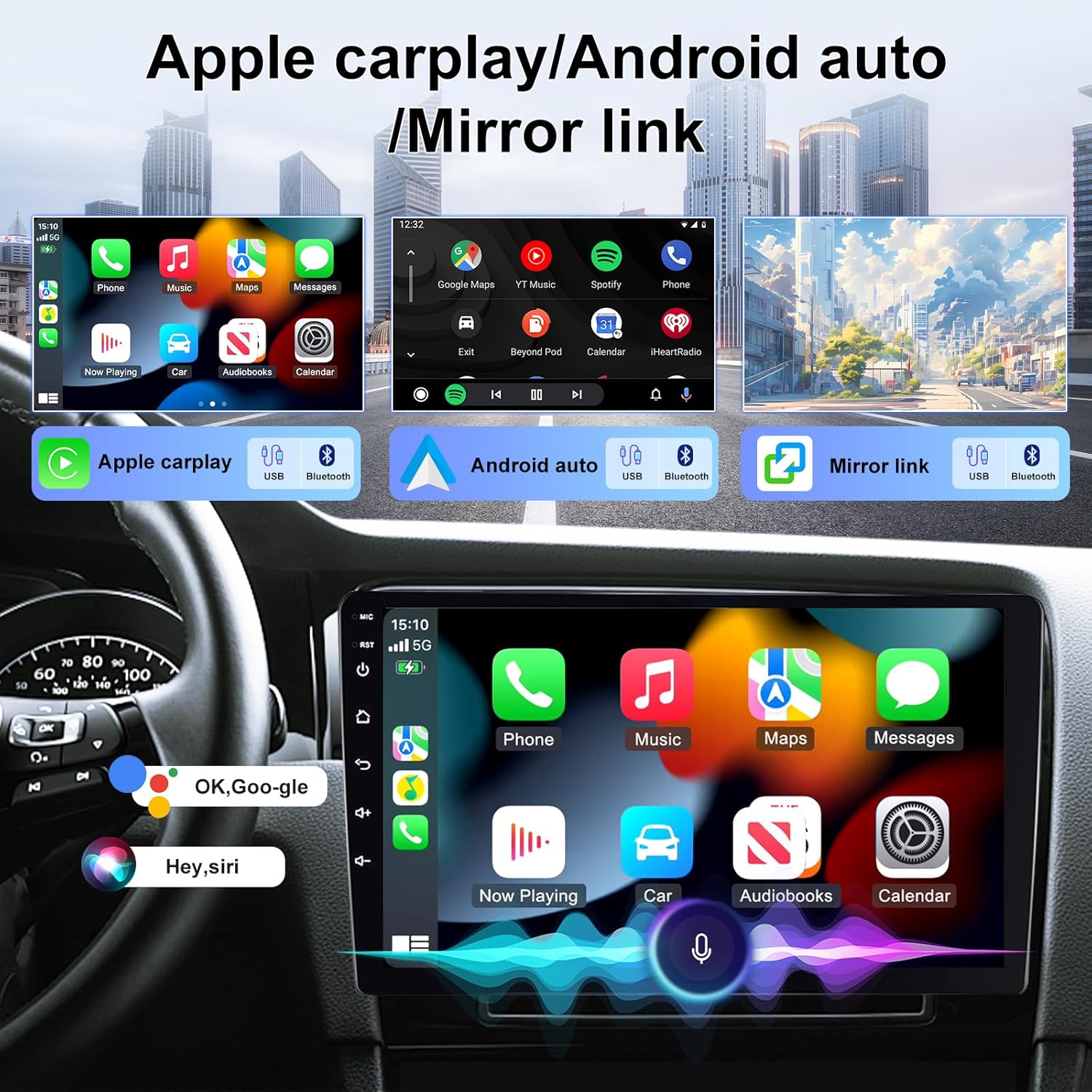
Image 4.1: CarPlay, Android Auto, and Mirror Link interfaces.
4.2 GPS Navigation & Wi-Fi
The car stereo has a built-in GPS receiver and is compatible with popular navigation apps like Waze and Navfree Map. Connect to Wi-Fi to download maps, receive real-time traffic updates, and access online features. Offline navigation is also supported, allowing you to navigate without an internet connection after maps are downloaded.

Image 4.2: GPS Navigation and Wi-Fi connectivity features.
4.3 Bluetooth & FM/RDS Radio
Utilize Bluetooth for hands-free calling, music streaming, and automatic phone book loading. The FM radio supports 18 preset stations with clear channel search and low noise, including RDS functionality for displaying station information.

Image 4.3: Bluetooth Hands-free calling and FM/RDS Radio interface.
4.4 Audio Equalizer (EQ) & DSP
The unit features a built-in equalizer with preset options (Rock, Pop, Jazz, etc.) and custom settings to fine-tune your audio experience. DSP technology enhances sound quality by compensating for car interior acoustics, allowing for adjustments in equalization, time alignment, and speaker levels for a balanced soundstage.
4.5 Split Screen & UI Customization
The split-screen function allows you to run two applications simultaneously, such as navigation and music. The unit also offers multiple customizable UI desktop themes to personalize your interface.
4.6 Voice Control
Use voice commands to control various functions, such as navigation, music playback, and making calls, for a safer driving experience.
5. Maintenance
To ensure the longevity and optimal performance of your car stereo, follow these maintenance guidelines:
- Cleaning: Use a soft, dry cloth to clean the screen and exterior. Avoid abrasive cleaners or solvents.
- Temperature: Avoid exposing the unit to extreme temperatures, both hot and cold.
- Moisture: Keep the unit dry. Do not expose it to water or excessive humidity.
- Software Updates: Periodically check for available software updates to ensure the best performance and access to new features.
6. Troubleshooting
If you encounter issues with your car stereo, refer to the following common problems and solutions:
| Problem | Possible Cause | Solution |
|---|---|---|
| No power | Incorrect wiring, blown fuse | Check power connections (ACC, B+, GND). Inspect vehicle's fuse box and the unit's fuse. |
| No sound | Speaker wires disconnected, volume too low, incorrect audio source | Verify speaker connections. Increase volume. Select correct audio source. Check EQ settings. |
| GPS signal lost/weak | GPS antenna improperly installed or obstructed | Ensure GPS antenna is mounted in a clear, unobstructed location. Check antenna connection. |
| CarPlay/Android Auto not connecting | Bluetooth/Wi-Fi off, phone compatibility, app issues | Ensure phone's Bluetooth and Wi-Fi are on. Restart phone and stereo. Check phone's compatibility and app permissions. |
| Backup camera not displaying | Camera wiring incorrect, reverse trigger not connected | Check camera power and video connections. Verify reverse trigger wire is correctly connected to the vehicle's reverse light. |
If the problem persists after attempting these solutions, please contact customer support.
7. Specifications
| Feature | Specification |
|---|---|
| Brand | Ftoghe |
| Screen Size | 7 Inches (Note: Product title states 7'', specifications state 9''. Please verify actual screen size.) |
| Memory Storage Capacity | 64 GB |
| Operating System | Android, iOS (for CarPlay/Android Auto) |
| Connectivity Technology | Bluetooth, Wi-Fi |
| Special Features | Bluetooth+DSP, Split Screen, Support Carplay Android Auto, Touchscreen, Waterproof (for camera) |
| Map Type | Worldwide (compatible with Waze, Navfree Map etc.) |
| Human-Interface Input | Touchscreen |
| Control Method | Touch |
| Item Weight | 1.7 Kilograms |
| Product Dimensions (L x W x H) | 7"L x 14"W x 7"H |
8. Warranty & Support
Warranty: This product comes with a 2-year warranty from the manufacturer, Ftoghe.
Technical Support: For technical assistance, troubleshooting beyond this manual, or warranty claims, please contact the seller or manufacturer directly. Refer to your purchase documentation for contact information.
We offer 30-day Money-Back and 12-month Replacement support.