1. Product Overview
This manual provides instructions for the CAMECHO 4G+64G Android 13 Car Stereo, a 9.7-inch touchscreen in-dash GPS head unit designed for Subaru Outback models from 2010 to 2014. It features Wireless/Wired CarPlay, Wired Android Auto, Bluetooth, DSP, GPS, WiFi, 32-band EQ, and AHD backup camera support.
Note: This car radio is for the basic vehicle version only. If your car radio system includes Harman Kardon, this unit will not be compatible.
2. Package Contents
Verify that all items are present in the package:
- CAMECHO 9.7-inch Android 13 Car Stereo Head Unit
- Power Cable
- RCA Input/Output Cables
- Reversing Camera Input Cable
- USB Cables (multiple)
- GPS Antenna
- External Microphone
- AHD Backup Camera
- User Manual

3. Installation Guide
3.1 Compatibility Check
Ensure your Subaru Outback (2010-2014) is the basic version without a Harman Kardon sound system for proper fitment and functionality.

3.2 Rear View Camera Wiring
The double DIN car stereo is equipped with an AHD, night vision, and waterproof backup camera. The rear image will automatically display on the touchscreen when the vehicle is in reverse.
- Red Cable ①: Connect to the positive pole of the car reversing light cable.
- Black Cable ②: Connect the negative pole of the car reversing light cable.
- The other two red extension cables (③ and ④) do not need to be connected.


4. Operating Instructions
4.1 Wireless/Wired CarPlay & Android Auto
The head unit supports both wireless and wired Apple CarPlay and Android Auto. This allows users to control navigation, make phone calls, play music, and send/receive messages using voice commands or the touchscreen interface.
Note: Mirror Link functionality may not support all Samsung and Huawei devices.

4.2 Mirror Link
Mirror Link allows you to display your smartphone screen directly on the car stereo. This feature supports both Android and iOS devices.


4.3 Bluetooth Hands-Free Calling & Music
The car radio supports Bluetooth for hands-free calling and music playback. It can automatically load your phonebook for convenience. An external microphone is included for clearer call quality.
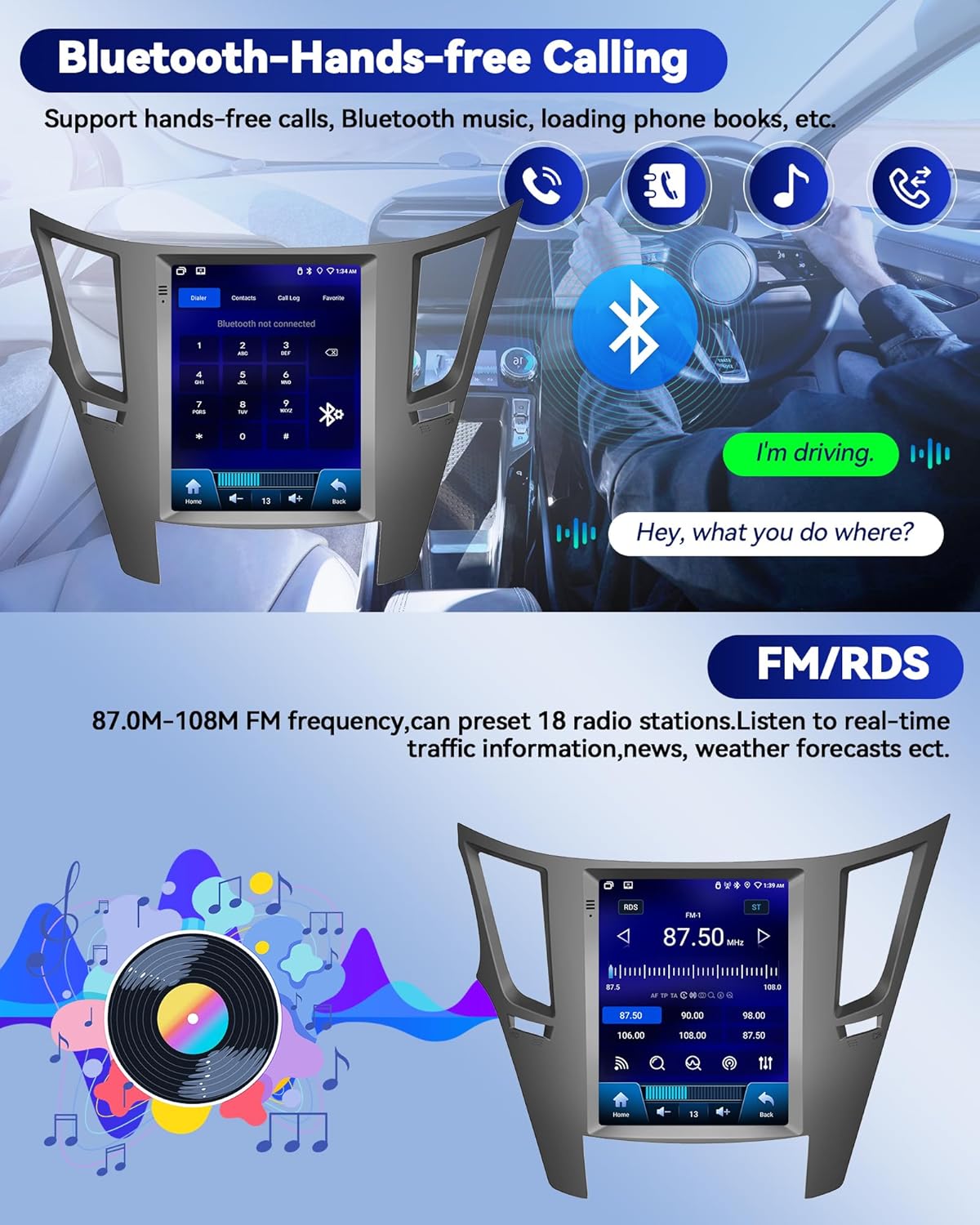
4.4 FM/RDS Radio
Enjoy FM/RDS radio with the ability to preset 18 radio stations. Stay informed with real-time traffic information, news, and weather forecasts.

4.5 DSP & EQ Settings
Elevate your audio experience with advanced DSP audio technology and a 32-band EQ for customized sound. Explore various audio modes and adjustments for an immersive and tailored audio experience.


4.6 GPS Navigation & WiFi Connection
The car stereo has a built-in GPS receiver and WiFi connectivity. This enables both online and offline navigation, internet browsing, and access to various applications like GPS Maps, YouTube, TikTok, and Spotify. Stay connected while driving with incoming and outgoing calls, address book sync, and mobile phone music playback.


4.7 Steering Wheel Control (SWC)
The multimedia player supports the steering wheel control function, allowing you to manage song switching and volume directly from your steering wheel for safer driving.


5. Specifications
| Feature | Detail |
|---|---|
| Item Weight | 4.13 pounds |
| Product Dimensions | 10 x 6 x 3 inches |
| Display Size | 9.7 Inches |
| Voice Command | Touchscreen |
| Brand | CAMECHO |
| Vehicle Service Type | Car |
| Special Feature | Android 13 4G+64G, CarPlay & Android Auto & Mirror Link, FM/RDS & EQ, GPS & WIFI, SWC & AHD Backup camera |
| Connectivity Technology | Bluetooth, USB, Wi-Fi |
| Map Type | Worldwide |
| Audio Output Mode | Stereo |
| Mounting Type | Dashboard Mount |
6. Troubleshooting
For common issues, please refer to the following:
- Connection Issues: Ensure Bluetooth and WiFi settings are correctly configured on both the car stereo and your smartphone. Verify that the correct pairing PIN (0000) is used for Bluetooth connections.
- CarPlay/Android Auto Not Connecting: Check for proper USB cable connection if using wired mode. For wireless, ensure your phone's personal hotspot is active and the car stereo is connected to it.
- No Sound: Check volume settings for media and calls in the car stereo's settings menu. Ensure 'Silence all sounds' is not enabled.
- Backup Camera Not Displaying: Verify the rear camera wiring connections, especially to the reversing light. The reversing input must be plugged in even when the camera is not in use.
- System Lag/Unresponsiveness: Ensure the system is up to date. Close unnecessary background applications.
7. Warranty and Support
7.1 Warranty Information
The product comes with a 1-year warranty. For detailed information regarding warranty claims and coverage, please contact customer support.
7.2 Customer Support
For online help and user manual inquiries, you can contact CAMECHO customer service. Look for the 'Ask a question' button on the product page or contact them via email.


