
1. Introduction
Thank you for choosing the INFINMIND Wireless Bluetooth Mouse. This manual provides detailed instructions for the Y670G (rechargeable green mouse) and D890 (battery-powered black mouse) models, designed for multi-device connectivity and enhanced productivity. Please read this manual carefully before use to ensure optimal performance and longevity of your device.
2. Package Contents
- 1 x INFINMIND Wireless Bluetooth Green Mouse (Y670G)
- 1 x INFINMIND Wireless Bluetooth Black Mouse (D890)
- 2 x 2.4GHz USB Receivers (one for each mouse)
- 1 x USB Charging Cable (for Y670G mouse)
- 2 x AA Batteries (pre-installed in D890 mouse)
- 1 x User Manual
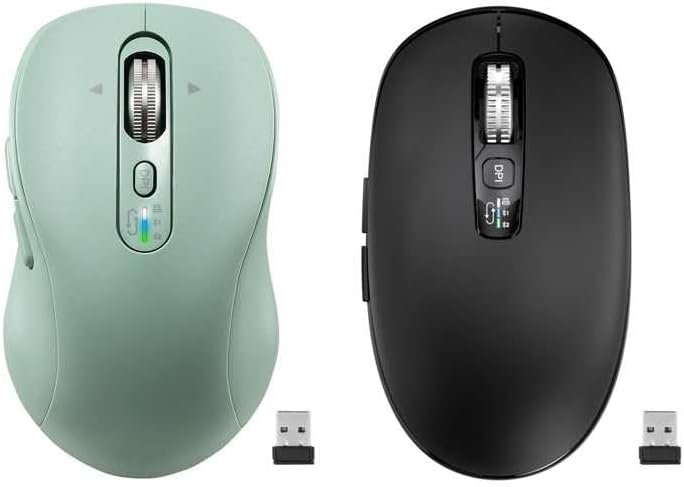
Image: The package includes both the green rechargeable mouse and the black battery-powered mouse, along with their respective USB receivers.
3. Product Overview
Familiarize yourself with the buttons and features of your INFINMIND wireless mice.
3.1 Green Rechargeable Mouse (Y670G)

Image: Detailed view of the green mouse with labels for each button and indicator.
- Left Button: Standard left-click function.
- Right Button: Standard right-click function.
- Smart Flying Scroll Wheel: For vertical and horizontal scrolling.
- ON/OFF Button: Power switch for the mouse.
- DPI Button: Adjusts cursor sensitivity (1000/1600/2400/3200 DPI).
- Devices Indicators: LED lights (White, Blue, Green) to show active connection mode (2.4G USB, Bluetooth 1, Bluetooth 2).
- Devices Switch Button: Cycles between 2.4G USB, Bluetooth 1, and Bluetooth 2 connections.
- Forward Button: Navigates forward in web browsers or file explorers.
- Back Button: Navigates backward in web browsers or file explorers.
- Windows/Mac System Switch Button: Optimizes mouse functions for Windows or macOS.
3.2 Black Battery-Powered Mouse (D890)

Image: The black mouse features a similar ergonomic design and button layout to the green model, with a DPI button and scroll wheel.
The black D890 mouse shares most functionalities with the Y670G, including Left/Right buttons, Scroll Wheel, DPI button, Forward/Back buttons, and multi-device switching. The primary difference is its power source (AA batteries) and the specific indicator lights for connection modes.
4. Setup
Your INFINMIND mice support three connection modes: 2.4GHz wireless via USB receiver, and two independent Bluetooth channels (BT1 and BT2).

Image: The mouse can connect to a tablet via Bluetooth 2, a monitor via Bluetooth 1, and a laptop via 2.4GHz wireless, switching between them with a single click.
4.1 2.4GHz Wireless Connection
- Locate the USB receiver. For the Y670G, it is typically stored in a slot on the bottom of the mouse. For the D890, it is also stored in a similar slot.
- Plug the USB receiver into an available USB port on your computer.
- Turn on the mouse using the ON/OFF switch on the bottom.
- Press the Devices Switch Button until the White LED indicator lights up, indicating 2.4G mode. The mouse should connect automatically.
4.2 Bluetooth Connection (BT1 & BT2)
- Turn on the mouse using the ON/OFF switch.
- Press the Devices Switch Button to select either Bluetooth Mode 1 (Blue LED) or Bluetooth Mode 2 (Green LED).
- To enter pairing mode: Press and hold the Devices Switch Button for 3-5 seconds until the corresponding LED (Blue or Green) starts flashing rapidly.
- On your device (computer, tablet, phone), open Bluetooth settings.
- Search for new devices and select "INFINMIND Mouse" (or similar name) from the list.
- Once paired, the LED indicator will stop flashing and remain solid for a few seconds before turning off, confirming the connection.
4.3 Switching Between Connected Devices
To switch between your connected devices (2.4G, BT1, BT2), simply press the Devices Switch Button. The LED indicator will briefly light up in White, Blue, or Green to show which mode is currently active.
5. Operating Instructions
5.1 DPI Adjustment
Press the DPI Button (located below the scroll wheel) to cycle through the available DPI settings: 1000, 1600, 2400, and 3200 DPI. A higher DPI setting increases cursor sensitivity, making the cursor move faster across the screen with less physical mouse movement.
5.2 4-Way Hyper-Fast Scrolling
The scroll wheel supports both vertical and horizontal scrolling.
- Vertical Scrolling: Roll the scroll wheel up or down.
- Horizontal Scrolling: Tilt the scroll wheel to the left or right. This allows for seamless navigation across wide documents or web pages.

Image: The scroll wheel can be moved Upward, Downward, Left, and Right for comprehensive navigation.
5.3 Forward/Back Buttons
Use the Forward and Back buttons (located on the side of the mouse) to quickly navigate through web pages, documents, or folders.
5.4 System Switch (Windows/Mac)
The Y670G mouse includes a dedicated Windows/Mac System Switch Button on its underside. Toggle this switch to optimize mouse functionality and gestures for your operating system.
5.5 Silent Click Design
Both mice feature a silent click design, reducing click noise for a quieter working environment, ideal for offices and shared spaces.

Image: The mouse is designed for quiet operation, minimizing click sounds.
6. Power Management
6.1 Charging the Y670G (Rechargeable Green Mouse)
The Y670G mouse is equipped with a built-in rechargeable battery.
- Connect the provided USB charging cable to the charging port on the front of the mouse and to a USB power source (e.g., computer USB port, USB wall adapter).
- A full charge typically takes approximately 2 hours.
- A single full charge can provide up to 60 days of use, depending on usage patterns.
- Note: Fast charging is not supported. Please use standard USB charging.
6.2 Battery Installation for D890 (Battery-Powered Black Mouse)
The D890 mouse operates on 2 AA batteries, which are pre-installed.
- To replace batteries, open the battery compartment cover on the underside of the mouse.
- Insert two new AA batteries, ensuring correct polarity (+/-).
- Close the battery compartment cover securely.
- Battery life can extend up to 40 months, varying based on usage and environmental factors.
6.3 Auto Sleep Function
Both mice feature an intelligent auto-sleep function to conserve power. If inactive for 5 minutes, the mouse will enter sleep mode. To wake it up, simply click any button or move the mouse.
7. Maintenance
- Keep the mouse clean by wiping it with a soft, dry cloth. Avoid using harsh chemicals or abrasive materials.
- Do not expose the mouse to extreme temperatures, direct sunlight, or moisture.
- Store the USB receiver in its designated slot on the mouse when not in use to prevent loss.
8. Troubleshooting
| Problem | Possible Cause | Solution |
|---|---|---|
| Mouse not responding | Low battery (Y670G) / Dead batteries (D890) Mouse is off Incorrect connection mode selected USB receiver not plugged in (2.4G) Bluetooth not paired or disconnected | Charge the Y670G mouse or replace AA batteries in D890. Turn on the mouse. Press the Devices Switch Button to select the correct mode (White for 2.4G, Blue for BT1, Green for BT2). Ensure the USB receiver is securely plugged into a working USB port. Re-pair the mouse via Bluetooth settings on your device. |
| Cursor erratic or jumpy | Dirty sensor Using mouse on unsuitable surface Interference | Clean the optical sensor on the bottom of the mouse with a soft cloth. Use the mouse on a clean, non-reflective, opaque surface or a mouse pad. Move the mouse closer to the receiver/device or away from other wireless devices. |
| Cannot switch between devices | Devices not properly paired/connected | Ensure all desired devices are correctly paired (Bluetooth) or connected (2.4G). Follow setup instructions for each connection mode. |
9. Specifications
- Connectivity: 2.4GHz Wireless, Bluetooth 5.0 (BT1, BT2)
- DPI Settings: 1000 / 1600 / 2400 / 3200 DPI
- Buttons: 10 (Left, Right, Scroll Wheel, DPI, Forward, Back, Devices Switch, System Switch, ON/OFF)
- Scrolling: 4-Way Hyper-Fast Scrolling (Vertical & Horizontal)
- Power Source:
- Y670G: Rechargeable Lithium Battery (USB-C charging)
- D890: 2 x AA Batteries
- Battery Life:
- Y670G: Up to 60 days on a 2-hour charge
- D890: Up to 40 months (varies with usage)
- Compatibility: Windows, macOS, Chrome OS, Linux, iPadOS, Android (with Bluetooth)
- Ergonomics: Designed for Small to Medium-sized hands (Y670G), Medium to Large hands (D890)
- Special Features: Silent Click, Auto Sleep Function
10. Warranty and Support
INFINMIND products are designed for reliability and performance. For any questions, technical support, or warranty inquiries, please refer to the contact information provided with your purchase or visit the official INFINMIND website. Please retain your proof of purchase for warranty claims.