
1. Introduction
This manual provides detailed instructions for the proper use and maintenance of your ORICO A10 2TB External Solid State Drive. Please read this manual thoroughly before using the product to ensure optimal performance and longevity. The ORICO A10 is a high-speed, portable storage solution designed for seamless data transfer across various devices.
2. Product Overview
Key Features
- Lightning-Fast Transfer Speeds: Achieve read/write speeds up to 1050MB/s for efficient handling of large files.
- Dual-Port 2-in-1 Design: Equipped with both USB-C and USB-A connectors for broad compatibility without adapters.
- 90° Click-Stop Rotating Design: Ensures secure connections and protects unused ports.
- 4K 120 fps ProRes Support: Ideal for direct external recording and editing with compatible devices like iPhone 16 Pro Max.
- Massive 2TB Storage Capacity: Ample space for high-resolution photos, 4K videos, and data backups.
- Durable Zinc Alloy Casing: Provides shockproof protection and efficient heat dissipation.
What's in the Box
- ORICO A10 2TB External SSD
- User Manual
- Lanyard (may be included with some packages)

Image: The ORICO A10 2TB External SSD, showcasing its compact design and dual USB-A and USB-C connectors.
3. Setup
The ORICO A10 SSD is designed for plug-and-play functionality, requiring no driver installation for most operating systems.
Connecting to Your Device
- Identify the appropriate port on your device: USB-A or USB-C.
- Rotate the ORICO A10 SSD to expose the correct connector (USB-A or USB-C). The 90° click-stop mechanism will secure the connector in place.
- Gently insert the SSD into the corresponding port on your computer, smartphone, tablet, or other compatible device.
- The device should automatically recognize the SSD. You may receive a notification indicating that a new storage device has been connected.

Image: Close-up view of the ORICO A10 SSD highlighting its versatile USB-A and USB-C interfaces.

Image: The ORICO A10 SSD illustrating its 360-degree rotating design with 90-degree click-stops for secure positioning.
4. Operating Instructions
Data Transfer
Once connected, the ORICO A10 SSD will appear as an external drive on your device. You can drag and drop files, copy and paste, or use your device's file management system to transfer data to and from the SSD.
- For Computers (Windows/macOS): Open 'File Explorer' (Windows) or 'Finder' (macOS), locate the ORICO drive, and manage your files.
- For Smartphones/Tablets (Android/iOS): Use the device's native file manager app (e.g., 'Files' on iOS, 'My Files' on Android) to access and transfer data.
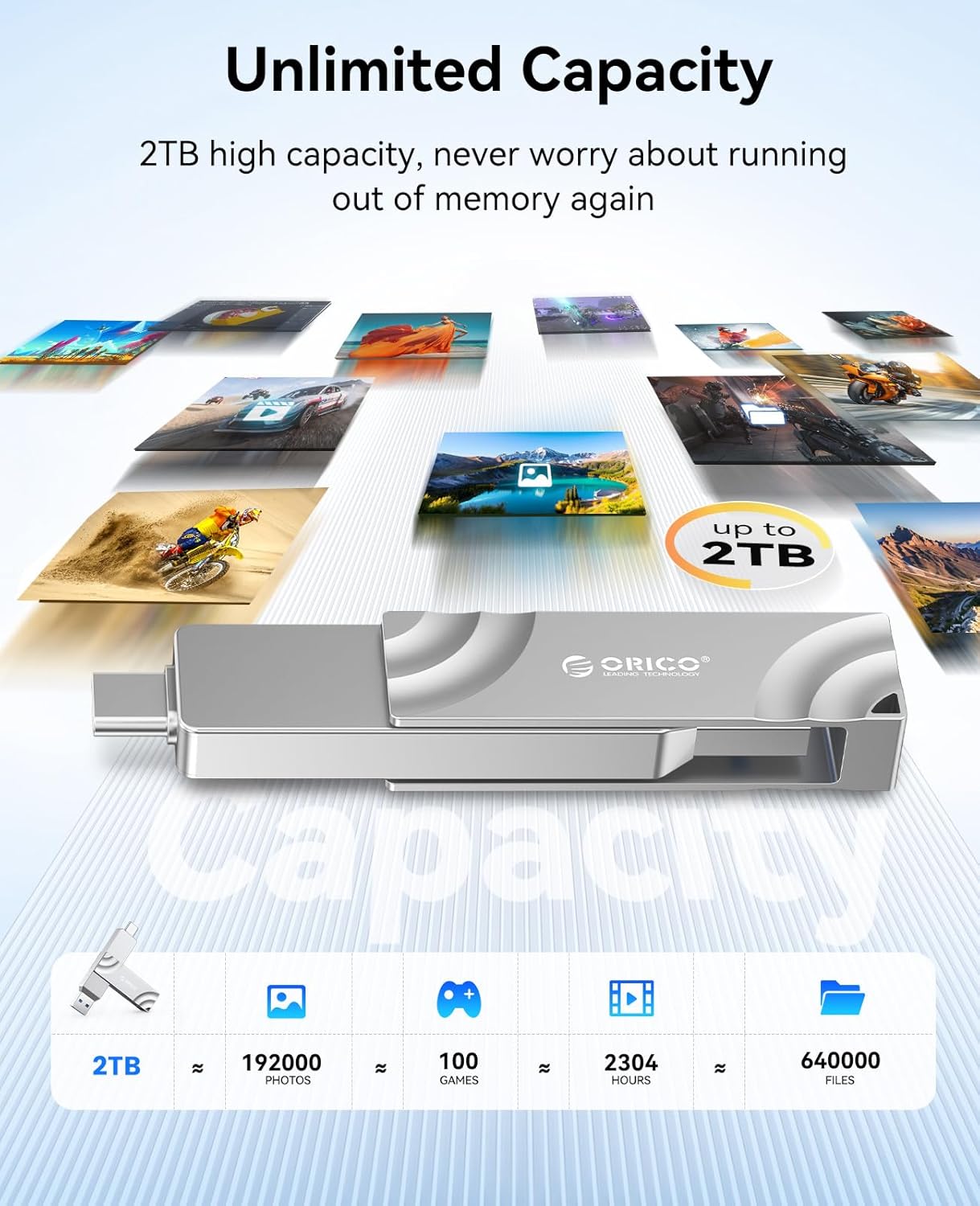
Image: The ORICO A10 SSD connected to a laptop, demonstrating its use for fast file transfers.

Image: The ORICO A10 SSD connected directly to an iPhone, enabling direct storage and access to files.
4K ProRes Recording with iPhone
The ORICO A10 SSD supports direct 4K 120 fps ProRes recording with compatible iPhone models (e.g., iPhone 15 Pro/Pro Max, iPhone 16 Pro/Pro Max).
- Connect the ORICO A10 SSD to your iPhone via the USB-C port.
- Open the Camera app on your iPhone.
- Ensure ProRes recording is enabled in your iPhone's camera settings (Settings > Camera > Formats > Apple ProRes).
- Select 'ProRes HDR' or the desired ProRes format within the Camera app.
- Begin recording. Your 4K ProRes video will be saved directly to the ORICO A10 SSD.
Official Product Videos
Video: Demonstrates the wide compatibility of the ORICO A10 SSD with G201 USB-A and USB-C ports across various devices.
Video: Highlights the 1050MB/s dual-port rotating metal portable SSD, showcasing its speed and design.
Video: Illustrates the high-speed capabilities of the external solid state drive for various applications.
Video: Shows the G201 External SSD's compatibility with mobile phones, facilitating easy data management.
5. Maintenance
- Safe Removal: Always safely eject or unmount the SSD from your device before physically disconnecting it to prevent data corruption.
- Temperature: The zinc alloy casing is designed for heat dissipation, but the device may become warm during prolonged high-speed transfers. This is normal. Avoid covering the device during use.
- Cleaning: Use a soft, dry cloth to clean the exterior of the SSD. Avoid liquid cleaners or abrasive materials.
- Storage: Store the SSD in a cool, dry place away from direct sunlight and extreme temperatures.

Image: The ORICO A10 SSD's robust zinc alloy shell, designed for durability and effective heat dissipation.
6. Troubleshooting
- SSD Not Recognized:
- Ensure the SSD is fully inserted into the USB port.
- Try a different USB port on your device.
- Test the SSD on another compatible device to rule out device-specific issues.
- For computers, check 'Disk Management' (Windows) or 'Disk Utility' (macOS) to see if the drive is detected but unformatted.
- Slow Transfer Speeds:
- Ensure you are using a USB 3.2 Gen 2 compatible port on your device for maximum speed. Older USB 2.0 or 3.0 ports will result in slower speeds.
- Close other applications that might be using system resources or performing background data transfers.
- The performance can vary based on the file size and type (many small files transfer slower than one large file).
- Data Corruption:
- Always use the 'Safely Remove Hardware' option (Windows) or 'Eject' (macOS) before disconnecting the SSD.
- Avoid physical shocks or drops to the device.
7. Specifications
| Brand | ORICO |
| Model Series | A10 |
| Capacity | 2 TB |
| Interface | USB-C, USB-A (Dual-Port) |
| Connectivity Technology | USB 3.2 Gen 2 |
| Read/Write Speeds | Up to 1050MB/s |
| Dimensions (LxWxH) | 3.15 x 0.39 x 0.63 inches |
| Item Weight | 2.89 ounces |
| Material | Zinc Alloy |
| Special Features | Backward Compatible, Hot Swappable, Portable, 90° Click-Stop Rotating Design |
| Compatible Devices | Desktop, Gaming Console, Laptop, Smartphone, Tablet (iPhone 15/16/17 Series, Mac, Android) |
8. Warranty and Support
Warranty Information
Your ORICO A10 External SSD is covered by a manufacturer's warranty. Please refer to the warranty card included with your product or visit the official ORICO website for detailed warranty terms and conditions. Keep your proof of purchase for warranty claims.
Customer Support
For technical assistance, troubleshooting, or product inquiries, please contact ORICO customer support through their official website or the contact information provided on your product packaging. Online resources, FAQs, and driver downloads (if applicable) may also be available on the ORICO support page.


