
Introduction
Welcome to the user manual for your Selore 13-in-1 Docking Station. This guide provides detailed instructions for setup, operation, maintenance, and troubleshooting to ensure optimal performance of your device. Please read this manual thoroughly before using the product.
Product Overview
The Selore 13-in-1 Docking Station is a versatile connectivity solution designed to expand the capabilities of your laptop or computer. It features multiple ports for video output, data transfer, network connectivity, and power delivery, transforming your device into a powerful workstation.
Key Features
- Enhanced 13-in-1 Connectivity: Features dual HDMI ports (up to 4K@60Hz), a DisplayPort (up to 8K@30Hz), a VGA port (up to 1080p@60Hz), multiple 10Gbps USB-A and USB-C data ports, a 100W Power Delivery charging port, an RJ45 Gigabit Ethernet port (1000Mbps), and SD/Micro SD card slots.
- Multiport USB-C Hub: Integrates essential ports for modern computing, including high-resolution video output, high-speed data transfer, and efficient power delivery.
Port Layout
Refer to the image below for a visual representation of the docking station's ports and their locations.
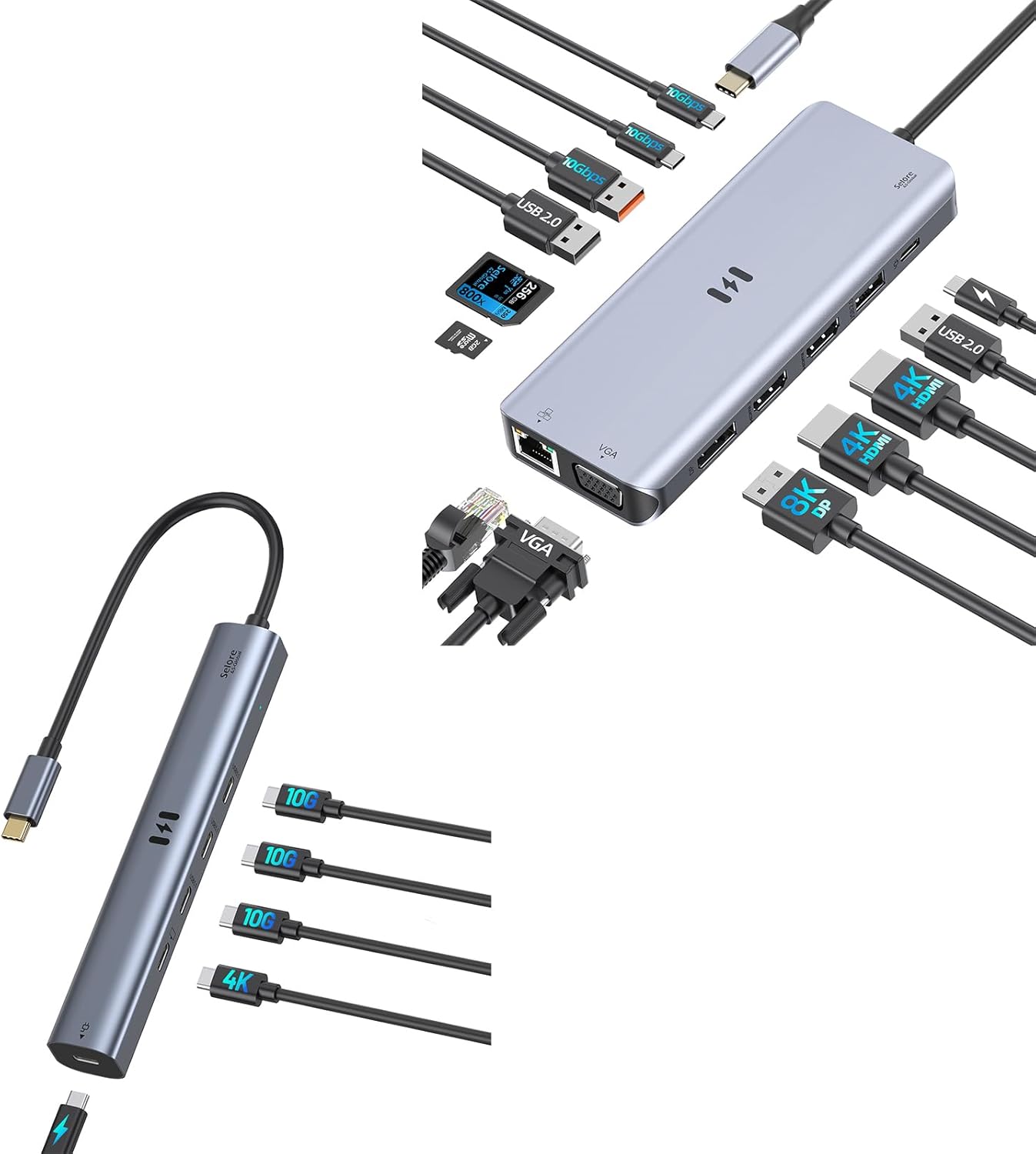
Image description: This image displays the Selore 13-in-1 Docking Station, a rectangular gray device, surrounded by various cables and accessories. On the left, a USB-C cable connects to a laptop. On the right, multiple display cables (HDMI 4K, DisplayPort 8K) and USB data cables (USB 2.0, 10Gbps USB-C) are shown connected or ready for connection. Memory cards (SD and Micro SD) are also visible, indicating the card reader functionality. The docking station itself features ports for Ethernet, VGA, HDMI, DisplayPort, USB-A, and USB-C.
Setup Instructions
Follow these steps to set up your docking station:
- Connect to Host Device: Plug the integrated USB-C cable from the docking station into a compatible USB-C port on your laptop or computer. Ensure your host device's USB-C port supports DisplayPort Alternate Mode (Alt Mode) and Power Delivery for full functionality.
- Power Connection (Recommended): For stable operation and to charge your host device, connect a USB-C power adapter (up to 100W, not included) to the dedicated USB-C Power Delivery (PD) port on the docking station.
- Connect Displays:
- For HDMI displays, connect HDMI cables from your monitors to the HDMI ports on the docking station.
- For DisplayPort monitors, connect a DisplayPort cable to the DP port.
- For VGA monitors, connect a VGA cable to the VGA port.
- Ensure your monitors are powered on and set to the correct input source.
- Connect Peripherals:
- Plug USB-A devices (e.g., keyboard, mouse, external hard drive) into the USB-A data ports.
- Plug USB-C devices into the USB-C data ports.
- Insert SD or Micro SD cards into the respective slots for data transfer.
- Network Connection: For a stable wired internet connection, connect an Ethernet cable from your router or modem to the RJ45 port on the docking station.
- Driver Installation: In most cases, the docking station is plug-and-play and does not require additional drivers. If you experience issues, check your operating system's display settings or the manufacturer's website for specific driver information.
Operating the Docking Station
Multi-Monitor Display Modes
The docking station supports various display configurations, including Mirror Mode and Extend Mode, depending on your operating system.
- Mirror Mode: Duplicates your primary display across all connected monitors.
- Extend Mode: Expands your desktop across multiple monitors, allowing for increased workspace.
To configure display settings:
- Windows: Right-click on the desktop, select "Display settings," and arrange your displays as desired.
- macOS: Go to "System Preferences" > "Displays" > "Arrangement" to configure your monitors.
Data Transfer
Utilize the 10Gbps USB-A and USB-C ports for high-speed data transfer with compatible devices. The SD and Micro SD card slots allow for quick access to memory card content.
Power Delivery
When a power adapter is connected to the PD port, the docking station can charge your host laptop while simultaneously powering connected peripherals.
Ethernet Connectivity
The RJ45 Gigabit Ethernet port provides a stable and fast wired network connection, ideal for large file transfers or online gaming.
Maintenance
Proper maintenance ensures the longevity and optimal performance of your docking station:
- Keep the docking station clean and free from dust. Use a soft, dry cloth for cleaning.
- Avoid exposing the device to extreme temperatures, humidity, or direct sunlight.
- Do not attempt to disassemble or repair the docking station yourself. Contact customer support for assistance.
- Disconnect all cables when the device is not in use for extended periods.
Troubleshooting
If you encounter issues, refer to the following common problems and solutions:
No Display Output
- Ensure all display cables are securely connected to both the docking station and the monitors.
- Verify that your host device's USB-C port supports DisplayPort Alt Mode.
- Check your computer's display settings to ensure the external monitors are detected and configured correctly.
- Try connecting one monitor at a time to isolate the issue.
- Ensure the docking station is receiving sufficient power, especially when connecting multiple high-resolution displays.
USB Devices Not Recognized
- Reconnect the USB device to a different port on the docking station.
- Ensure the docking station is properly connected to your host device.
- If using a high-power USB device, ensure the docking station is connected to an external power source.
Ethernet Connection Issues
- Check the Ethernet cable connection at both ends (docking station and router/modem).
- Verify that your network drivers are up to date on your host device.
- Test the Ethernet cable with another device to rule out cable issues.
Charging Issues
- Ensure your USB-C power adapter is connected to the PD port and is capable of delivering sufficient power (e.g., 65W or 100W).
- Verify that your host device supports USB-C Power Delivery.
Specifications
| Feature | Detail |
|---|---|
| Model | 13-in-1 Docking Station |
| Host Connection | USB-C |
| Video Output | 2x HDMI (up to 4K@60Hz), 1x DisplayPort (up to 8K@30Hz), 1x VGA (up to 1080p@60Hz) |
| USB Data Ports | 3x USB-C (10Gbps), 2x USB-A (10Gbps), 2x USB-A (USB 2.0) |
| Ethernet | 1x RJ45 Gigabit Ethernet (1000Mbps) |
| Card Reader | 1x SD Card Slot, 1x Micro SD Card Slot |
| Power Delivery | 1x USB-C PD (up to 100W) |
| Compatibility | Devices with full-featured USB-C port (DisplayPort Alt Mode, Power Delivery) |
Warranty and Support
For warranty information and technical support, please refer to the product packaging or visit the official Selore&S-Global website. Keep your purchase receipt for warranty claims.
Contact Information:
- Brand: Selore&S-Global
- Website: Refer to the official brand website for the most current support information.
- Email: Refer to the official brand website for the most current support information.


