
1. Introduction and Product Overview
The ORICO 1TB External SSD A10 G201 is a high-performance portable storage device designed for rapid data transfer and broad compatibility. Featuring a dual-port USB 3.2 Gen 2 (USB-C and USB-A) interface, it offers transfer speeds up to 1050MB/s, making it suitable for handling large files such as high-resolution videos, photos, and design documents. Its robust zinc alloy casing ensures durability and efficient heat dissipation during operation. The innovative 90° click-stop rotating design provides secure connections and versatile use across various devices.
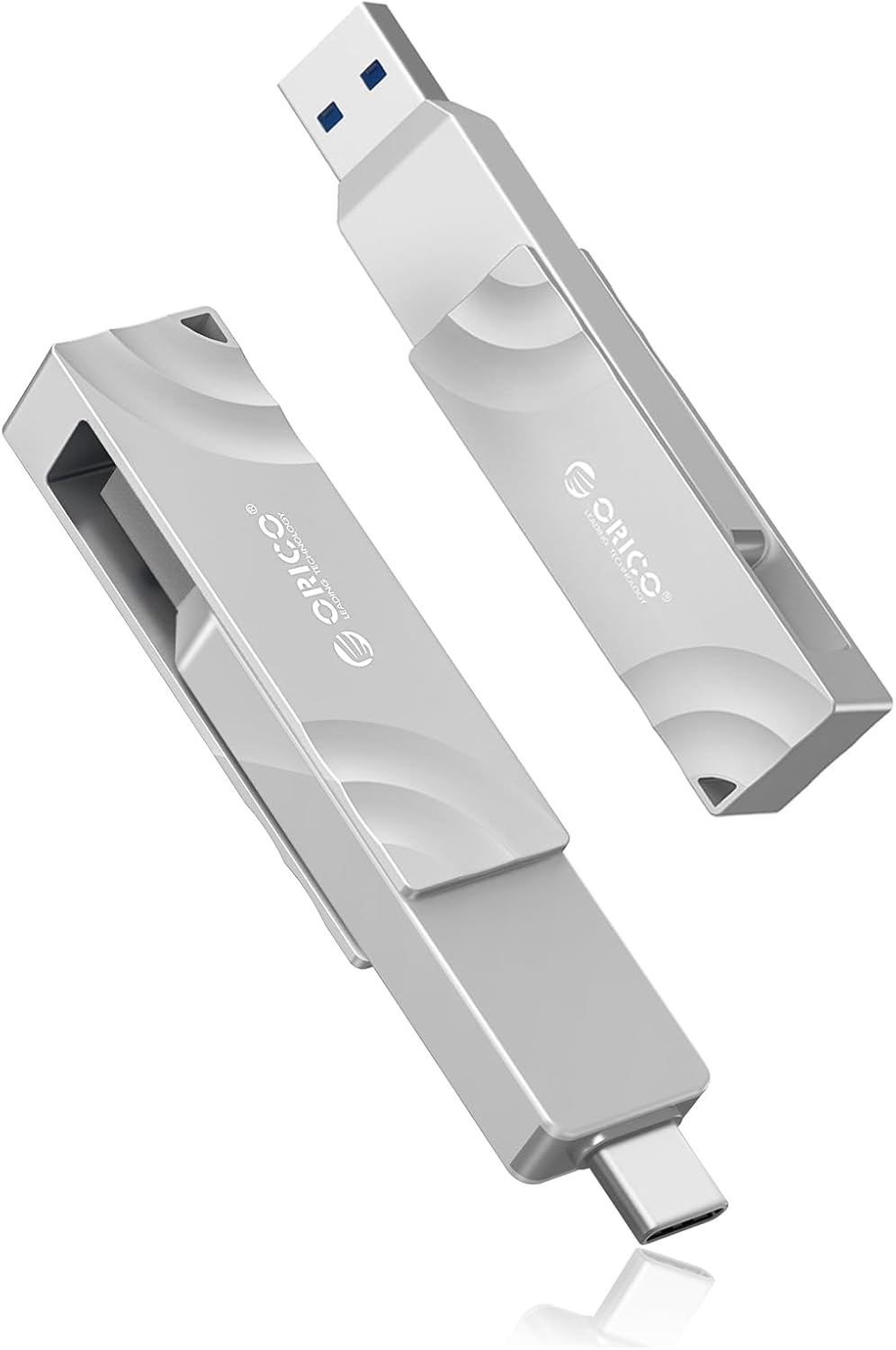
Figure 1: ORICO 1TB External SSD A10 G201, showcasing its compact design and dual connectors.
Key Features:
- Lightning-Fast Transfer Speeds: Achieve up to 1050MB/s for efficient handling of high-resolution media and large files.
- Dual-Port 2-in-1 Design: Integrated USB-C and USB-A connectors allow seamless, high-speed data transfers between modern USB-C devices (e.g., MacBook, iPad Pro, Galaxy phones) and traditional USB-A ports (e.g., laptops, game consoles, car media systems) without adapters.
- 4K 120 fps ProRes Support: Directly supports 4K ProRes recording for iPhone 16 Pro Max and similar devices, enabling high-quality content capture.
- Massive 1TB Storage Capacity: Provides ample space for high-resolution photos, 4K videos, and data backups.
- Versatile Dual Interface with 360-Degree Rotation: The rotating design with 90-degree click-stops ensures secure and convenient compatibility across various devices.
- Durable Zinc Alloy Casing: Constructed with a robust zinc alloy shell for shockproof protection and effective heat dissipation, ensuring data safety and longevity.
2. Setup and Connection
The ORICO A10 G201 SSD is designed for plug-and-play functionality across a wide range of devices. No special drivers are typically required for basic file transfer operations.
Connecting to Devices:
- Identify the correct connector: The SSD features both a USB-A and a USB-C connector. Rotate the central body to expose the desired connector.
- Connect to your device: Plug the exposed connector directly into the corresponding port on your computer, smartphone, tablet, or other compatible device.
- Device Recognition: Your device should automatically detect the SSD as an external storage drive. You may receive a notification or see the drive appear in your file explorer (Windows/Mac) or file management app (Android/iOS).


Figure 2: The ORICO SSD connected to a laptop via USB-A and a smartphone via USB-C, demonstrating its dual-interface design.
3. Operating Instructions
File Transfer:
Once connected, you can transfer files to and from the ORICO SSD using your device's standard file management interface (e.g., File Explorer on Windows, Finder on Mac, Files app on iOS/Android). Simply drag and drop files or use copy/paste functions.

Figure 3: Visual representation of high-speed file transfer (1GB in 1 second) between a laptop and the ORICO SSD.
iPhone 15 Series File Backup:
For iPhone 15 series users, follow these steps to back up files directly to the ORICO SSD:
- Step 1: Open the 'Files' app on your iPhone.
- Step 2: Tap 'Browse' to navigate through your files.
- Step 3: The ORICO external hard drive should appear under 'Locations'. Tap on it.
- Step 4: To view existing files or folders on the SSD, tap on the drive name.
- Step 5: To save files from your iPhone, select the desired photos or videos from your camera roll or other locations.
- Step 6: Tap the share icon (usually a square with an arrow pointing up) and select 'Save to Files'.
- Step 7: In the 'Save to Files' menu, browse to the ORICO drive.
- Step 8: Select the ORICO external device as the destination.
- Step 9: Tap 'Save' to complete the transfer.
- Step 10: The storage process is now complete.


Figure 4: Step-by-step guide for backing up files from an iPhone 15 series to the ORICO SSD.
Enabling 4K ProRes HDR Recording on iPhone:
This feature is supported on iPhone 15 Pro/Pro Max and iPhone 16 Pro/Pro Max models. To enable 4K ProRes HDR recording directly to your ORICO SSD:
- Step 1: Go to 'Settings' > 'Camera' on your iPhone.
- Step 2: Tap 'Formats' and ensure 'Apple ProRes' is turned on.
- Step 3: Open the Camera app, switch to 'Video' mode, and tap 'ProRes HDR' to activate it.

Figure 5: Instructions for enabling 4K ProRes HDR recording on compatible iPhone models for direct external recording.
Official Product Videos:
1050MB/s Dual-Port Rotating Metal Portable SSD
Video 1: This video demonstrates the ORICO SSD's dual-port rotating design and highlights its 1050MB/s transfer speeds. It shows the physical rotation mechanism and how it can be used with different port types.
High Speed External Solid State Drive
Video 2: A brief overview of the ORICO External SSD, emphasizing its high-speed capabilities and compact form factor.
G201 USB-A&USB-C Ports Wide Compatible
Video 3: This video showcases the wide compatibility of the G201 model, highlighting its USB-A and USB-C ports for use with various devices.
G201 External SSD Compatible with Mobile Phones
Video 4: A demonstration of the G201 External SSD's compatibility with mobile phones, illustrating how it can be used for direct storage and file management on smartphones.
4. Maintenance and Care
To ensure the longevity and optimal performance of your ORICO A10 G201 SSD, follow these maintenance guidelines:
- Physical Protection: The zinc alloy casing provides excellent durability. Avoid dropping the device or subjecting it to excessive force.
- Heat Management: During prolonged high-speed data transfers, the metal casing may become warm. This is a normal function of the zinc alloy acting as a heat sink to dissipate heat from the internal components. Ensure adequate ventilation around the device during intensive use.
- Cleaning: Use a soft, dry cloth to clean the exterior of the SSD. Avoid using liquid cleaners or abrasive materials.
- Safe Removal: Always safely eject the SSD from your device before unplugging it to prevent data corruption.
5. Troubleshooting
If you encounter issues with your ORICO A10 G201 SSD, consider the following common solutions:
- Device Not Recognized:
- Ensure the SSD is fully inserted into the USB port.
- Try a different USB port on your device.
- Test the SSD on another computer or compatible device to rule out a device-specific issue.
- Check your device's disk management utility to see if the drive is detected but unformatted.
- Slow Transfer Speeds:
- Ensure you are using a USB 3.2 Gen 2 compatible port on your device for optimal speeds. Older USB 2.0 or 3.0 ports will result in slower transfers.
- Close any unnecessary applications running in the background that might be consuming system resources.
- Verify the file system format of the SSD is appropriate for your operating system and usage.
- Overheating During Use:
- As noted in maintenance, the metal casing is designed to dissipate heat. Some warmth during extended high-speed transfers is normal.
- If the device becomes excessively hot and performance degrades, ensure it is not covered and has sufficient airflow. Disconnect it for a short period to allow it to cool down.
- Data Corruption:
- Always use the 'Safely Remove Hardware' or 'Eject' option before disconnecting the SSD.
- If data corruption occurs, you may need to reformat the drive (this will erase all data).
6. Specifications
| Feature | Detail |
|---|---|
| Brand | ORICO |
| Model Number | A10-1TB |
| Series | A10 |
| Hard Drive Type | Solid State Drive |
| Digital Storage Capacity | 1 TB |
| Connectivity Technology | USB |
| Hard Drive Interface | USB 3.2 Gen 2 (10Gbps) |
| Output Ports | USB-C (10Gbps) + USB-A (10Gbps) |
| Read/Write Speeds | Up to 1050MB/s |
| Material | Zinc Alloy |
| Color | G201 (Silver) |
| Item Weight | 2.89 ounces |
| Product Dimensions (LxWxH) | 3.15 x 0.39 x 0.63 inches |
| Compatible Devices | iPhone 15/16/17 Series, Mac, Android, PC, Laptops, Game Consoles, Car Media Systems |
| System Supported | Windows, Mac, Linux, Android, iPad OS |
7. Warranty and Support
ORICO products are manufactured to high-quality standards and are backed by a manufacturer's warranty. For specific warranty details, including duration and coverage, please refer to the warranty card included with your product or visit the official ORICO website.
For technical support, troubleshooting assistance, or any product-related inquiries, please contact ORICO customer service through their official channels. Contact information can typically be found on the product packaging, the official ORICO website, or the retailer's support page where the product was purchased.


