1. Introduction
This manual provides comprehensive instructions for the installation, operation, and maintenance of your Fortdows Car Radio Head Unit. Please read this manual thoroughly before installation and use to ensure proper function and safety. This unit is designed to enhance your driving experience with advanced features and seamless integration into your Jeep Wrangler JK.
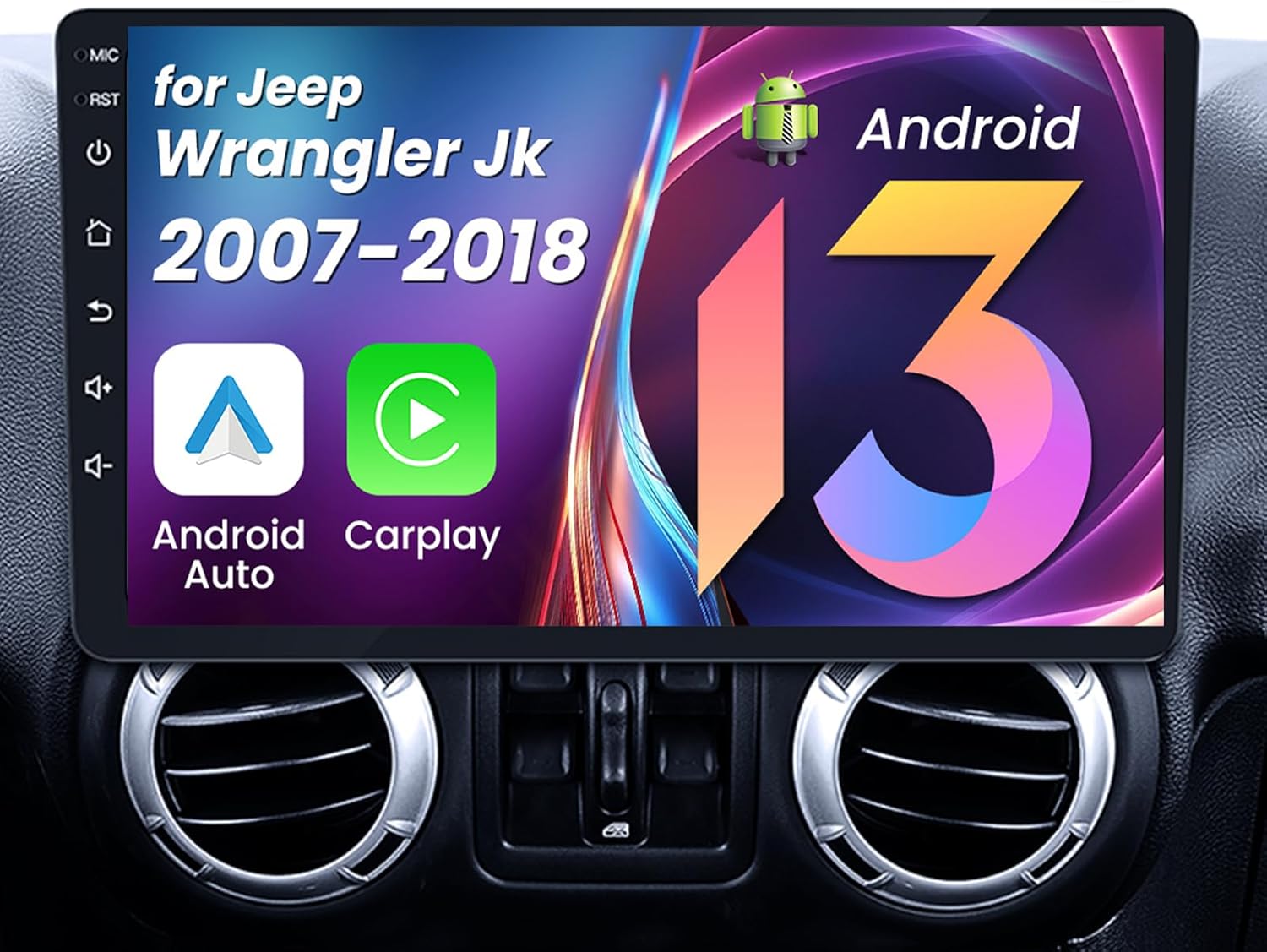
Image: Fortdows Car Radio Head Unit with a 10.1-inch IPS HD touchscreen, featuring Android 13, Android Auto, and CarPlay icons, seamlessly integrated into a Jeep Wrangler JK dashboard.
2. Package Contents
Verify that all items listed below are included in your package:
- Car Radio Head Unit (10.1-inch 2G RAM 32G ROM)
- Power Cable
- Mounting Kit
- Original USB Cable
- USB Cable x2
- RCA Cable
- CANBus Decoder
- GPS Antenna
- Reversing Line
- Backup Camera
- External Microphone
- Crowbar (Pry Tool)
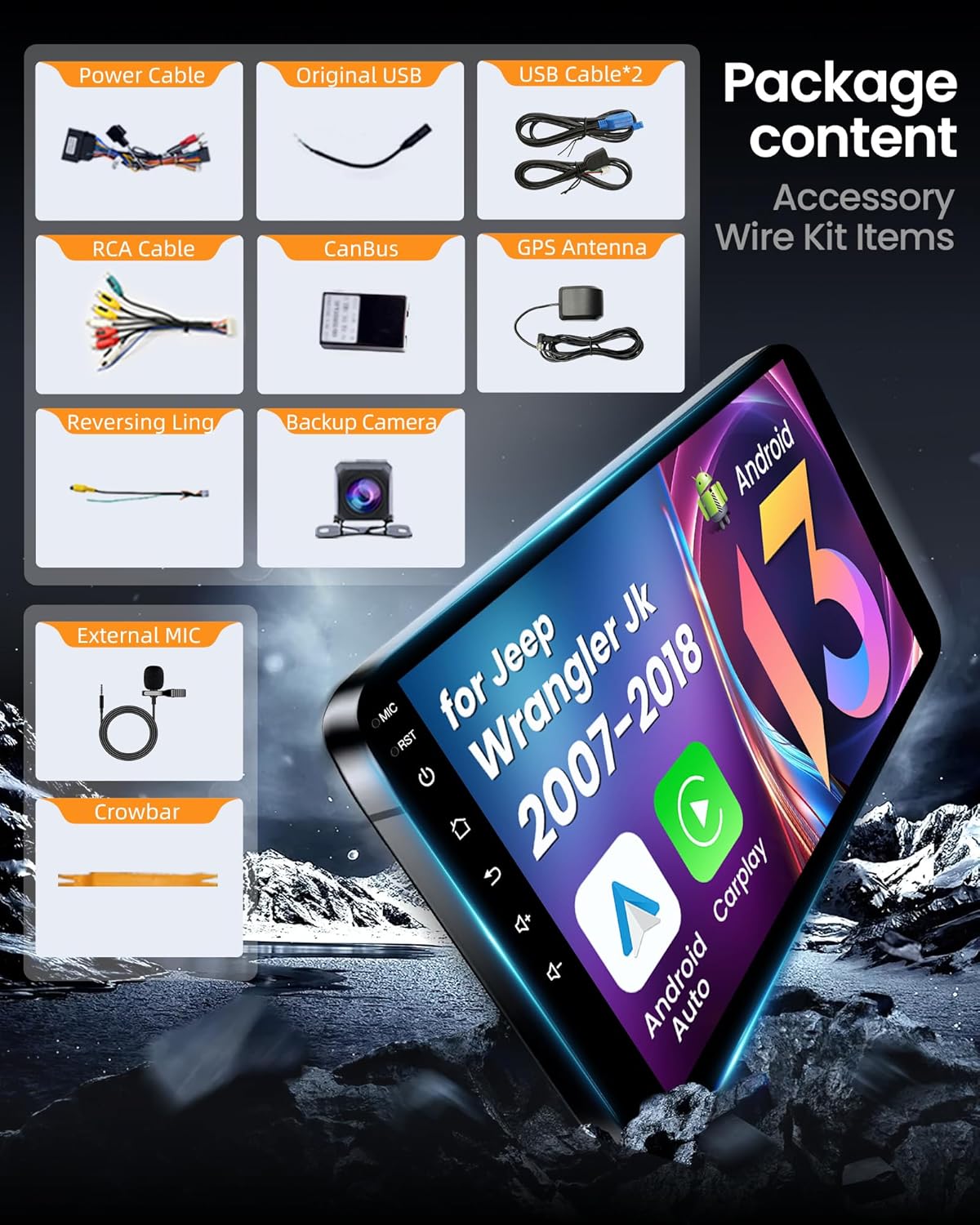
Image: A visual representation of the complete package contents, including the main head unit, various cables (power, USB, RCA), CANBus, GPS antenna, backup camera, external microphone, and pry tool.
Video: An unboxing video demonstrating the contents of a car radio upgrade package for Jeep and Dodge RAM vehicles, providing a visual guide to the included accessories.
3. Setup and Installation
Follow these steps carefully to install your new Fortdows Car Radio Head Unit. Professional installation is recommended if you are unfamiliar with car audio systems.
3.1. Removing the Original Head Unit
- Using the provided pry tool, carefully remove the plastic decorative strip around the original radio.
- Disconnect any wiring harnesses attached to the removed panels.
- Unscrew all retaining screws holding the original car radio in place.
- Gently pull out the old radio and disconnect all wires from its rear.
3.2. Connecting the New Head Unit Wiring
- Connect the main power cable harness to the corresponding port on the new head unit. Ensure to select the correct AMP connector (with or without amplifier) based on your vehicle's configuration.
- Connect the GPS antenna cable to the GPS port on the head unit. Route the antenna to a suitable location, typically on the dashboard or A-pillar, for optimal signal reception.
- Connect the radio antenna adapter cable to the head unit and the vehicle's existing radio antenna cable.
- Connect the USB cables to the head unit. Route these cables to the passenger glove compartment or another accessible location.
- Connect the external microphone to the head unit and route it to a desired location, such as near the rearview mirror or on the A-pillar.
- For the backup camera, connect the reversing signal cable to the head unit. The red wire of the camera should be connected to the backup light's positive terminal, and the black wire to ground.
- Connect the RCA cables for audio output, auxiliary input, or external video sources as needed.
Video: A detailed installation guide for the car radio in a Jeep JK Wrangler, demonstrating the steps for removing the old unit and connecting the new wiring.
Video: An installation video for a car radio in a Jeep Wrangler, showing the process of disassembling the dashboard and connecting the new head unit.
Video: Instructions on how to install a car radio in a Jeep Wrangler, covering the essential steps for a successful setup.
3.3. Installing the New Head Unit
- Carefully tuck all connected wires into the dashboard cavity, ensuring they are not pinched or obstructing any components.
- Align the new head unit with the dashboard opening and gently push it into place until it clicks securely.
- Reinstall any decorative panels and screws that were removed earlier.

Image: A side-by-side comparison showing the original car radio in a Jeep Wrangler JK dashboard (Before) and the new 10.1-inch Fortdows Car Radio Head Unit installed (After).
4. Operating Instructions
Your Fortdows Car Radio Head Unit offers a variety of features to enhance your driving experience.
4.1. Wireless CarPlay & Android Auto
Enjoy seamless integration of your smartphone with built-in wireless CarPlay and Android Auto. Access navigation, music, calls, and messaging apps directly on the car stereo's screen. This feature allows for safe and convenient use of your phone's functionalities while driving.

Image: The car radio screen displaying both Apple CarPlay and Android Auto interfaces, showing navigation, music, and phone applications for seamless smartphone integration.
Video: A short demonstration on how to connect CarPlay using Bluetooth and Tlink on the car radio unit.
4.2. Bluetooth Connectivity
Connect your smartphone via Bluetooth for hands-free calling and audio streaming. The system supports Bluetooth 5.0 for stable and high-quality connections.
Video: A tutorial demonstrating how to connect your car radio via Bluetooth and Zlink, including steps for manual WiFi connection if needed.
4.3. GPS Navigation
The integrated GPS system offers real-time navigation with both online and offline map support. This ensures you can navigate with ease whether you're connected to a network or not.

Image: The car radio screen showing a detailed GPS navigation map with route guidance and points of interest.
4.4. 5G WiFi Connectivity
Stay connected with 5G WiFi, allowing for faster streaming, downloads, and browsing. Whether accessing your favorite media or using GPS maps, the strong connection keeps your system running smoothly.
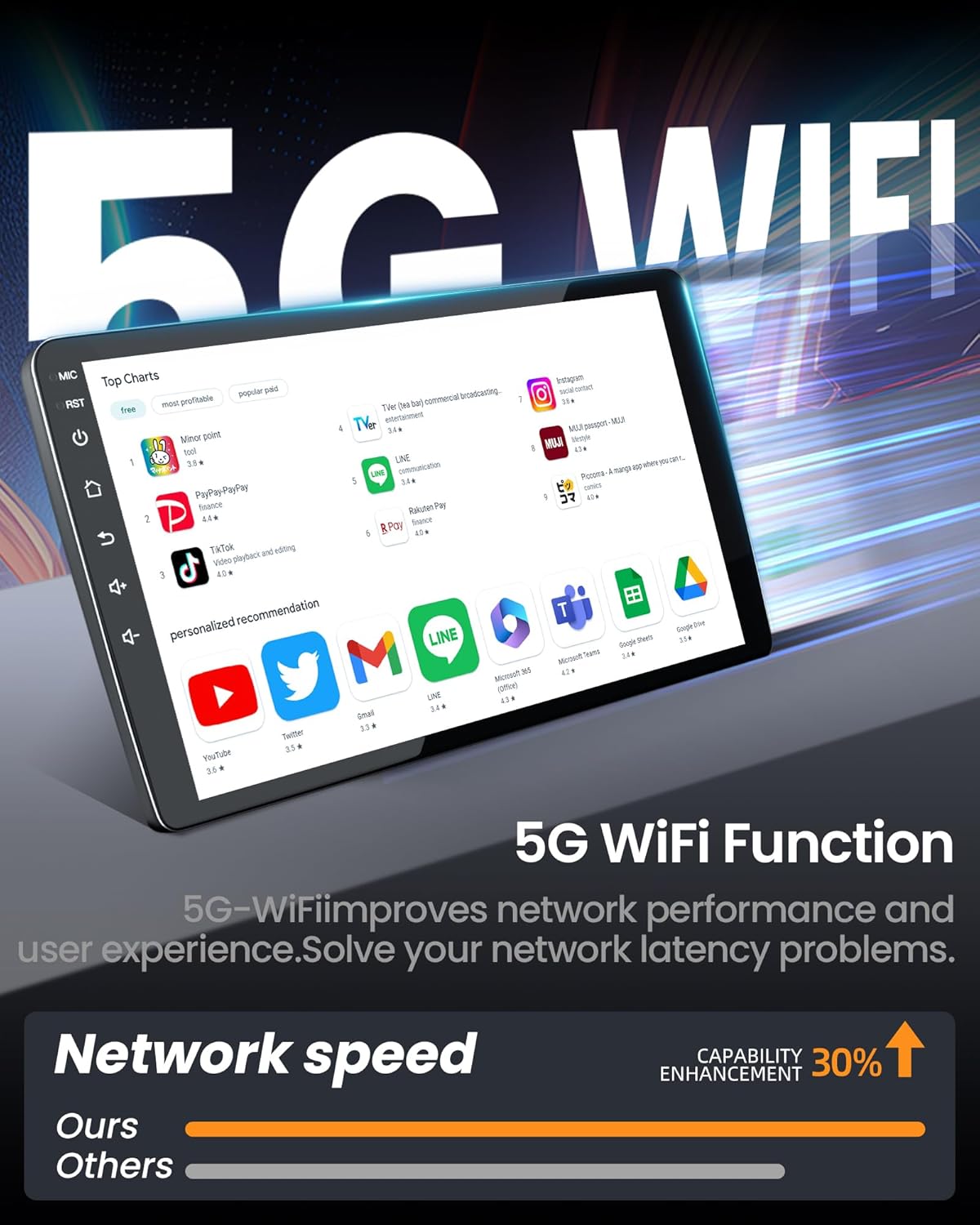
Image: The car radio screen showcasing the 5G WiFi function with various app icons, indicating improved network speed and capability enhancement.
4.5. FM Radio with DSP Sound
Tune into your favorite FM radio stations for music, news, and entertainment. The stereo is equipped with high-fidelity DSP sound, ensuring a premium audio experience with customizable equalizer settings.

Image: The car radio screen displaying the DSP (Digital Sound Processor) sound settings and equalizer interface, allowing for fine-tuning of audio output.
4.6. Steering Wheel Controls (SWC)
The unit supports your vehicle's original steering wheel controls, allowing you to manage audio, calls, and other functions without taking your hands off the wheel.

Image: A close-up of a car's steering wheel with integrated controls, highlighting how they can be used to operate the central car radio screen.
4.7. 1080P Rear-View Camera
The stereo supports a backup camera, providing added safety and convenience when reversing. The display automatically switches to the rearview camera, giving you a clear 1080P view of what's behind your vehicle.

Image: The car radio screen displaying a 1080P rear-view camera feed with parking guidelines, showing a clear view behind the vehicle.
5. Maintenance
To ensure the longevity and optimal performance of your Fortdows Car Radio, follow these maintenance guidelines:
- Screen Cleaning: Use a soft, lint-free cloth to gently wipe the touchscreen. For stubborn smudges, slightly dampen the cloth with water or a screen-safe cleaner. Avoid harsh chemicals or abrasive materials.
- Software Updates: Periodically check for software updates through the unit's settings menu. Keeping the software updated ensures you have the latest features and performance improvements.
- Environmental Care: Avoid exposing the unit to extreme temperatures, direct sunlight for prolonged periods, or excessive moisture.
- Cable Connections: Ensure all cables are securely connected. Loose connections can lead to intermittent functionality.
6. Troubleshooting
If you encounter any issues with your car radio, please refer to the common problems and solutions below. For persistent problems, contact customer support.
- No Power: Check all power cable connections. Ensure the vehicle's ignition is on. Verify the fuse in the power cable.
- No Sound: Check speaker connections. Ensure volume is not muted or set to zero. Verify audio settings (DSP, EQ).
- Bluetooth Connection Issues: Ensure Bluetooth is enabled on both the head unit and your smartphone. Delete previous pairings and try reconnecting.
- GPS Signal Loss: Ensure the GPS antenna is correctly installed and has a clear view of the sky.
- Touchscreen Unresponsive: Try restarting the unit. If the issue persists, a factory reset might be necessary (note: this will erase all custom settings).
- Backup Camera Not Displaying: Check the camera's power and video signal connections. Ensure the reversing wire is correctly connected to the vehicle's reverse light circuit.
Video: An essential troubleshooting guide that addresses 90% of common issues encountered with car stereo systems, offering solutions and tips.
7. Specifications
| Feature | Detail |
|---|---|
| Model | 2G RAM 32G ROM |
| Operating System | Android |
| Display Size | 10.1 Inches |
| Resolution | 1280x800 IPS HD Touchscreen |
| Memory Storage Capacity | 32 GB |
| Connectivity Technology | Bluetooth, Wi-Fi (5G) |
| Special Features | Wireless CarPlay, Android Auto, DSP, GPS Navigation, 1080P Rear-View Camera Support |
| Audio Output Mode | Stereo |
| Item Weight | 3.67 pounds |
| Package Dimensions | 12.2 x 8.39 x 5.47 inches |
8. Warranty and Support
Your Fortdows Car Radio Head Unit comes with the following:
- 1-Year Warranty: Covers manufacturing defects and malfunctions under normal use.
- 7-Day Return Policy: For returns due to defects or dissatisfaction.
- Return on Defects: Specific policy for products found to be defective.
For technical assistance, troubleshooting, or warranty claims, please contact our customer support:
- Email: fortdows.cam@gmail.com
- Website: www.fancygod.com


