
1. Introduction
This manual provides detailed instructions for the installation, operation, and maintenance of your new Fortdows Car Radio. Please read this manual thoroughly before installation and use to ensure proper functionality and safety.
1.1. Product Overview
The Fortdows Car Radio is an advanced 7-inch HD touchscreen stereo designed to upgrade your Jeep Wrangler JK (2007-2017) with modern features. It includes wireless Apple CarPlay and Android Auto, Bluetooth 5.4, 5G WiFi, GPS navigation, a 32-band EQ, and supports a 1080P rear-view camera.
1.2. Vehicle Compatibility
This head unit is specifically designed for the following vehicle models:
- Jeep Wrangler JK: 2007, 2008, 2009, 2010, 2011, 2012, 2013, 2014, 2015, 2016, 2017
The included CANBUS decoder ensures seamless integration with your vehicle's existing systems, displaying information such as reverse signals, door status, handbrake, air conditioning, vehicle settings, and amplifier information.

Figure 1: Fortdows Car Radio Main Unit
2. Package Contents
Please verify that all items listed below are included in your package:

Figure 2: All included accessories and wiring kits.
- Main Head Unit (7-inch Touch Screen)
- Power Cable
- Original USB Cable
- USB Cable (x2)
- RCA Cable
- CANBUS Decoder
- GPS Antenna
- Reversing Line
- Backup Camera
- External Microphone
- Crowbar (for panel removal)
3. Setup and Installation
The Fortdows Car Radio is designed for plug-and-play installation. No wire cutting is typically required. However, professional installation is recommended if you are unfamiliar with car audio systems.
3.1. Pre-Installation Steps
- Ensure the vehicle's ignition is off and the battery is disconnected to prevent electrical damage.
- Carefully remove the existing car radio and dashboard trim using the provided crowbar tool.
- Identify the vehicle's wiring harness and antenna connections.
3.2. Wiring Connections
Connect the provided wiring harnesses to the corresponding ports on the new head unit and the vehicle's wiring. Refer to the wiring diagram for detailed connections.
Video 1: Car Radio Installation Guide. This video demonstrates the physical installation process of the car radio, including panel removal and wiring connections.
Video 2: How to Upgrade Your Car with This Android Radio. This video provides a general overview of upgrading a car with an Android radio, which may include relevant installation steps.
Video 3: How to install Jeep Wrangler Radio? This video specifically details the installation process for a Jeep Wrangler radio.
3.3. Post-Installation
- Secure the new head unit into the dashboard opening.
- Reattach all dashboard trim pieces.
- Reconnect the vehicle battery.
- Turn on the ignition and test all functions of the new car radio.
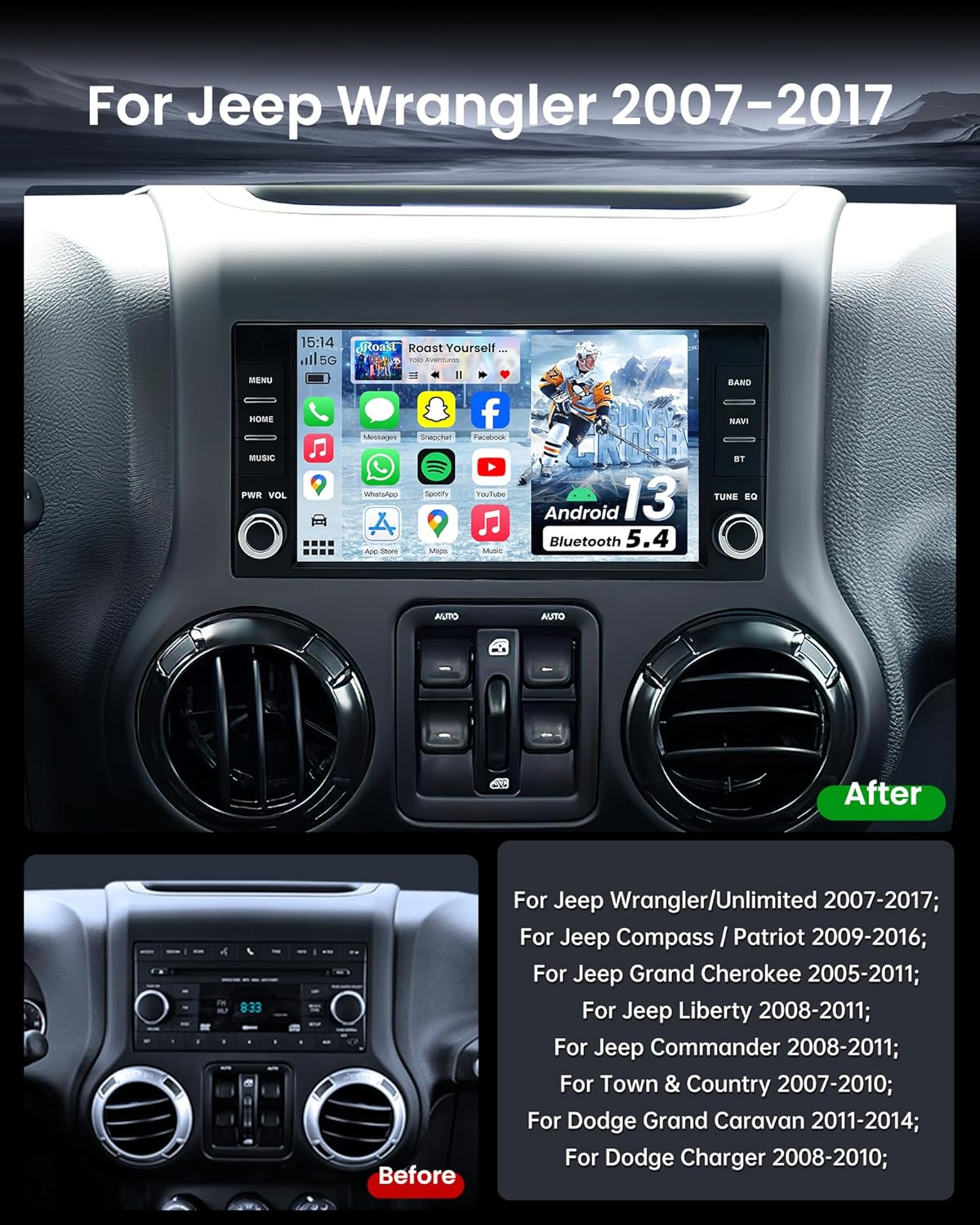
Figure 3: Comparison of the Jeep Wrangler JK dashboard before and after the car radio upgrade.
4. Operating Instructions
This section covers the basic operation of your Fortdows Car Radio.
Video 4: Real Function Display. This video demonstrates various functions and the user interface of the car radio.
Video 5: Instructions for Use. This comprehensive video covers various operational aspects of the car radio.
4.1. User Interface and Navigation
The 7-inch high-definition IPS touchscreen provides a responsive and intuitive interface. Swipe left or right to access different application pages. Tap on icons to launch applications or settings.
4.2. Wi-Fi Connection
To access online features, connect your car radio to a Wi-Fi network:
- Go to Settings > Network > Wi-Fi.
- Toggle Wi-Fi to On.
- Select your desired network from the list and enter the password if prompted.

Figure 4: The unit supports 5G WiFi for faster and more stable connections.
4.3. Bluetooth 5.4 Connectivity
Pair your smartphone via Bluetooth 5.4 for hands-free calling and audio streaming:
- Go to the Phone application or Settings > Bluetooth.
- Ensure Bluetooth is On on both your car radio and smartphone.
- Search for available devices on your smartphone and select the car radio's device name (e.g., "BCB-Android845").
- Confirm the pairing code on both devices.
4.4. Wireless Apple CarPlay & Android Auto
Connect your smartphone for seamless integration of navigation, music, and voice commands:
- Ensure Bluetooth and Wi-Fi are enabled on your smartphone.
- On the car radio, open the CarPlay or Android Auto application.
- Follow the on-screen prompts to connect your device wirelessly.

Figure 5: Wireless Apple CarPlay and Android Auto interfaces.
Video 6: How to connect Android Auto? BT&Tlink. This video specifically guides on connecting Android Auto via Bluetooth and Tlink.
4.5. GPS Navigation
The built-in GPS supports both online and offline navigation. For offline maps, download them via a Wi-Fi connection. The high-sensitivity chip provides fast satellite acquisition and real-time traffic updates (with internet connection).
4.6. FM/RDS Tuner
Access the Radio application to listen to FM stations. The QN8035 tuner provides stable FM signals and real-time RDS station information.
4.7. Audio Settings (EQ & Sound Field)
Customize your audio experience with the 32-band EQ and subwoofer output:
- Open the EQ application.
- Adjust the frequency bands to fine-tune the sound.
- Use the Sound Field settings to adjust audio balance and fader for optimal sound distribution within the vehicle.

Figure 6: Professional RDS Sound and detailed EQ settings for audio customization.
4.8. Steering Wheel Controls (SWC)
The unit supports your vehicle's original steering wheel controls. Configuration may be required:
- Go to Settings > Vehicle Settings > SWC.
- Follow the on-screen instructions to program each button on your steering wheel.

Figure 7: The car radio supports original steering wheel controls for safe operation.
4.9. Rear-View Camera
The included 1080P HD rear-view camera provides a 170° ultra-wide angle and enhanced night vision. The display automatically switches to the reversing image when the vehicle is in reverse gear, showing clear obstacle visibility.
4.10. Split-Screen Function
The split-screen feature allows you to run two applications simultaneously, such as navigation and music playback.
5. Maintenance
5.1. Screen Cleaning
Use a soft, lint-free cloth to clean the touchscreen. For stubborn smudges, lightly dampen the cloth with water or a screen-safe cleaner. Avoid harsh chemicals or abrasive materials.
5.2. Software Updates
Periodically check for software updates to ensure optimal performance and access to new features. Updates can typically be found in the system settings or on the manufacturer's website.
6. Troubleshooting
If you encounter any issues, please refer to the following common solutions:
- No Power: Check all power connections and ensure the vehicle battery is properly connected. Verify fuses.
- No Sound: Check speaker connections, volume levels, and EQ settings. Ensure the correct audio source is selected.
- Bluetooth/CarPlay/Android Auto Connection Issues: Ensure Bluetooth is enabled on both devices. Try unpairing and re-pairing the device. Restart both the car radio and your smartphone.
- GPS Signal Loss: Ensure the GPS antenna is properly installed and has a clear view of the sky.
- Touchscreen Unresponsive: Perform a system reset (refer to the device settings for the reset option).
For persistent issues, please contact Fortdows customer support.
7. Specifications
| Feature | Specification |
|---|---|
| Model | B0F5GD72MK |
| Operating System | Android 13 |
| RAM | 4GB |
| ROM | 64GB |
| Screen Size | 7-inch |
| Display Resolution | 1280x800 HD IPS |
| Connectivity | Bluetooth 5.4, 5G Wi-Fi, USB |
| Special Features | CarPlay, Android Auto, GPS Navigation, Split-screen, 32-band EQ, RDS Tuner, 1080P Backup Camera Support |
| Audio Output | 4x45W Stereo |
| Item Weight | 2.94 pounds |
| Package Dimensions | 10.67 x 9.76 x 3.82 inches |
8. Warranty and Support
Fortdows provides lifetime after-sales technical support to assist you with any installation or operation problems. Please contact our customer service team for assistance.


